Talent Trends Report
It allows you to get different statistics related to your talent. You can run the report using various criteria and export the results:
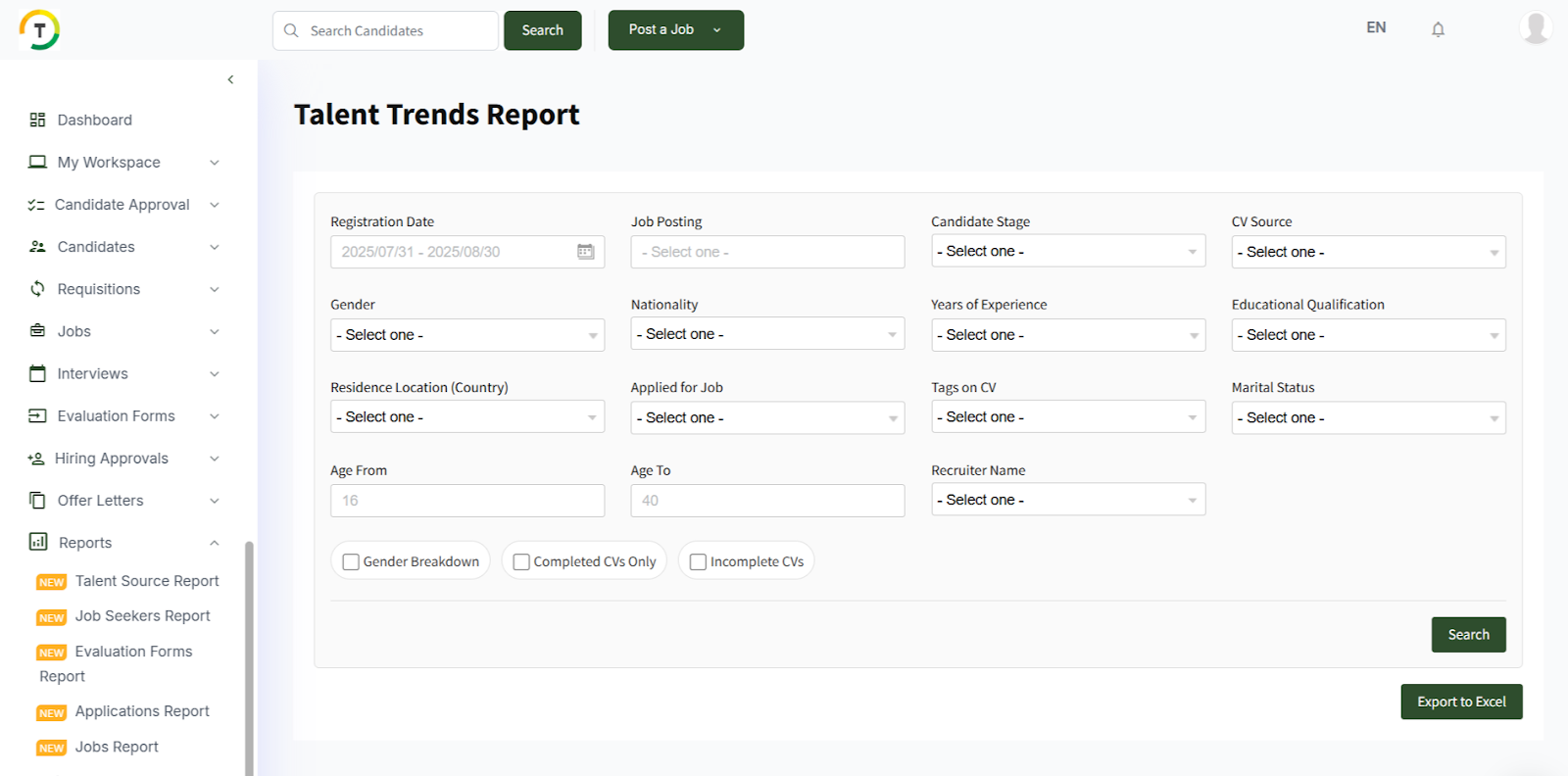
Available Filters:
- Registration Date- Job Posting- Candidate Stage- CV Source- Gender- Nationality
- Years of Experience- Educational Qualification- Residence Location- Applied for Job- Tags on CV
- Marital Status
- Age From- Age To
You can choose to search within completed CVs only or the incomplete CVs and breakdown by gender.

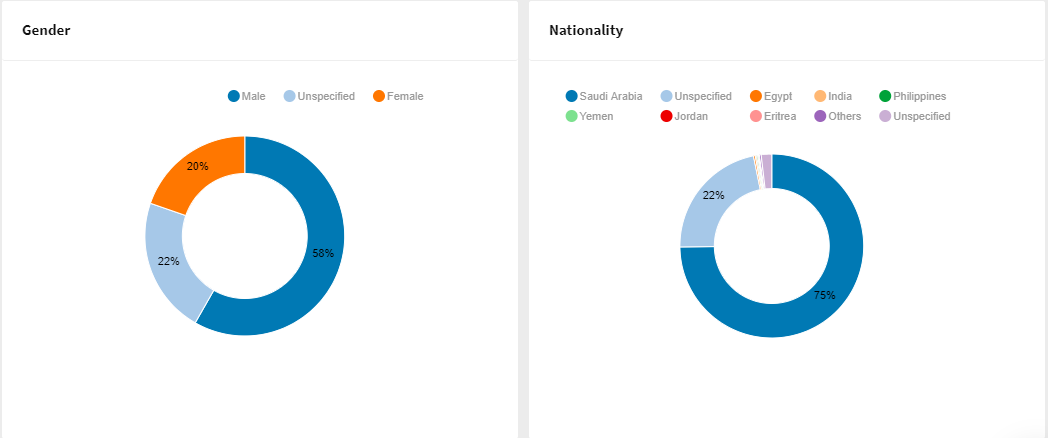
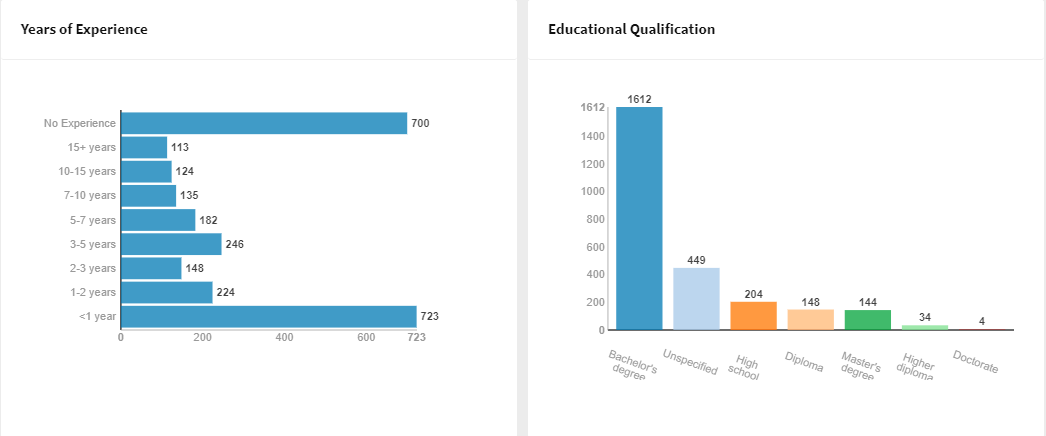
The results will be displayed in charts for each filter.
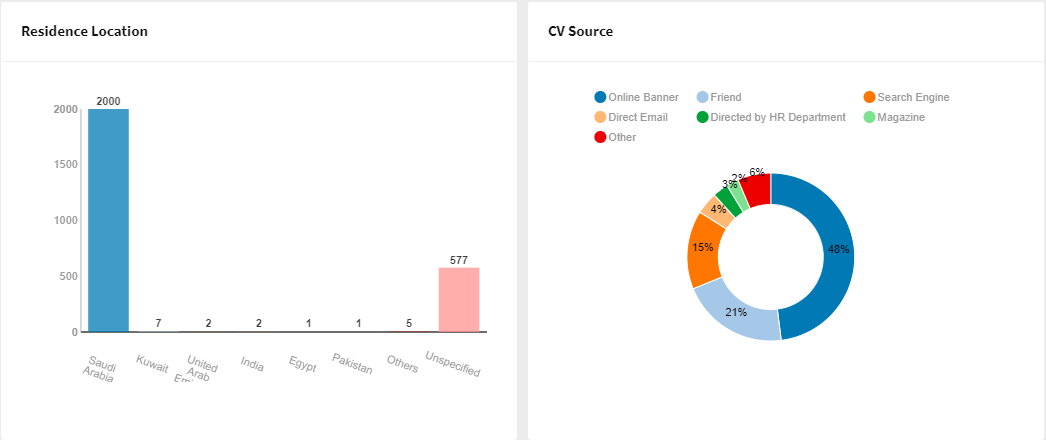
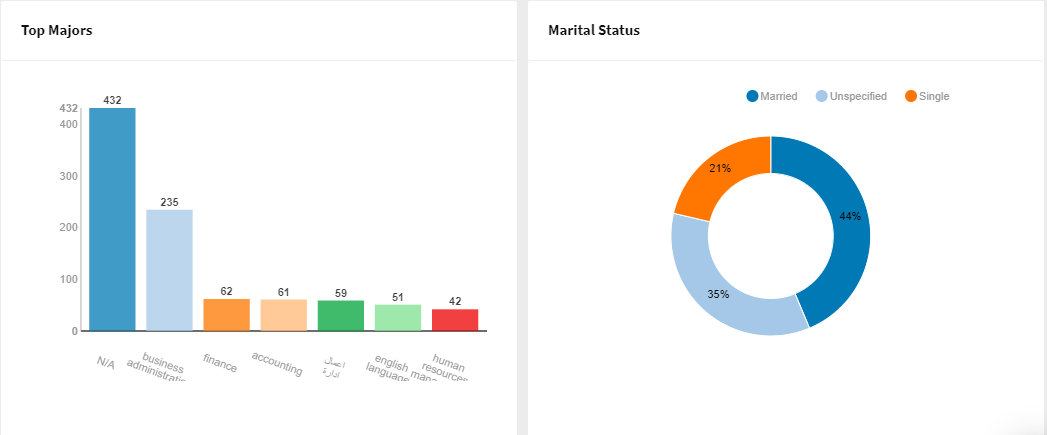
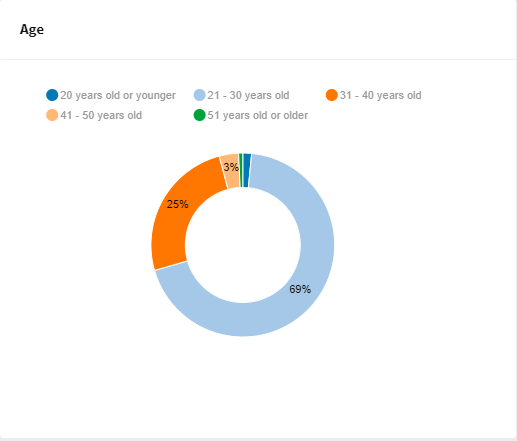
Job Seekers CVs Report
The Job Seekers CV Report allows the employer to use an array of filters to view the jobseekers’ count by city, date, degree, career level, nationality, gender and residence location.
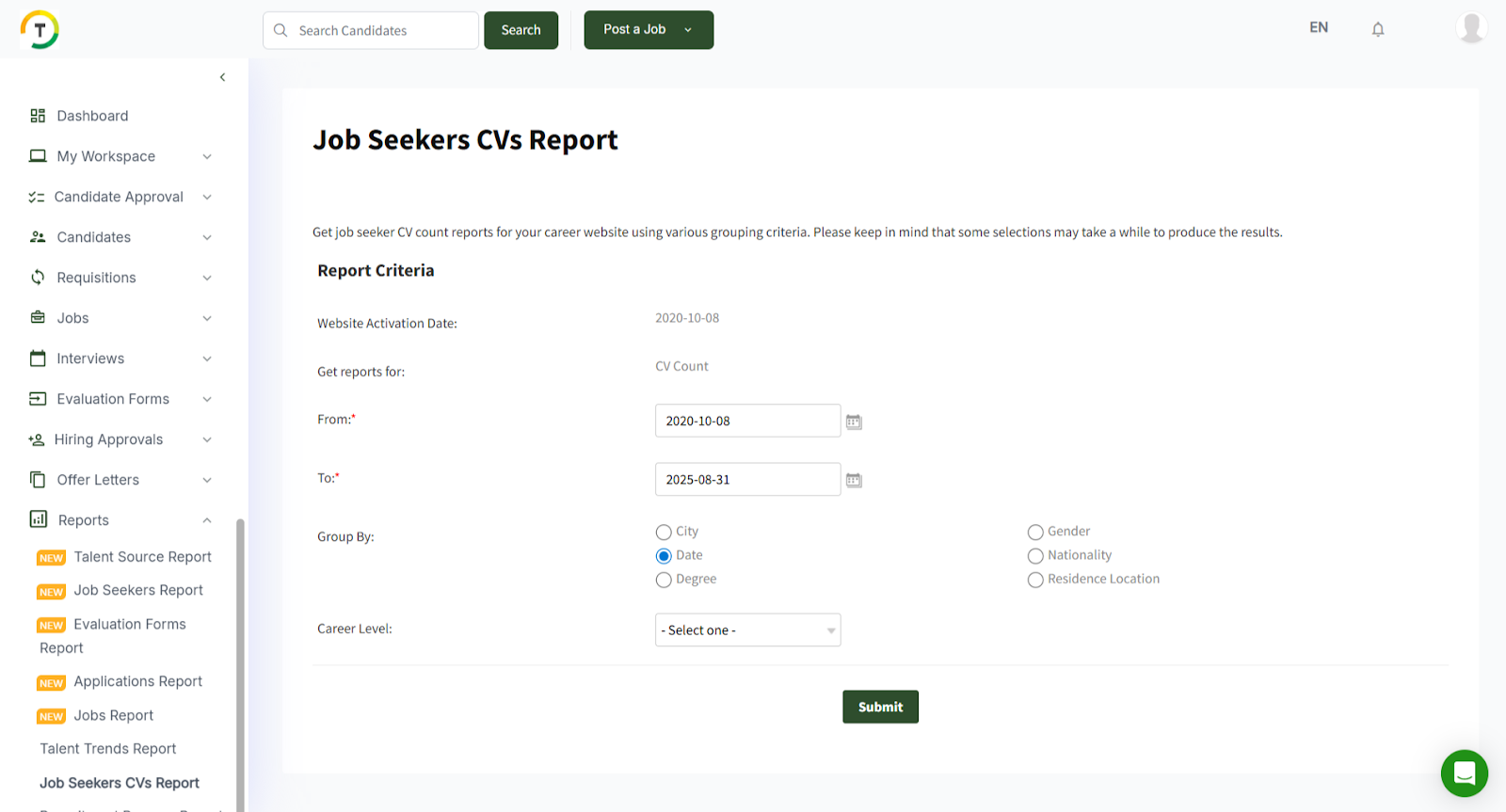
Choose the desired criteria “Residence Location,” for example, then click on “Submit”. The results will be retrieved as shown below.
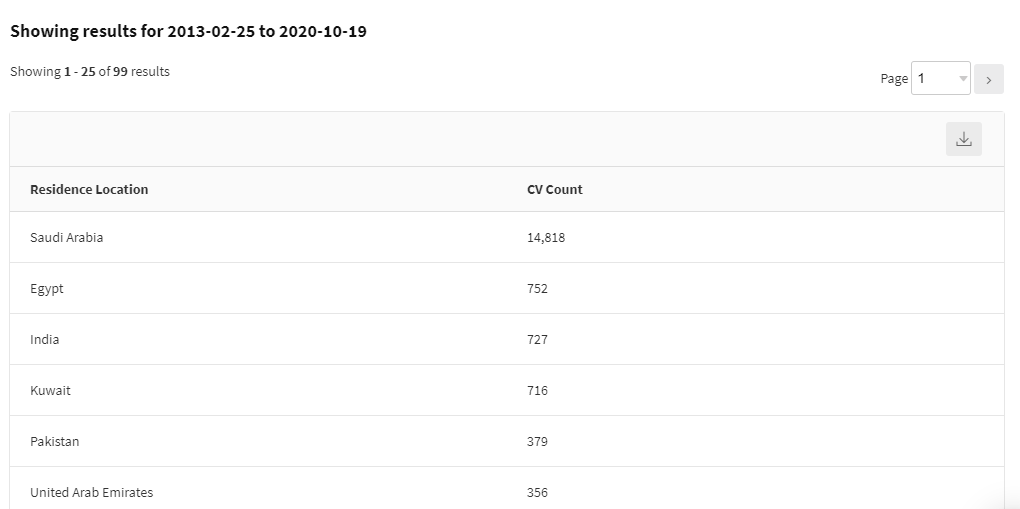
The admin can also click on the “Export to Excel” icon to export these results into an Excel file.
Job Seekers Report
The Job Seekers Report gives you a clear overview of your candidate pool and helps you better understand the people applying through your career site. You can start by applying filters (as shown in the screenshot below) to narrow down the results to exactly what you want to see.
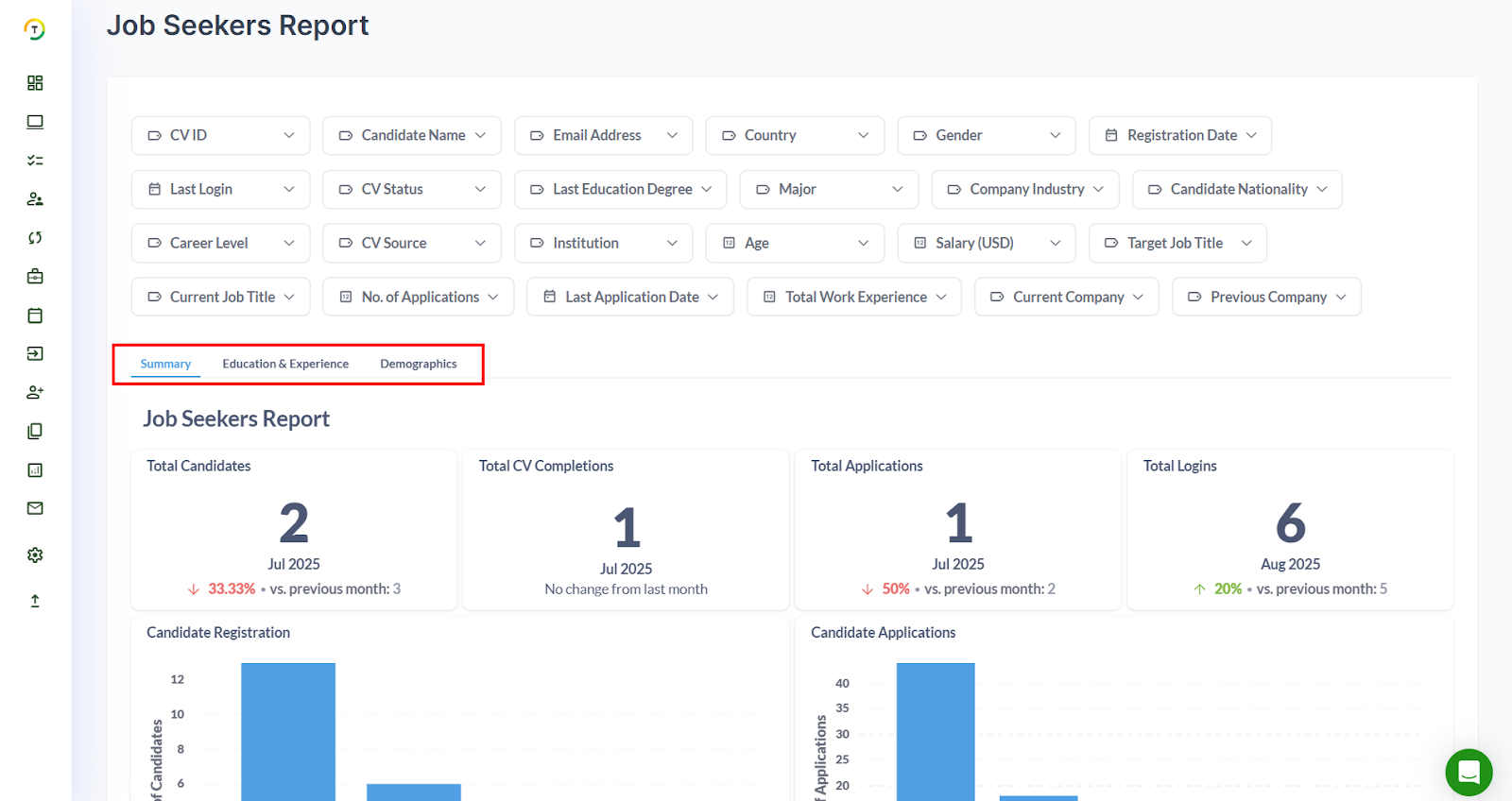
This report has three main tabs:
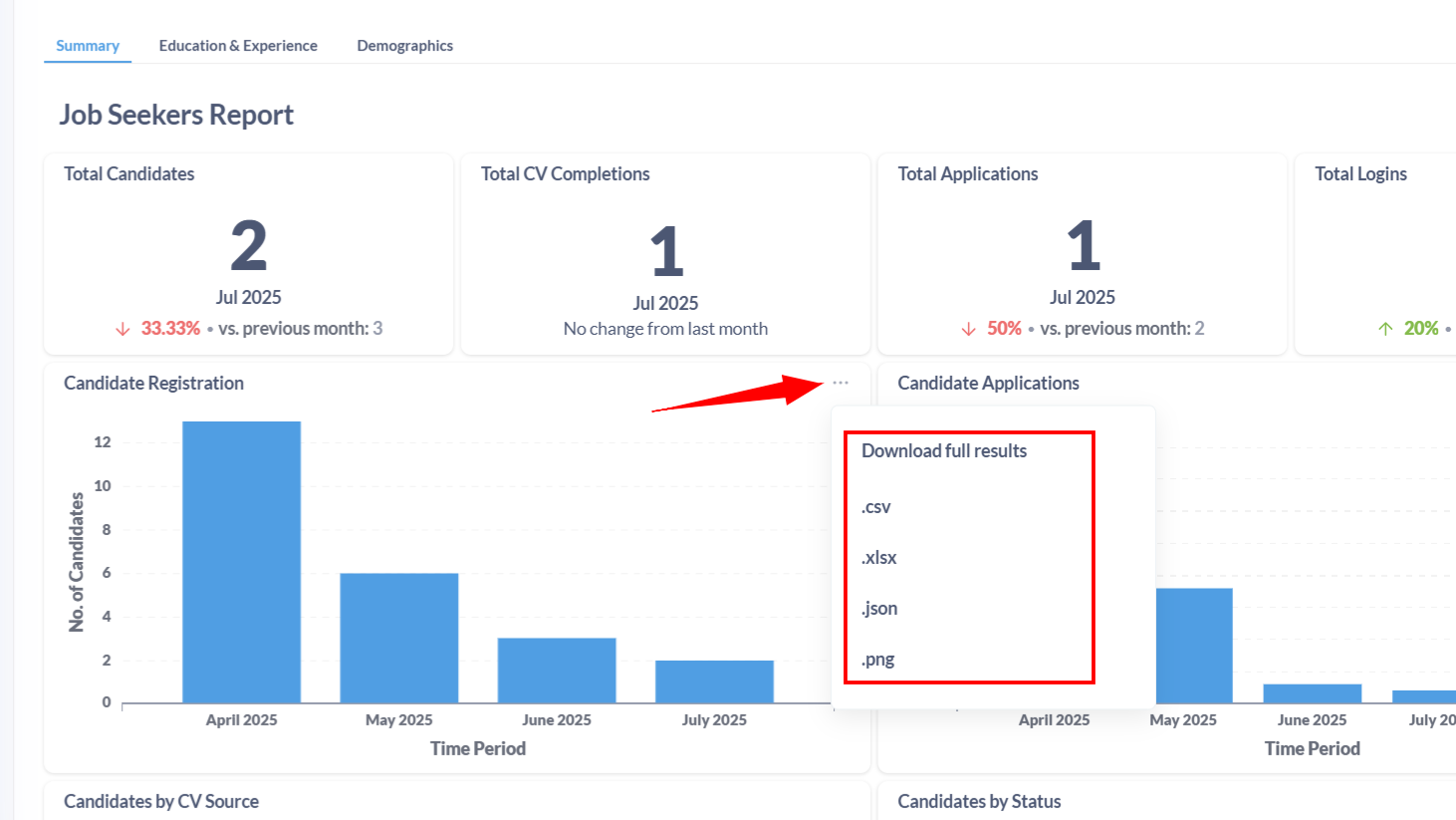
Summary – shows you key insights through easy-to-read widgets. You can also download these widgets in different formats such as .csv, .xlsx, .json, or .png.
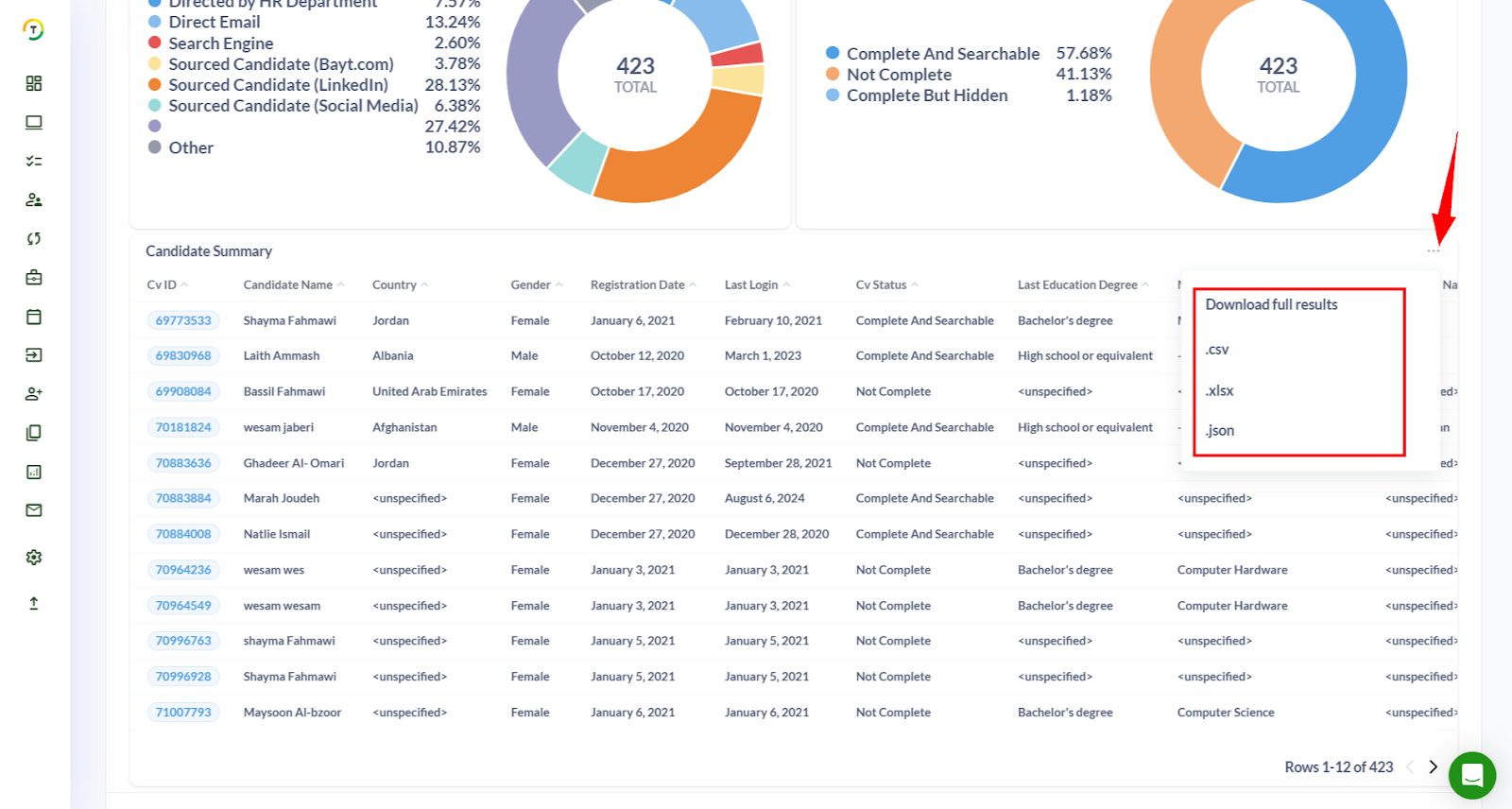
Lastly, you can download a Candidate Summary Report, which brings together all the important information about your candidates in one simple, ready-to-use file.
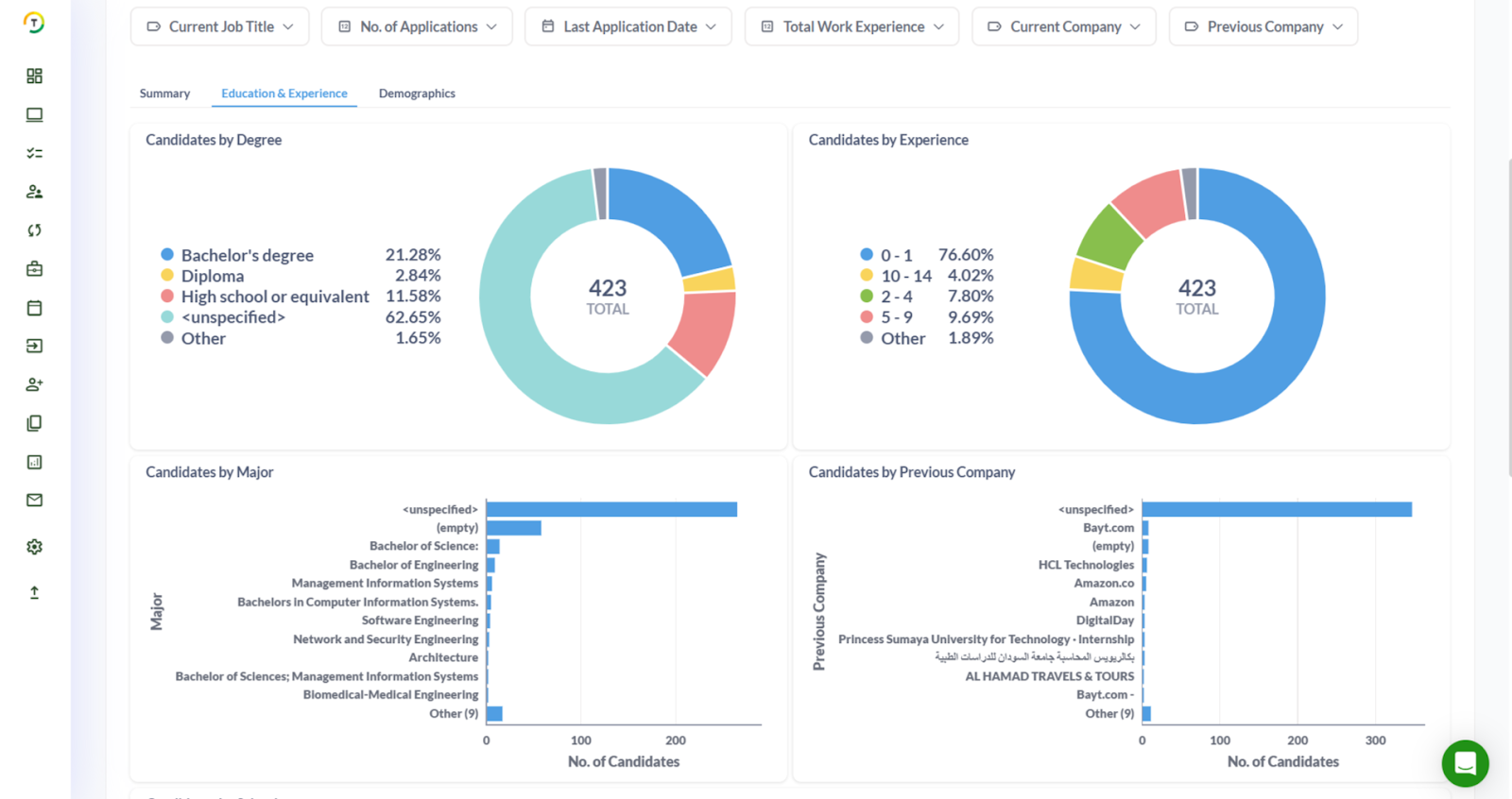
Education & Experience – provides details about candidates’ academic backgrounds and work history.
Demographics – gives you a quick look at candidate distributions across different demographic categories.
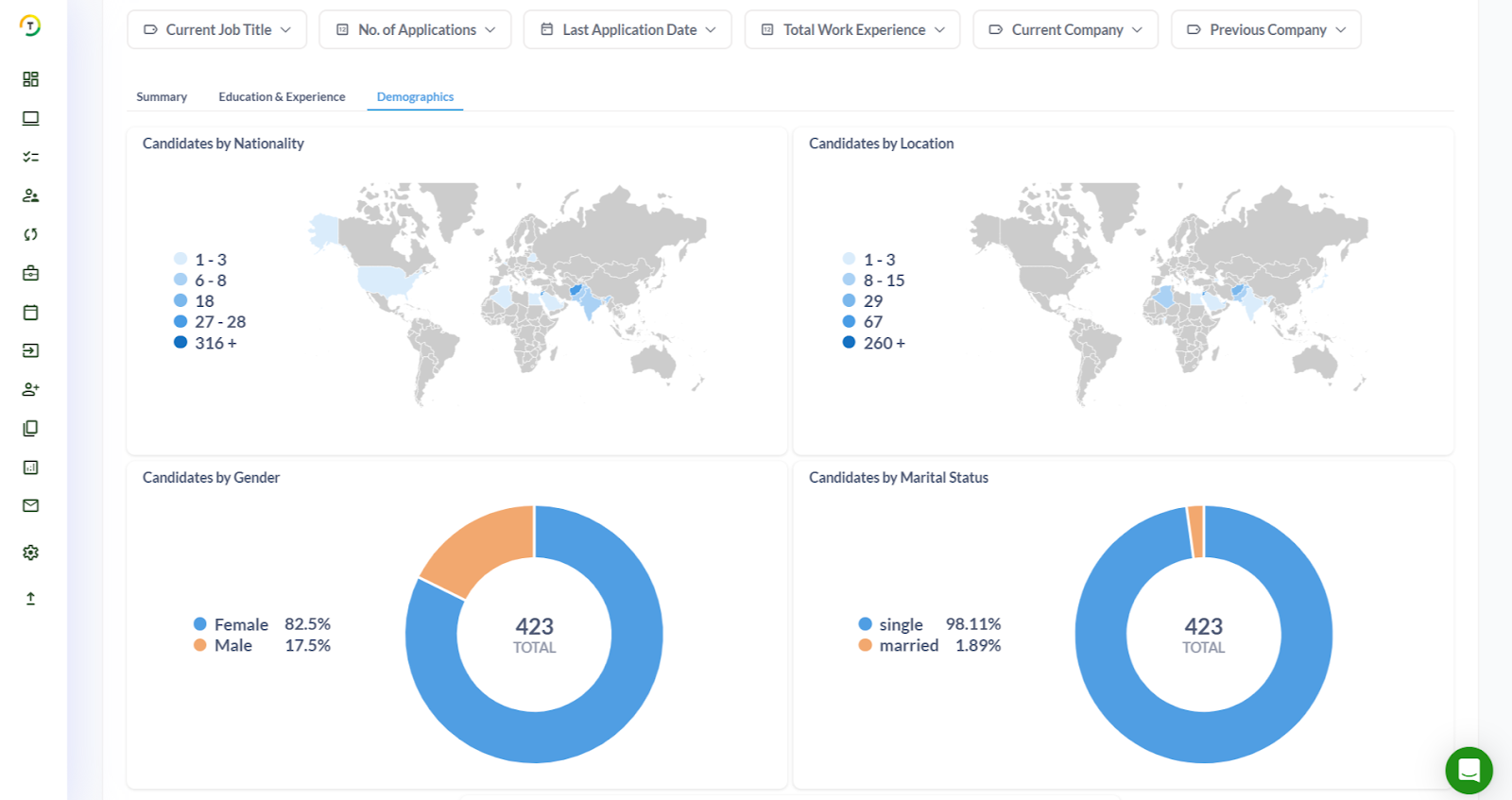
Finally, you can download a Candidate Summary Report, which brings together all the important information about your candidates in one simple, ready-to-use file.
Talent Source Report
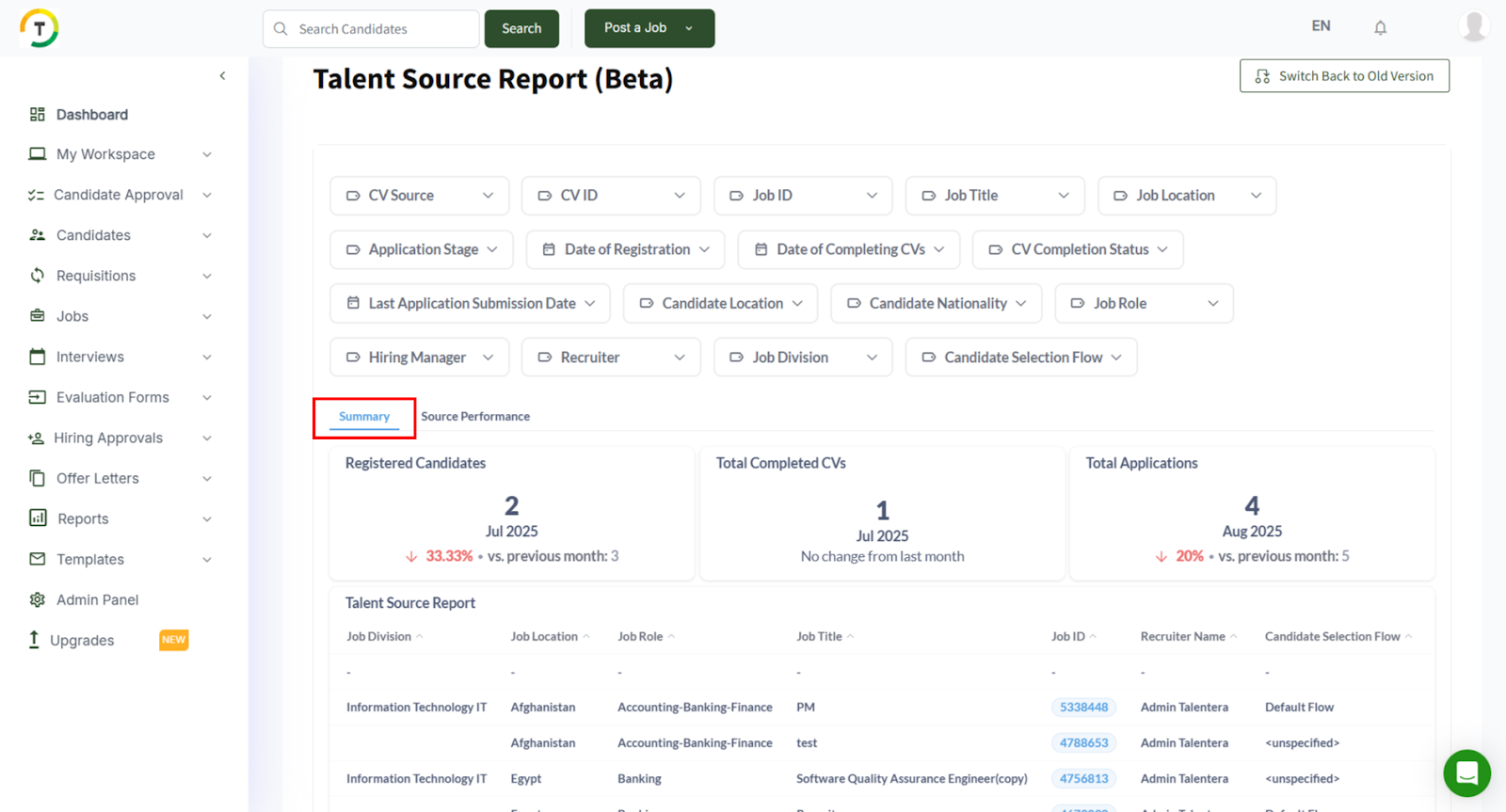
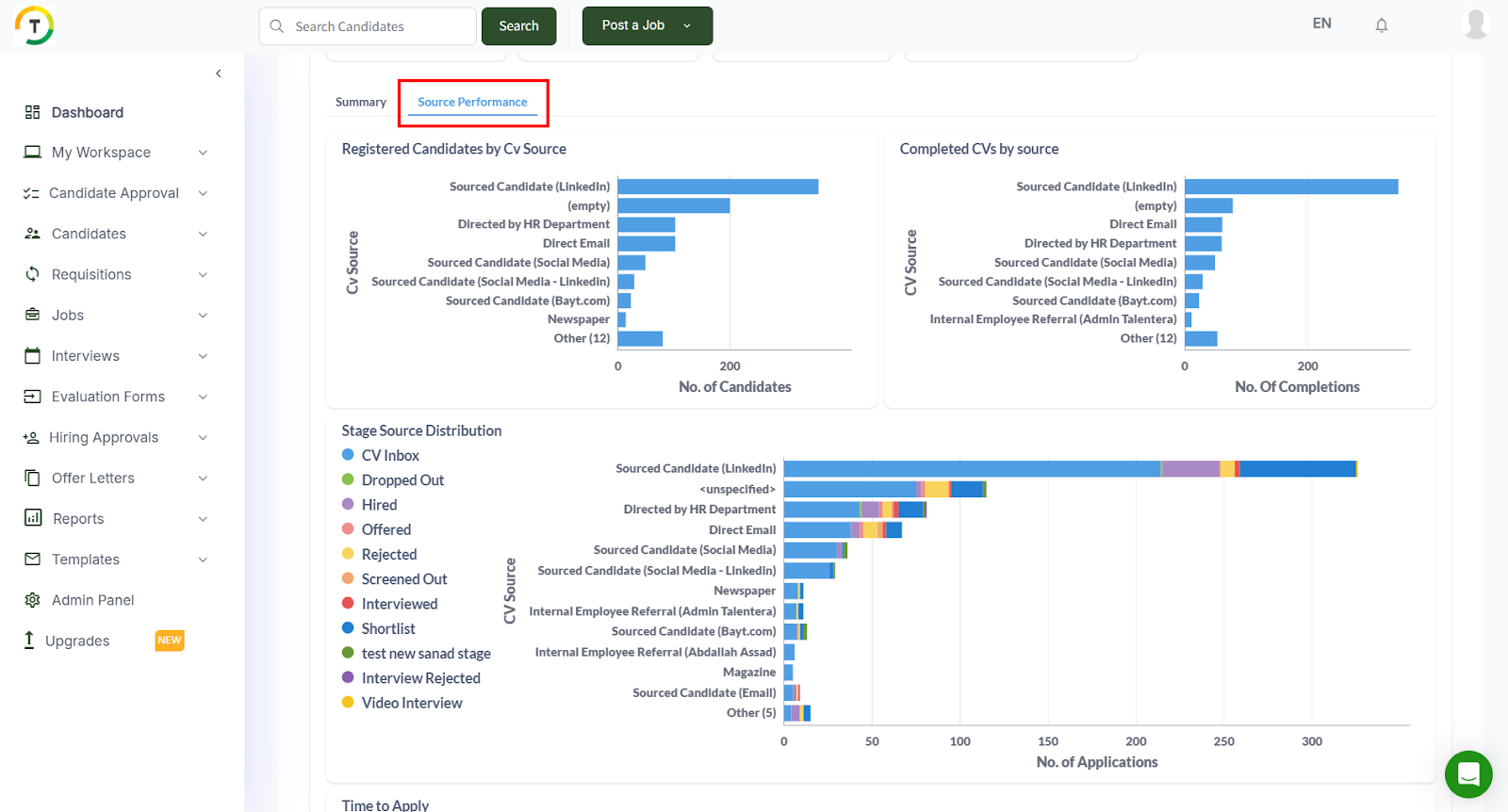
The Talent Source Report provides detailed insights into the effectiveness of each CV source you are utilizing, covering both sourcing and hiring performance. You can apply the available filters (shown below) to refine your results and view them in two key formats:
- Summary – highlights overall candidate activity, including registrations, completed CVs, and job applications.
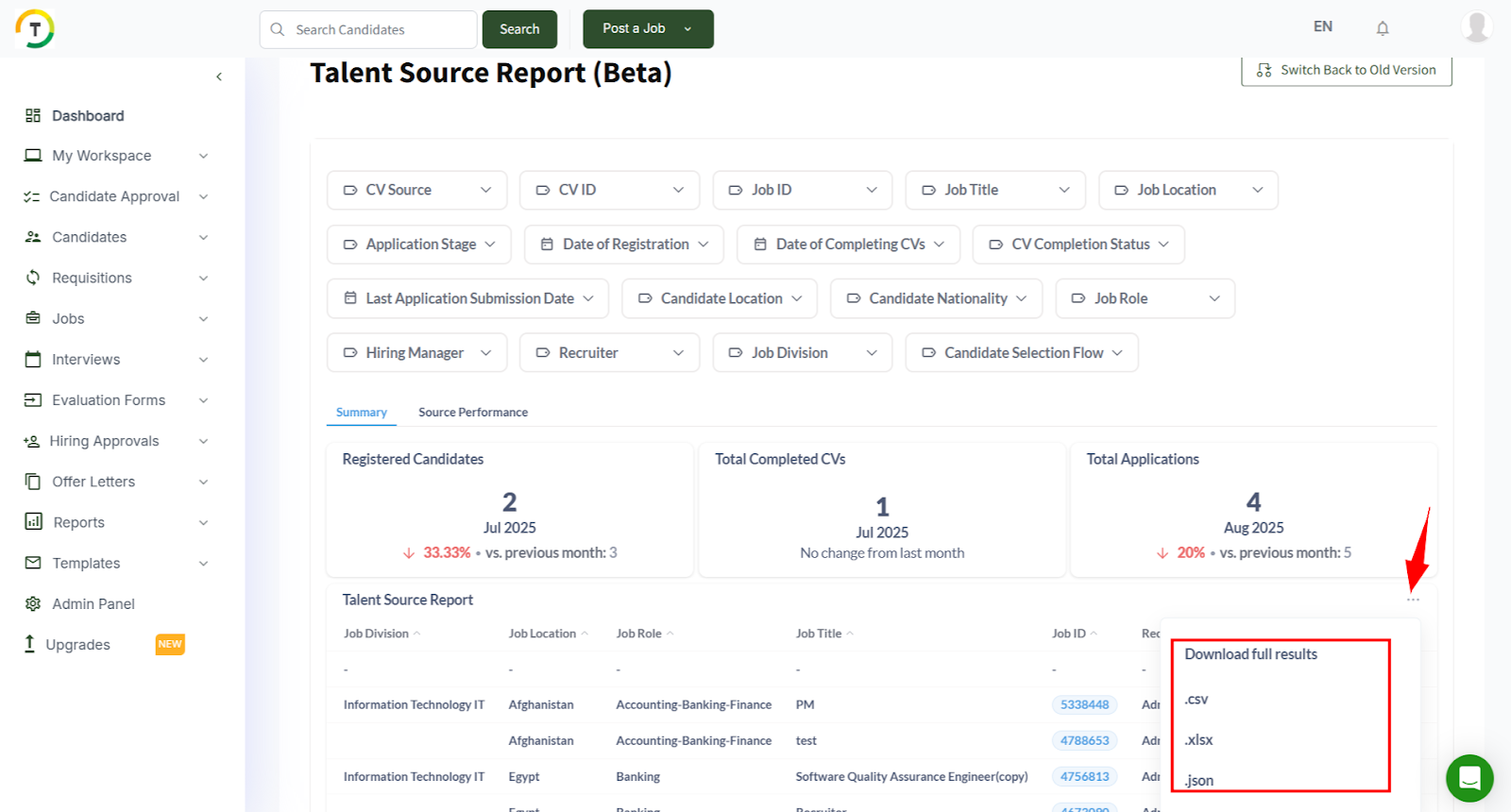
Finally, you can download the Talent Source Report, which highlights candidate applications organized by the source they originated from.
Source Performance – breaks down how each CV source is performing from multiple angles, helping you identify which channels are delivering the best results.
Jobs Report
The Jobs Report provides a comprehensive view of all jobs posted on your career site by your hiring team. You can filter the data by Job ID, Job Name, Job Location, Status, Division, Job Role, Job Type, Employment Type, and Creation Date. For each job, the report displays key details such as creation date, activation and expiry dates, number of applications received, job owner, and more, making it easy to monitor and manage your postings effectively.
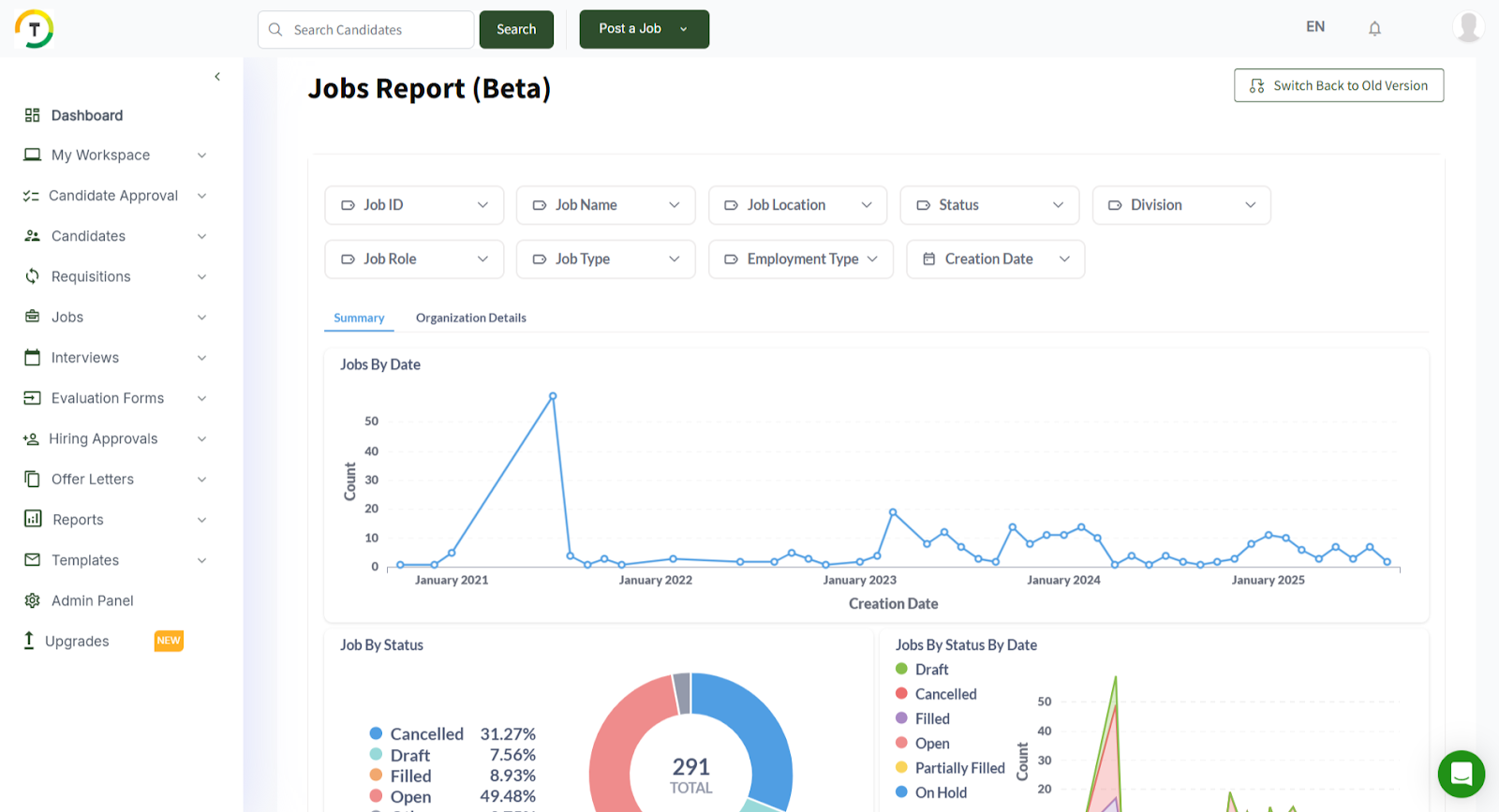
The results are viewed in 2 tabs:
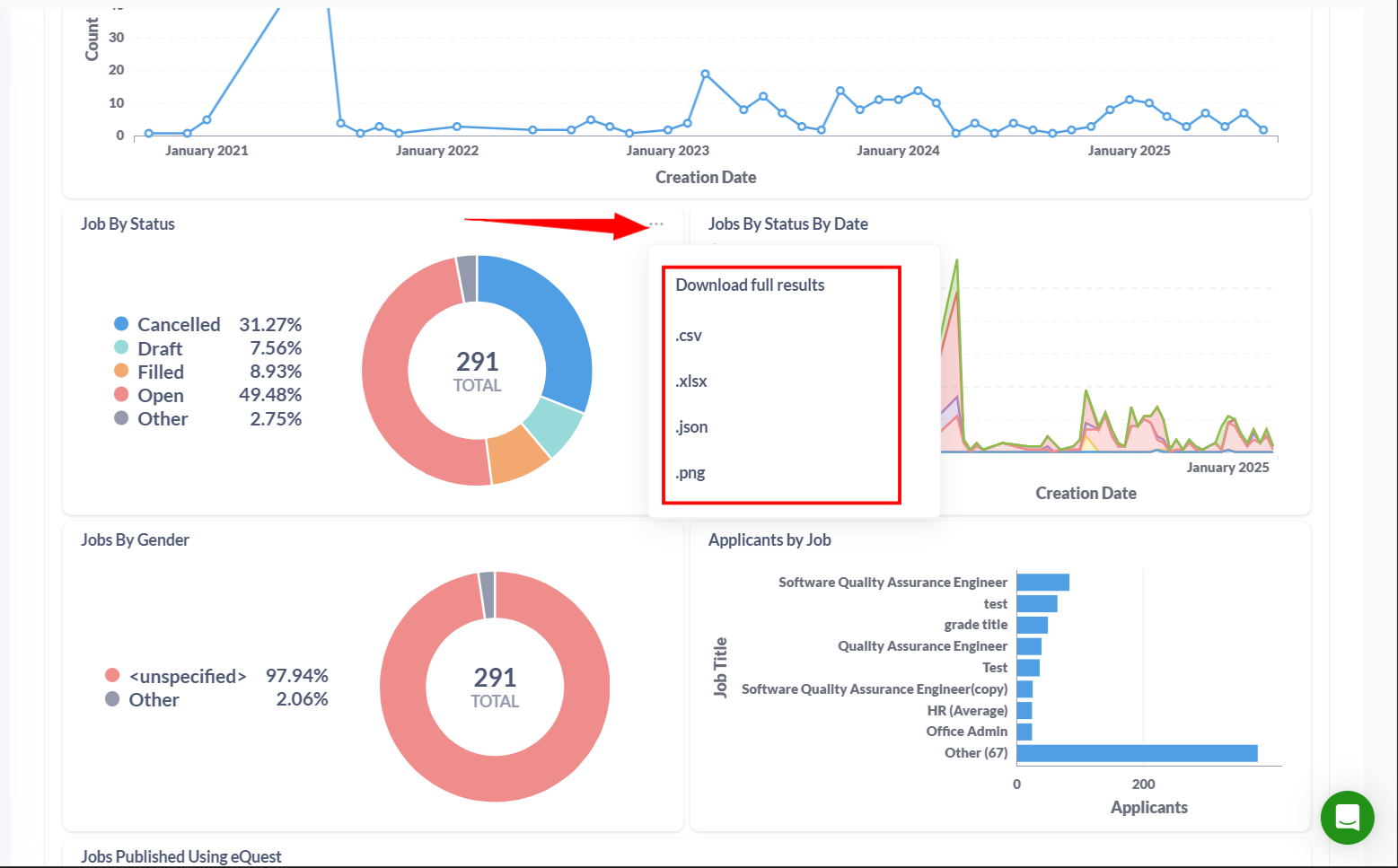
- Summary: This section includes multiple widgets with visual graphs such as Jobs by Date, Jobs by Status, Jobs by Status over Time, and more. Each widget can be easily downloaded in various formats, as shown below.
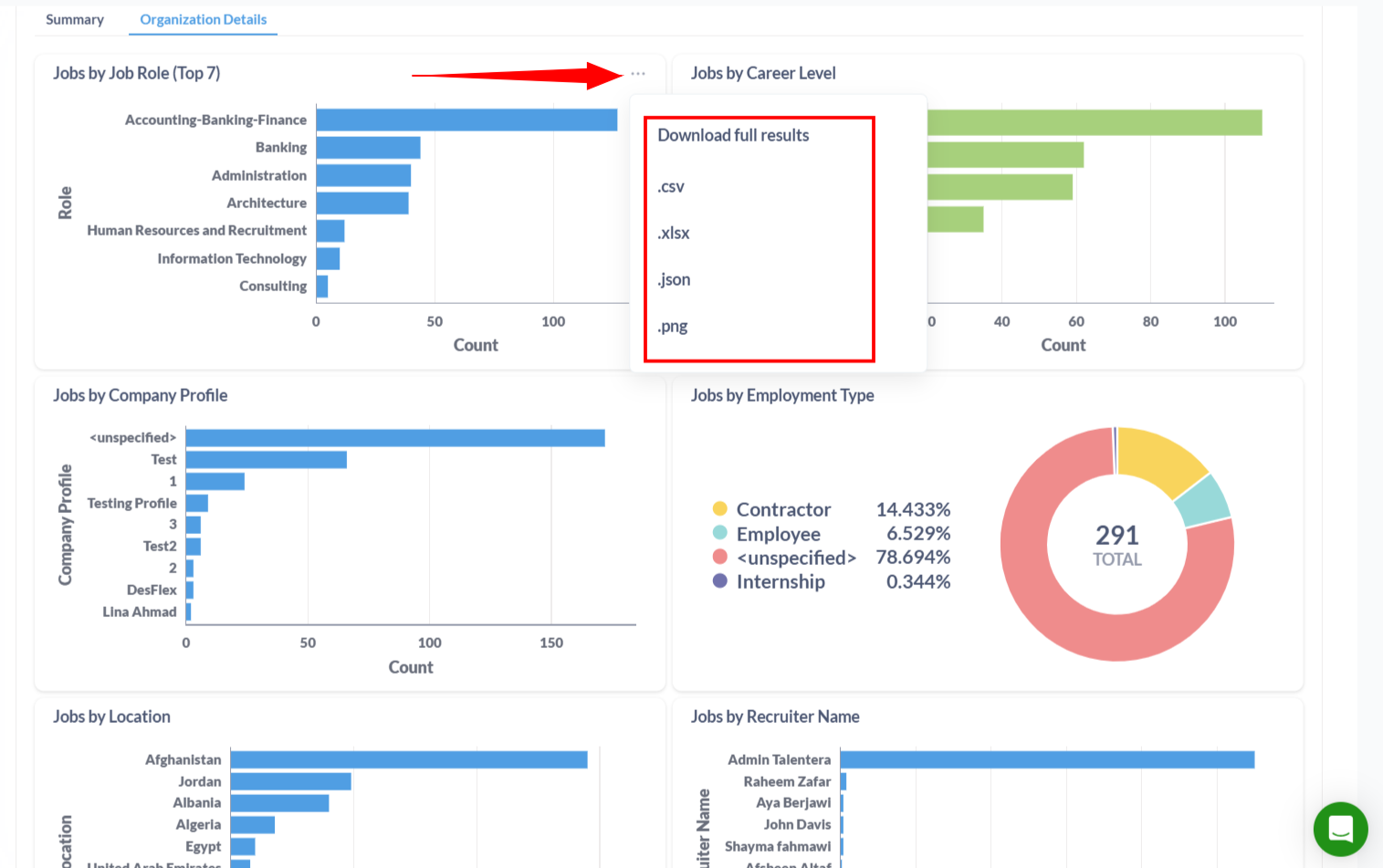
Organization Details: This section presents a variety of widgets that provide insights into jobs by career level, job role, company profile, and more. All graphs can be downloaded in multiple formats for easy sharing and analysis.
Evaluation Forms Report
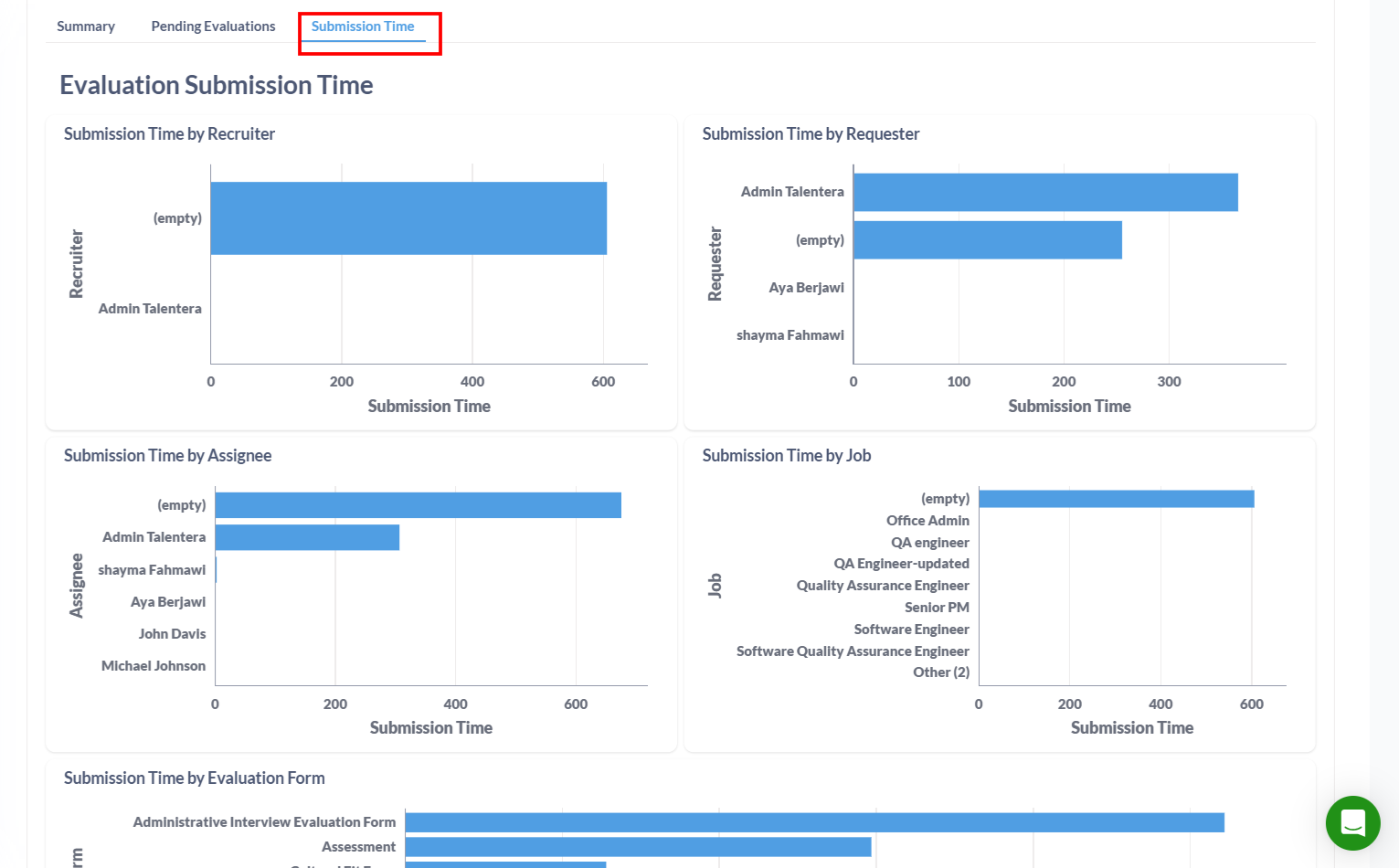
The Evaluation Forms Report provides a detailed overview of candidate evaluations, allowing you to filter results by criteria such as Candidate Name, Email, Job Title, Hiring Manager, Recruiter, Evaluation Form, Assigned To, Requested By, Date Requested, Evaluation Status, Date Filled, Number of Questions, and Submission Time.
The report is divided into three main tabs:
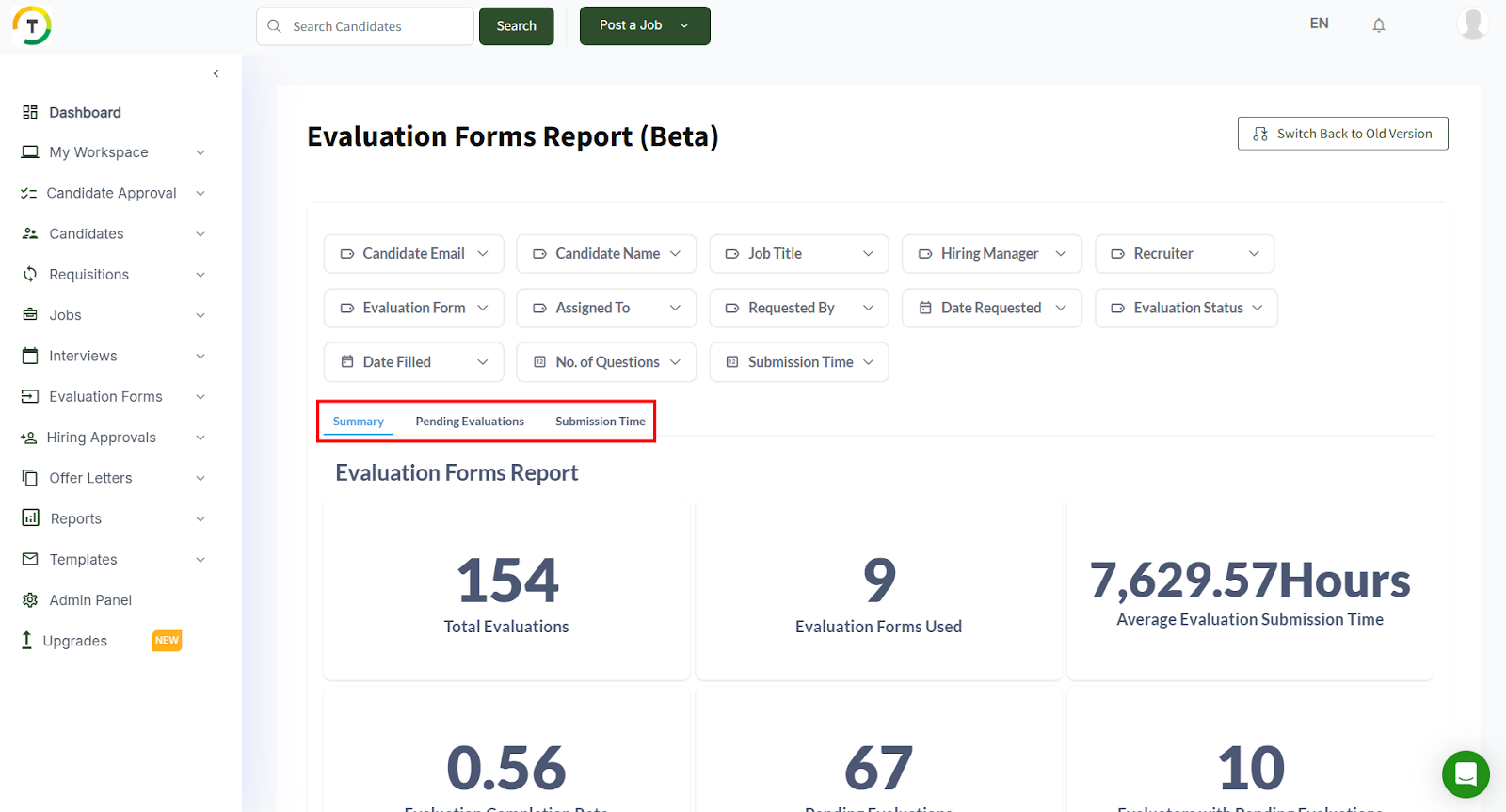
- Summary – displays key insights through interactive widgets, which can be downloaded in multiple formats.
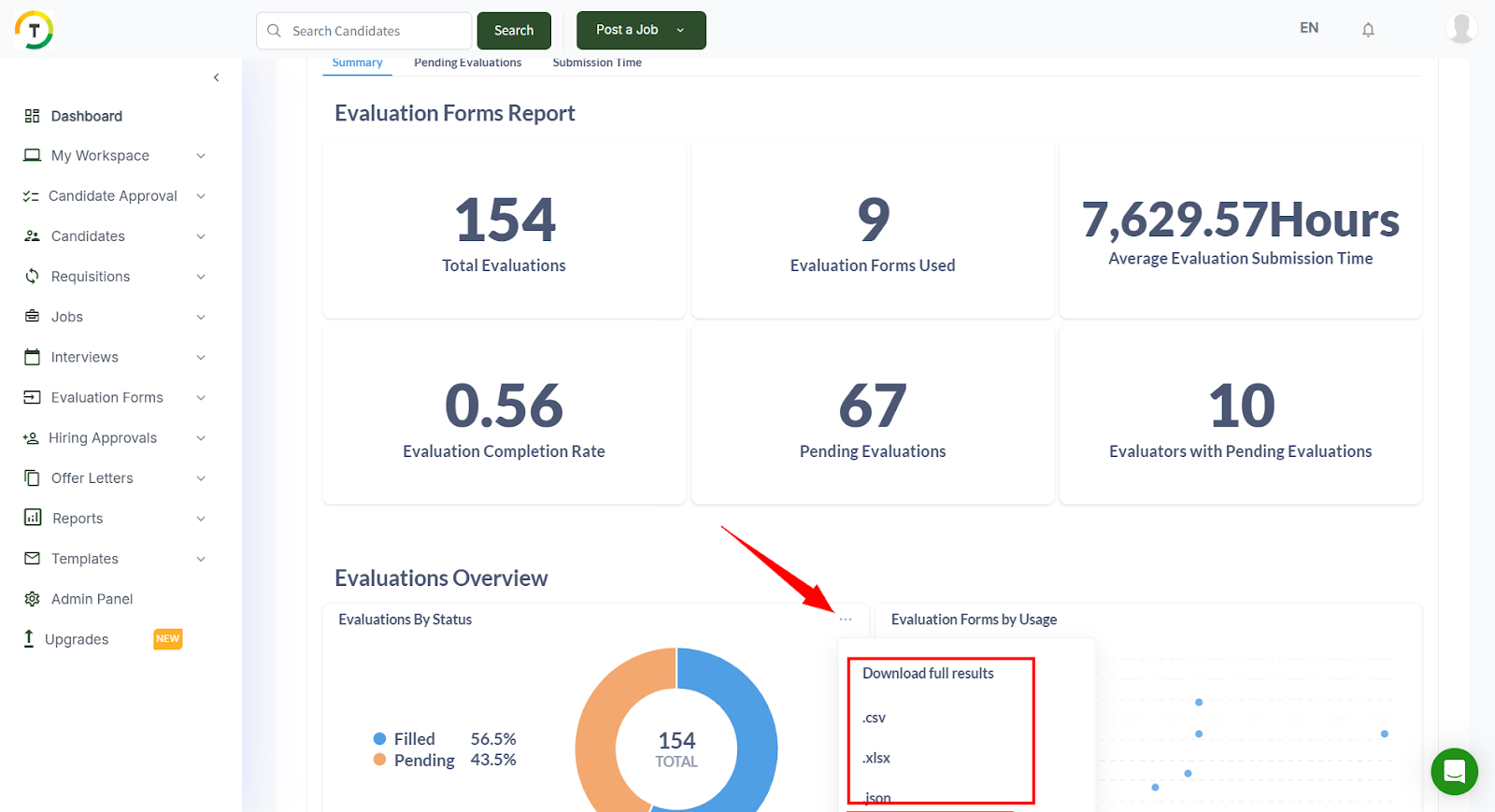
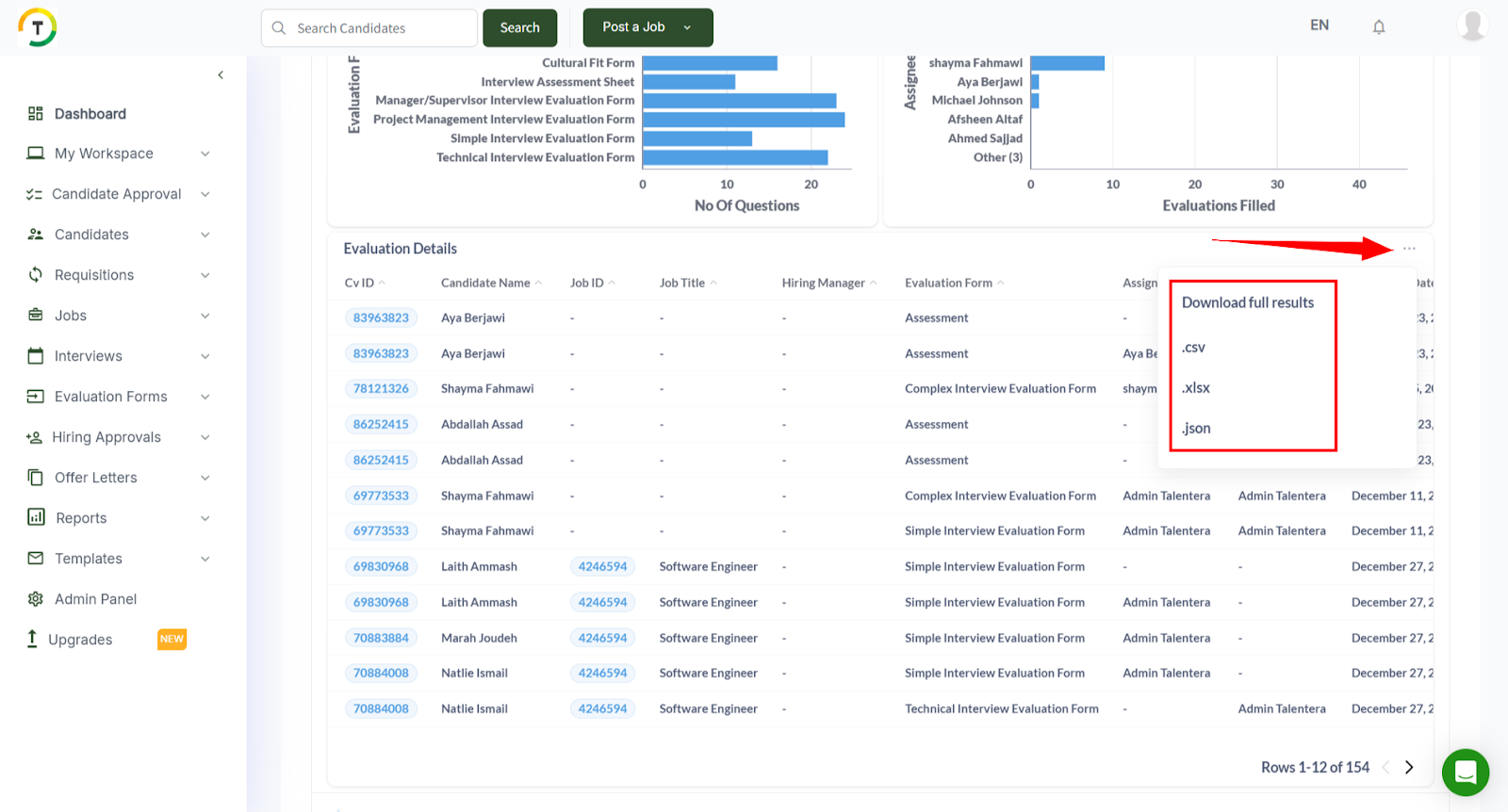
Scrolling to the bottom of the Summary tab reveals the Evaluation Details Report, where you can download a comprehensive file containing each candidate’s evaluation form and all relevant details.
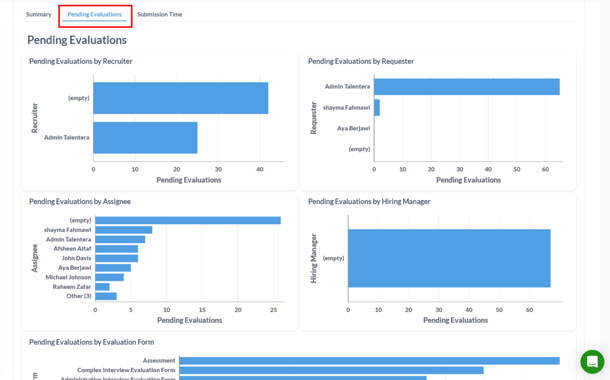
Pending Evaluations – highlights evaluation forms that are still awaiting completion.
Submission Time – provides an overview of how long candidates take to complete their evaluations.
Applications Report
The Applications Report provides a comprehensive view of all candidate applications received for your job postings. You can refine your results using various filters to focus on the data that matters most.
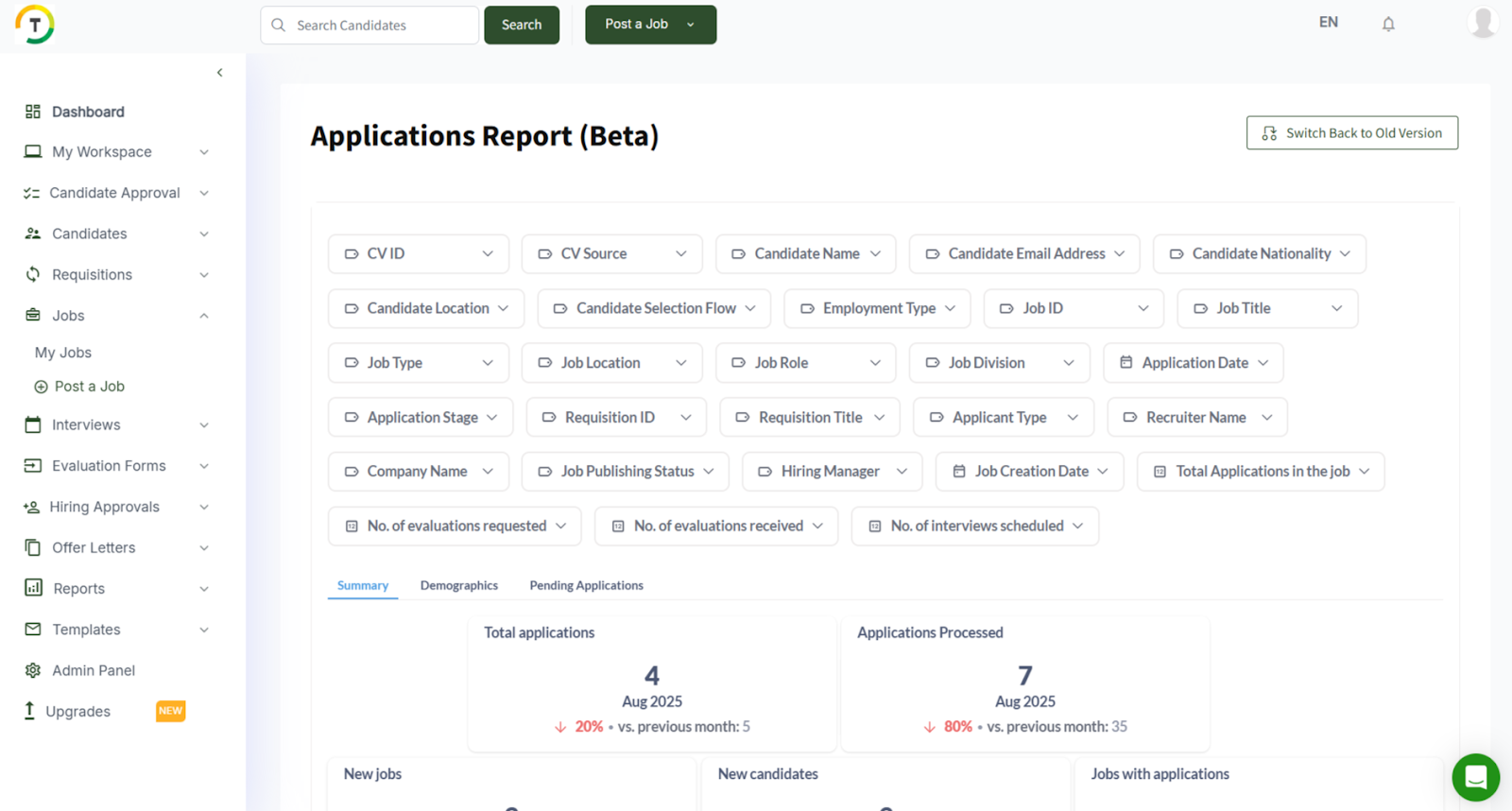
The report is divided into three main tabs:
Summary – offers a snapshot of application activity through interactive widgets.
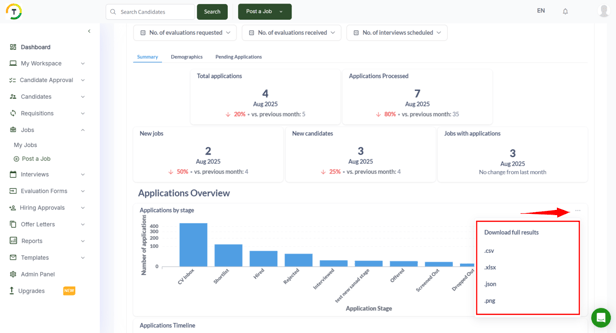
Finally, in the Summary section, you can scroll down and download a comprehensive report that includes all applications based on your selected filters, with detailed information for each candidate.
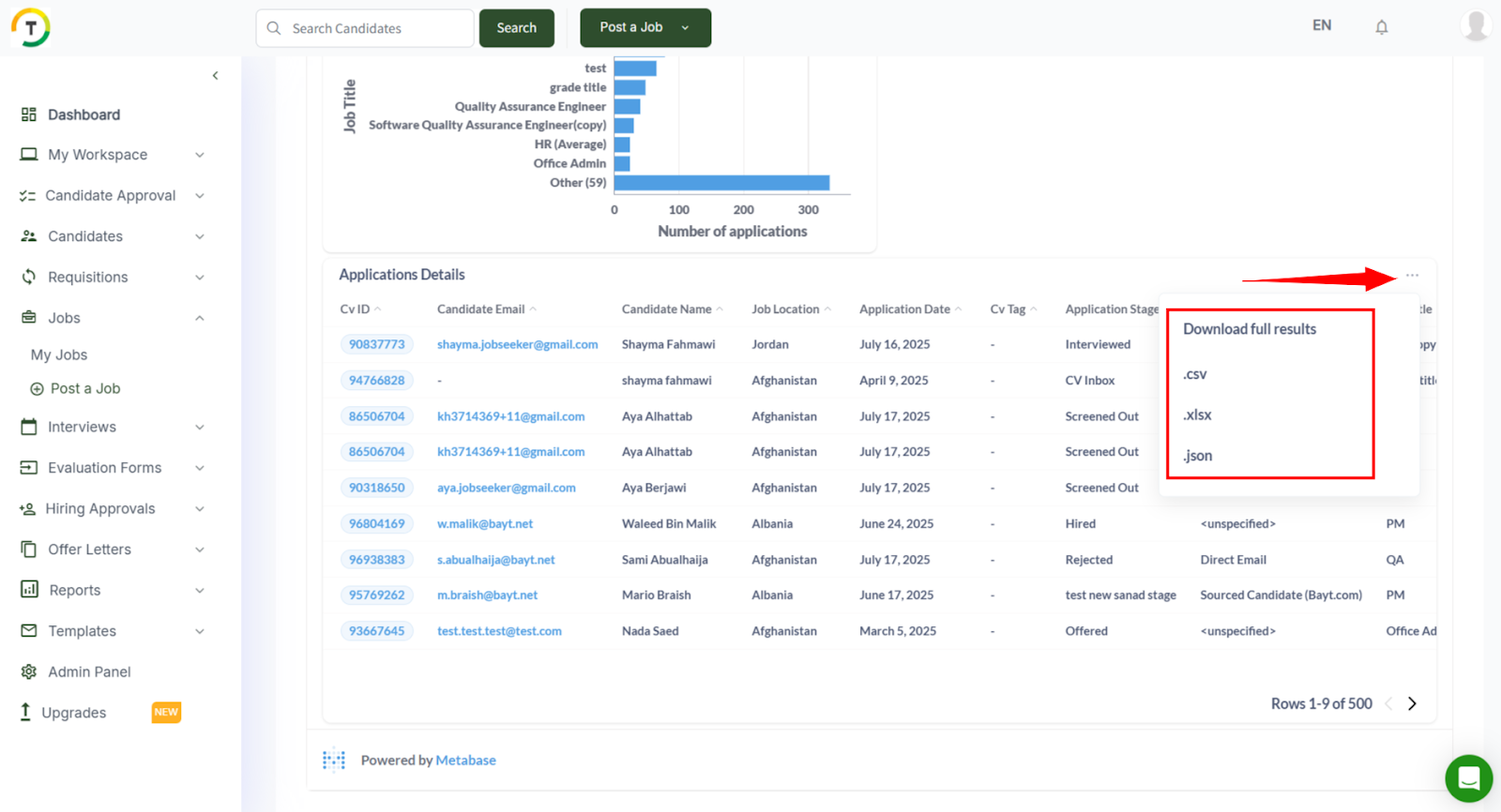
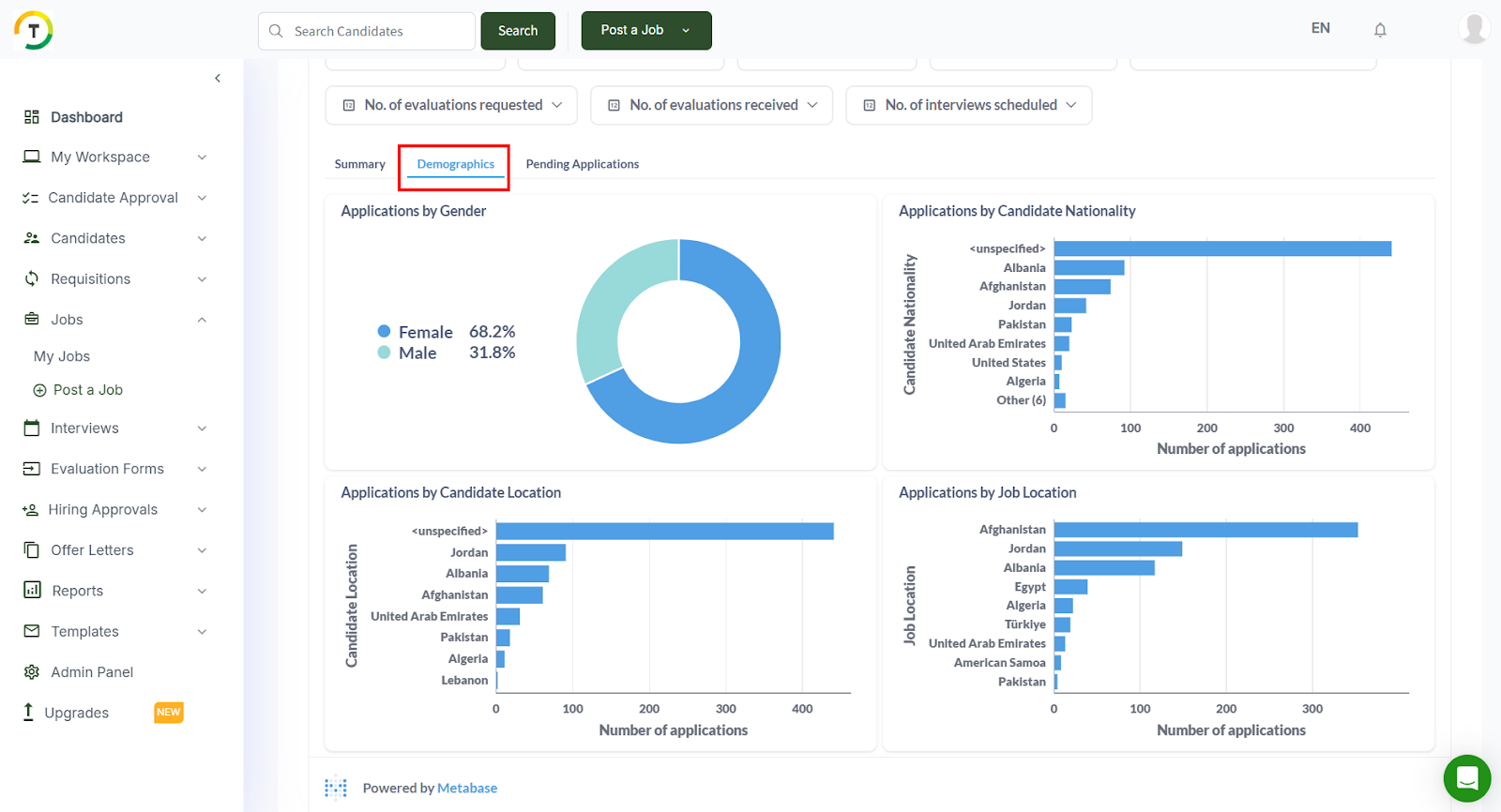
- Demographics – shows candidate distributions across different demographic criteria.
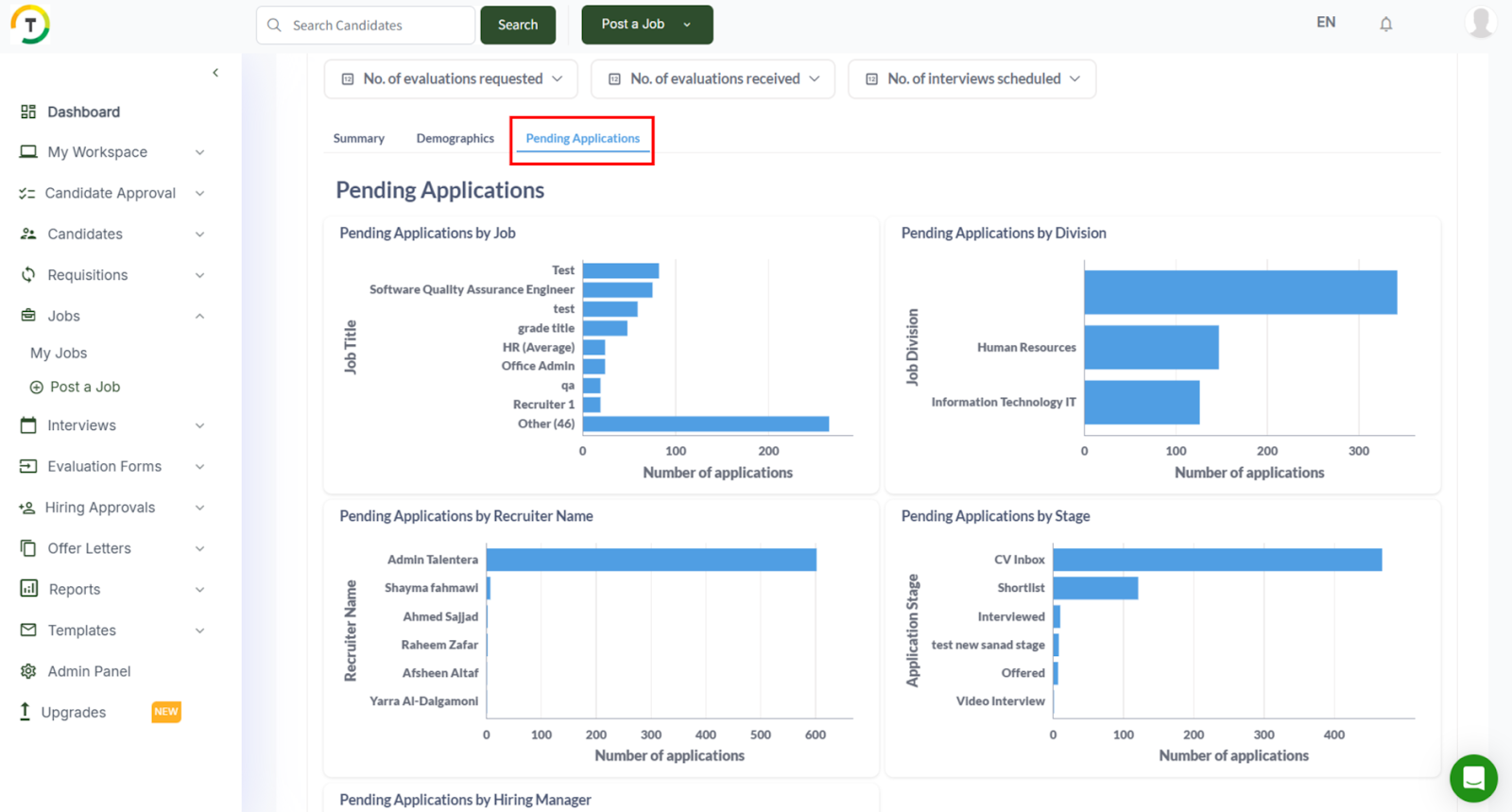
Pending Applications – highlights applications that are yet to be processed or reviewed, helping you manage follow-ups efficiently.
Recruitment Process Report
Every job’s application stages defined in the portal should reflect the company’s recruitment process report.
The recruitment process report can be filtered by the company profile for a specific division, a specific job, for all jobs in a specific candidate selection flow, or posted by a specific recruiter during a selected period.
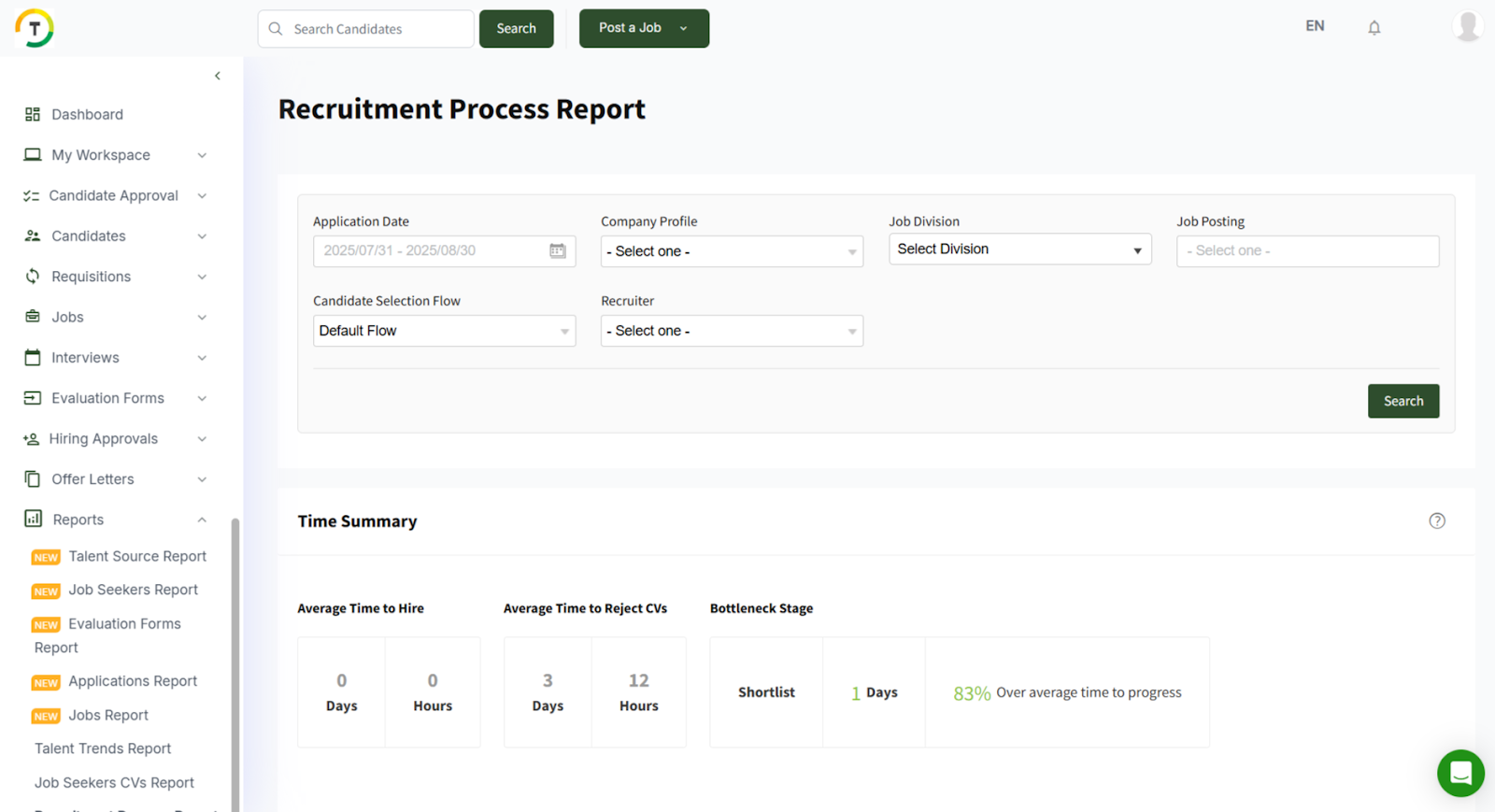
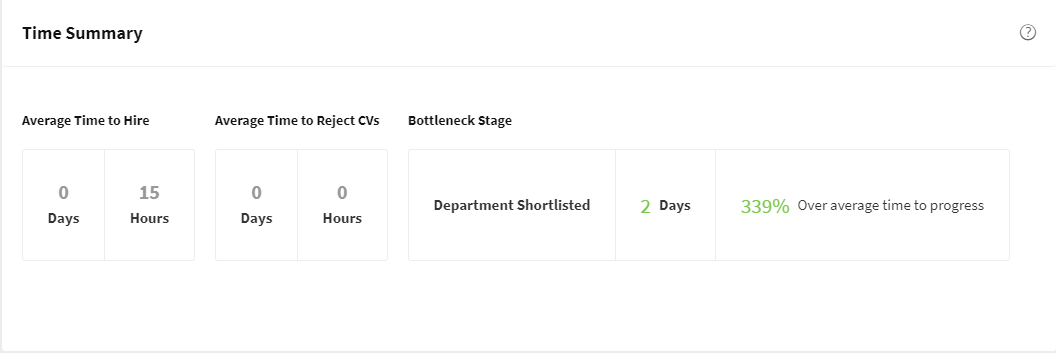
The generated report will be displayed on the screen. It includes a Time Summary that allows employers to analyze their recruitment process, the time needed to fill a position, the bottleneck stage affecting the process, and the average time to progress from stage to stage.
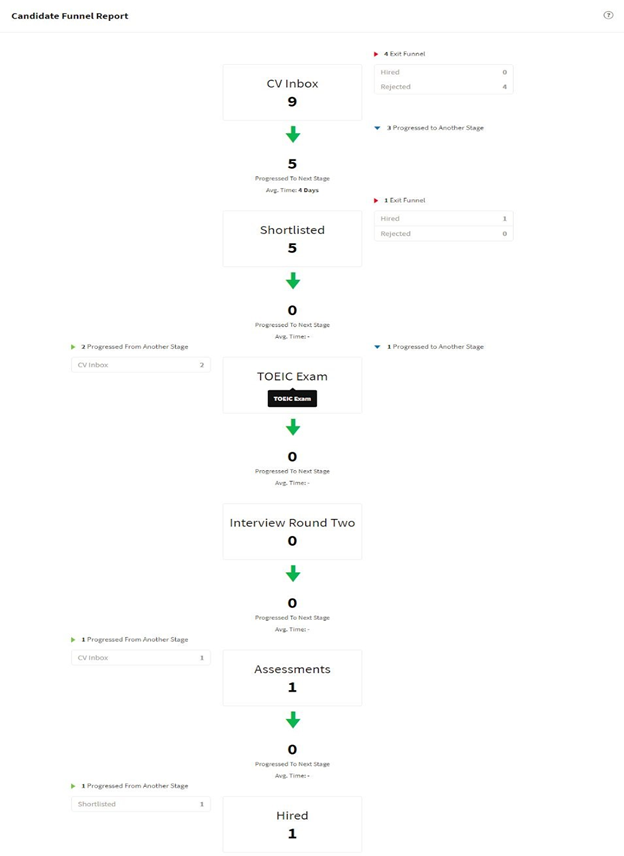
Then a more detailed data is provided for the candidate funnel. It shows the progress to move CVs through the recruitment funnel. At each stage, employers can see:
- Number of CVs progressed from a stage directly to the next stage
- Number of CVs progressed to further stages
- Number of CVs that exited the funnel to either hired or rejected stage
Custom Application Stage
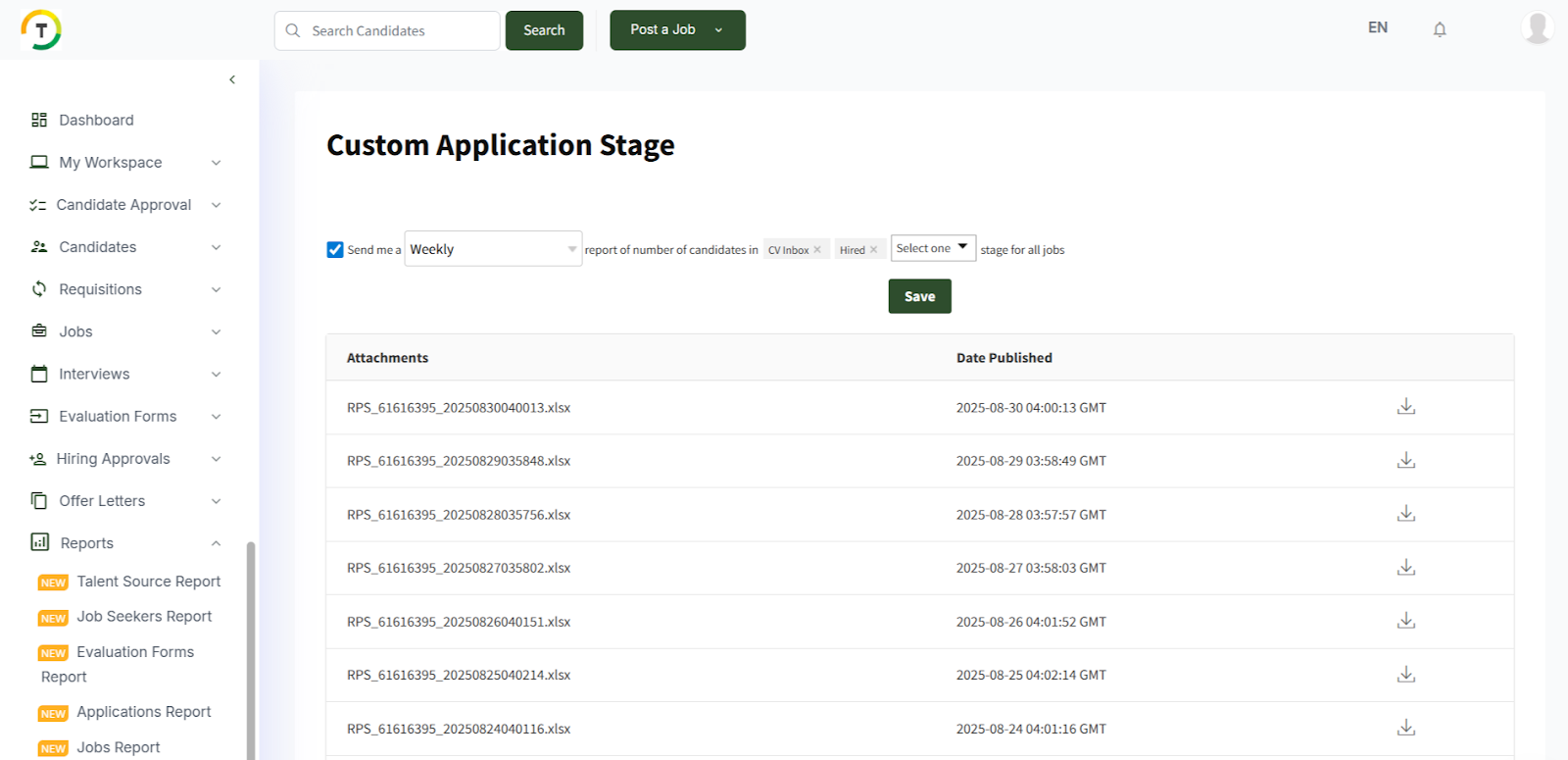
Custom Application Stage Report is an email notification delivered to the employer’s email with the number of candidates in selected application stages. The notification frequency can be either weekly or monthly.
Document Requests Report
With the Document Requests Report, you can view the document status, the document request date, and the employer-in-charge in a single report to initiate the necessary actions and follow-ups.
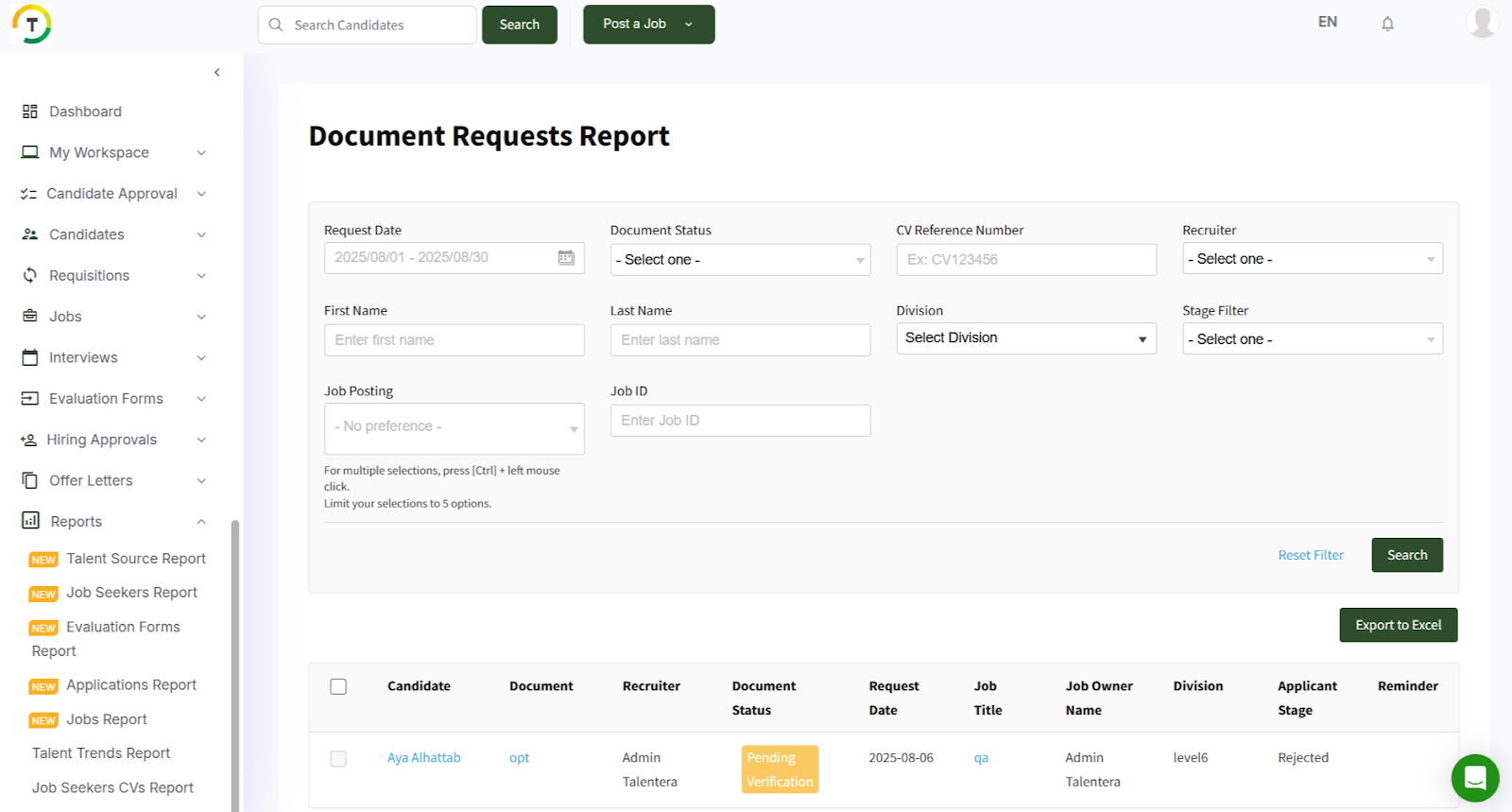
The status of the request can be any of the below:
- Not submitted Yet: The candidate did not submit the requested document yet.
- Pending Verification: The candidate submitted the document, and it is pending the recruiter’s verification.
- Verified: The recruiter viewed and verified the submitted document.
- Resubmission Request Sent: The recruiter requested the candidate to re-submit the document for any given reason.
- In Uploading Process: saved but not submitted yet.
The report looks like the below snapshot and can be exported to Excel for further processing.
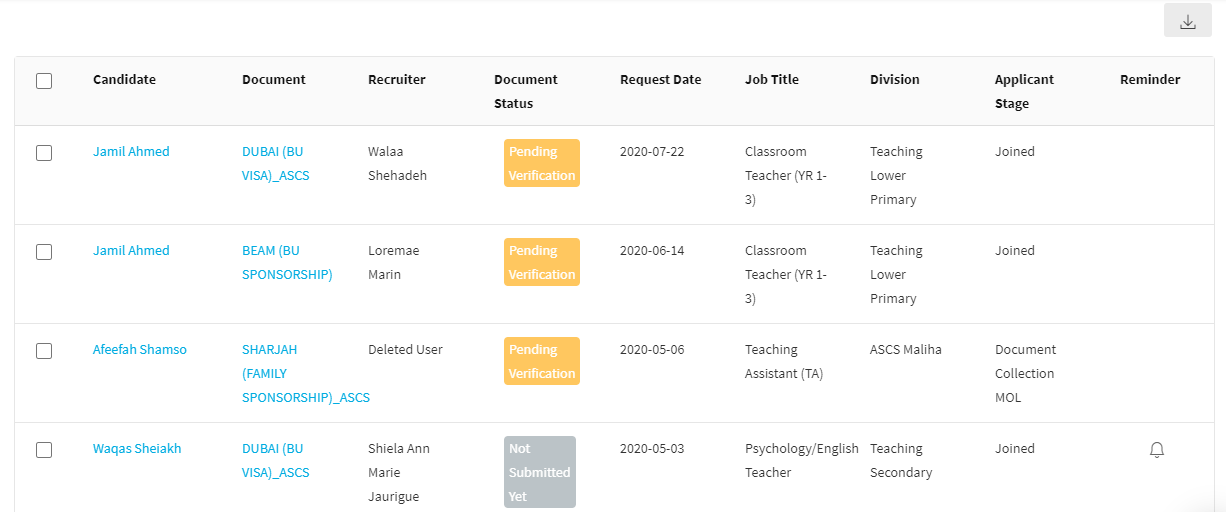
The document is linkable, and you can remind the candidate by clicking on the remind icon.
Talent Segmentation Report
The Talent Segmentation Report provides detailed statistics of the talent pool by segmenting the CVs database using a primary dimension and then breaking them down further by a secondary dimension. The report can also be filtered by registration dates.
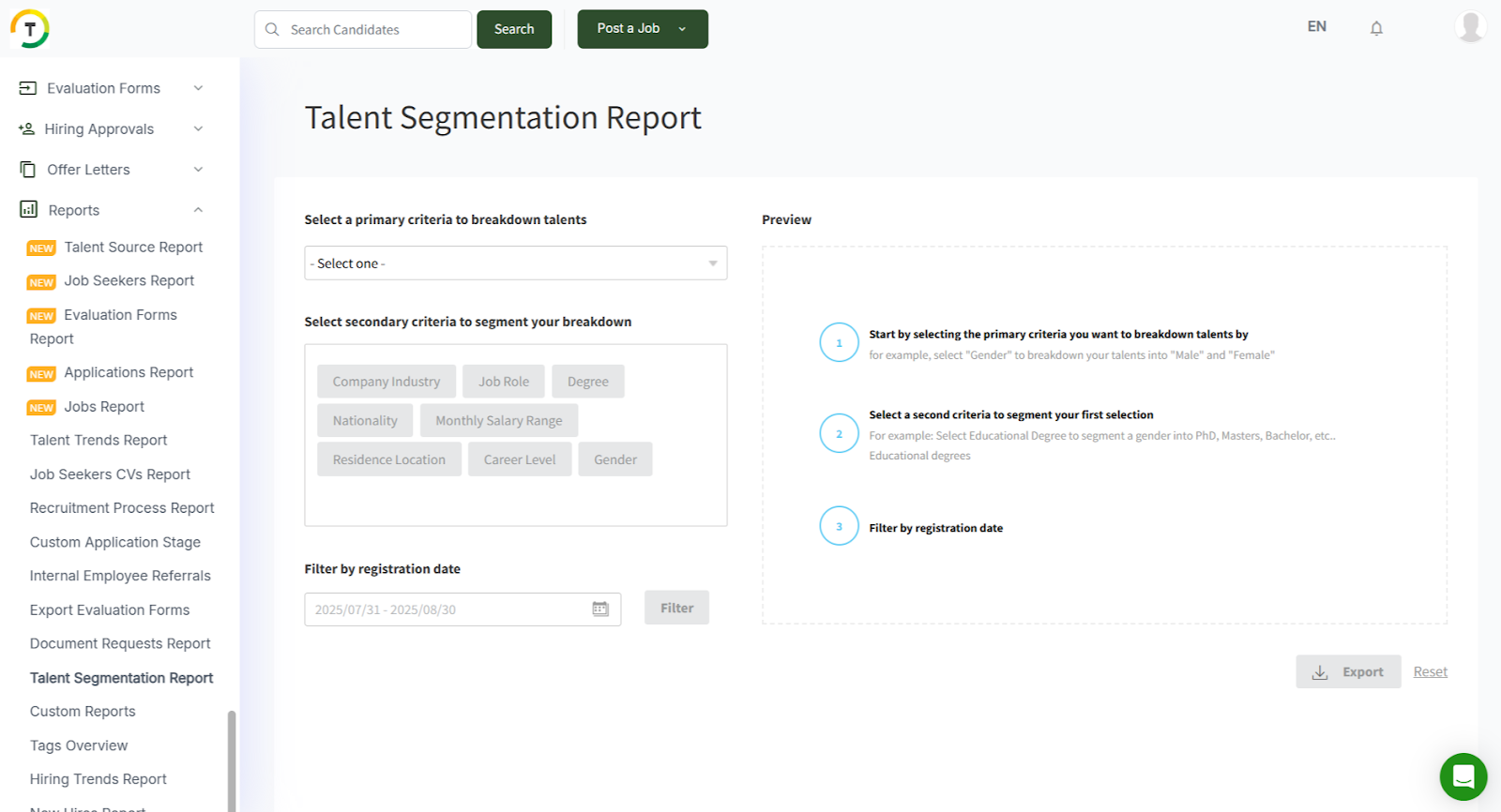
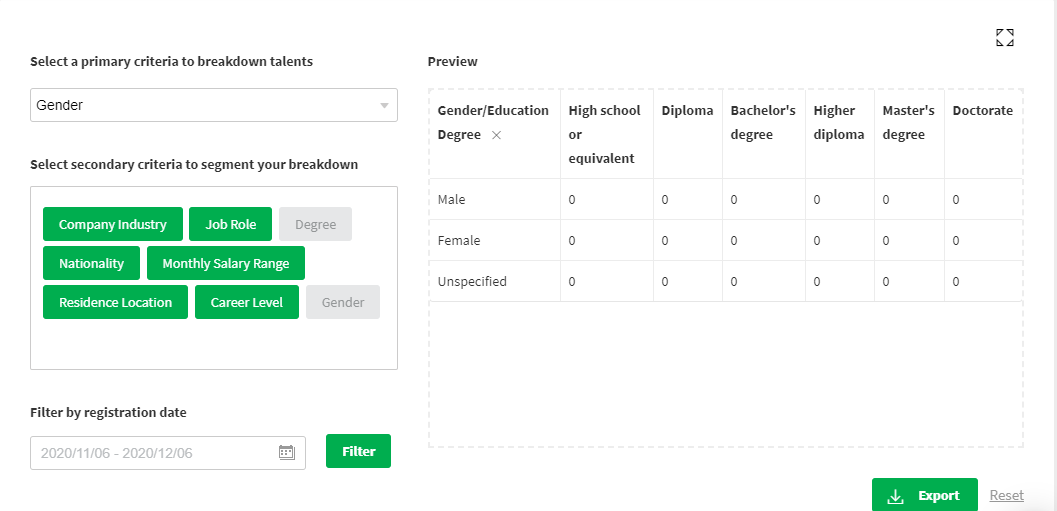
To generate the Talent Segmentation Report, you can start by selecting the primary criteria of your choice. Then select the second criterion to segment the first selection. For example, choose an Educational Degree to segment a gender into PhD, Masters, Bachelor, etc. Finally, filter the results by registration date.
You can select more than one secondary criterion to segment the gender further.
Custom Reports
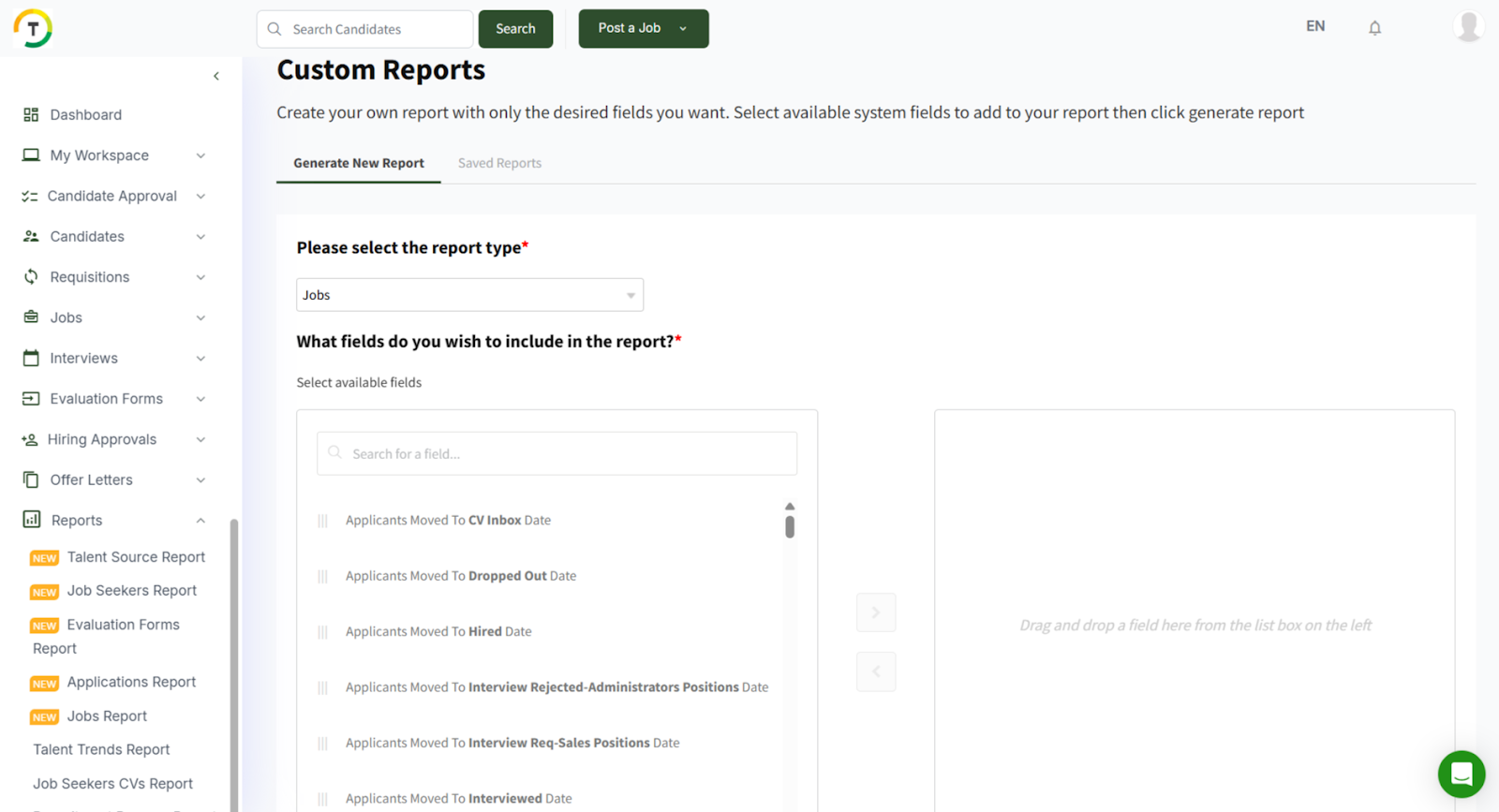
With Custom Reports, employers can create their own reports with only the desired fields they want. They can select from the available system fields and add to their report, then click on generate report.
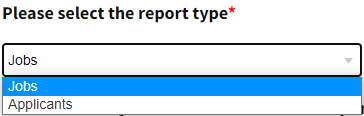
You can either create jobs or applicants' detailed reports.
It can be customized, generated, and downloaded immediately. If the report is generated frequently, then you can save it to generate later.
To generate the report, click the Download Report button, and the generated report will be exported to Excel and downloaded on your device.
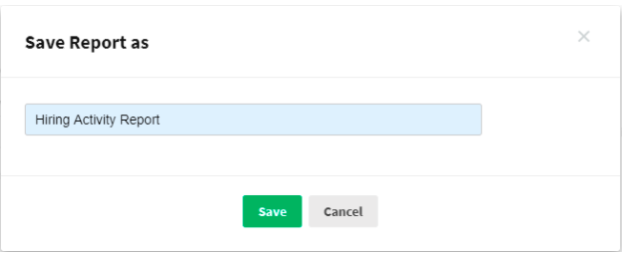
To save the report, click the Save button. This will save a copy of the selected criteria in the Saved Reports tab so you can generate the report in the future as and when needed. The system will prompt you to enter a name for the saved report.
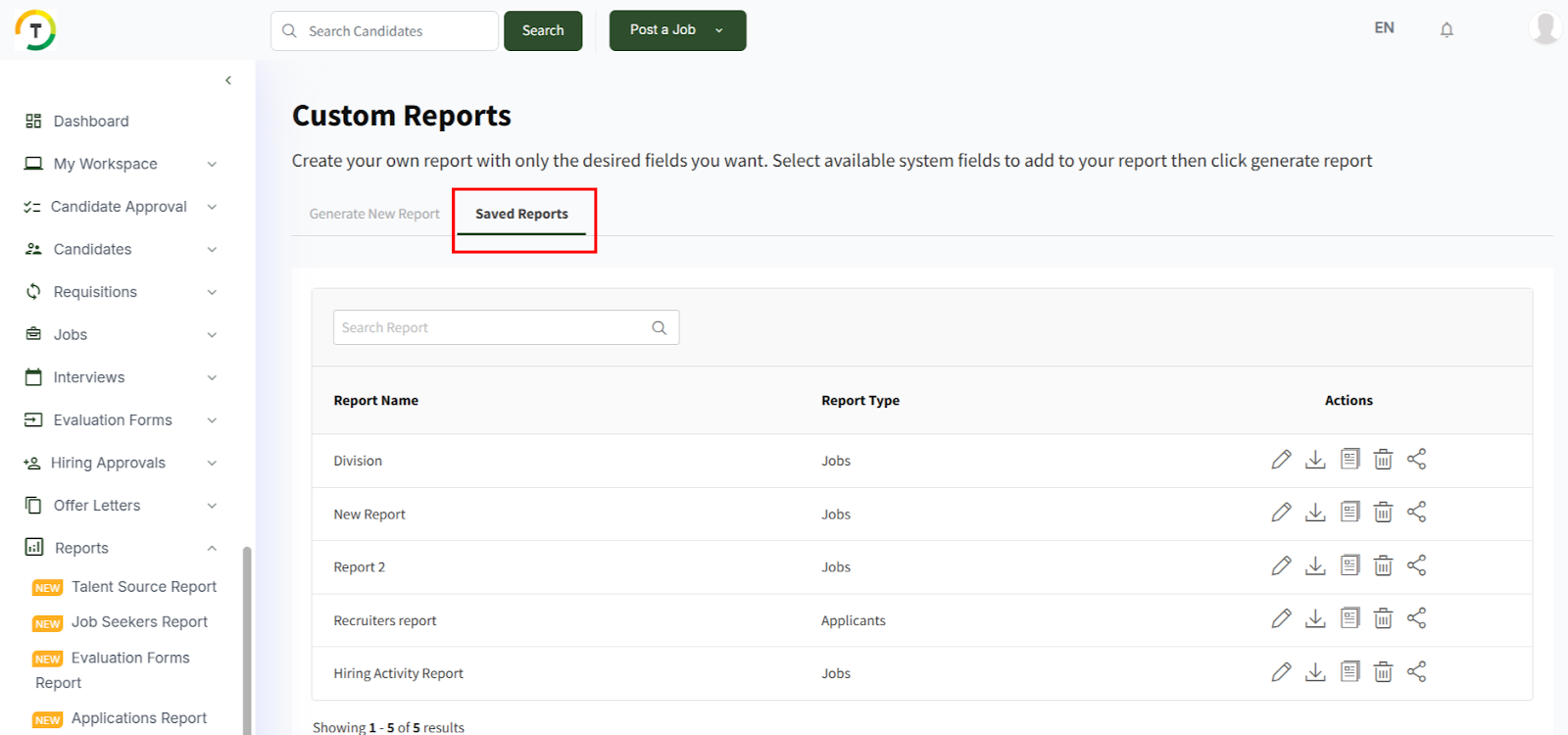
And then, you can edit, delete, share, duplicate or generate the report from the Saved Reports tab.
Tags Overview
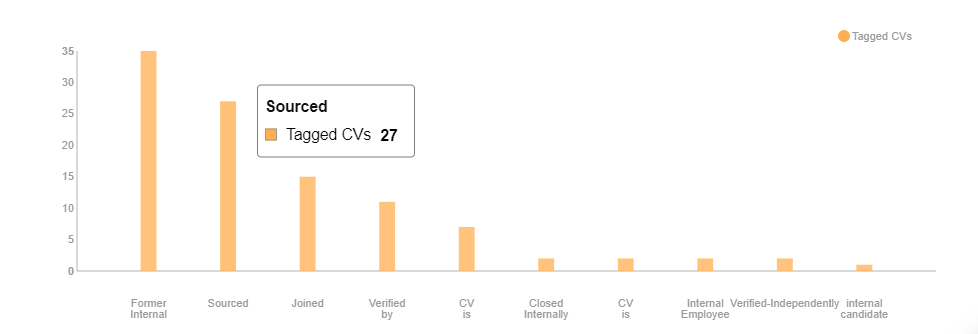
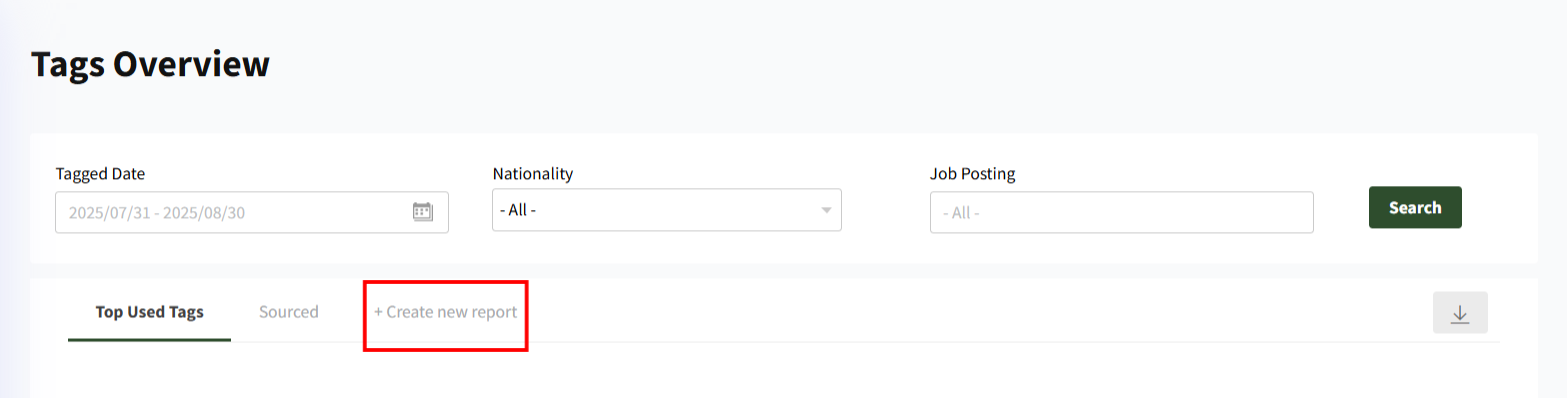
This report will display stats for the most popular tags in use.
You can filter the results using the tagged date, nationality, or job posting.
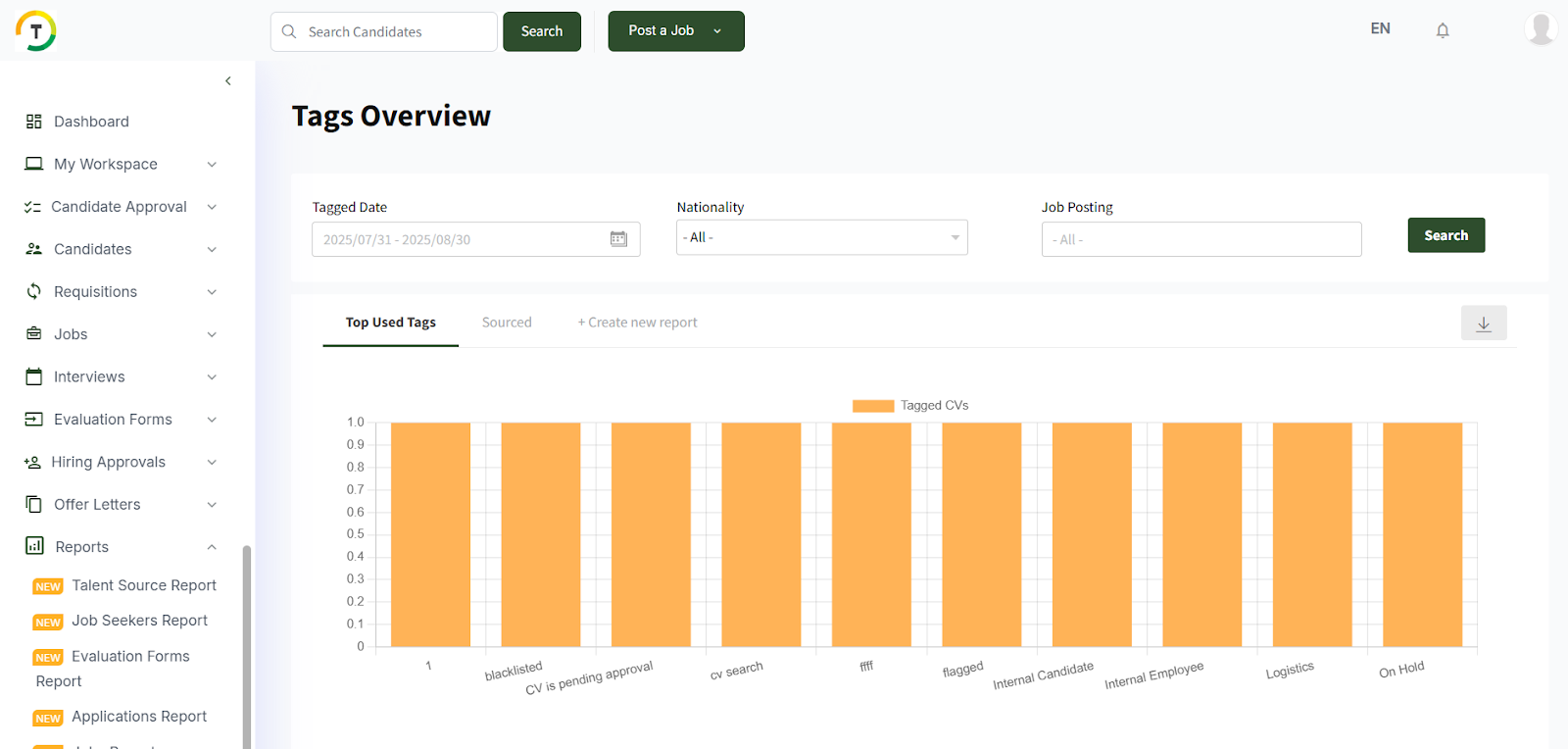
You can also create a new report by clicking on + Create New Report link.
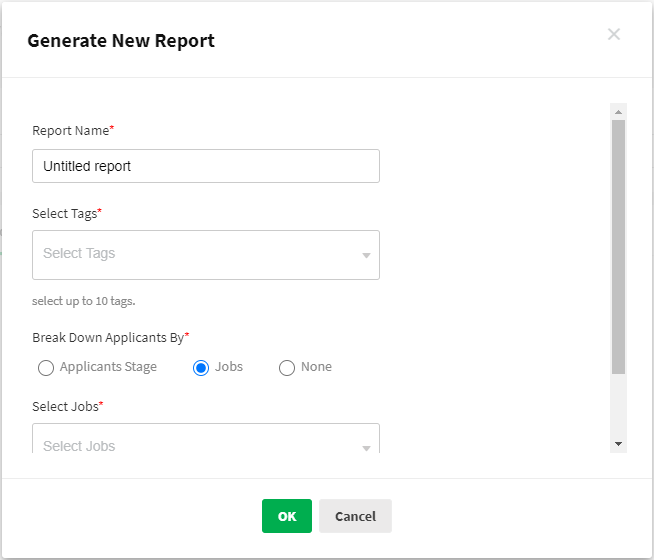
To generate the report, click the Download Report button, and the generated report will be exported to Excel and downloaded on your device.
Hiring Trends Report
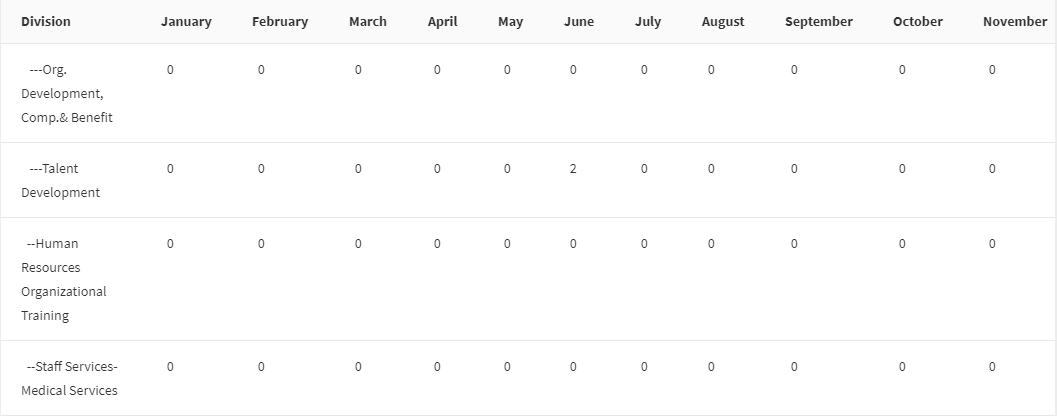
This report displays the total hirings per month per division.
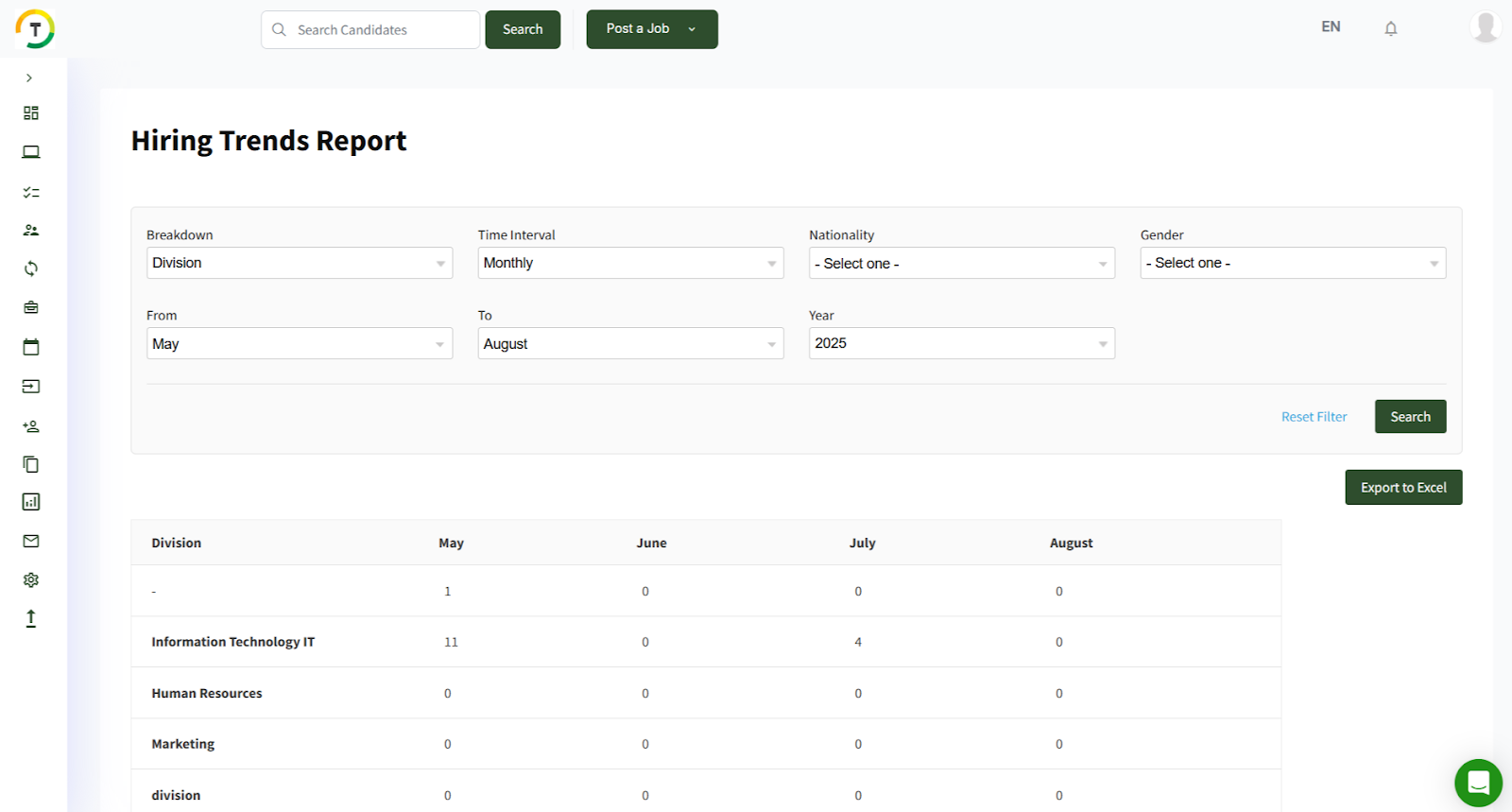
You can filter the results monthly, quarterly, or annually (Time Interval), and the results are displayed as a number/ per month.