Searching for CVs
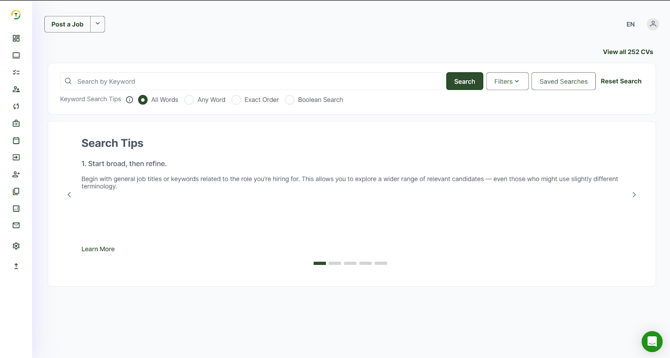
CV Search is a method to find CVs and proactively contact jobseekers.
Candidate CVs are ranked by relevance, so you get to see those best matching your criteria first.
You can pick the CVs which have been recently updated, so you know the candidate is currently job hunting or is open to opportunities.
Talentera offers built-in search tips to help you find the right candidates more effectively. It is recommended to start broad with general job titles or keywords, then refine your results using clusters and filters. The system supports three search modes — Any Keywords, All Keywords, and Exact Match — giving you control over result precision. For even smarter searches, you can also use Boolean logic with operators like AND, OR, and NOT to include, combine, or exclude specific terms. These tips make it easier to fine-tune your searches and quickly identify the most relevant candidates.
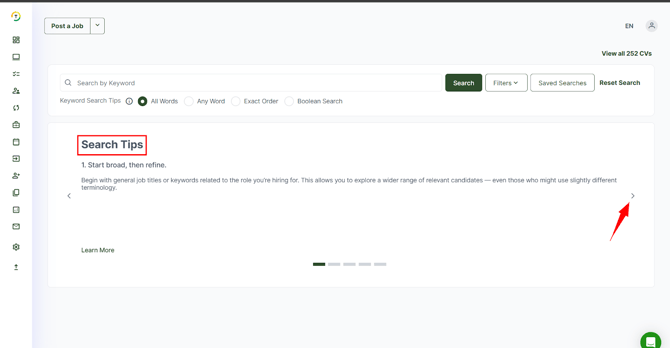
Employers can use the Search CV interface to find the most suitable candidates from their extensive talent pool. Filter using 30+ criteria to drill down to the most relevant candidates instantly.
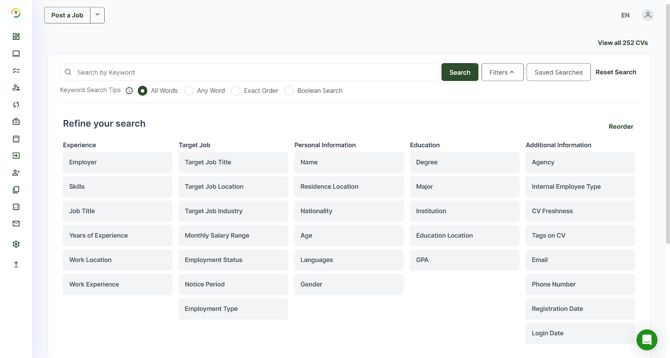
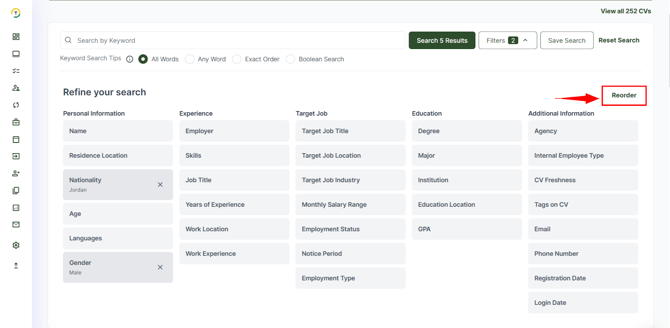
Reorder Button
The Reorder button allows you to customize the arrangement of your main filter groups. You can simply drag and drop the filter groups to reorder them according to your preference, making it easier to access the filters you use most frequently.
If you would like to view all candidates available on the career portal, you can click on the designated button shown below. This allows you to quickly access the full candidate list without applying any filters, providing a comprehensive overview of all registered candidates.

Keyword search is the most appropriate option when existing filters are not enough to specify the precise terms or requirements. In general, keywords are used to run a broad search when many results are preferred.

You can search CVs using as many keywords as you want, separating your keywords by a single space. For example, "accounting finance banking".
All Words: The search will return only CVs that contain all of the keywords you entered. For example, if you enter [oracle java] in the keywords text box and choose "All", the system will return only CVs that contain both "oracle" and "java". However, note that the words may appear in the CV in any order. For example, if a CV contains the word "java" in the job title and the word "oracle" in the training section, it will be shown in the results.
Any word: The search will return CVs that contain any (or all) of the keywords you entered. For example, if you enter [oracle java] in the keywords text box and choose "Any", the system will return CVs that contain the word "oracle" as well as CVs that contain the word "java" and CVs that contain both of them.
Exact Order: The search will return only CVs that contain the entered words in that same order. For example, if you enter [project manager] in the keywords text box and choose "Exact", the system will return only CVs that contain the words "project manager" in this order.
Boolean Search: Boolean Search provides you with an advanced method to search the CV database. You can use a combination of keywords and the Boolean operators (AND, OR, and NOT) to retrieve highly relevant CVs that match what your requirements. For example, using Boolean Search, you may want to search for CVs that contain the phrase "project manager" or the phrase "program manager" as long as the CV does not include the word "construction", and in all cases, the CV must contain the word "PMP". This search can be entered as: PMP AND ("project manager" OR "program manager")
Personal Information
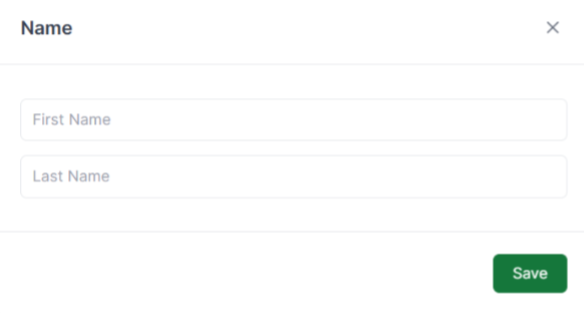
1- Name Filter- (First name and Last Name)
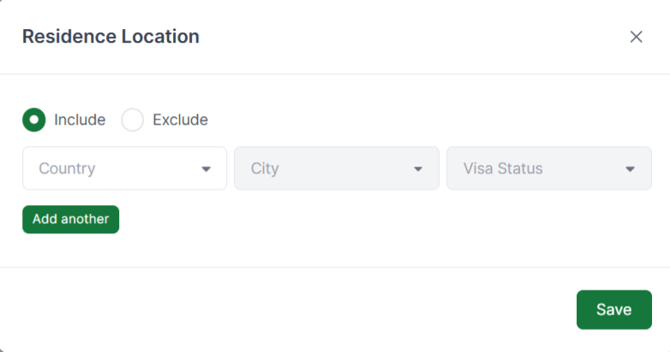
2- Residence Location Filter
- The Residence Location filter allows you to refine candidates based on country, city, or visa status. You can add up to 15 records in total. When you select a country, a drop-down list of available visa statuses will appear. Additionally, you can use the Include or Exclude buttons to decide whether the selected criteria (country, city, or visa status) should be considered or filtered out of your search results.
3- Gender Filter- (Male and Female options)

4- Age Filter- (Minimum and Maximum lists)

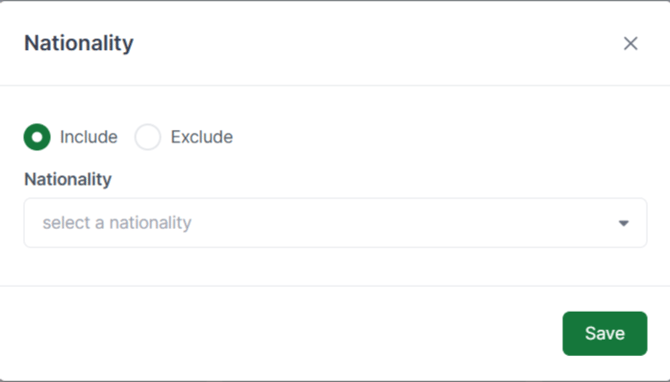
5- Nationality Filter
The Nationality Filter allows you to refine candidates based on specific nationalities. You can choose either:
- Include – retrieves results that match the selected nationalities.
- Exclude – removes candidates with the selected nationalities from the results.
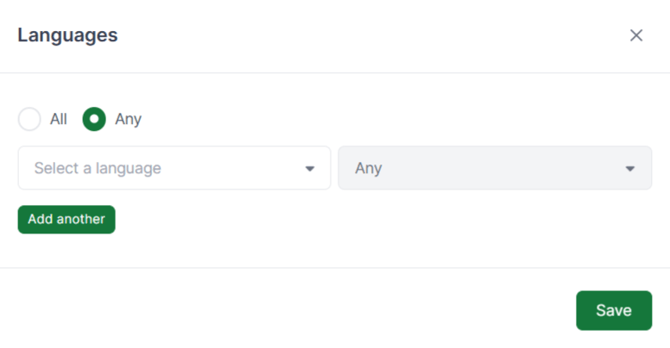
6- Languages Filter
The Languages Filter allows you to search for candidates based on their language skills. You can select a specific language and define the required proficiency level (Beginner, Intermediate, Expert, Native, or Any).
You can choose one of the following options:
-
All – retrieves candidates who match all the selected language criteria.
-
Any – retrieves candidates who match at least one of the selected language criteria.
You can also use the Add Another button to include additional languages and proficiency levels in your search, allowing more precise filtering.
Experience Section
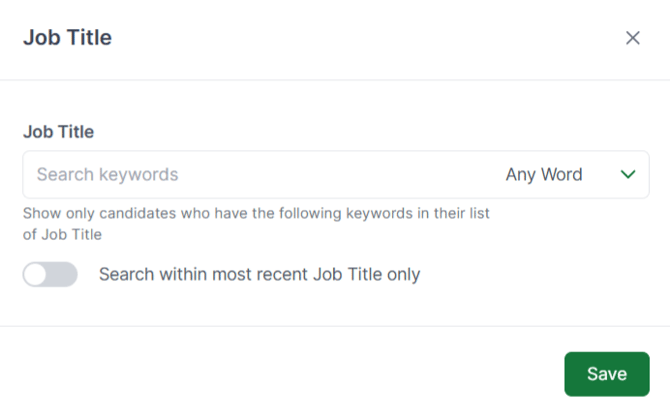
1- Job Title Filter- Enter the job title (HR Director) and any industry variants of the same title.
Most Recent Job Title switch- Clicking this switch will return CVs with the specified job position as the candidate's current job title. If the switch is not activated, the search will also display CVs of candidates who may have worked in these roles at any point in their professional history.
- Job title field
- “Search within the most recent job title only” switch.
- All Words, Any word, Exact order and Boolean options.
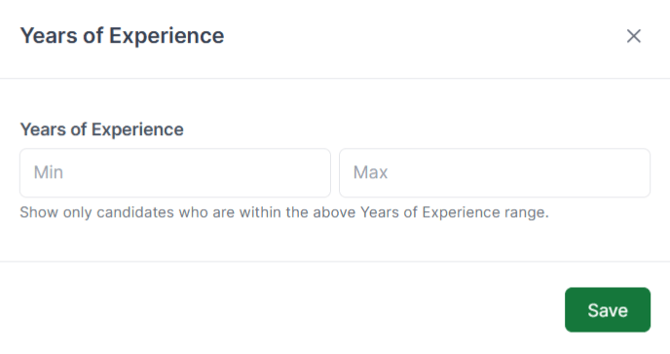
2- Years of Experience- Use this filter to specify both minimum and maximum years of overall professional experience. It has filters for both Minimum list and Maximum list.
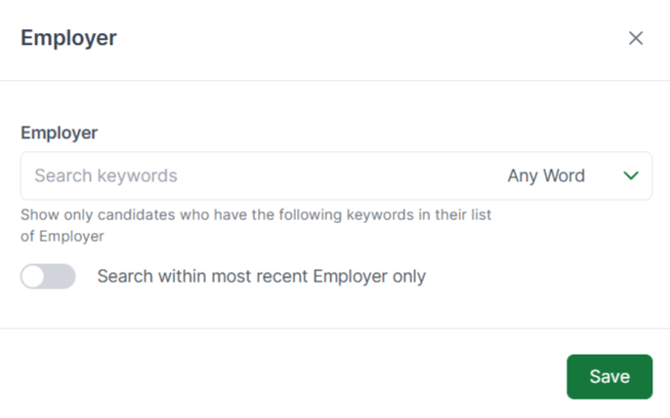
3- Employer Filter- Use this filter to search the candidates who have the following keywords in their employers’ list.
- Employer field.
- “Search within the most recent employer only” switch.
- All Words, Any word, Exact order and Boolean options.
4- Work Experience Filter- Use this filter to search the candidates who have years of experience within the specific range.
- Work Experience field.
- “Search within the most recent work experience only” switch.
- All Words, Any word, Exact order, and Boolean options.

5- Employer Location Filter
The Employer Location Filter allows you to refine candidate searches based on their location. You can specify the desired country and city to better match your hiring needs.
You have two options:
- Include – retrieves candidates who are located in the selected country or city.
- Exclude – removes candidates from the results who are located in the selected country or city.
Additionally, there is an “Add Another” button that lets you include multiple countries or cities up to 15 choices, giving you more flexibility when defining your search criteria.
This helps you quickly target talent pools in specific regions or avoid locations that do not align with your requirements.

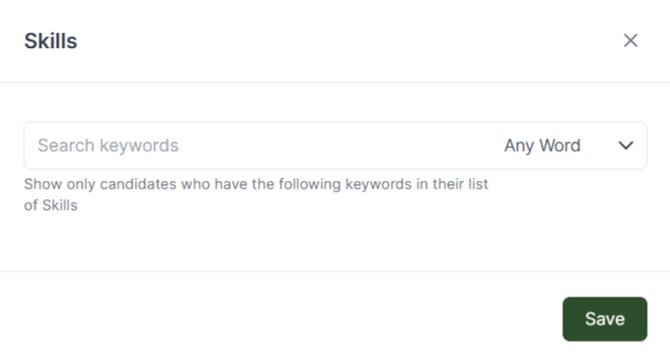
6- Skills Filter
The Skills Filter helps you narrow down candidates based on specific skills. You can type keywords into the search bar to look for particular skills that match your job requirements.
When entering skills, you can choose from the following options:
All Words, Any word, Exact order and Boolean options.
Target Job Section
The Target Job Section allows you to search for candidates based on the details of their desired or target job. You can filter by criteria such as job title, industry, etc. To quickly find candidates whose career goals align with the role you’re hiring for.
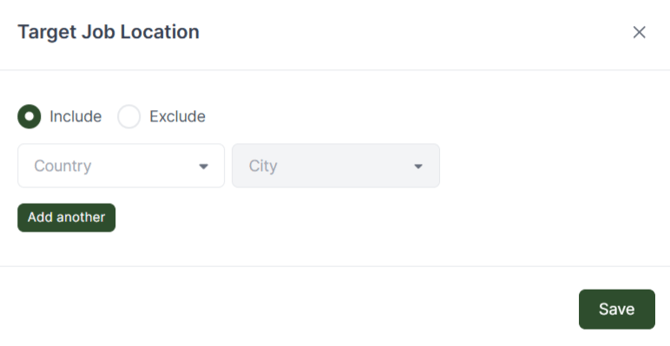
1- Target Job Location Filter
The Target Job Location Filter allows you to search for candidates based on their preferred work location based on the information they have provided in the CV builder. You can specify the desired country and city to align with the candidate’s career aspirations.
You have two options:
- Include – retrieves candidates who have selected the specified country or city as their preferred job location.
- Exclude – removes candidates from the results who have chosen the specified country or city as their preferred job location.
Additionally, there is an “Add Another” button that lets you include multiple countries or cities, providing greater flexibility when defining your search criteria.
2- Target Job Title Filter
The Target Job Title Filter allows you to refine candidate searches based on their preferred job titles. This helps you identify candidates whose career goals match the positions you’re hiring for.
When entering Target Job Title, you can choose from the following options:
- All Words, Any word, Exact order and Boolean options.

3- Target Job Industry Filter
The Target Job Industry Filter allows you to search for candidates based on their preferred industry based on their input in the CV builer. This ensures you can identify candidates whose career interests align with the industry of your job openings.
You have two options:
- Include – retrieves candidates who have selected the specified industry as their preferred choice.
- Exclude – removes candidates from the results who have chosen the specified industry as their preference.

4- Monthly Salary Range Filter
The Monthly Salary Range Filter allows you to refine your search by specifying the candidate’s expected salary range based on their input in the CV builder. You can set both minimum and maximum values to match your budget requirements.
Additionally, you can select the currency to ensure results are aligned with your compensation structure.

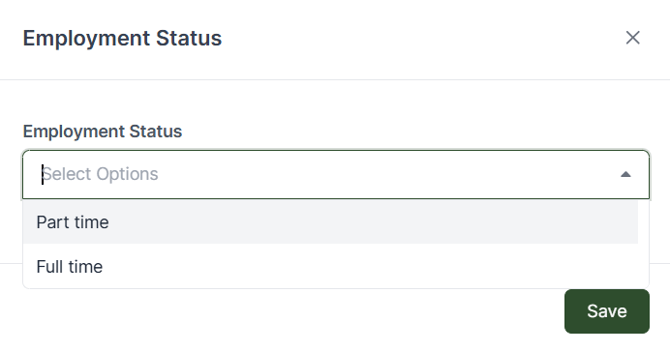
5- Employment Status Filter
The Employment Status Filter allows you to narrow down candidates based on their preferred type of employment. This ensures you connect with candidates whose availability aligns with your hiring needs.
You have two options:
- Full-Time – retrieves candidates seeking full-time opportunities.
- Part-Time – retrieves candidates interested in part-time roles.
6- Notice Period Filter
The Notice Period Filter allows you to refine candidate searches based on how soon they are available to join a new role. This information is filled by the candidate on the CV builder.
You can select from the following options:
- Immediately – candidates who can join right away.
- 1 month or less – candidates available within one month.
- 3 months or less – candidates available within three months.
- 6 months or less – candidates available within six months.
- More than 6 months – candidates who require more than six months’ notice.
- More than 1 year – candidates who require over a year to join.

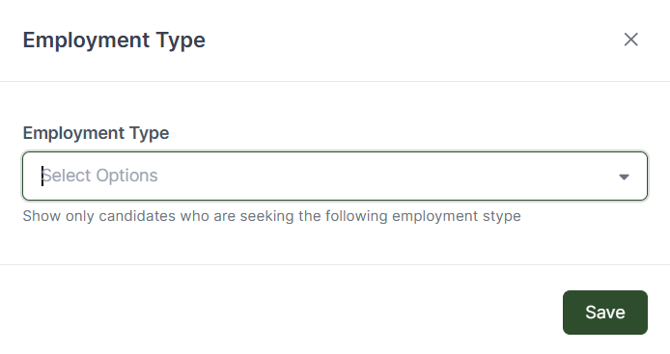
7- Employment Type Filter
The Employment Type Filter allows you to search for candidates based on the type of employment they are seeking. You can select options such as Employee, Internship, Contractor, or other available employment types. This filter helps you target candidates whose preferred employment type matches your hiring requirements.
Education
The Education section allows you to filter candidates based on their academic background. You can refine searches by Degree, Major, Institution, GPA, or Education Location. This helps you identify candidates whose educational qualifications align with the requirements of your open positions.
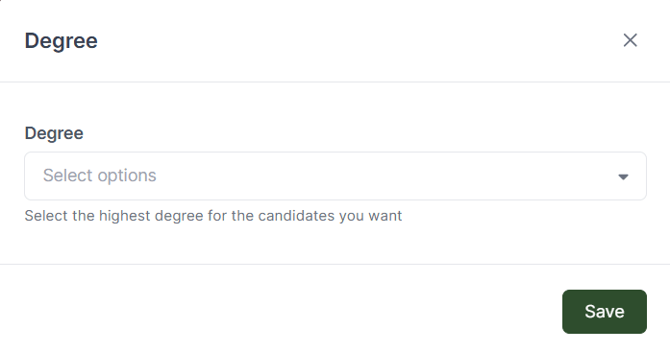
1- Degree Filter
The Degree Filter allows you to refine candidate searches based on their highest academic qualification. You can select from options ranging from High School to Doctorate, helping you target candidates whose educational level meets the requirements of your open positions.
2- Major Filter
The Major Filter allows you to search for candidates based on their field of study or major. You can enter keywords in the search box and choose from options like Any Words, All Words, Exact Order, or Boolean Search for more precise results. Additionally, there is a switch to search within the most recent major only, helping you focus on candidates’ latest academic specialization.

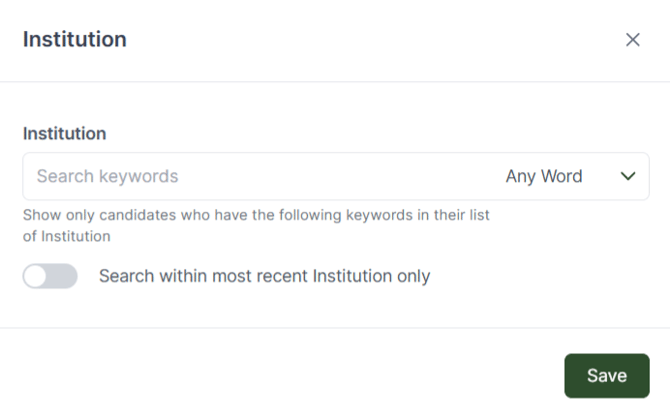
3- Institution Filter
The Institution Filter allows you to search for candidates based on the educational institution they attended. You can enter keywords in the search box and use options like Any Words, All Words, Exact Order, or Boolean Search to refine results. This filter helps you target candidates from specific schools, colleges, or universities that align with your hiring requirements. Additionally, there is a switch to search within the most recent institution only, helping you focus on candidates’ latest academic experience.
4- Education Location Filter
The Education Location Filter allows you to refine candidate searches based on the location of their educational institution. You can select from a list of all countries to target candidates who studied in specific regions.
You have two options:
- Include – retrieves candidates who studied in the selected country or countries.
- Exclude – removes candidates from the results who studied in the selected country or countries.

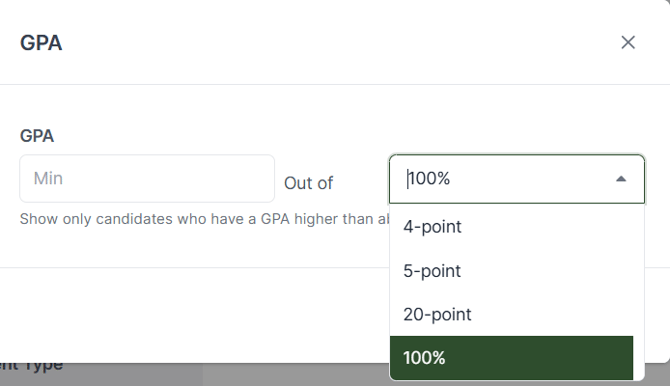
5- GPA Filter
The GPA Filter allows you to refine candidate searches based on their grade point average. You can select the minimum GPA required and choose the grading method from options such as 4-point, 5-point, 20-point, or 100%. This filter helps you focus on candidates whose academic performance meets your desired standards.
Additional Information Filter
The Additional Information Filter allows you to refine candidate searches based on extra details such as CV freshness, tags on the CV, email address, phone number, and other specific profile information. This provides added flexibility to narrow down candidates beyond the standard search criteria and ensures you can target individuals with the most relevant and up-to-date details. Please note that the full benefit of these filters is available when the Agency module is included in your package.
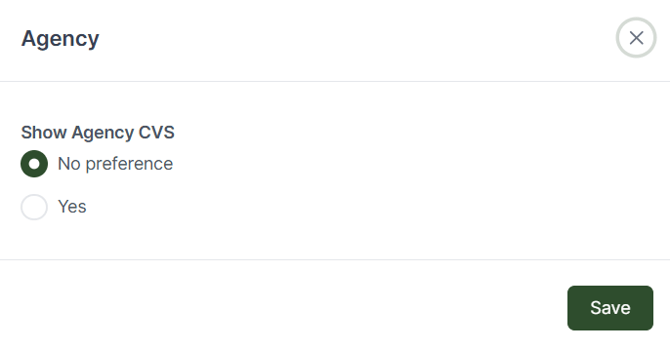
1- Agency Filter
The Agency Filter allows you to refine your search results by including only CVs that were submitted by recruitment agencies. This ensures that your search can specifically target candidates sourced through agency channels, providing an added layer of control when managing talent acquisition.
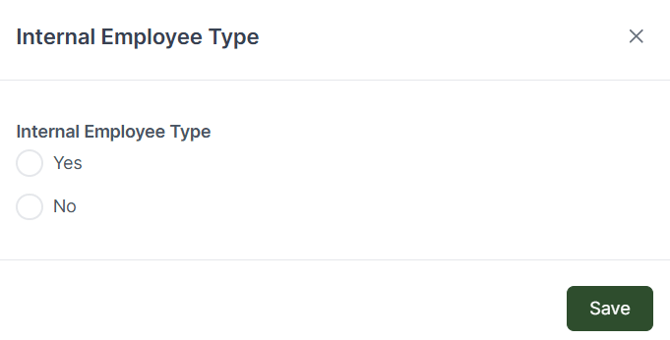
2- Internal Employee Type Filter
The Internal Employee Type Filter enables you to control whether internal employees are included in your search results. This gives you the flexibility to either focus solely on external candidates or broaden your search to include existing employees within your organization.
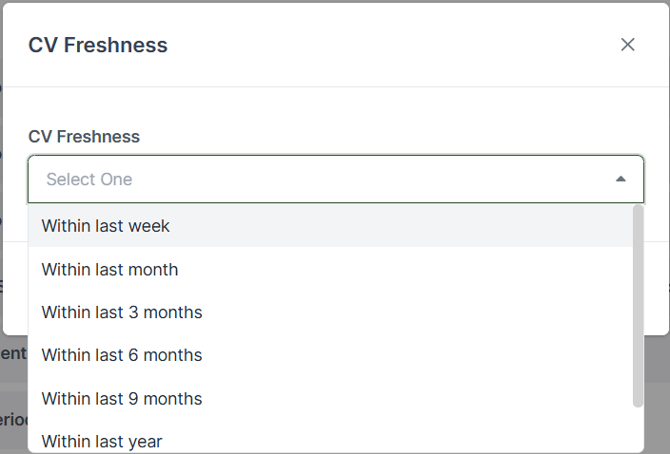
3- CV Freshness Filter
The CV Freshness Filter allows you to refine search results based on how recently a CV was updated. This helps ensure you are reviewing candidates who are actively seeking opportunities. You can choose from a range of options including: within the last week, within the last month, within the last 3 months, 6 months, 9 months, within the last year, or within the last 2 years.
4- Tags on CV Filter
The Tags on CV Filter allows you to search for candidates based on specific tags applied to their profiles. This provides greater control when identifying candidates with particular attributes or classifications. You can refine your search using three options:
- All of these tags – retrieves candidates who have all the specified tags.
- Any of these tags – retrieves candidates who have at least one of the specified tags.
- None of these tags – excludes candidates who have the specified tags from your results.

5- Email Address Filter
The Email Address Filter allows you to search for candidates directly using their email address. This filter is particularly useful when you want to locate a specific candidate quickly or verify if a candidate already exists in the system.

6- Phone Number Filter
The Phone Number Filter allows you to search for candidates directly using their phone number. This helps quickly locate a specific candidate or verify contact details within the system.

7- Registration Date Filter
The Registration Date Filter allows you to refine candidate searches based on when they registered on the platform. You can set a start date and end date to define a specific date range, helping you focus on candidates who joined within that period.

8- Login Date Filter
The Login Date Filter allows you to refine candidate searches based on their last login to the platform. You can set a start date and end date to define a specific range, helping you focus on candidates who have been recently active.

Save Search
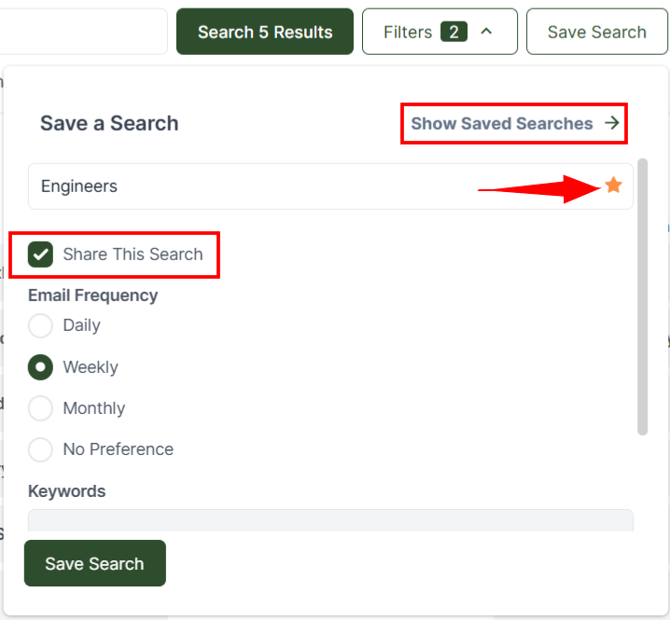
After applying your desired filters, Talentera allows you to save your search criteria for future use, eliminating the need to manually set the same filters each time. When saving a search, you can:
- Name the saved search for easy identification.
- Share with other users by selecting the checkbox, allowing team members to access the same search.
- Set email triggers to receive notifications daily, weekly, monthly, or choose no preference.
- Pin the search to the left-side main menu by clicking the star icon for quick access.
These features make managing and reusing searches efficient while keeping your team aligned.
After selecting your desired filters, click "Search" to view the results. By default, results are sorted by "Relevance to Filters," but you can re-sort them by "Last Activity" or "Registration Date."
Shortlist
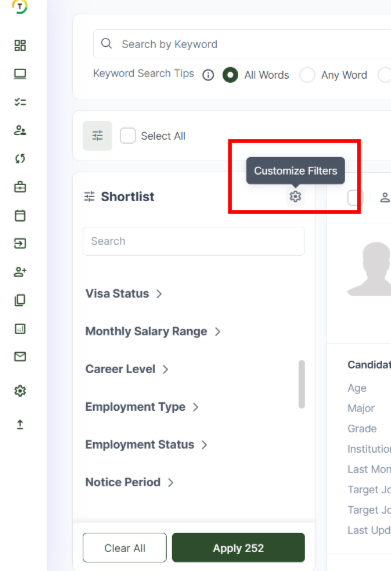
The Shortlist section, located on the side of the Candidate Search page, allows employers to further refine their search results using an extensive set of more than 30 advanced filters. These filters provide additional granularity beyond the main search criteria and include options such as Last Employer, Notice Period, Job Title, Work Location, and many more. This feature enables recruiters to quickly pinpoint the most relevant candidates by applying precise filters, as shown below.
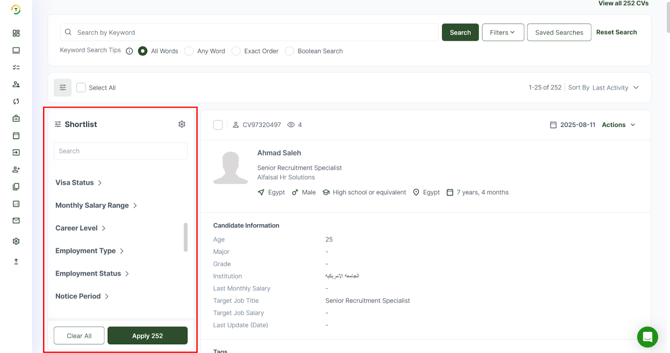
You can organize the Shortlist section by clicking on the button shown below. From there, you can enable or disable specific filters, as well as drag and drop each filter to reorder them based on their importance and relevance to your hiring process.

The top of the page will display the total number of relevant CVs. Each page shows 25 results.

Each candidate's CV carries a unique reference code. You can search for a particular CV or candidate by entering this code in the keyword text field.

Multiple actions can be taken from the CV List view that appears in the CV Search Results.
Every CV brief in this view has a button labeled Actions that allows the employer to take various actions on the CV:
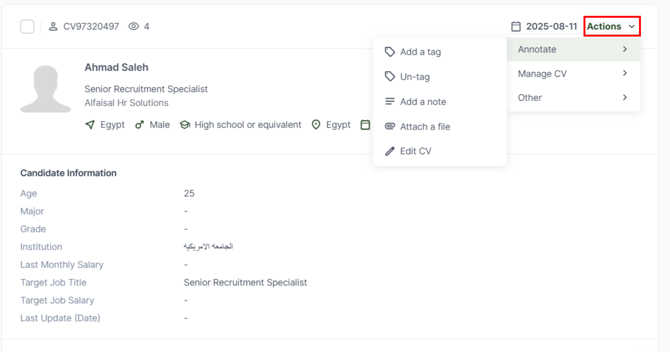
Annotate
- Add a tag: Tags are short descriptors added to a CV to index or identify them later. Tags, once created and saved, will be attached to the candidate's CV. Any tagged CVs can be later retrieved by running a quick search. The search results will then display CVs carrying these tags.
- Un-tag: Used to remove any added tags on the CV.
- Add a Note : Once a CV has been opened and reviewed, notes can be added for recall. This feature is handy if multiple employers are working on a position. Any notes added are permanently attached to the CV.
- Attach a file: Any documents related to a candidate's profile (e.g. design portfolios, original CVs, educational documents etc.) can be attached to the online CV. This is an excellent solution for maintaining a comprehensive record of each candidate.
- Edit CV: This option allows the user to edit the CV’s (Personal Information, Contact Information, Experience, Education, and Skills).
Manage CV
- Add to Job Inbox: Employers can use this feature to apply on behalf of a candidate for a job they think the candidate will be suitable for if they haven’t applied for it themselves. This copies the candidate record into the specified job folder.
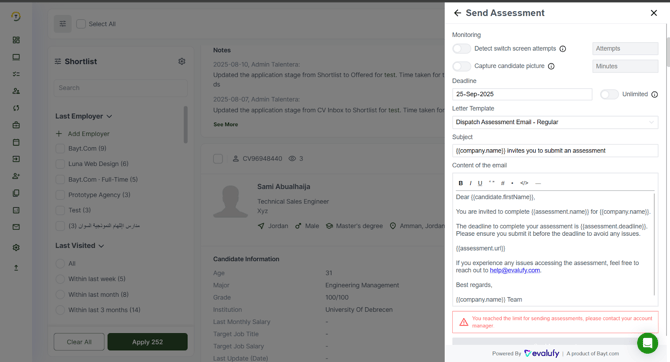
- Send Assessment: Employers can send pre-defined assessments through the Evalufy widget or create a custom assessment. To build a custom assessment, simply enter the job title, job description, years of experience, and select the attributes to validate (Skills, Personality, and Competency). After that, choose the question types, which include:
- Smart Video: AI analyzes the candidate’s video answer.
- Video: Standard video response.
- Long Text: Candidate answers with a paragraph.
- Short Text: Candidate answers with a sentence.
You can then set the number of questions, and the AI will automatically generate a suitable test. This test can be used as-is or further customized.
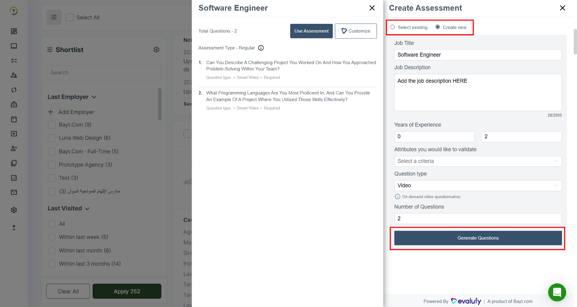
After generating an assessment, you can further tailor it by clicking on “Customize.” This allows you to configure the assessment as either timed or without a time limit.
Within the customization view, you can:
- Select the type of each question individually.
- Modify the content of a question by clicking on the text and updating the details as needed.
- Decide whether a question is mandatory by toggling the “Required” switch. When enabled, candidates must provide an answer to that specific question.

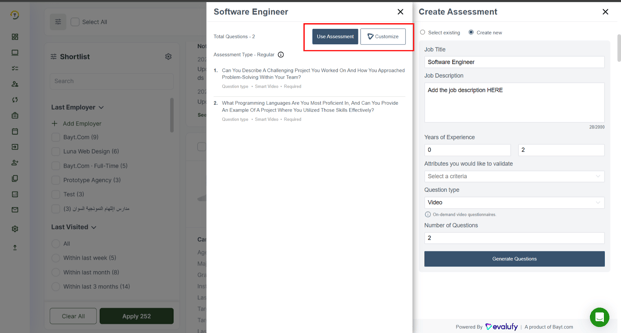
Once you click “Use Assessment”, you will proceed to the final step, which includes setting up monitoring options:
- Detect screen-switch attempts.
- Capture candidate pictures at selected time intervals.
You can also define the test deadline (or keep it unlimited) and select the message template to be sent to the candidate. Alternatively, you can create a custom email directly from the same window.
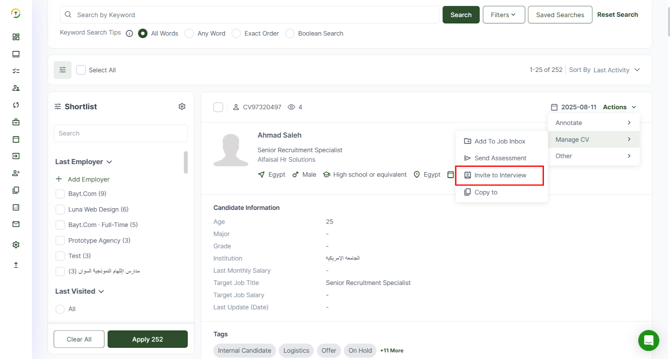
-Invite to Interview:
You can invite the candidate to an interview, which will redirect you to the Interviews module where you can add the required details. (For the complete interview scheduling process, please refer to the Interviews section.)
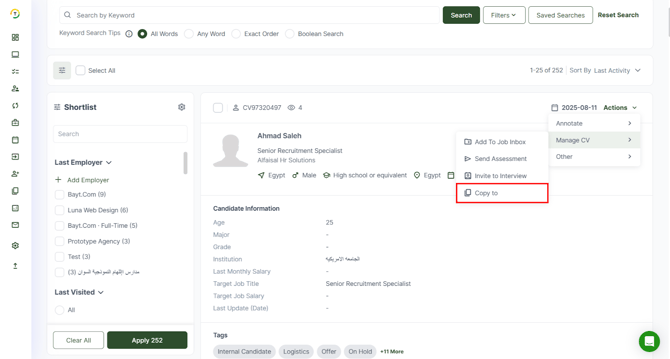
-Copy to: A CV can be copied to a separate folder for easy retrieval at a later time so that it doesn’t get lost amid hundreds of CVs. This might be useful, for instance, when you come across a very good CV that does not suit any of the open positions at the moment, but which you would like to consider for a relevant post in the future.
Other
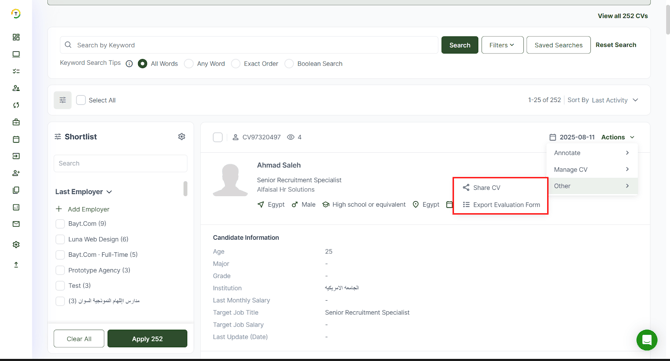
- Share CV: The CV can be emailed directly to a friend, colleague, or manager's inbox with a personalized message.
- Export Evaluation Form: This feature allows employers to export all evaluation forms into an Excel spreadsheet, providing a clear view of each candidate’s evaluation status based on the forms submitted for them. (For more details, please refer to the Evaluation Forms section.)
Viewing Candidate Details and Actions
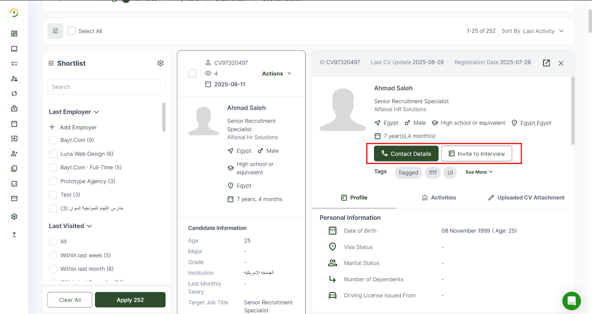
Clicking on a candidate's profile opens a sub-window displaying comprehensive candidate information, categorized into sections such as Education, Location, and Gender. At the top of this sub-window, you'll find two key action buttons:
- View Contact Details: This button allows employers to quickly access the candidate's contact information, including phone numbers and email addresses, facilitating direct communication by clicking on “Send Message”.
- Invite to Interview: Clicking this button initiates the interview scheduling process, redirecting you to the Interviews module where you can set up all the necessary details for an interview. (Refer back to interviews section for further details)
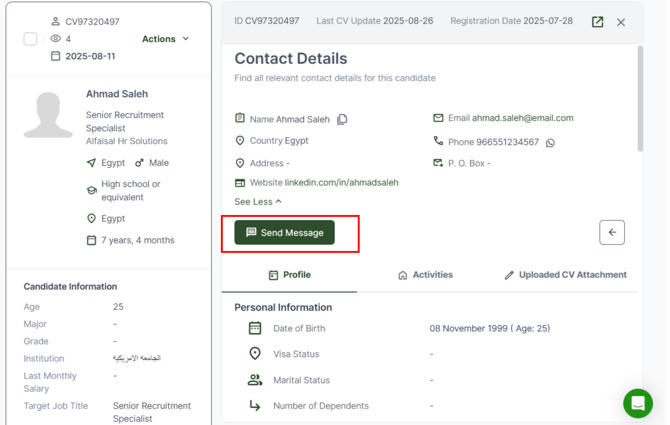
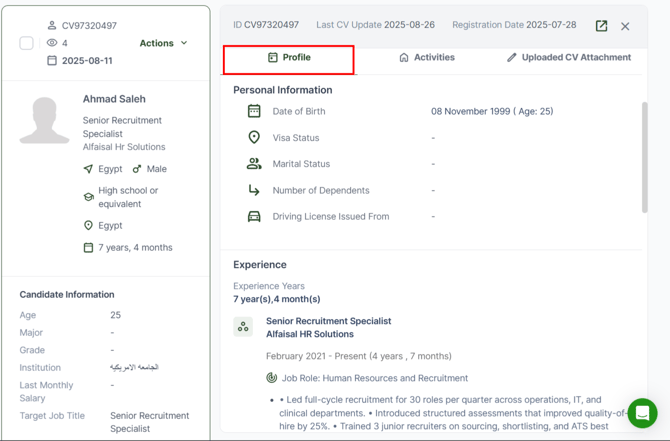
Below Contact Details, you will find 3 sections (Profile, Activities, and Uploaded CV Attachment).
- Profile: In this section, you can view all details related to the candidate’s Personal Information, Work Experience, and Education.
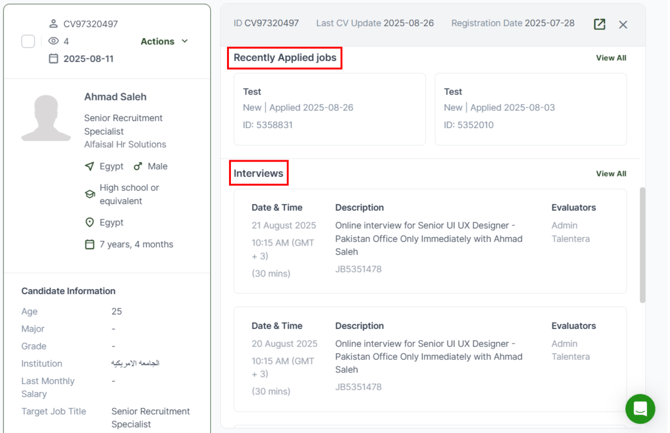
- Activities:In this section, you can view all activities related to the candidate profile, including actions performed by the candidate, such as applying for a job, as well as actions taken by recruiters. You can also see scheduled interviews and any notes that have been added for the candidate.
-Uploaded CV Attachment: In this section, you can view the CV attachments uploaded by the candidate directly, without the need to visit other webpages. You can also download the CV by clicking on the Download button.
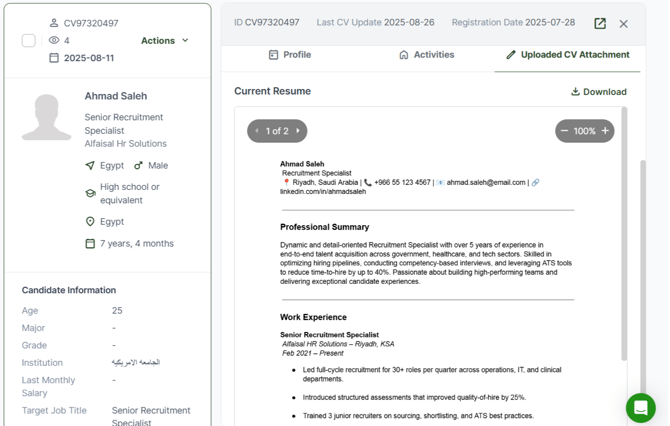
Clicking on the below button will open the full CV.

The CV View shows a candidate’s entire profile, CV, all annotations made by one/multiple employers, status updates, attachments, questionnaire results, and evaluation forms - all in one place. This is a comprehensive record of the candidate.

On the CV, the employer will see a set of buttons, similar to those that appear on clicking the Actions button from CV List View in addition to the Other Actions section which offers:
Print - To get a printed copy of the online CV.
Export - Allows you to download the CV in MS Word/PDF and Excel.
View Applications - This tab discloses whether a candidate has applied for multiple vacancies within your organization. If he or she is not shortlisted for one position, perhaps he or she can be recommended for another. Any notes inserted will be visible to all employers/ hiring managers.
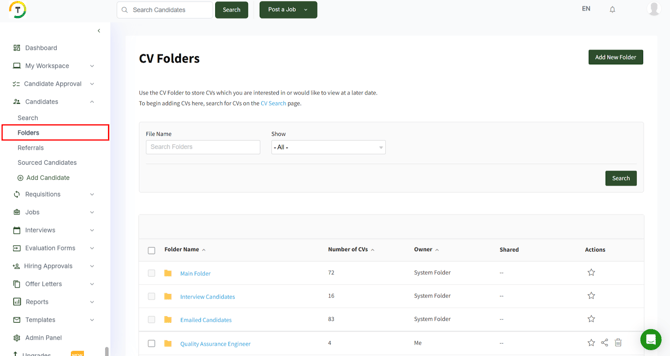
CV folders
To better organize your recruitment workflow, you can create several folders for easy access. These folders can be shared with other team members directly involved in the screening/recruitment process.
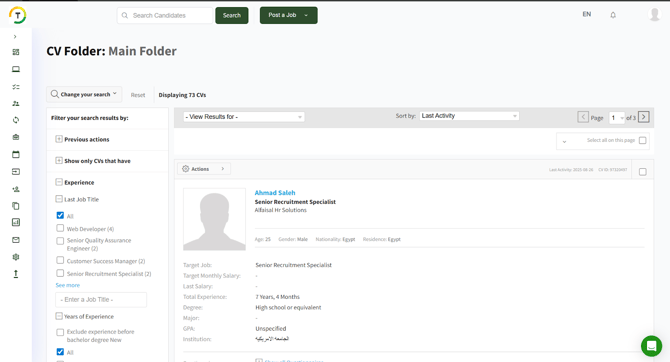
Once you click on a folder’s name, the full list of stored CVs will be displayed. You can now print, email, or download the CVs in bulk. You can also choose to dispatch questionnaires or letters to all candidates within a folder. Email multiple candidates using either pre-saved letters or customized messages.
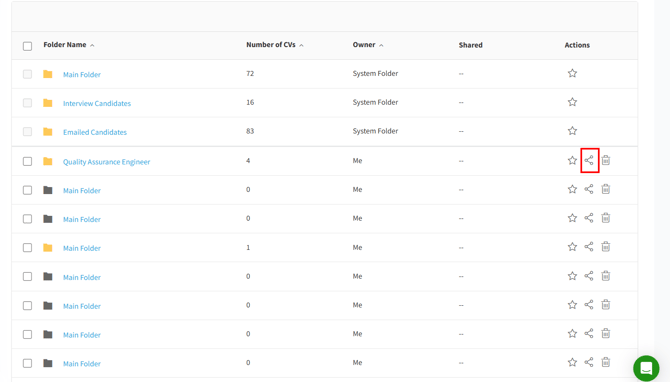
Share Folder- Share folders with employers using the following options:
- By User
- By Role

You can also define the level of access as listed below:
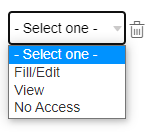
- Fill/ Edit
- View
- No Access