Posting New Jobs
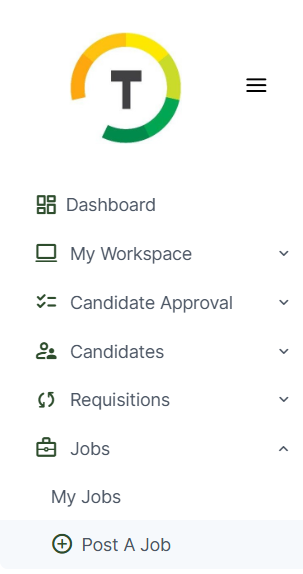
To post a new job, employers have to click on the Jobs tab located on the left side of their navigation bar and then click on the ‘Post a Job’ button.
Job Setup Section
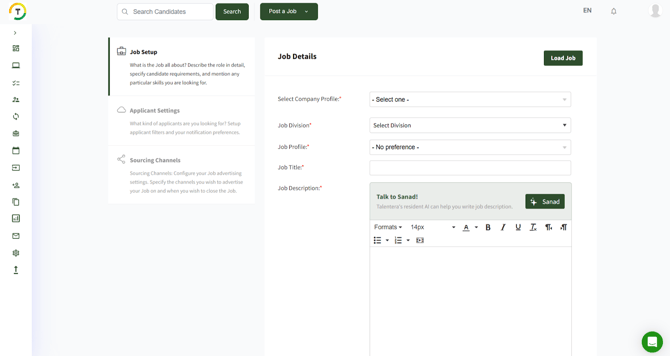
What is the job all about? Describe the role in detail, specify candidate requirements, and mention any particular skills you are looking for.
Job Details Section
In this part, the employer should explain what the job is all about? Describe the role in detail, specify candidate requirements, and mention any particular skills you are looking for.
This section consists of:
Job Details:
- Job Title - Enter the official job title for the position. You can also enter alternative job titles, separated by commas.
- Job Description - Text can be entered in Bold, Italics, or emphasized by an underscore. You can preview this section before information is published.
- Job Location - Specify the employment location (country and city) by selecting appropriate options from the drop-down menu.
- Job Role - This field can be set as an auto-filter by checking the Set as applicant auto-screen filter option.
- Joining Date
- Employment Status
- Employment Type
- Monthly Salary Range
- Manages Others
- Number of Vacancies
- Company Industry
- Save as Job Template- Users can also create a new job description by completing the job posting form. The posting can be saved as a set template by clicking the Save current job posting as a new job template option, depending on user access levels.
- Disable Auto-sharing Settings (Confidential)- Users can disable auto-sharing settings for a specific job.
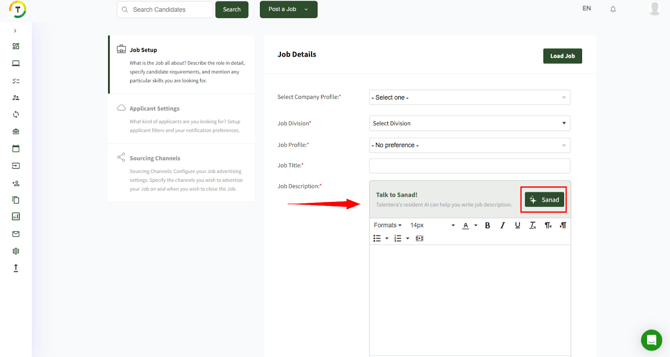
Sanad AI Assistant: Sanad AI Assistant is an intelligent tool designed to support employers in creating the perfect job description. By leveraging AI-powered text generation, Sanad helps you draft clear, engaging, and professional job descriptions tailored to your specific role. In addition, it suggests the most relevant candidate skills required for the job, ensuring alignment between job responsibilities and candidate qualifications. With Sanad, you can save time, maintain consistency, and attract the right talent more effectively.
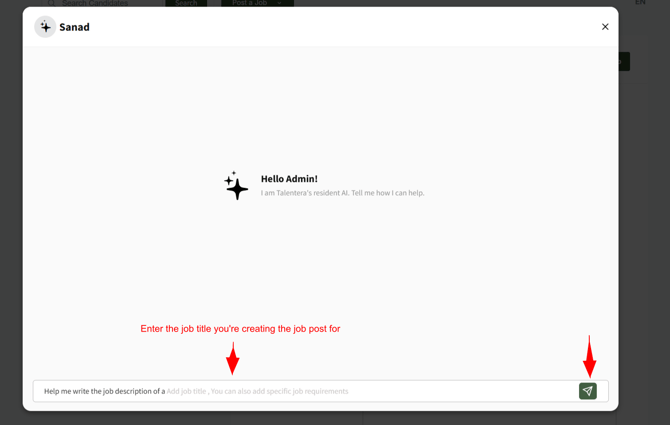
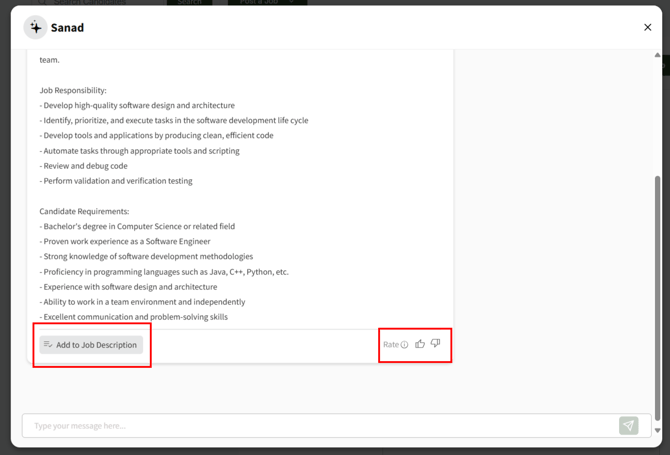
Once the job description and skills are generated, you can click on the "Add to Job Description" button to insert the content directly into your job posting. Additionally, you have the option to rate the generated result by clicking on the like or dislike icons, helping the system improve future suggestions. (See screenshot below).
Candidate Requirements Section
This section consists of:
- Skills
- Career Level
- Years of Experience
- Residence Location
- Gender
- Nationality
- Major
- Degree
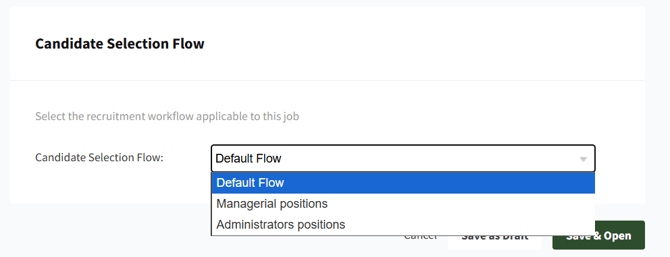
Candidate Selection Flow Settings: Users can create multiple flows for different kind of jobs (Refer to the candidate selection flow section).
Applicant Settings
What kind of applicants are you looking for? Setup applicant filters and your notification preferences.
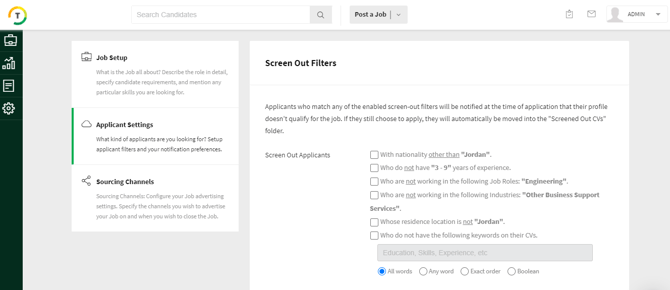
Now, you will be redirected to the next page wherein you need to specify the following:
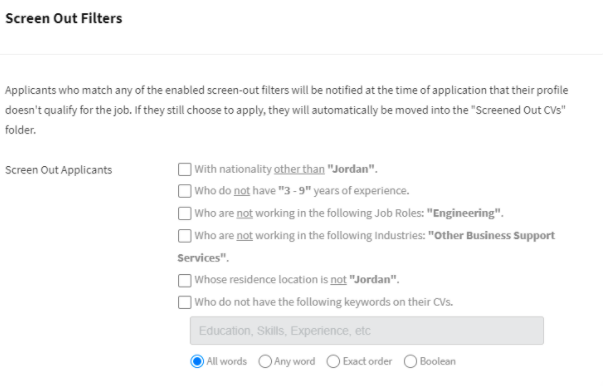
Screen Out Filters - Applicants who match any of the enabled screen-out filters will be notified at the time of application that their profile doesn't qualify for the job. If they still choose to apply, they will automatically be moved into the "Screened Out CVs" folder.
Auto-filters like these can be applied to Job Role, Company Industry, Years of experience, Residence Location, Gender, Nationality, Degree, and Age.
Notification Settings
Recruiter Notification:
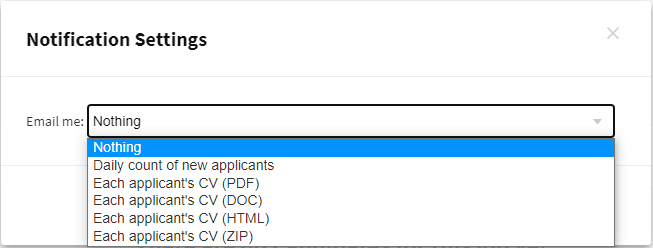
Email me when candidates submit applications:
- Email me the daily count of new applications (recommended) - You will receive a daily email mentioning the total number of new applications. You will need to login to access these CVs through your Workspace.
- Email me CVs of new applicants - Each application will appear in your BCC Workspace and will also be replicated in your email inbox.
- “Also notify all users with whom this job is shared” option.
Email me when applicants withdraw their application:
“Also Notify all users with whom this job is shared” option.
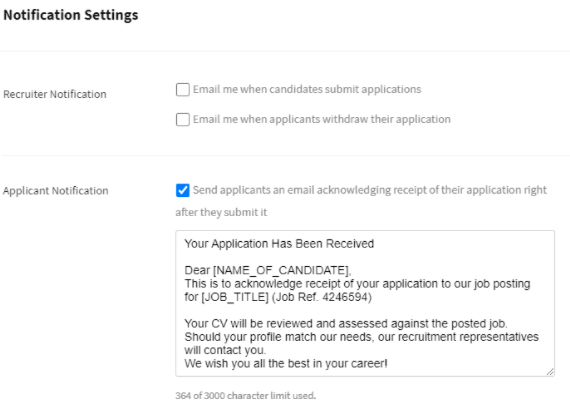
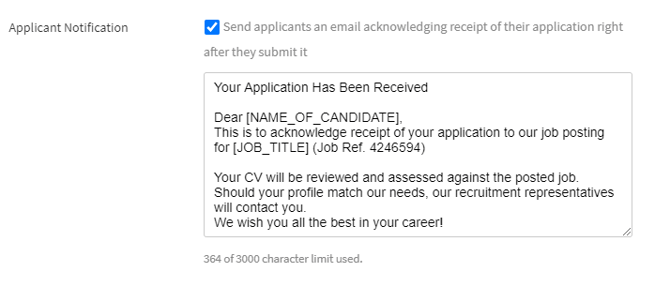
Applicant Notification- Send applicants an email acknowledging the receipt of their application right after they submit it.
Sourcing Channels
Configure your Job advertising settings. Specify the channels you wish to advertise your job on and when you want to to close the job.
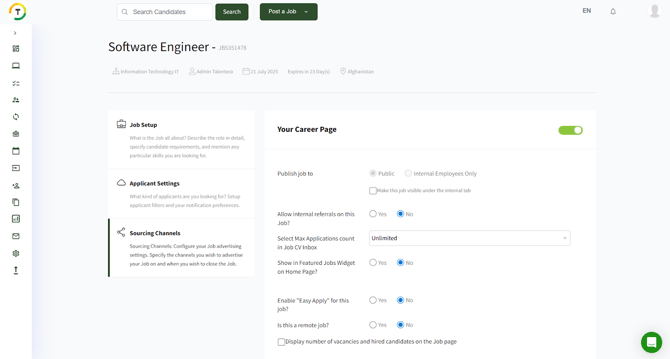
Career Page Options
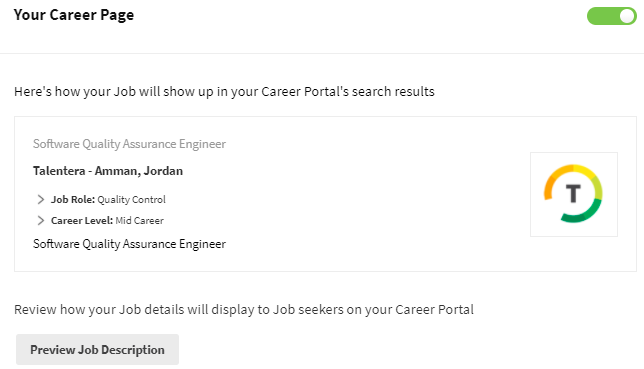
- Career Portal Visibility: Toggle this option to share the job on your career portal.
- Audience Selection: Publish the job either Publicly or Internally (for employees only). If published internally, you can also set a delay (after a chosen number of days) to make it public.
- Internal Referrals: Decide whether or not to allow internal referrals to apply for this job.
- Application Limit: Define the maximum number of applicants for the job, or set it to Unlimited.
- Featured Jobs: Choose to display the job under the Featured section on the career site’s main page.
- Easy Apply: Enable the Easy Apply feature, allowing candidates to apply without creating an account or building a full CV.
- Vacancies Display: Choose whether to show the number of available vacancies and hired candidates directly on the job page.
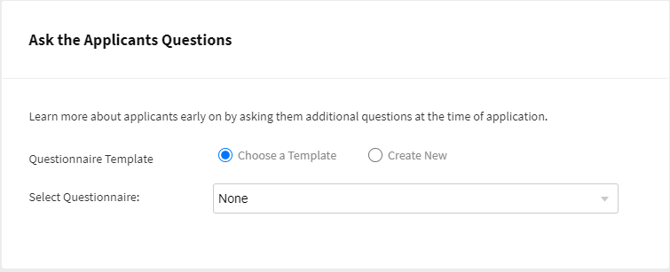
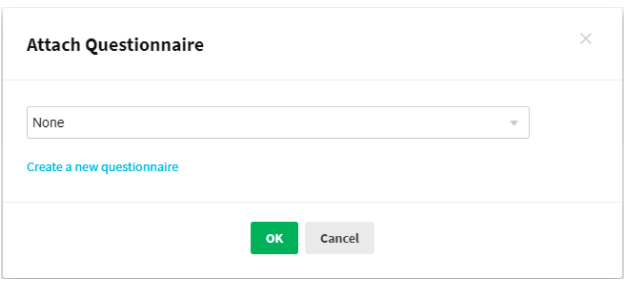
Add Questionnaires - This feature is meant for asking the candidates additional questions at the time of application.
Job postings can be accompanied with questionnaires to evaluate candidates on role specific/technical skills as well as emotional and psychological traits for cultural compatibility. Employers can build a new questionnaire or choose one of the existing ones from the drop-down list.
Applicants will be asked to respond to any attached questionnaire. Along with the CV, you will also be able to view answers and questionnaire scores. The system automatically grades candidate responses.
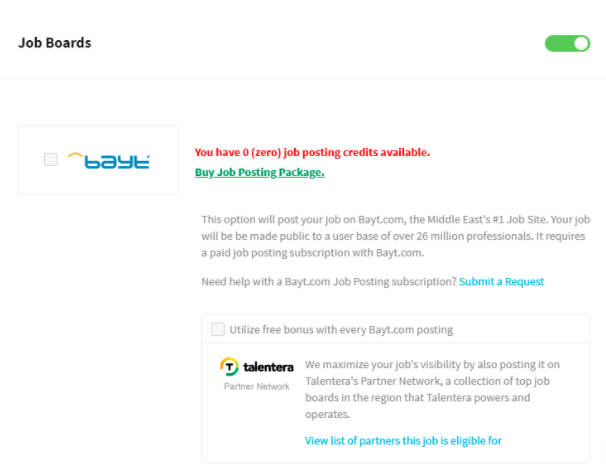
Job Boards - This option will post your job on Bayt.com, the Middle East's #1 Job Site. Your job will be made public to a user base of over 26 million professionals. To accomplish this, you will need a paid job posting subscription with Bayt.com.
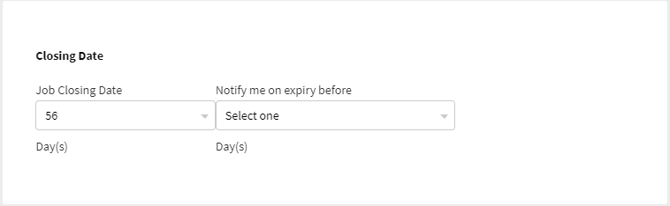
Closing Date- Users can set the job’s closing date alongside a notification reminder to apply before that.
Jobs Dashboard
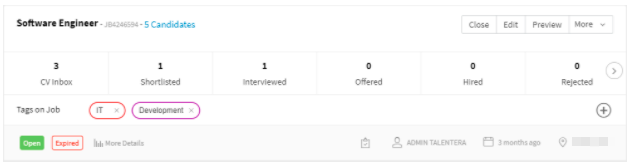
All jobs posted by the employer will appear under the My Jobs page. This tab will display all previously saved job postings.
Each page displays a total of fifteen job postings, and clicking on the job title will open the job preview page.
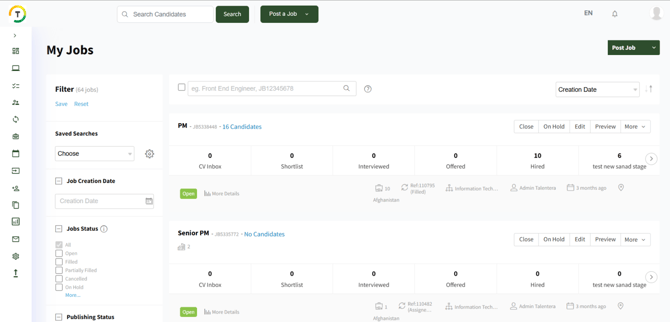
You can view applicants in each job inbox either by clicking on the stage itself or by clicking on the number of candidates (next to the job title) that displays the total number of CVs received.


You can search for the jobs using any of the following methods:
- Job Title
- Job ID
- Requisition ID

And below options are available for the bulk action:
- Archive
- Delete
- Export (Export CVs on this page, Export All, Export jobs on this page, and Export All Jobs)

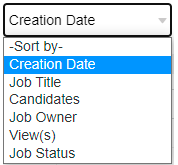
You can also sort the results based on the below:
- Creation Date
- Job Title
- Candidates
- Job Owner
- View(s)
- Job Status
Filters
You can use several filters in the My Jobs tab to filter your jobs:
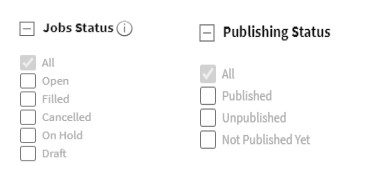
- Jobs Status and Publishing Status
Draft- The job is still under preparation and has not been finalized or opened yet.
Open- The job is active and you can manually add candidates. However, it is not available to the public yet.
Open (Published)- The job is active and is available to candidates applying from your career portal.
Open (Published) (i)- The job is active and is available to candidates applying from the boards specified in the (i) icon.
Open (Unpublished)- This job is now no longer available to the public.
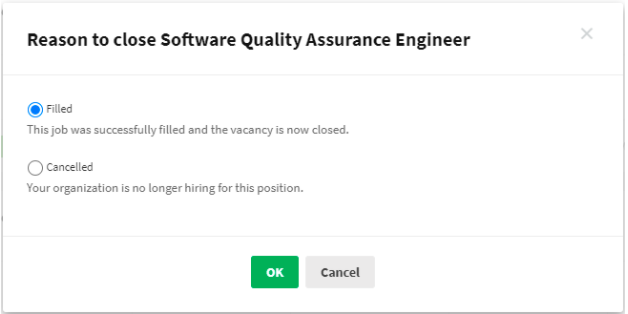
Filled- The job was successfully filled, and the vacancy is now closed. The job is unpublished from your career portal and will not accept any more candidates. The job cannot be reopened.
Canceled- Your organization is no longer pursuing the job. The job is unpublished from your career portal and will not accept any more candidates. The job cannot be reopened.
On Hold- The job is unpublished from your career portal and will not accept any more candidates. However, on-hold jobs can always be reopened.
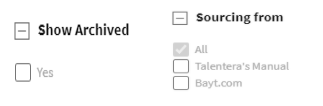
- Show Archived
- Sourcing from
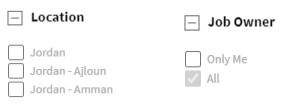
- Location
- Job Owner
- Divisions
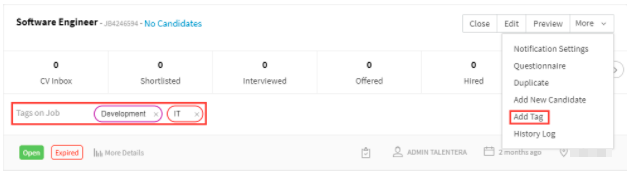
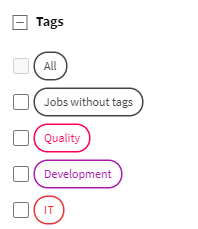
- Tags- Jobs’ tags are available on the career portal by clicking on Actions- Add Tag from the My Jobs page.
- Employment Type
Saved Searches- This option allows you to save the search, and you can load it whenever needed by clicking on the “Saved Searches” list.
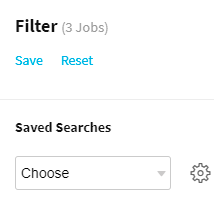
Job Dashboard
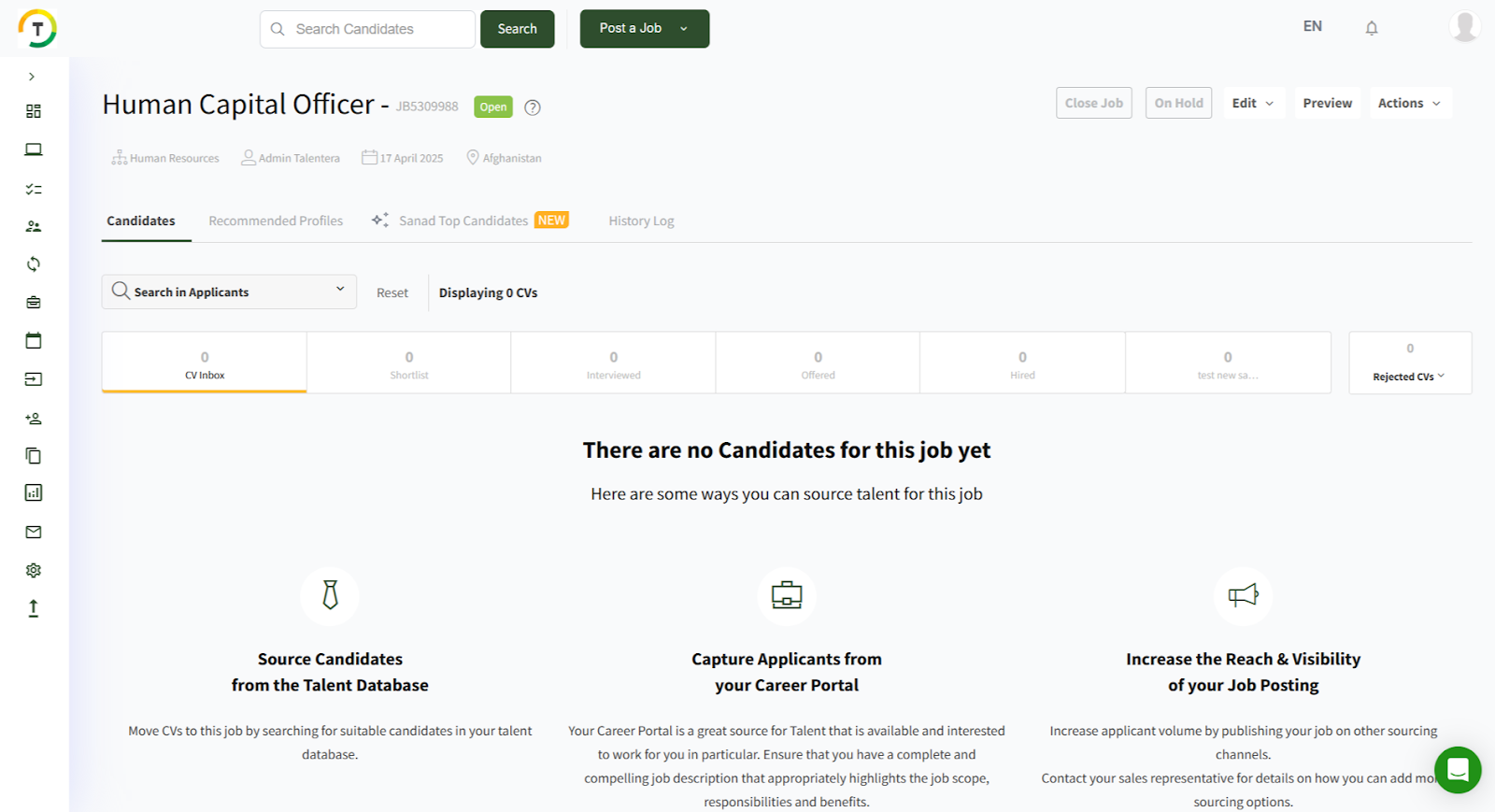
The job-applicant folder has multiple stages or statuses, as we call them by default.
These stages are replicated to match hiring practices and processes at your organization. This is an effective way of tracking and processing all applications and candidates within a specified period. At the end of the recruitment cycle, all applicants must be either in the Onboard or Rejected folders to signal process completion. The system allows you to send automated messages to all candidates within a particular application status category.
You can also move candidates between stages by clicking the update stage action from the CVs listing on CV view.
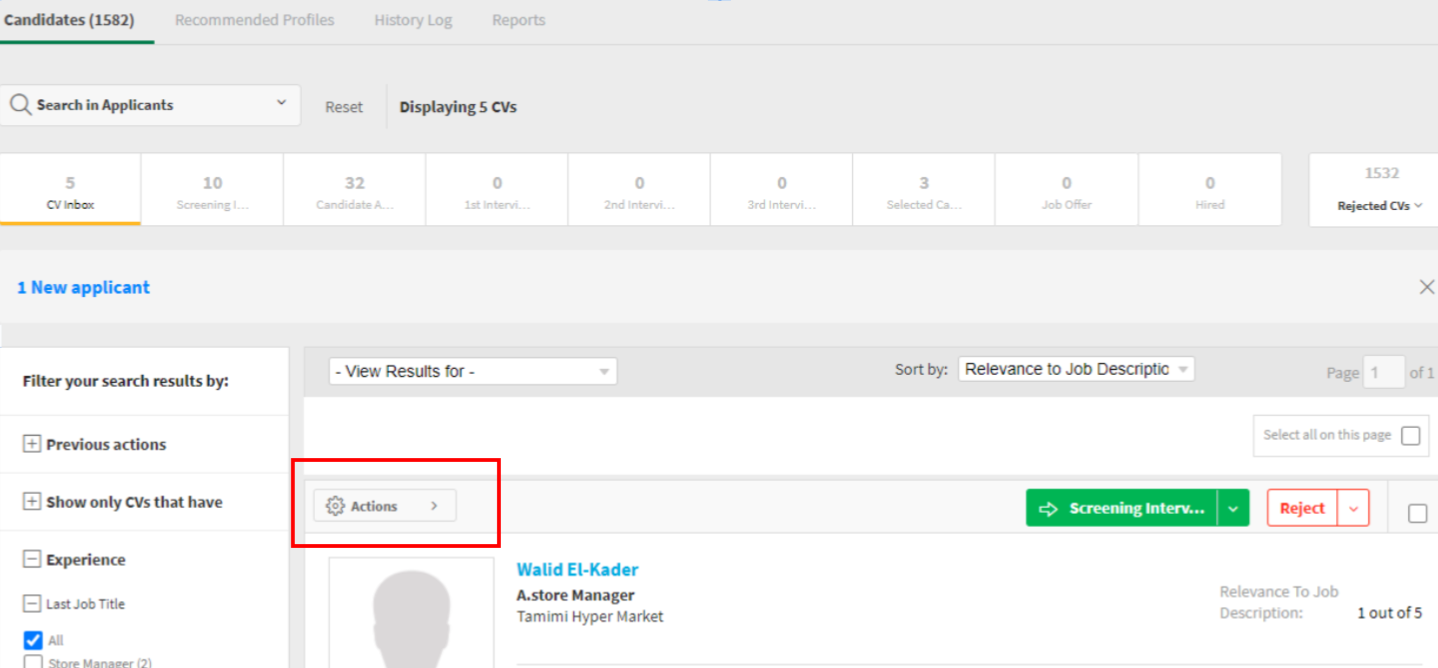
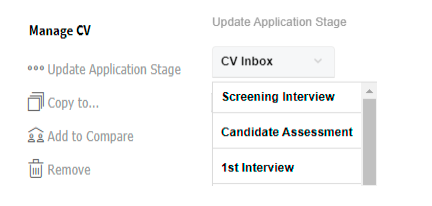
Job’s Dashboard tabs
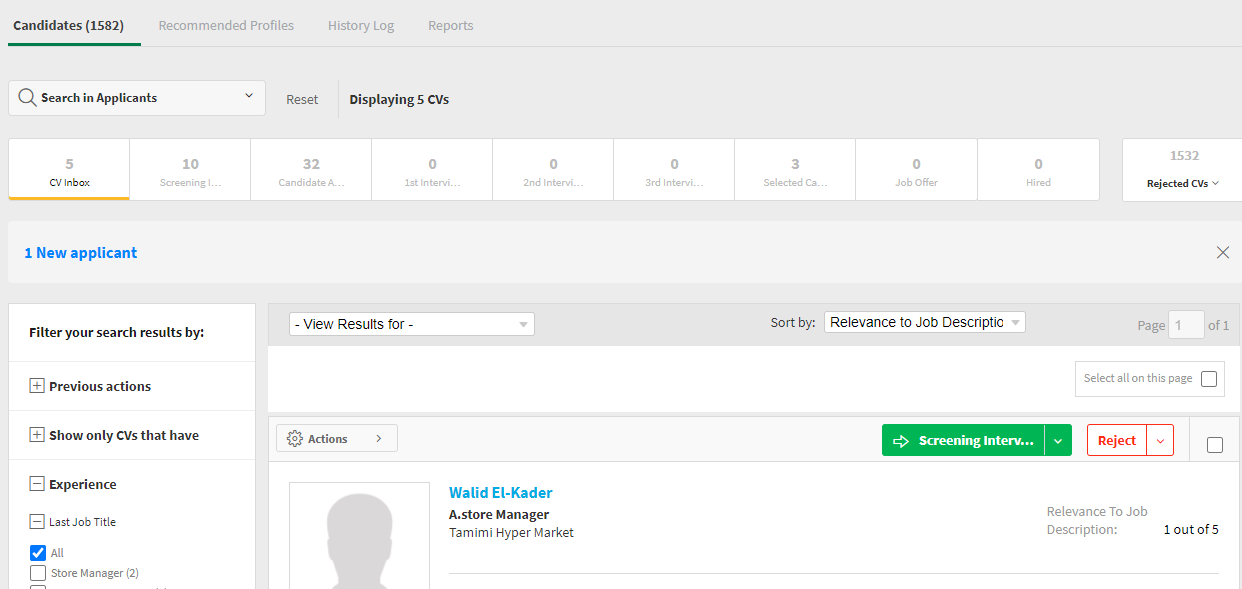
- Candidates: This tab contains all candidates who applied for the job or have been added to the job inbox by the employers.
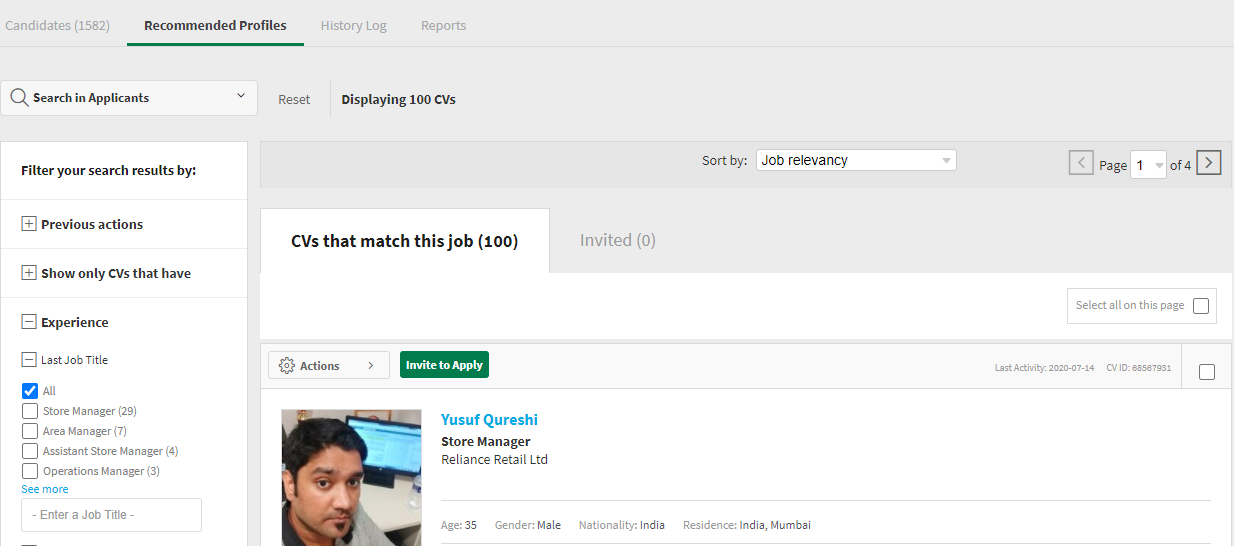
- Recommended Profiles: This tab shows recommended profiles based on the job’s setup details, last experience title, target job title, last experience description, skills, experiences titles, experiences description and the major.
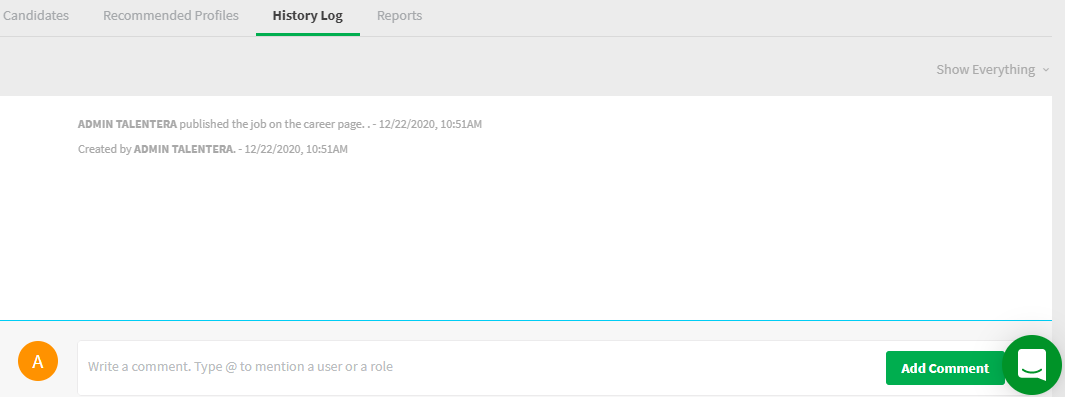
- History: This tab will show the job’s history log (Actions/ Comments) where you can add a comment and mention a user or a role. All employers assigned to that role will be notified with your comment.
Actions:
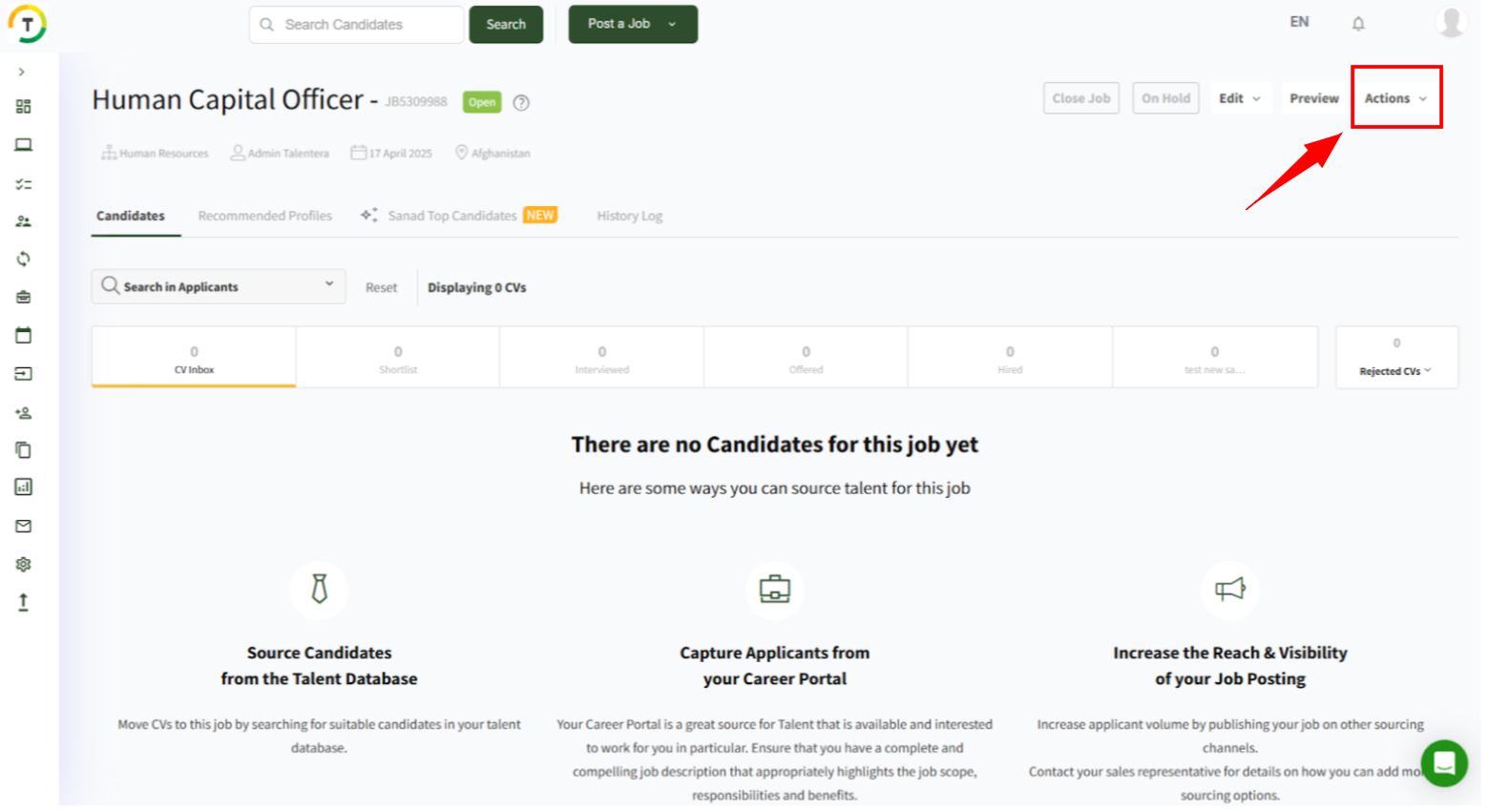
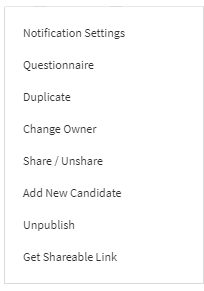
- Notification Settings
- Questionnaire
- Duplicate- This option duplicates the job details and redirects to a new job setup.
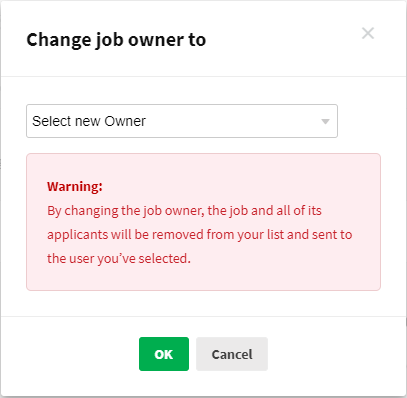
- Change Owner- By changing the job’s owner, the job and all its applicants will be removed from your list and sent to the user you’ve selected.
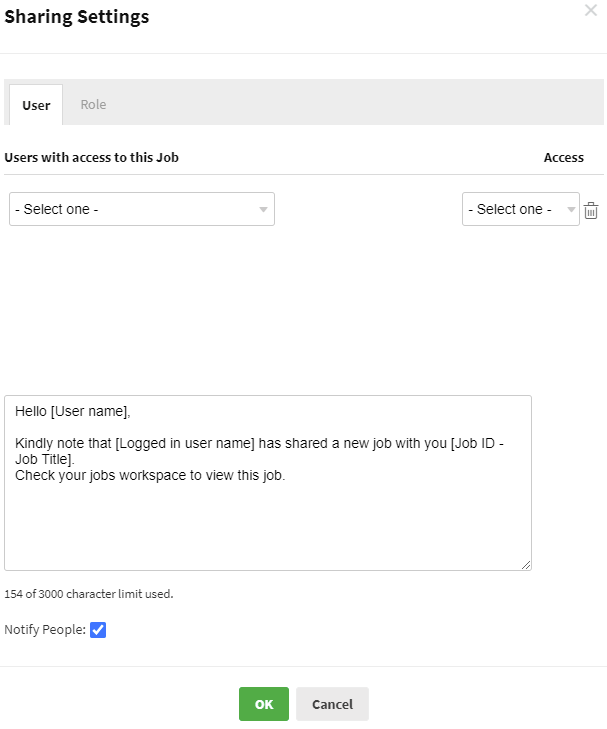
- Share/ Unshare- Share the job with a user and role.
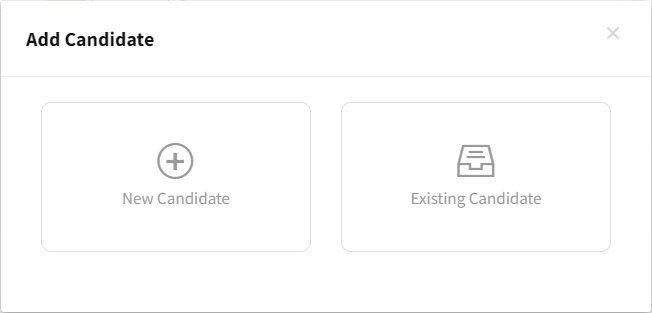
- Add a New Candidate: adding sourced candidates to the job inbox directly
-
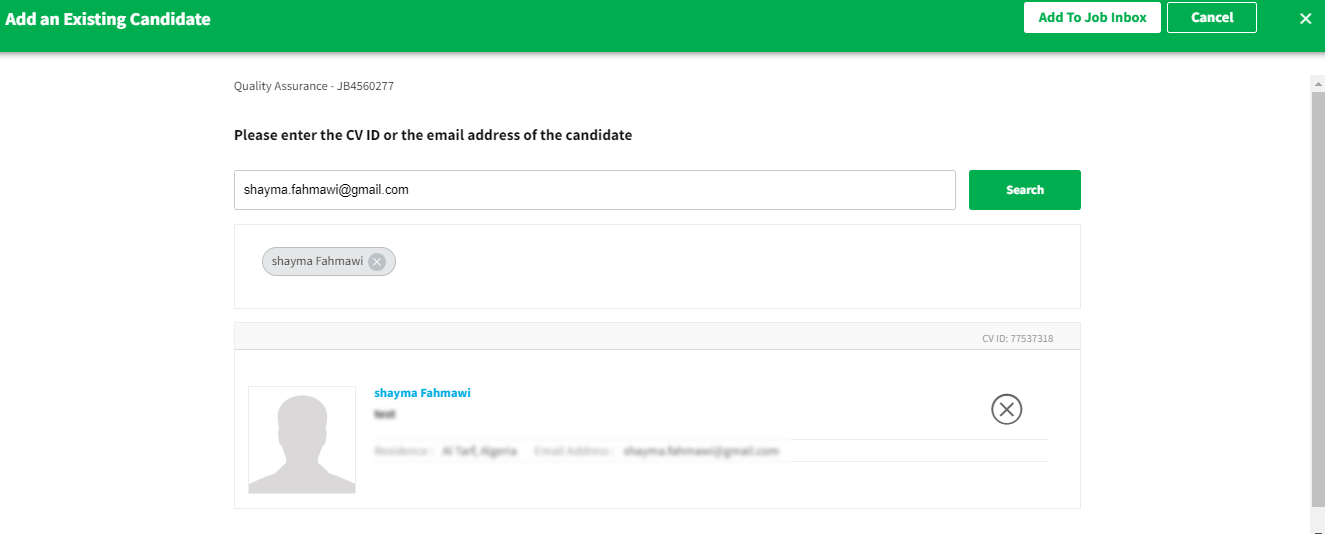
And there is the option to add existing candidates from the system.
This can be done by adding the CV ID or the email address of the candidate
- Unpublish: This option removes the job post from the career site, making it no longer visible to the public and preventing new applications.
- Get a Shareable Link: Generates a unique link that can be shared directly with external candidates, allowing them to apply to the job.
Close Job: This option will unpublish the post from your career portal and prevent it from accepting any further CVs. Moreover, jobs, once closed, cannot be reopened.
Jobs on hold will have the same effect. However, they can be re-opened later, and employers can still move CVs into them.
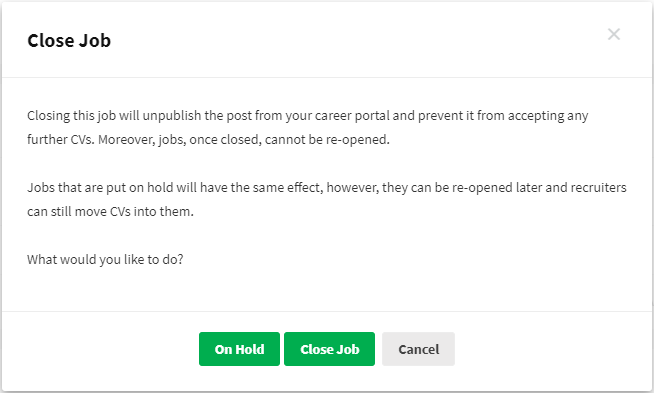
After you click on the close job, you will have to choose whether you want to close it as filled or as canceled.
All the above actions can be performed from the My Jobs page too.