
Searching for jobs
Now that your CV is complete, you can search and apply for jobs.
Browse through a full listing of available vacancies. Search and shortlist positions of interest using keywords, job location, company name, or advanced search options.
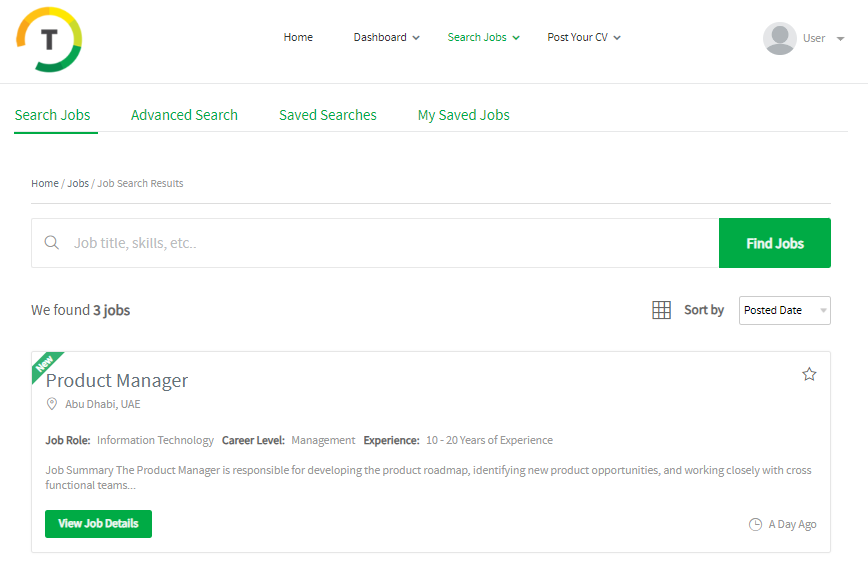
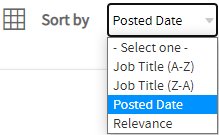
Search results are sorted by the posted date. However, you also have the following options for sorting the results:
- Job Title (A-Z)
- Job Title (Z-A)
- Relevance- To the keyword
Saving jobs
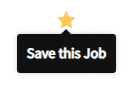
You can also save jobs by clicking on the favorite icon from the job’s listing.
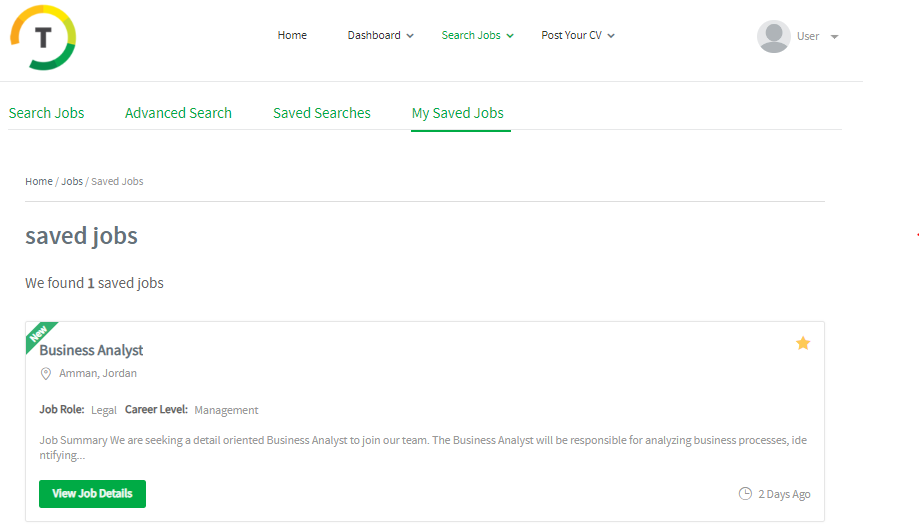
You are able to view the job posts you have saved under Saved Jobs. By default, they are displayed in the Summary View. However you can choose Detail View to view them in more detail.
Click on the favorite icon again to unsave the job.
Applying to jobs
In order to apply for a job, click on the “View Job Details” button.
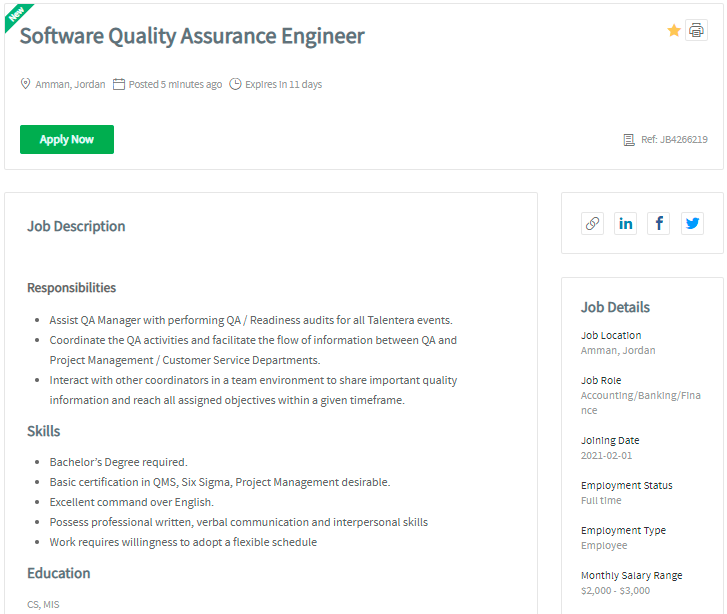
Job view page contains the following details:
- Job Description
- Skills
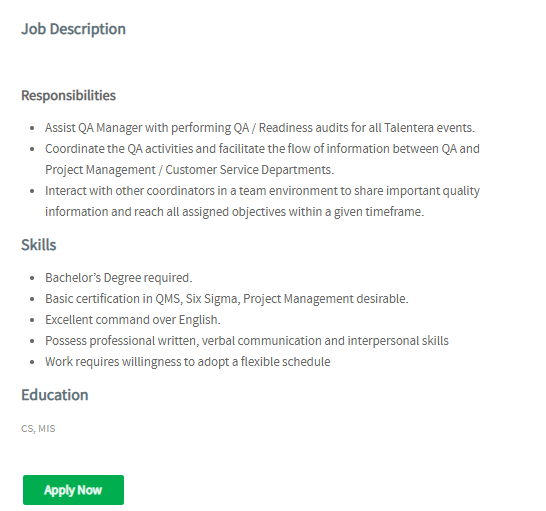
- Job Details- Job Location, Job Role, Joining Date, Employment Status, Employment Type, Monthly Salary Range, Manages Others, and Number of Vacancies.
- Preferred Candidate- Career Level, Years of Experience, Residence Location, Nationality, and Degree.
Sharing options:
- Copy URL
- Share on LinkedIn
- Share on Facebook
- Share on Twitter
Click on the “Apply Now” button to proceed with the job application.
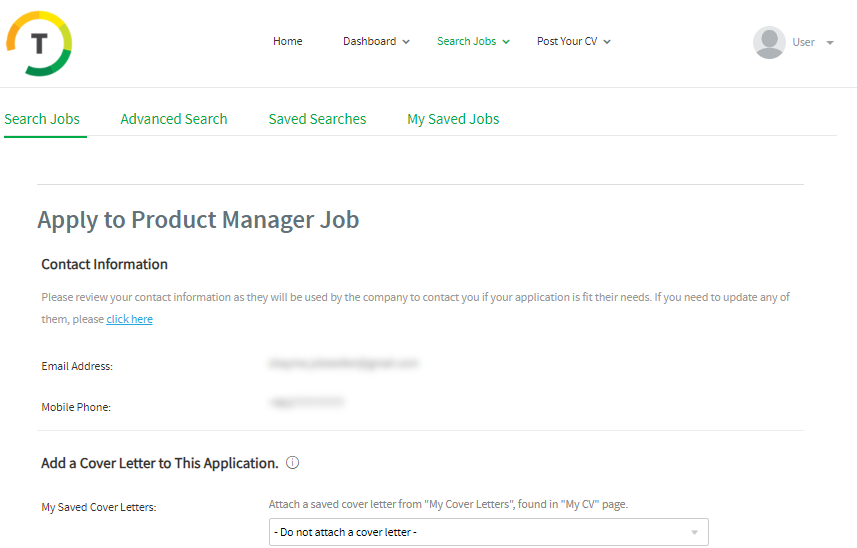
You can load a cover letter or add a new one and save it.
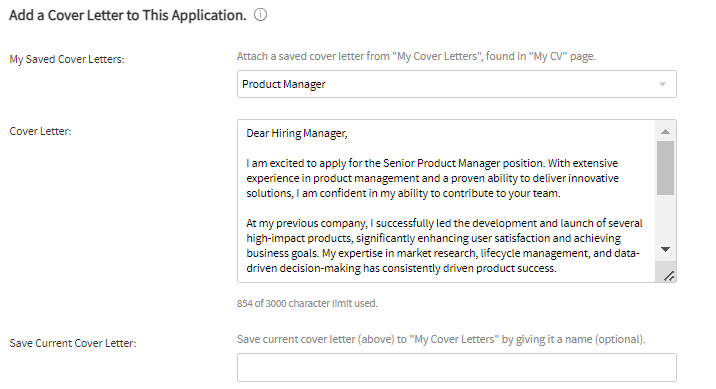
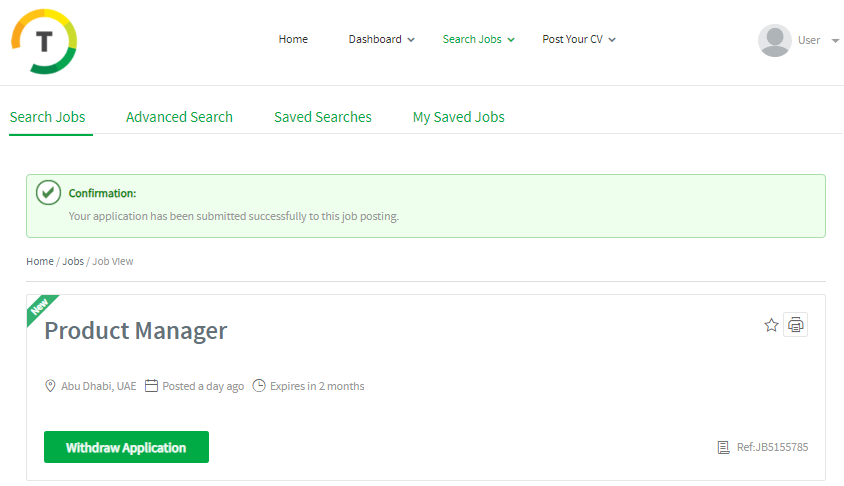
If your application is successful, you will get the confirmation message below.
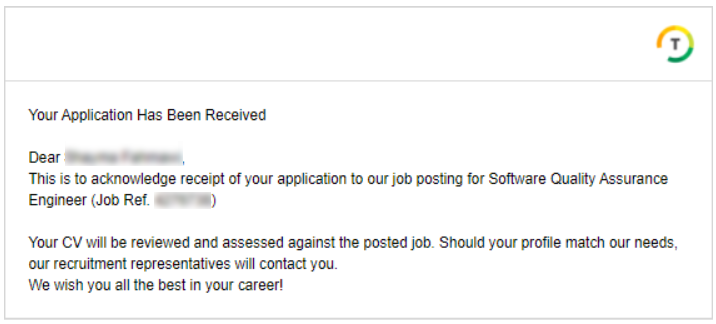
You will also receive the below notification confirmation email.
If your application did not meet the job’s requirements, you would be notified by the below message mentioning the un-matched requirements.
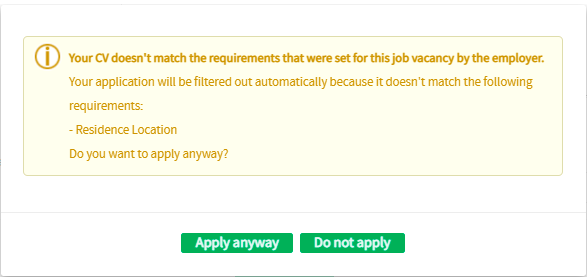
You can either apply anyway or cancel the application by clicking on the “Do not apply” option.
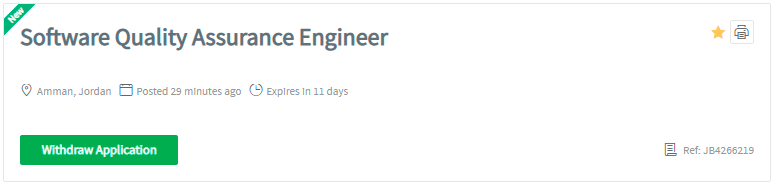
To withdraw your application, you can just click on the “Withdraw Application” button from the job’s listing or job view page.
Advanced job search
The Advanced search option helps you personalize your job search.
It will narrow down your search results, and this is done by choosing the desired Job Title, Location and Role, the Company type and industry, the minimum monthly Salary, the Career Level and the Employment Type, and Status.
Search criteria:
- Keywords
All: The search will return only jobs that contain all of the keywords you entered. For example, if you enter [oracle java] in the keywords text box and choose "All", the system will return only jobs that contain both words "oracle" and "java". However, note that the words may appear in the job in any order.
Any word: The search will return jobs that contain any (or all) of the keywords you entered.
For example, if you enter [oracle java] in the keywords text box and choose "Any", the system will return jobs that contain the word "oracle", and jobs that have the word "java" and jobs that contain both of them.
Exact Order: The search will return only jobs that contain the entered words in that exact order. For example, if you enter [project manager] in the keywords text box and choose "Exact", the system will return only jobs that contain the words "project manager" in this order.
Boolean: Boolean Search provides you with an advanced method to search the jobs. You can use a combination of keywords and the Boolean operators (AND, OR, and NOT) to retrieve highly relevant jobs that match what you're looking for. For example, using Boolean Search, you may want to search for jobs that contain the phrase "project manager" or the phrase "program manager" as long as the job does not contain the word "construction",
and in all cases, the job must contain the word "PMP". This search can be entered as: PMP AND ("project manager" OR "program manager")
- Job Location
- Job Role
- Industry
- Posted Date
- Company Name
- Average Monthly Salary (USD)
- Gender
- Company Type
- Employment Status
- Employment Type
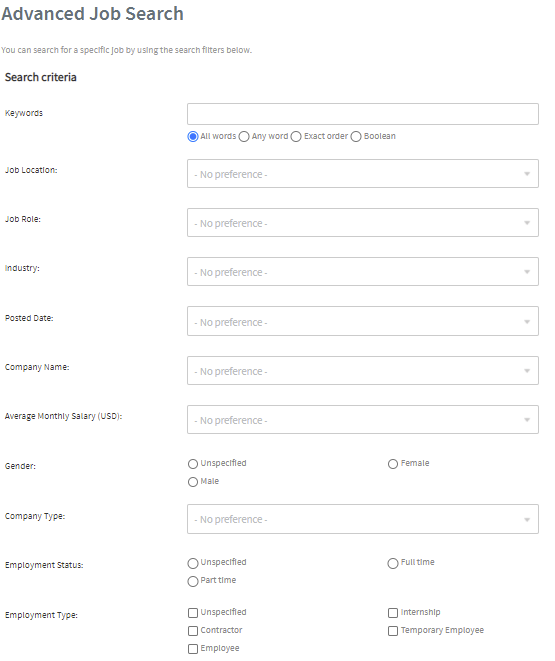
In addition, it gives you the option of saving your search.
Creating job alerts
This option enables you to set up an email alert to remain updated about relevant jobs via email. You will be alerted periodically (based on the alert frequency you set).
You can add a job alert by filling in the required details below.
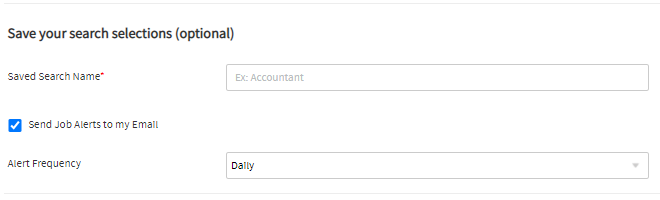
- Saved Search Name
- “Send job alerts to my email” option
- Alert Frequency- Daily, Weekly or Monthly.

Click on “Save”, all saved email alerts will appear under the “Saved Searches” page and you will be receiving a notification for each suitable job as per your saved options.
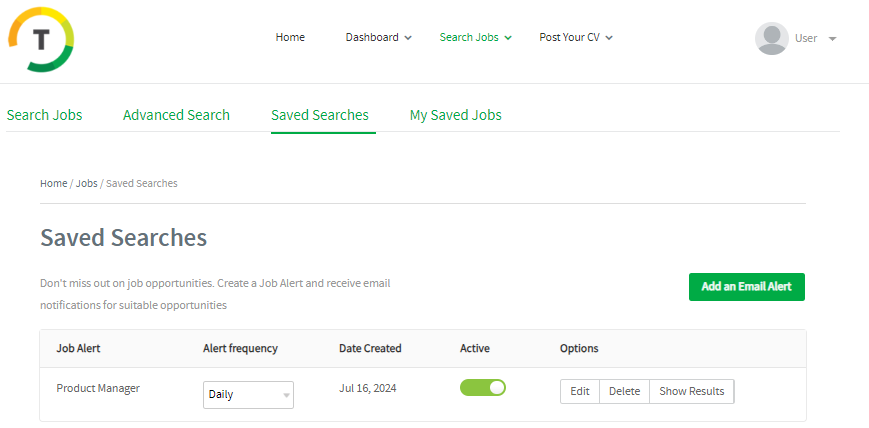
On this page, you can perform the below actions:
- Add an Email Alert- This redirects to the saved search page to fill in the job alert details and filters.
- Edit- This option also redirects to the saved search page you were creating the search with all pre-filled details.
- Delete
- Show Results- This redirects you to the job search results page.