What is an Offer Letter?
An offer letter is a formal document given to a potential employee by the company. It provides a brief overview of the position, along with specific job details, including the starting date, basic salary, work schedule, and benefits.
The confirmation or rejection is documented by email so that both the potential employee and the employer are clear on the decision and the details of the job.
Create and Send an Offer Letter
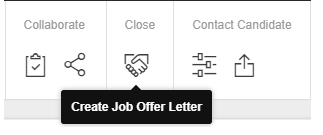
In order to proceed with the hiring process, and after approving the candidate, the HR manager or the hiring manager will send an offer letter to the candidate by clicking on the Send Offer Letter button on the CV view.
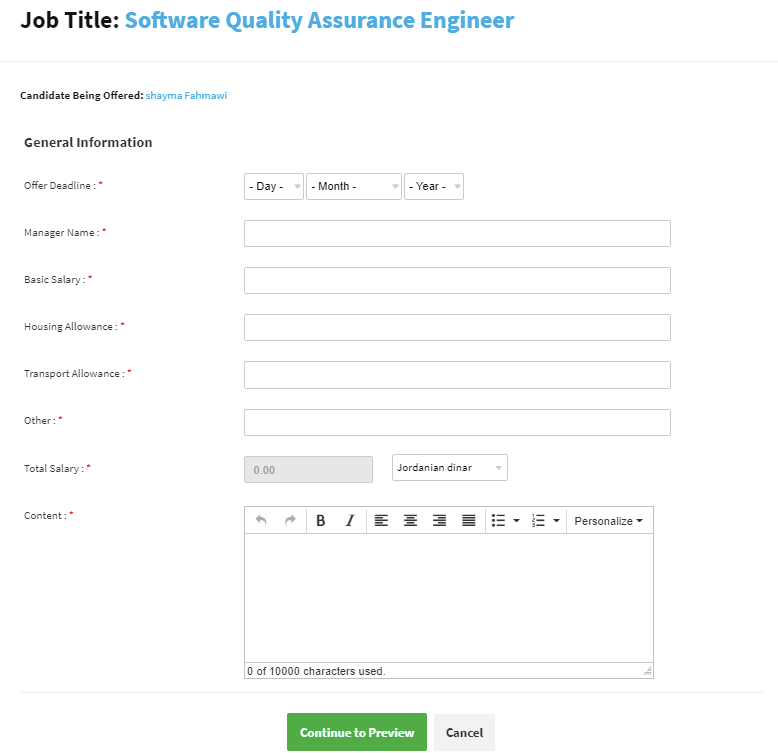
The following general information needs to be filled in:
- Offer Deadline
- Manager Name
- Basic Salary
- Housing Allowance
- Transport Allowance
- Other
- Total Salary
- Content

Save Draft
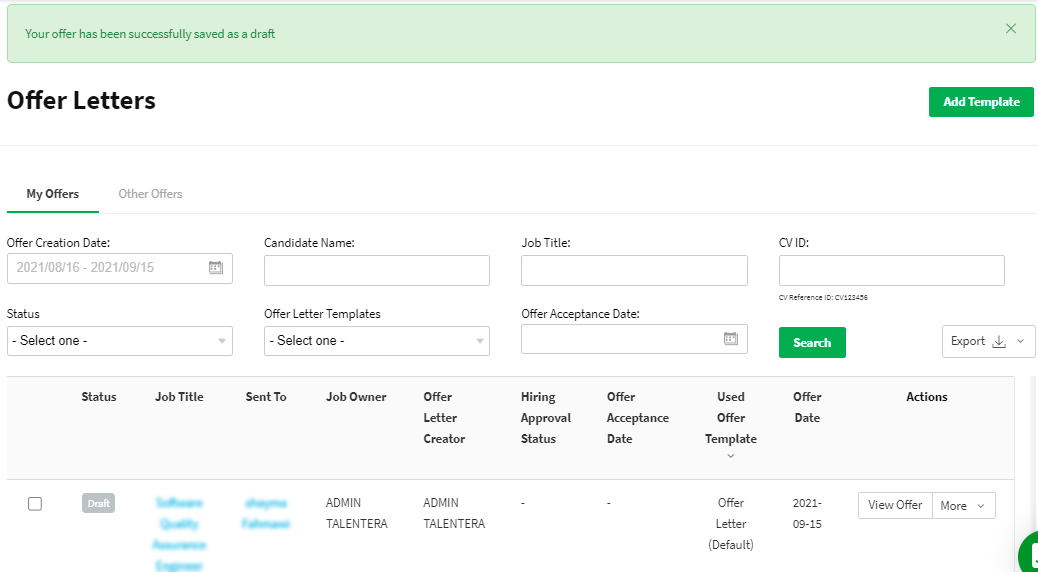
This option allows you to save a copy of your offers to be completed later, and it will redirect to the issued offers tab with “Draft” status for the saved offer.
Send Offer Letter
In order to proceed with the offer, you need to choose this option. An email will be sent to the candidate with the details to accept or decline the offer.


And the candidate will receive the offer in their mailbox.
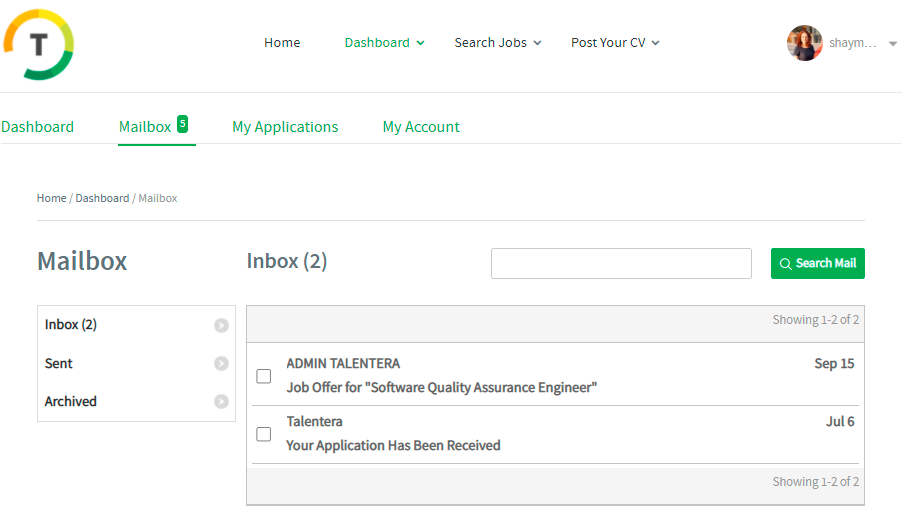

Accept Offer
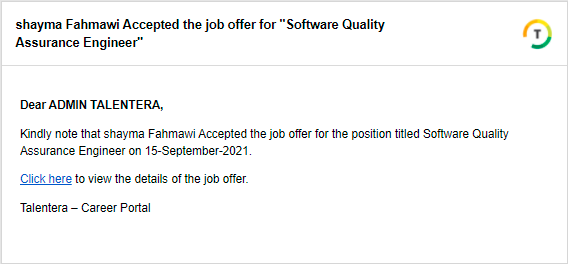
The below confirmation message will be displayed to the candidate upon acceptance.

And the hiring manager will receive a notification email.
Reject Offer
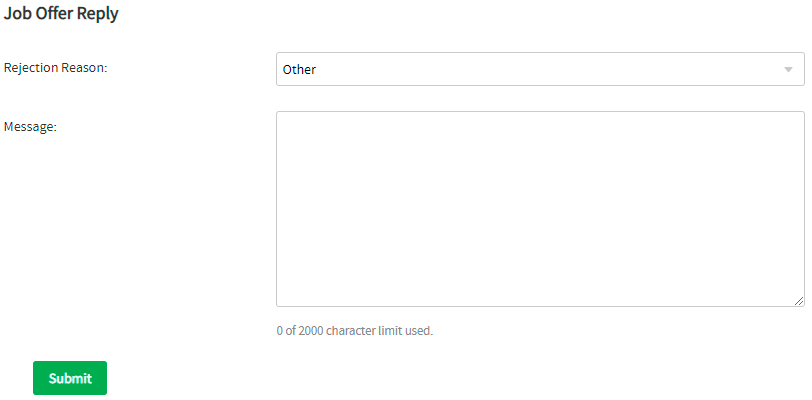
If the candidate rejects an offer, they have to select a Rejection Reason.

And if they select the “Other” option, they have to mention the reason for rejecting the offer.
The below confirmation message will be displayed to the candidate upon rejection.

And the hiring manager will receive a notification email.

Edit Offer Letter
This option redirects the user to the Edit Offer page, where they initially filled in the job details.

Issued Offers
All sent offers will be listed on this page, and you can check all offers sent by the logged-in user or other users.
My Offers
This page will display the offers sent by the logged-in user.
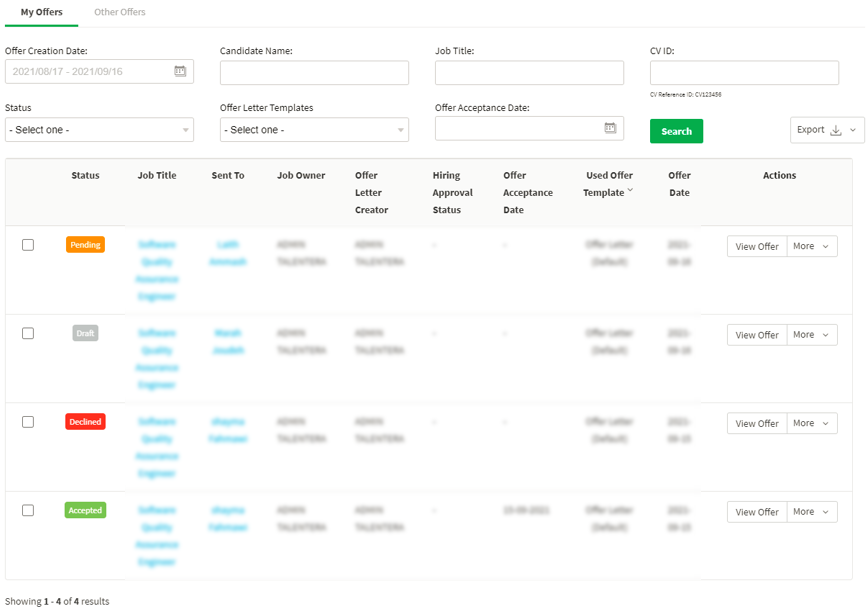
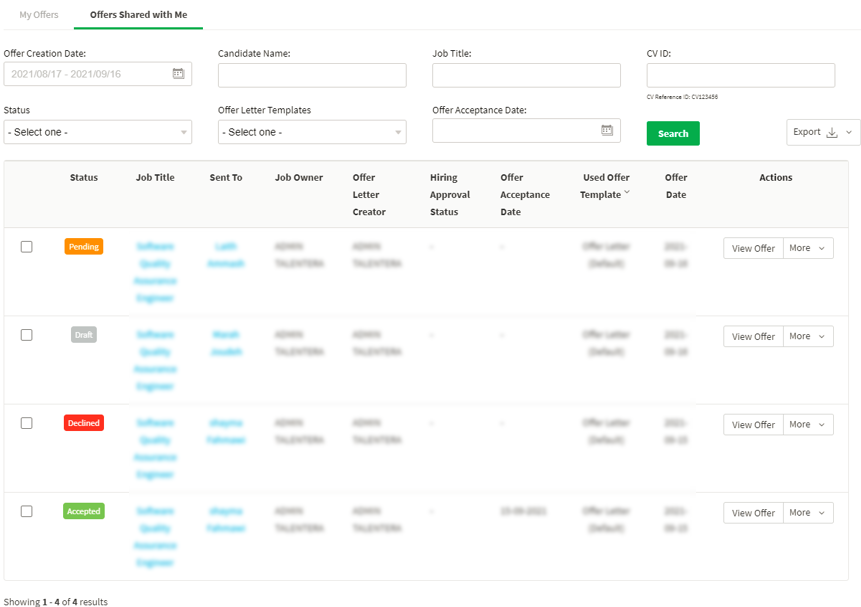
You can search the results by Offer Creation Date, Candidate Name, Job Title, CV ID, Status, Offer Letter Templates, and Offer Acceptance Date.

By clicking on Export, you can export select offers or all offers listed on the page.

You may select one of the following options from the available Actions list:
- View Offer
- Download Letter
- Share
- Delete

You can also share the offer with a user or a role.
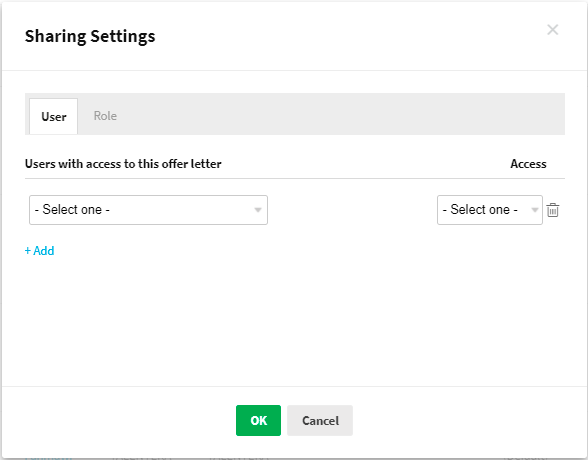
And upon sharing the offer, the user will receive a notification email.

Sharing options:
- Fill/Edit and Send
- Fill/ Edit
- View
- No Access

Other Offers
This page displays all shared offers created by other employees.
Create Offer Letter Template
Templates can save time and effort, and offer letter templates are created and used for expediting the hiring process.
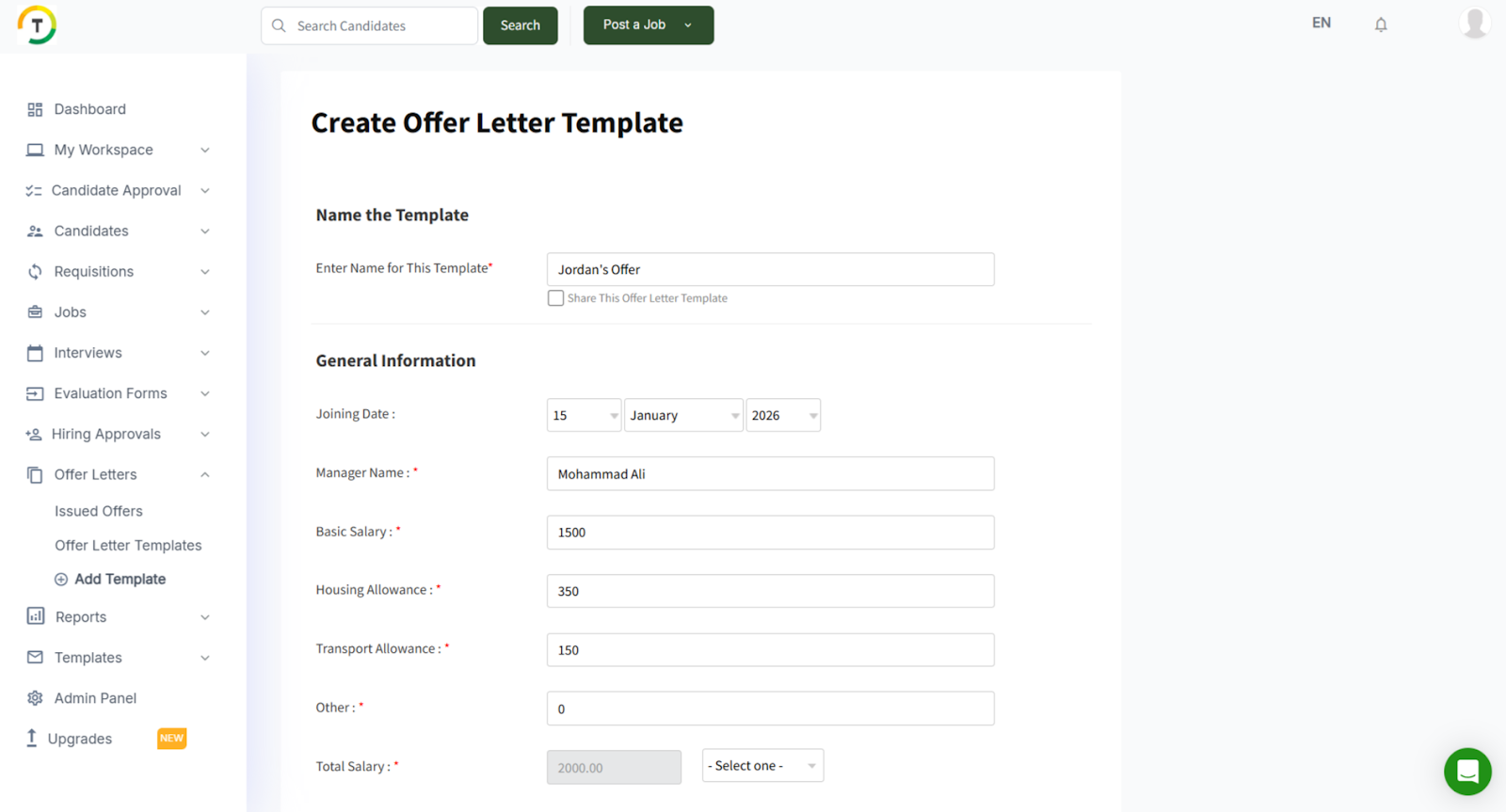
Templates can be created by the Add Template link on the navigation tab, and it contains two main sections:
Name the Template
- Enter Name for This Template
- Share This Offer Letter Template option
General Information
- Manager Name
- Basic Salary
- Housing Allowance
- Transport Allowance
- Other
- Total Salary
- Content
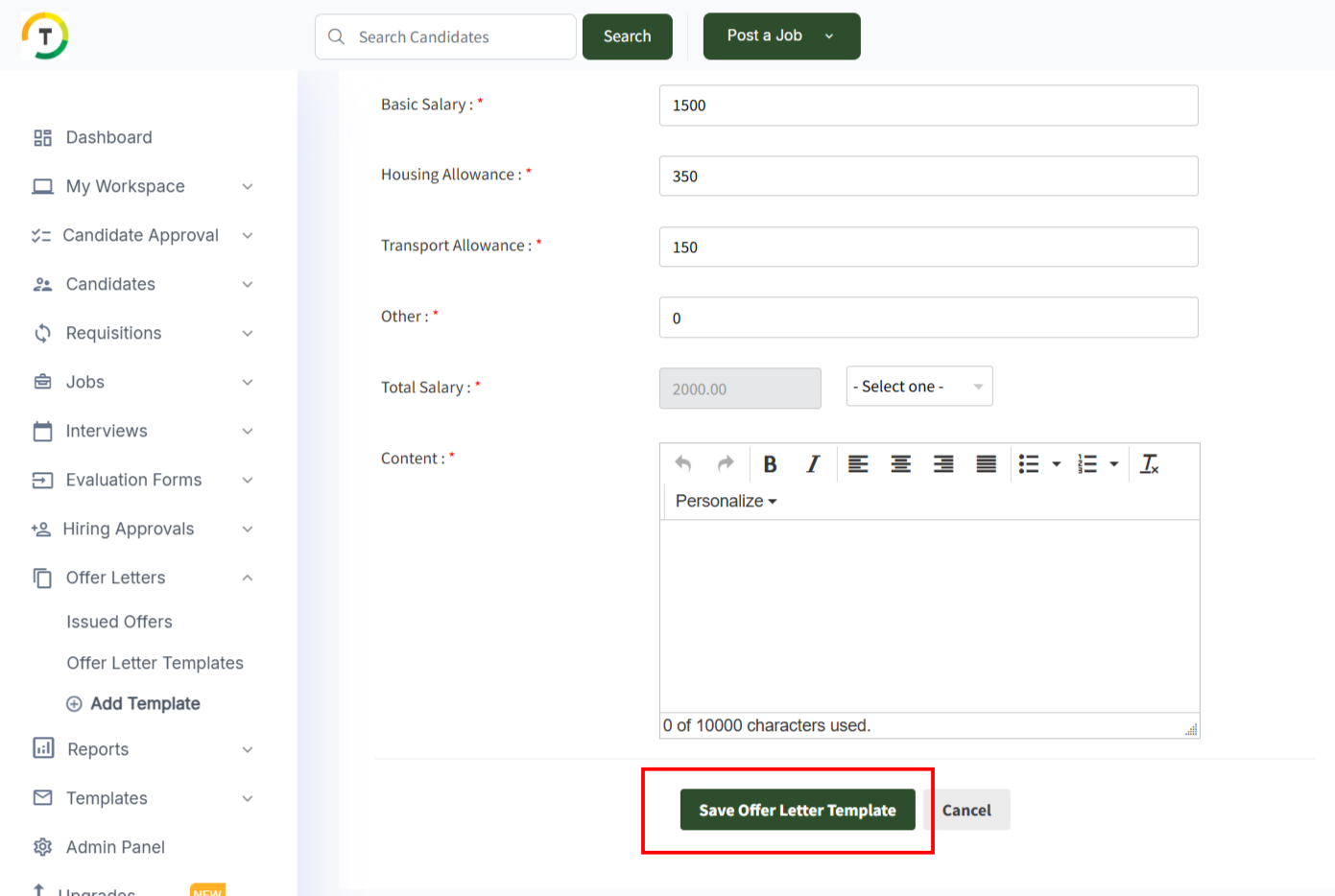
Click on Save Offer Letter Template in order to continue.

Offer Letter Templates
All created and shared templates are listed on the Offer Letter Templates page.

There are two main tabs on this page:
My Letters
This page displays the templates created by the logged-in user.

You can perform the below actions on the created templates:
- View
- Edit
- Delete
- Share/Unshare

The created templates will appear when creating an offer letter, and the user can select the desired template.

Shared Letters
This page displays all shared templates created by other employees (If Any).
