Evaluation Forms Management
Evaluation forms are commonly used to help employers assess and evaluate the candidates during the interview to shortlist them based on their skills, personality, views, and performance.
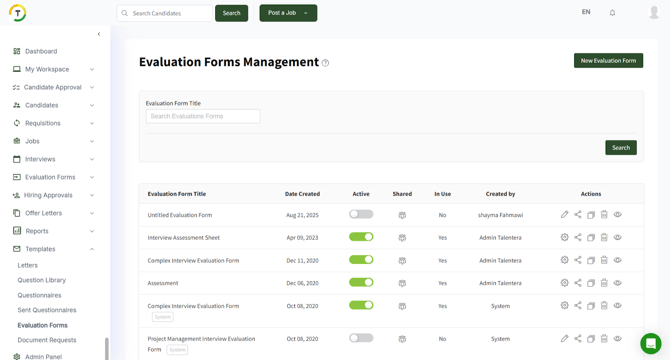
List the criteria for the hiring teams to use when evaluating candidates. You can simplify your final hiring decisions by providing every candidate with a quantitative score.
All forms are sorted by the creation date, and you can perform the below actions on the listed forms:
- Edit- You must deactivate the form to be able to edit it.
- Share- There are three sharing options:
Public: All users can fill, edit, and view the form results.

By Role

By User

- Duplicate
- Delete
- Preview
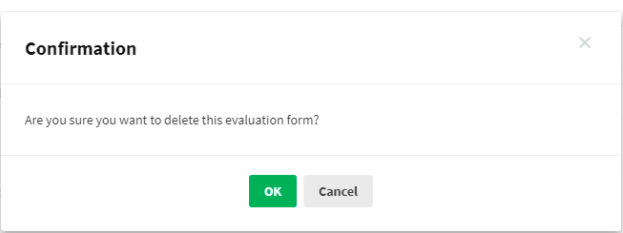
When you delete an evaluation form, a confirmation message will appear.
The employer can add an evaluation form by clicking on ‘New Evaluation Form’.
Start adding the questions and answer types to the evaluation form.
To add more questions and to save the form, click on ‘Save & Add Another’.
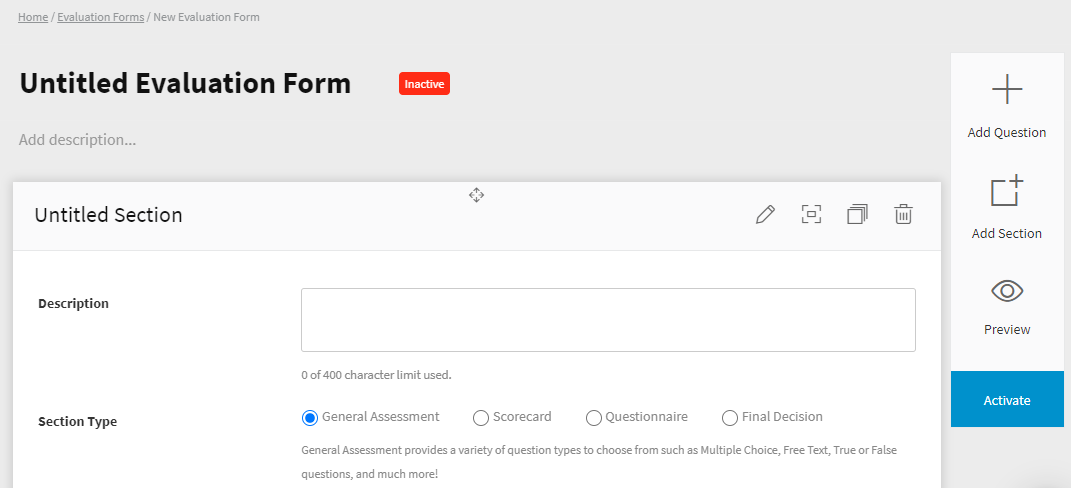
You can add four types of sections to customize your form.

General Assessment- It provides various question types to choose from, such as Multiple Choice, Free Text, Yes/ No questions, and much more!
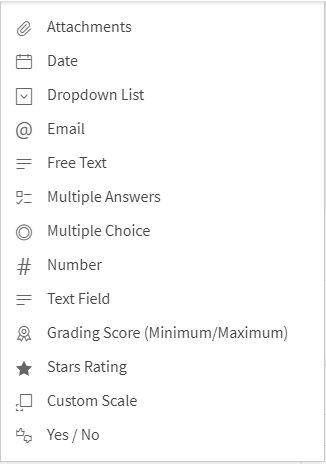
Scorecard- It allows you to choose from quantitative questions that can be tallied up to calculate a candidate’s score. And if you turned on the Assessment Weights toggle, The total weight must be 100% and will be shown in the section summary. A new option will be added to each field to add the weight.

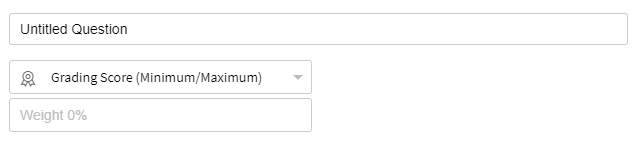
And this section’s type provides different rating questions.
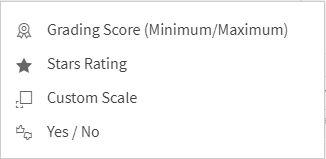
Grading Score (Minimum/ Maximum)

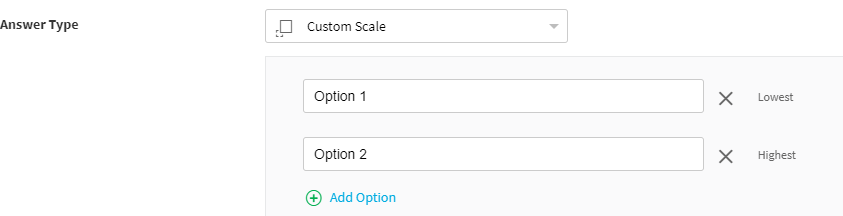
Custom Scale
Yes/ No
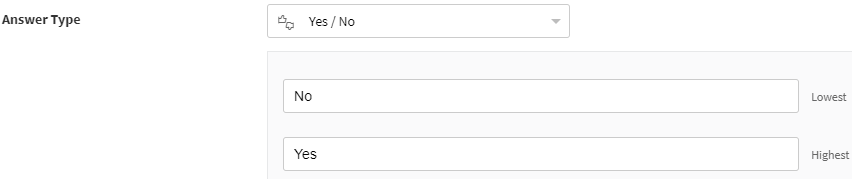
Questionnaire- Load questionnaire questions into your evaluation form. This will help you evaluate candidates based on their questionnaire answers.

Final Decision- This is a summary section that displays the final score of the candidate. You can't add more than one 'Final Decision' section.
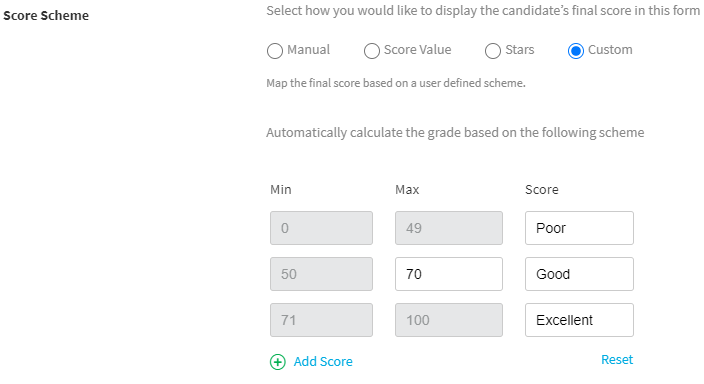
The Score Scheme for the evaluation form can be added in several ways.

- Manually- Add the final score manually.

- Score Value - Calculate the average score of all Scorecard sections.
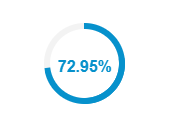

- Starts- Calculate the average score of all Scorecard sections as stars (out of 5).

- Custom- Map the final score based on a user-defined scheme.
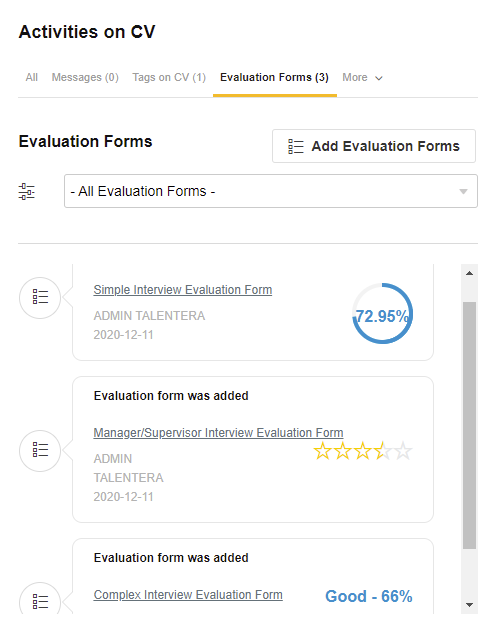
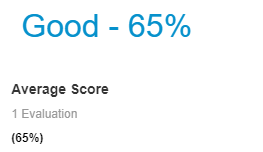
And the score will be added to the candidate’s CV with the average score.
Once the form is saved, it can be added to any CV once the user activates it.
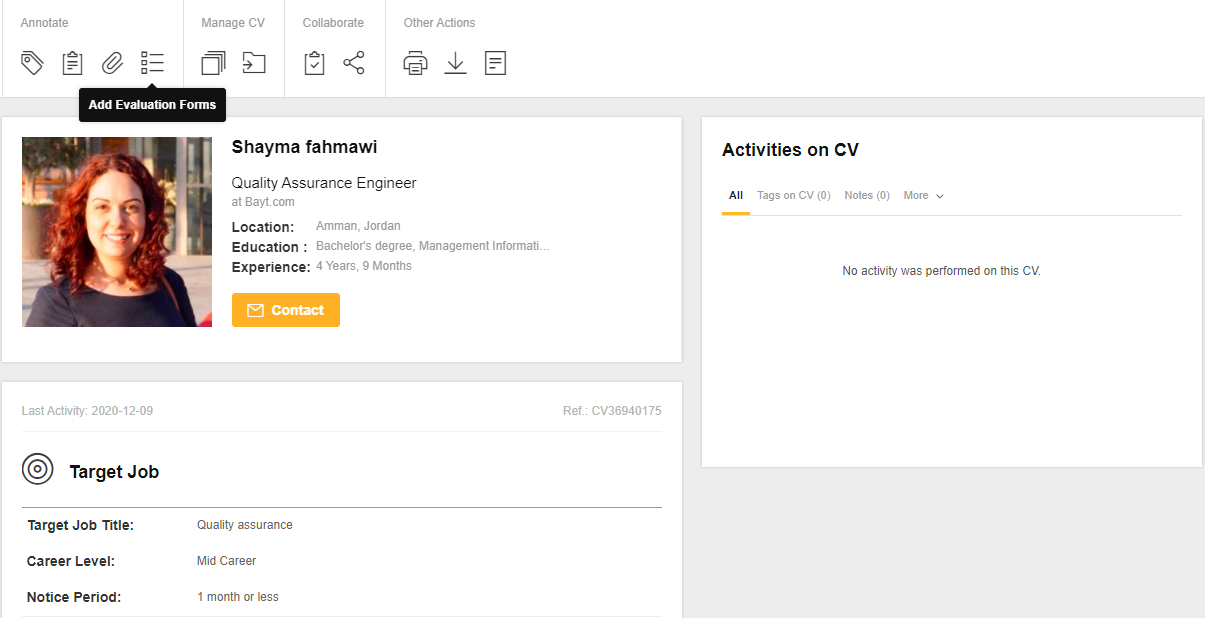
And you can either fill a form or assign it to another recruiter.

To assign a form to another recruiter, you have to fill in the desired form and the recruiter’s account.

The total score will be added to the evaluation form.
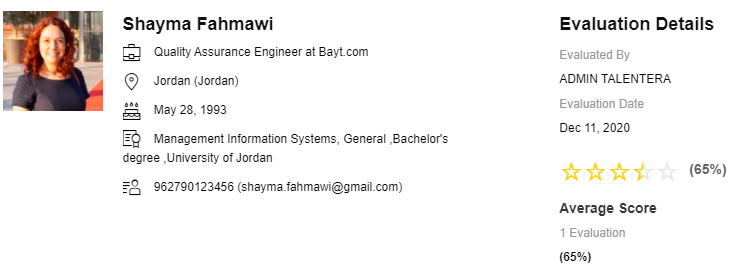
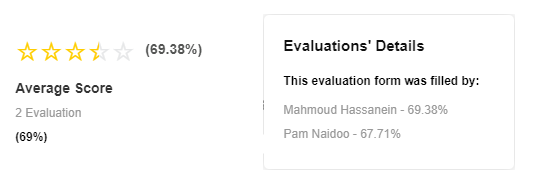
And if more than one employer evaluated the same candidate, all evaluators' details will hover on the average score.
The filled evaluation forms will be added to the Activities on CV- Evaluation forms tab.