User Management
Create users’ accounts for other members of your organization and allow them to post job vacancies and search CVs.

You can search for users using the below search options:
- Users Roles
- Division
- Seat Access- Active/ Inactive
Inactive users will be able to log in, but with restricted access.
Also, you need a sub-users package to be able to activate users.
- Last Login
- Search by First/ Last name

The admin can send messages, view reports, add, edit, and delete accounts.
There are two ways for adding a sub-user account:
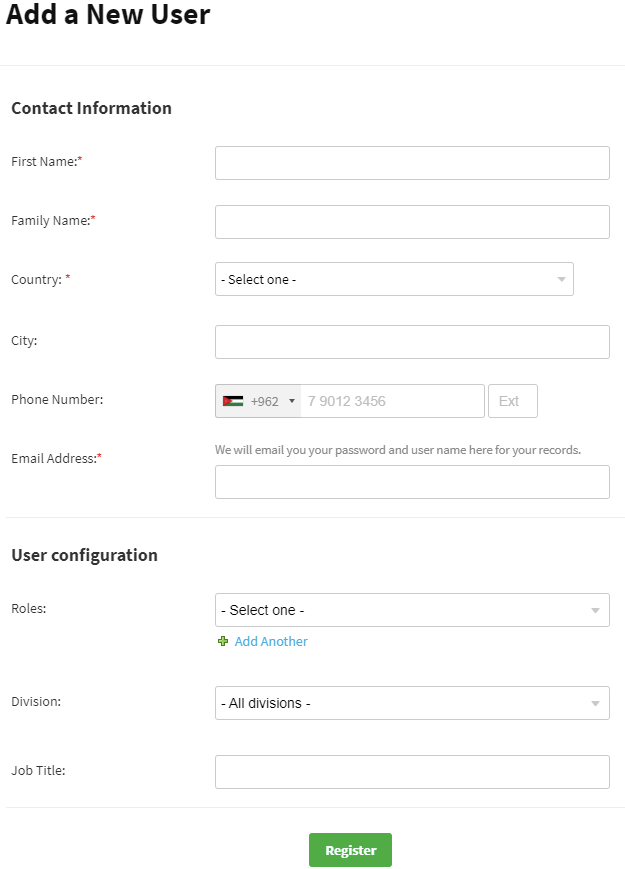
- Add Manually- By clicking on the “Add a New User” button, and this requires to fill in the below details listed in sections:
Contact Information Section
- First Name
- Family Name
- Country
- City
- Phone Number
- Email Address
User configuration Section
- Roles- You can add up to four roles by clicking on the “Add Another” link.
- Division
- Job Title
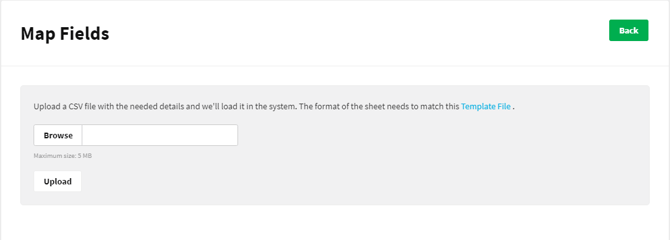
Import- By uploading a CSV file and adding users, then importing them into the career portal all at once.
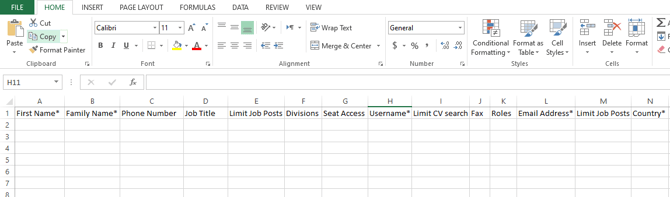
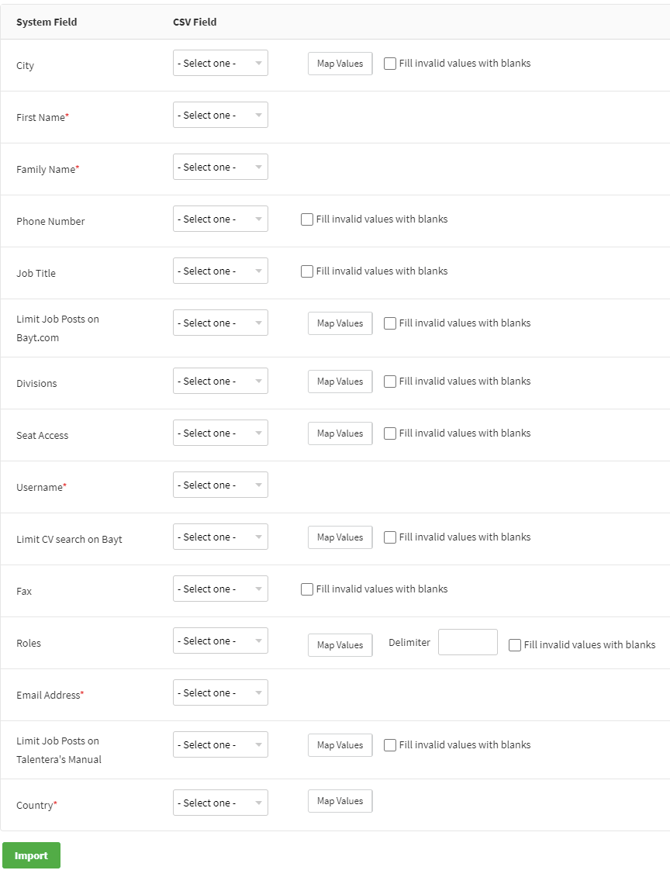
The template file contains First Name/ Family Name, Phone Number, Job Title, Limit Job Posts/ CV Search on Bayt, Username, Country/ City, Fax, Roles, Divisions, and Seat Access columns.
After uploading the CSV file, you need to map the values in the CSV file with the system fields.
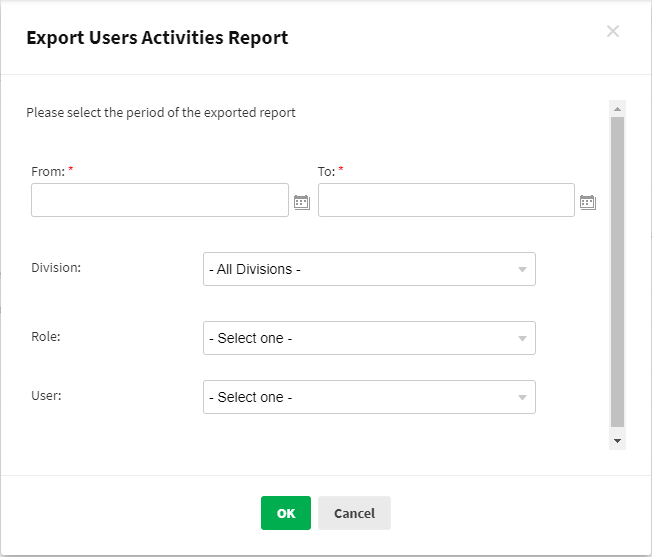
You must fill the date range to export the users’ activities and get more related- search results by selecting any of the Divisions, Roles, or Users.
You can also send messages by selecting one or multiple users.

Role Management
In carrying out the responsibilities of planning, organizing, leading, and controlling, managers take on many different roles. Set up roles for other users by defining their access levels to different functions on the site.
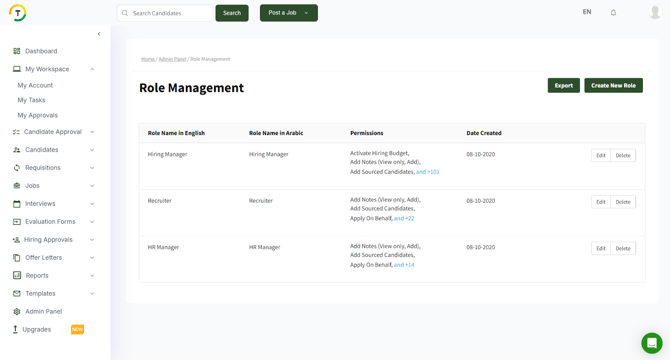
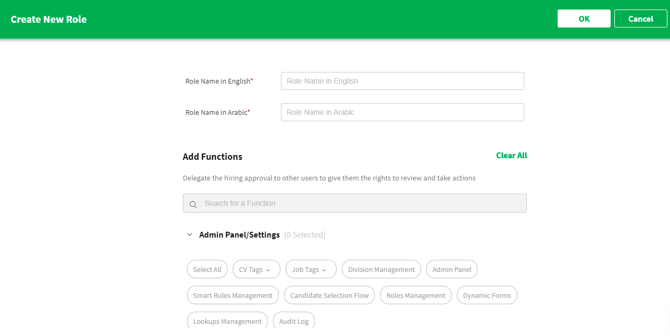
Default roles will be available on Roles Management, and you can add more by clicking on Create New Role and fill in the role’s name, then select the functions to set it.
The roles are sorted based on the creation date, and you can perform the below actions per role:
- Edit
- Delete
Divisions Management
With Divisions Management, you can structure your organization into smaller groups based on specialized functional areas, such as IT, finance, or marketing, to determine how the organization will operate and perform.
Set up divisions within the site to match the department structure of your organization by clicking on “Create New Division”.
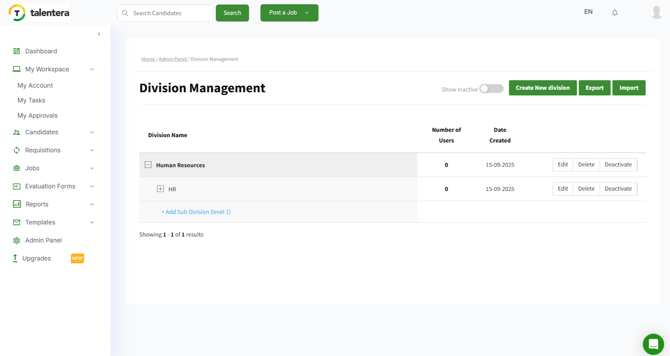
You can either add a division manually or import divisions.
There is also an option to export the divisions as well.
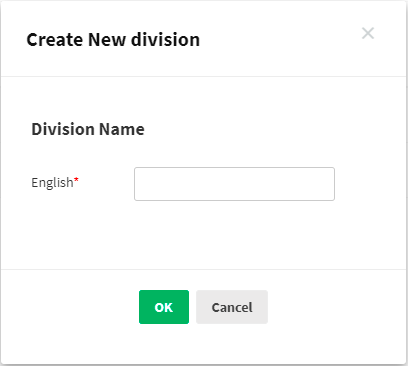
And you can also perform the below actions:
- Edit- This allows you to edit the name of the division.
- Delete- You can perform this action as long as there are no users assigned on the division, and if it happened to be the case, the below message will appear:
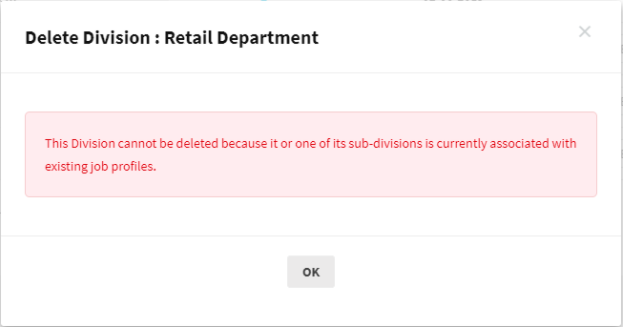
- Deactivate- This option will hide the division from the divisions’ lists across the site.
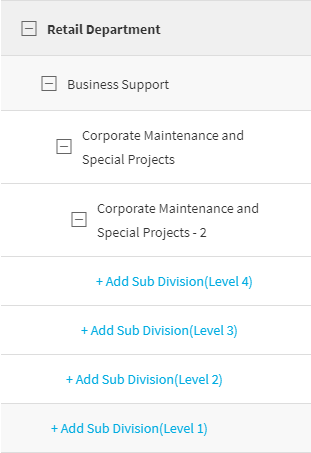
The system allows you to add up to four levels on the main division.
- Main Division
- Sub Division (Level 1)
- Sub Division (Level 2)
- Sub Division (Level 3)
- Sub Division (Level 4)
Content Management Section
Featured Jobs Management
Using this page, you can select the jobs to be highlighted on the homepage of your career site.
Fill in the widget’s title and the job you need to add on the homepage.
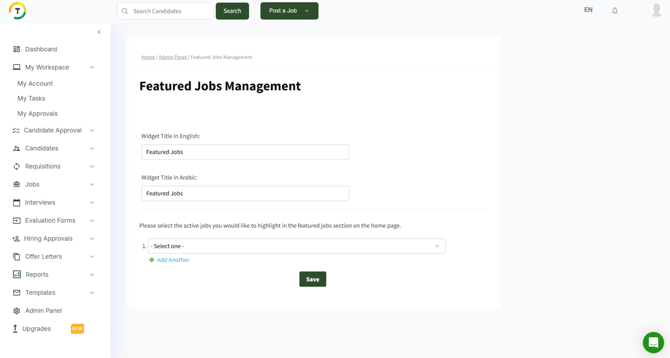
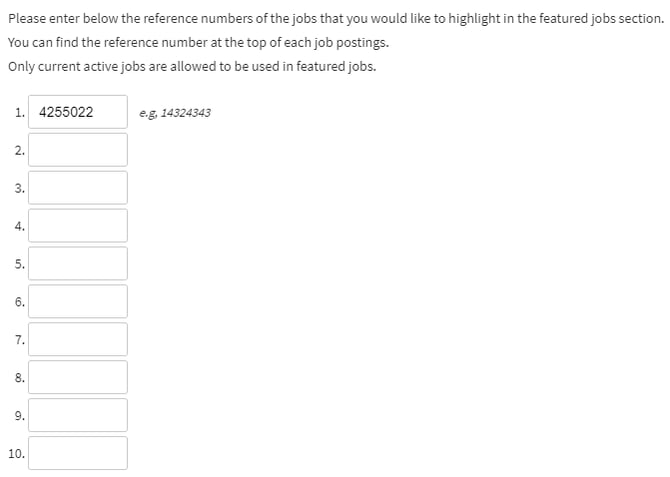
If there are more than two active jobs, the user will have the option to add the job ID as shown below, and you can add up to ten positions.
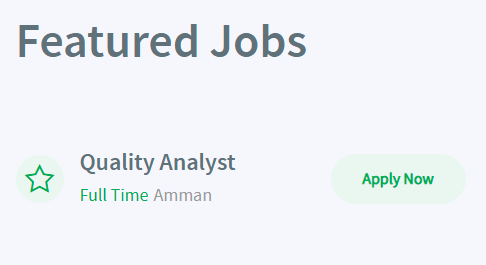
Only active jobs are allowed to be used in featured jobs, and this is how it will be reflected on the home page.
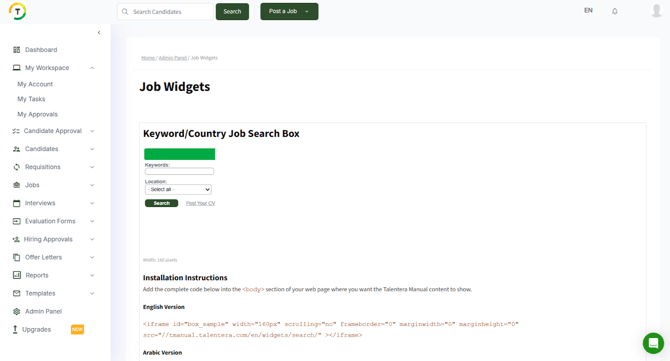
Job Widgets
Generate job widgets that can be embedded on external sites to show the latest jobs you have.
Dynamic Banner Ads
Display real-time jobs on your website using the dynamic job banners.
Select the appropriate settings to configure your dynamic banner. A sample banner will be provided when you generate your code.

Select the generated code and paste the iframe where you need to use it.

It will look something like this.

Data & Audits Section
log Audit Log
Track all CVs downloaded by the employers on your career portal in a specific period on the Audit Log page.
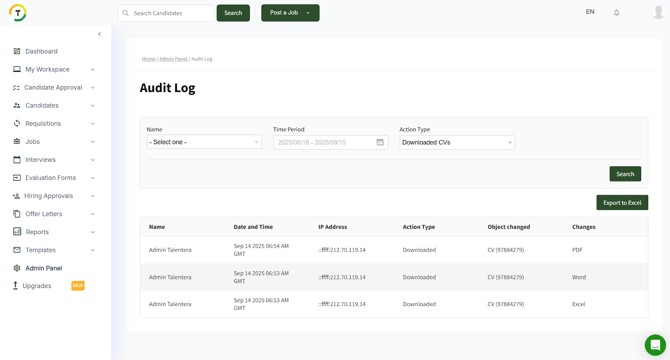
This audit log will display the following details of the employer:
- Name- The employee who performed the action.
- Date and Time
- IP Address
- Action Type- The action performed by the employer.
- Object changed- The object that the action was taken on.
- Changes- The downloaded file’s type. Ex: Word, PDF, XLS
System Setup Section
Manage Candidate Selection Flow
Set up your candidate-selection stages to match your company's recruitment process. Drag and drop stages to re-arrange. Click on stages to rename or delete. You can have up to 10 hiring stages.
It is basically the stages that the candidate will follow from applying to a job until he/she gets hired or rejected.
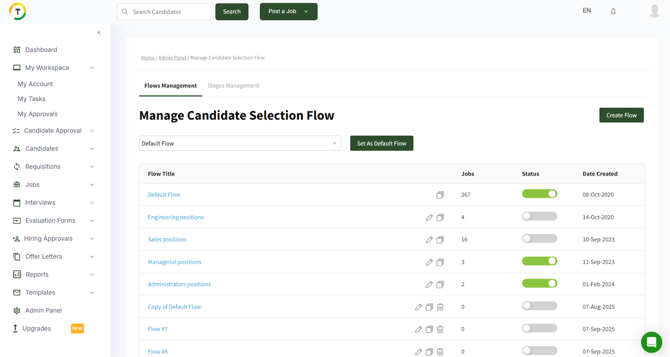
You can perform the below actions on the created flows:
- Edit
- Duplicate
- Delete- Default flow is not deletable, also, this option will not be available for the flows that are used in job posts.
- Activate/ Deactivate- This option will be responsible for Showing/ Hiding the flow in the job post setup page.

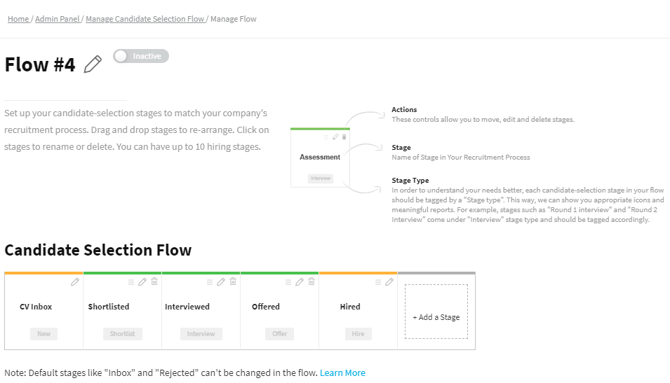
Default stages like "Inbox" and "Rejected" can't be changed in the flow. The inbox stage is the first stage where the CV will appear after application by the candidate.

Start adding and customizing stages by clicking on “+Add a Stage”.
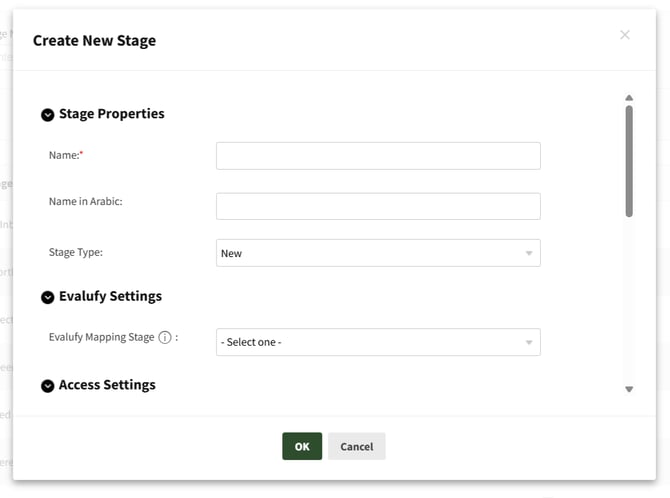
Set up the new stage by adding the following details:
- Name- Name of the stage in your recruitment process
- Stage Type- Using the stage type helps in showing the appropriate icons and meaningful reports. For example, stages such as "Round 1 interview" and "Round 2 Interview" come under the "Interview" stage type and should be tagged accordingly.
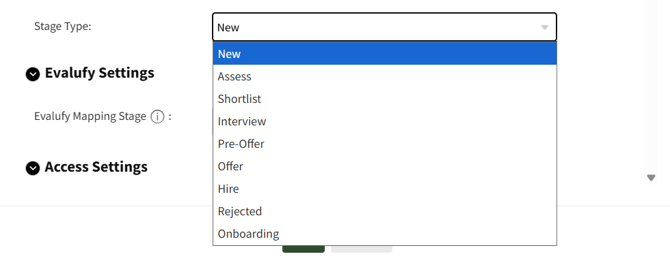
- Evalufy Settings: You can map the movement of the CVs from Evalufy with your career site, in case the CV is updated in Evalufy, then it will be added to this stage automatically, without the need for manual adding.
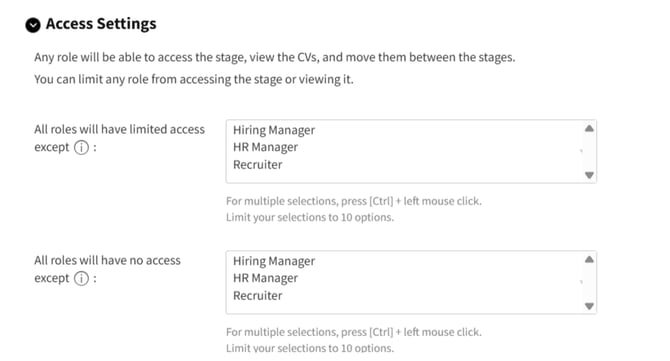
- Access Settings: You can select which role to access the stage, view the CVs, and move them between the stages.
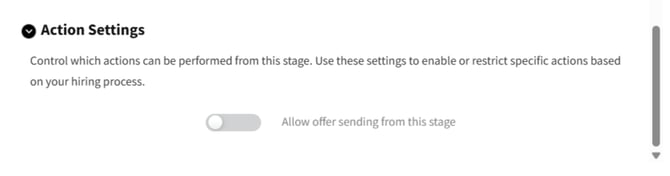
- Action Settings: you can control which actions can be performed from this stage. Use these settings to enable or restrict specific actions based on your hiring process.
Hiring Approval Settings
Hiring Approval Settings allow the HR team to take certain actions based on criteria that they specify.
Automation of Approvals
Set your automated rules for the approval process based on specific criteria.

Start adding new rules by clicking on the Add Automation Rule.
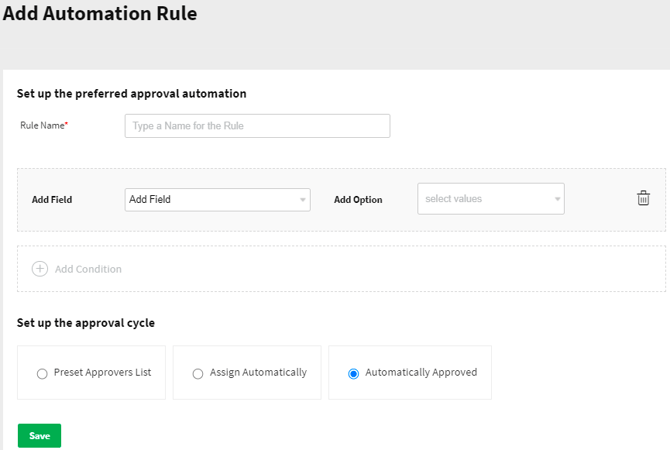
Add the rule name, then select the criteria based on which you want to execute the rule.
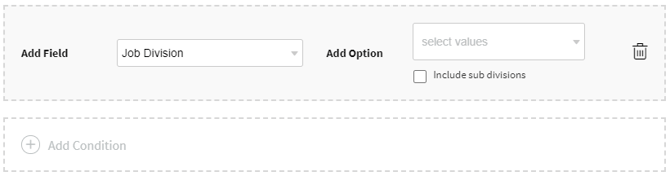
You can add more than one option by clicking on the Add Condition icon.
After that, you need to set up the approval cycle. You need to set the action that will be executed when all conditions are met.

Preset Approvers List
By selecting this option, the HR manager can review the request and either delegate hiring approvals to other users or approve it as is.
Click on Add Step to add approvers for the request. You can add the approvers in sequence by selecting more than one user in the first step.
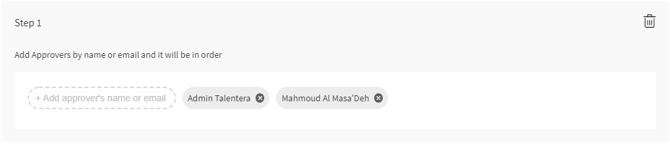
You can also add approvers in parallel by clicking on the Add Step link.

So basically when the HR manager wants to manage the list of approvers, it will have the list defaulted as per the executed rule.

And all they have to do is save the approvers list in order to be assigned successfully to the selected users.
Assign Automatically
Delegate the hiring approval to other users to give them the rights to review and determine what actions must be taken.
Click on Add Step to add approvers for the request. You can add the approvers in sequence by selecting more than one user in the first step.
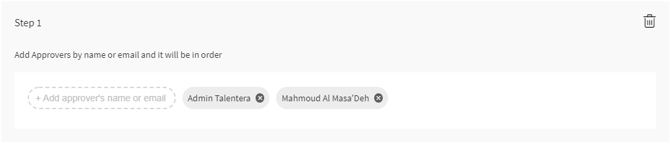
You can also add approvers in parallel by clicking on the Add Step link.

When setting up this option, the request will skip the HR review step and get assigned directly after the creation of the request to the list of approvers that have been specified.
Automatically Approved
This option will automatically approve the request right after it is created.
Requisitions Settings
Requisition settings allow the HR team to take certain actions based on criteria that they specify.
Automation of Approvals
Set your automated rules for the approval process based on specific criteria.
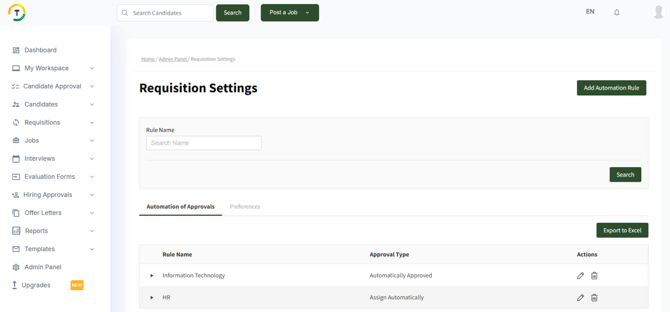
Start adding new rules by clicking on the Add Automation Rule.
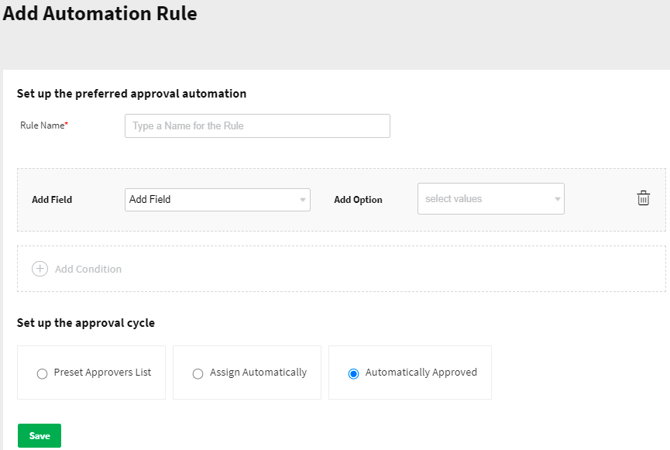
Add the rule name, then select the criteria based on which you want to execute the rule.
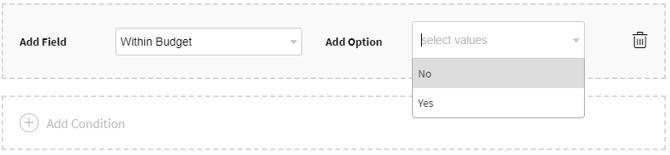
You can add more than one option by clicking on the Add Condition icon.
After that you need to set up the approval cycle. You need to set the action that will be executed when all conditions are met.

Preset Approvers List
Delegate the requisition to other users to give them the rights to review and determine what actions must be taken.
Click on Add Step to add approvers for the request. You can add the approvers in sequence by selecting more than one user in the first step.
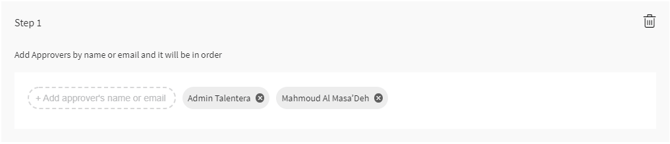
You can also add approvers in parallel by clicking on the Add Step link.

So basically when the HR manager wants to manage the list of approvers, it will have the list defaulted as per the executed rule.
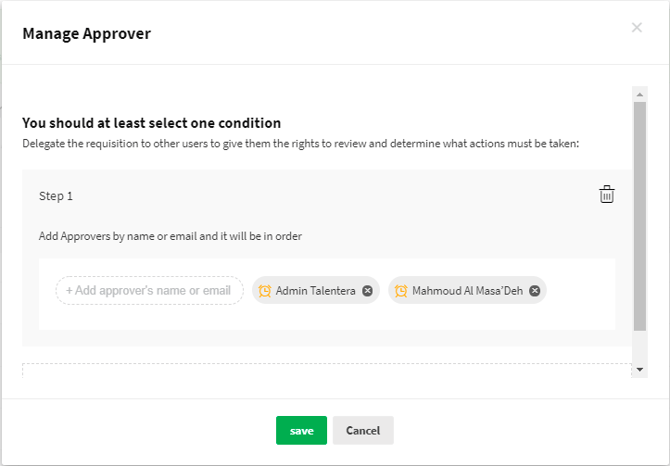
And all they have to do is save the approvers list in order to be assigned successfully to the selected users.
Assign Automatically
Delegate the requisition to other users to give them the rights to review and determine what actions must be taken.
Click on Add Step to add approvers for the request. You can add the approvers in sequence by selecting more than one user in the first step.
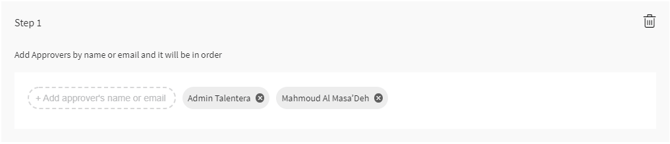
You can also add approvers in parallel by clicking on the Add Step link.

When setting up this option, the request will skip the HR review step and get assigned directly after the creation of the request to the list of approvers that have been specified.

Automatically Approved
This option will automatically approve the request right after it is created.
Preferences
HR Managers Assignment Settings
This settings area will allow you to set the HR managers to whom you would like to assign the requisition, where both of them must be set under the same division.
Note: you can assign divisions to HR managers any time from user management.

Link Requisition with Job Post
Enforce users to select a requisition to load job details while posting a job.

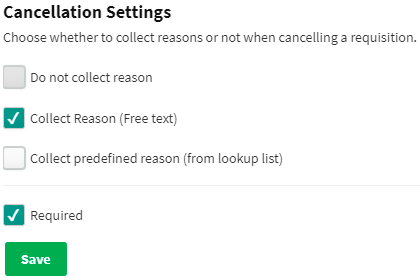
Cancellation Settings
Choose whether to collect reasons or not when canceling a requisition.
- Do not collect reason
- Collect Reason (Free text)
- Collect predefined reason (from lookup list)
CV Tags Management
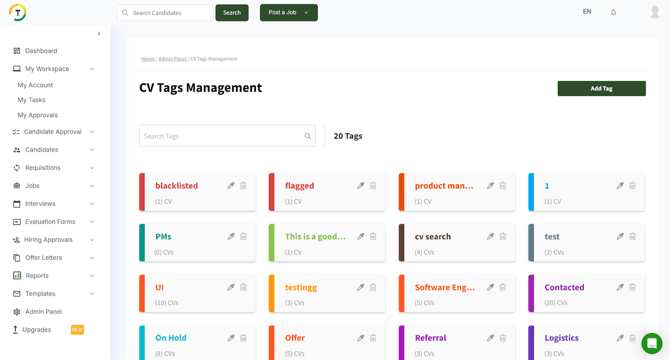
Tags are short descriptors that can be added to CVs to identify them later. Any tagged CVs can be later retrieved by running a quick search.
Manage your tags using Tags Management page.
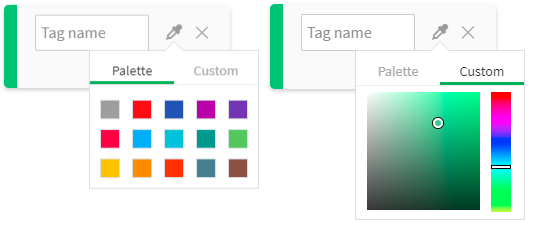
Click on “Add Tag”, fill in the name and select the desired color from the palette or choose your own color by clicking on the custom color tab.
You can also delete tags, but first you need to confirm removing the tag from all CVs as well.

CV Source Management
Collect statistics on the sources of your jobseekers' registrations and CVs, and manage all sources using this page.
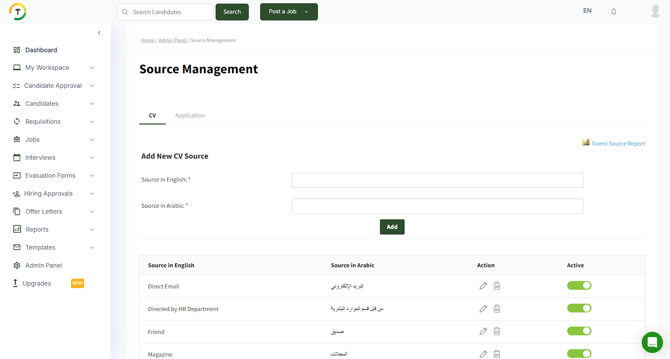
- Add Source

- Edit

- Delete
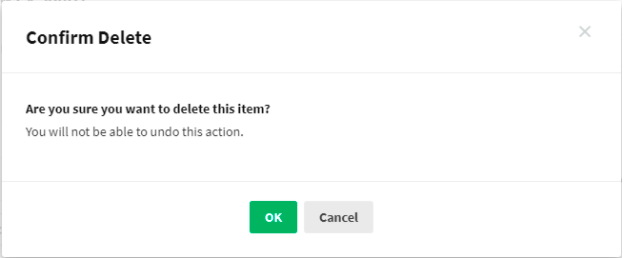
All updated sources will be reflected on the “How did you hear about us” list on the registration form.

Job Template Management
Set up commonly used job post templates to save time when you post similar jobs in the future.
Add the basic job detials, duties and responsibilities, and customize it based on the goals of your organization.Then easily load it later when you post a job.

You can search and import templates.
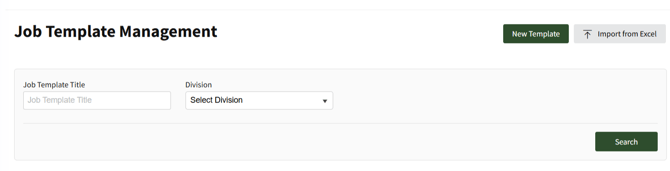
Click on “New Template” and start adding templates.

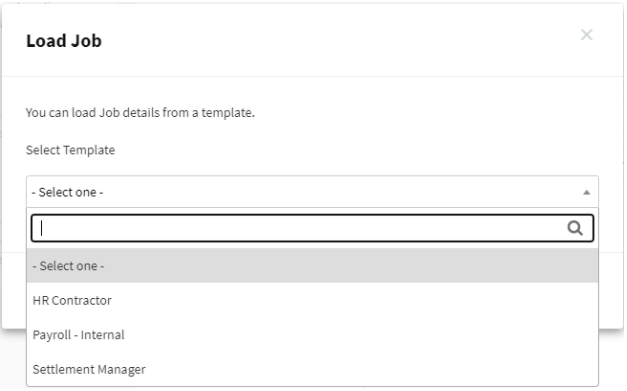
Save the template and use it later simply by loading the job from the job template.
You can export, edit and delete each template separately.
Automation Rules Management
Create automated rules for everything from CVs to job posts based on settings and conditions you choose. You can use automated rules to trigger emails, without taking any other action, upon specific conditions.
Configure the system to execute meaningful actions automatically when certain conditions are met.
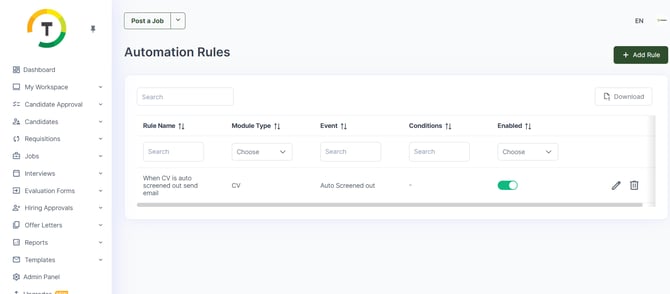
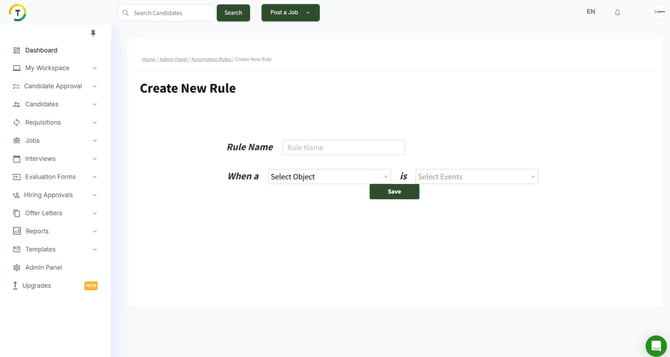
Automation rules can be set to automate actions based on below objects:
- CV

- Job

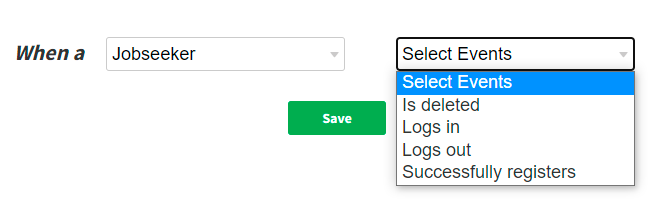
- Jobseeker
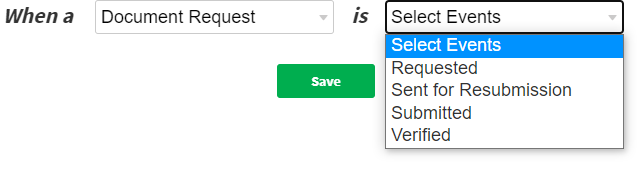
- Document Request
- Questionnaire

You can also set additional conditions in the same rule using the “Add Another Condition” link.


After filling in the object, you need to set the action that will be executed when all conditions are met.

The actions will vary depending on the object and condition.
So if you, for example, posted a job and want to automatically exclude all candidates that live in Jordan for that specific job and send them an apology email after two days, you can do the following:
Object- CV/ Applied to a job
And If- Job is X
Do- Send Email/ Delay: 2 days
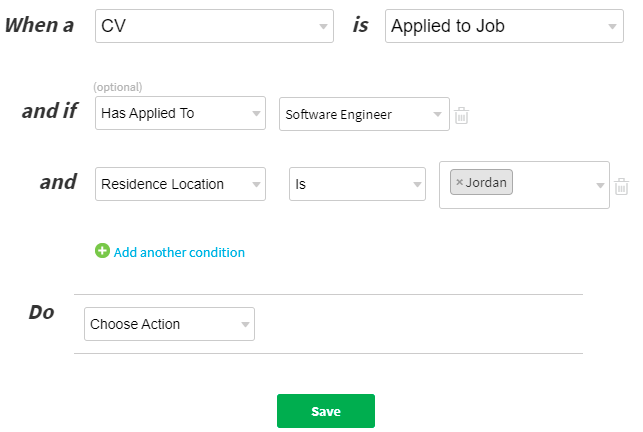
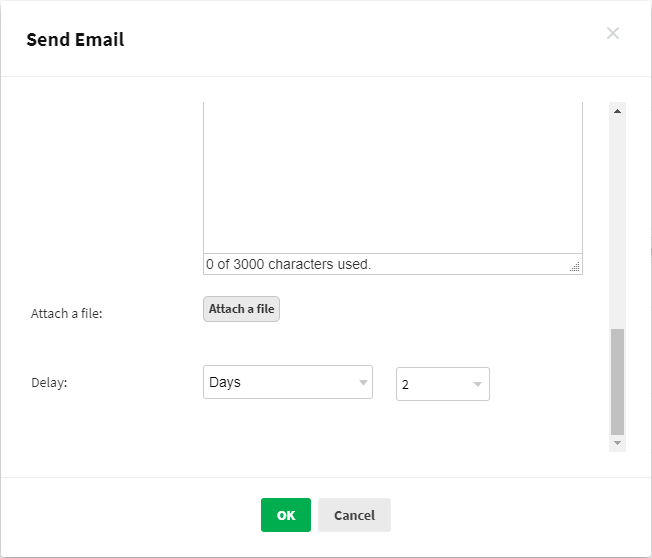
Save the rule and activate it from the smart rules management page.

You can Activate/ Deactivate the rule, edit or delete it.
Lookups Management
The Lookups Management section allows you to manage both system-defined and custom lookup list items. This includes key categories such as:
- Career Level
- Degree
- Employment Status
- Employment Type
- Industries
- Roles
- Visa Status
By managing these lists, you can ensure that all data entries across the system remain consistent and standardized, making reporting, filtering, and candidate management more accurate and efficient.
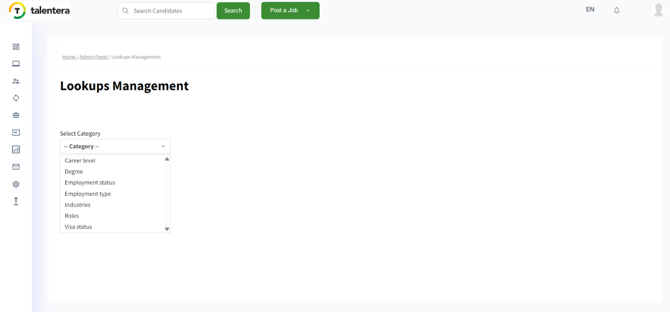
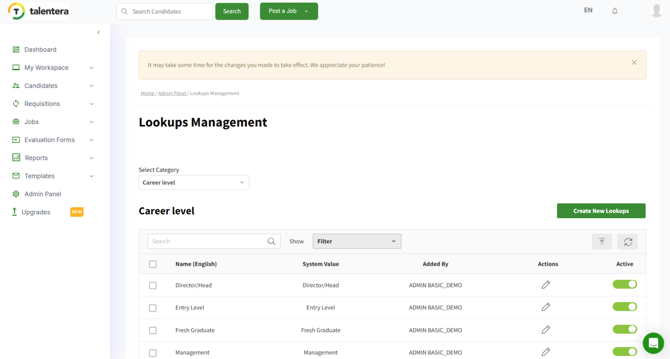
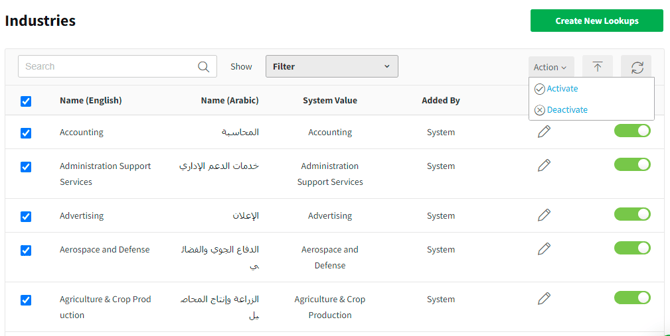
Add a new custom value by clicking on “Create New Lookups”.
Fill in its name and map it with system value then save.

You can filter the values using the following criteria:

The import option is available as well as the option for resetting the values.

When you rest values, you need to confirm deactivating any value added by you and activate all system values.

There is also the ability to activate/ deactivate multiple records in bulk as shown below.
Notification Management
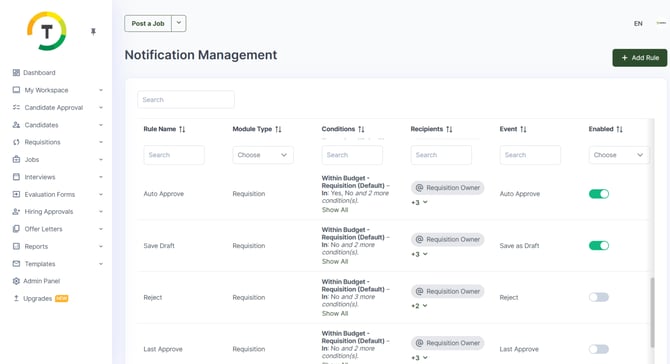
Talentera allows you to streamline communication through automated notification rules. This feature enables system users to create and manage rules that trigger notifications automatically based on predefined conditions. By doing so, you ensure timely updates, reduced manual effort, and greater efficiency across your recruitment workflows.
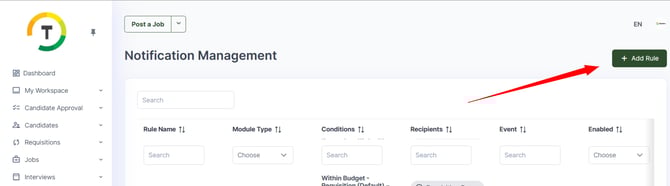
Adding a Rule Execution Setting
- Click on Add a Rule.
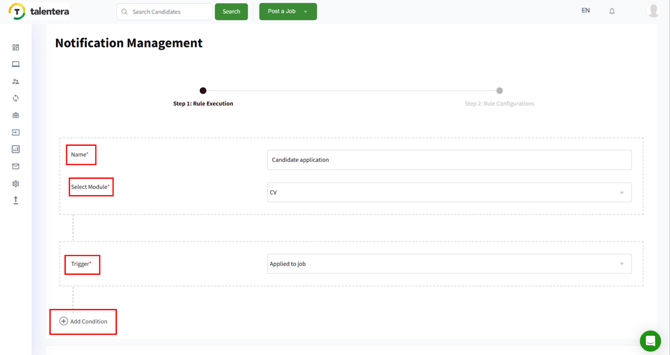
- Enter the rule name and select the module where it will apply.
- Add a trigger for the notification.
- (Optional) Add a condition if the rule should apply only in specific cases.
- Click Next to proceed to the rule configuration.
Adding a Rule Configuration Setting:
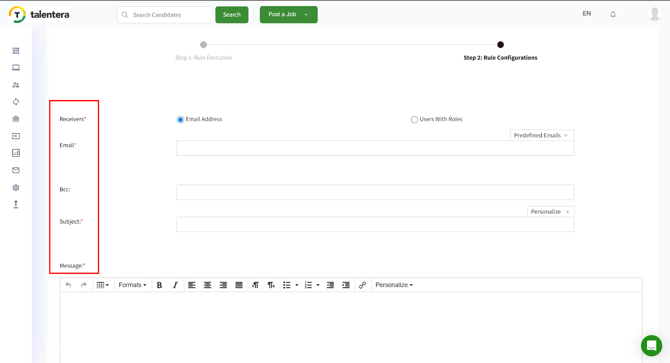
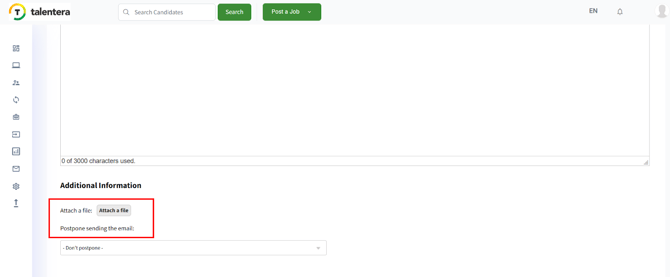
- Select the receivers who should get the notification.
- Enter the email address (if applicable).
- Add the subject of the notification.
- Write the message content.
- (Optional) Attach any required files or documents.
- Set the delay time for sending the message (if needed).
Click Save to finalize the rule configuration.
Media Library
The Media Library provides a centralized space to upload, organize, and manage all media files needed for your recruitment workflows. This feature allows you to store items such as images, documents, and other media, and then easily reuse them across the system.
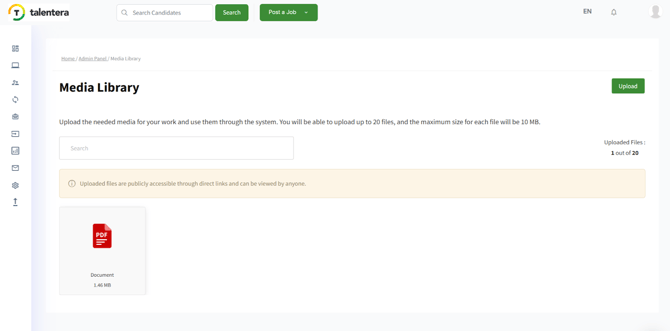
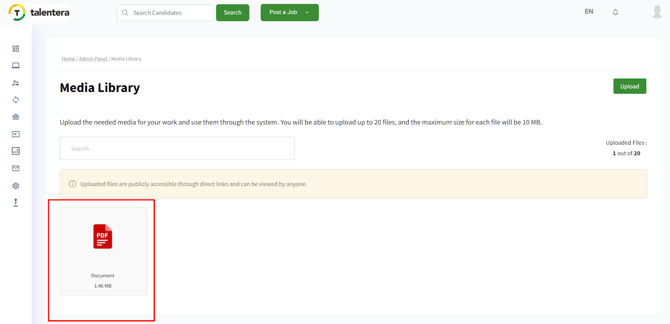
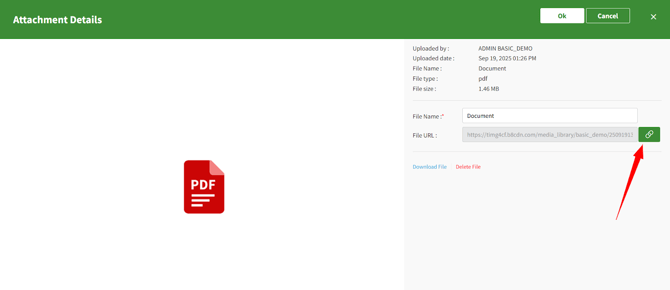
If you want to upload a document, click on Upload and select the file. After uploading, you can click on the document to view its details and copy its URL for use within the system.
Office Addresses
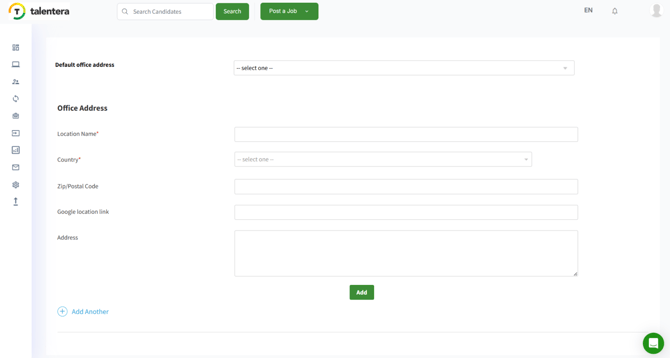
The Office Addresses section allows you to configure and manage your organization’s on-site premises. Once added, these addresses can be conveniently used in interview invitations, ensuring candidates and internal users have clear and consistent location details. This feature helps streamline scheduling and enhances the professionalism of your recruitment workflow.
Working Hours
The Working Hours section allows you to configure your organization’s workdays and working hours, providing a clear schedule for operational activities. Additionally, you can manage non-working days, such as holidays or special closures, ensuring that interview scheduling, notifications, and other system processes align with your organization’s availability. This helps maintain accurate planning and smooth coordination across your recruitment workflows.

Forms Management
The Forms Management section allows you to create, manage, and organize various forms used throughout the recruitment process. This includes forms such as:
- Requisition Forms
- Hiring Approval Forms
- Offer Letter Forms
By managing these forms, you can standardize your workflows, ensure compliance with internal processes, and streamline approvals and communication across your hiring teams.
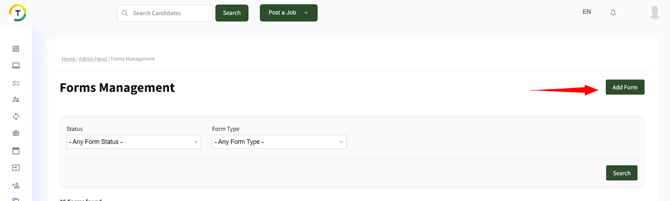
You can search for forms by status and form type, making it easy to locate and manage specific forms.

Multiple actions can be performed on forms to streamline management. These include: Unpublish a form, Edit an existing form, Duplicate a form for reuse, and Edit Template to modify the underlying structure or content. These options provide flexibility and efficiency in maintaining your recruitment forms.

Note: You need to unpublish a form in order to be able to edit it.
Adding a form:
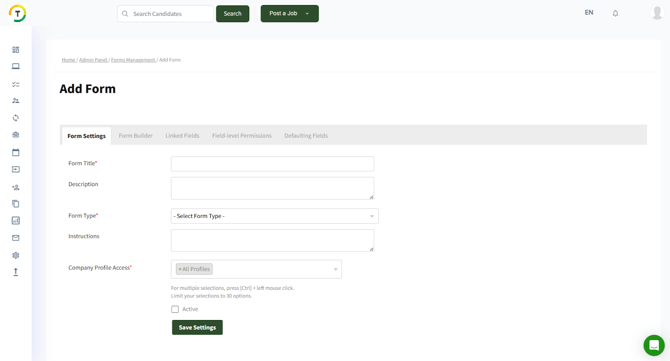
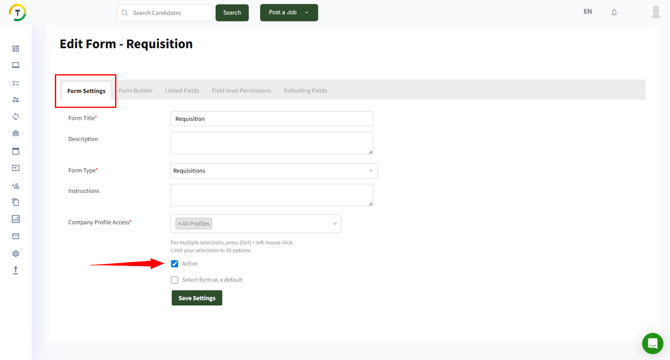
- Form Settings
Configure the Form Settings:
- Form Title – Enter the name of the form.
- Description – Provide a brief overview or purpose of the form.
- Form Type – Select the type: Requisition, Offer Letter, or Hiring Approval.
- Instructions – Add any guidance for users filling out the form.
- Company Profile Access – Specify which company profiles can access this form.
- Choose whether you would like to activate the form or not.
- Click on Save Settings.
Form Builder
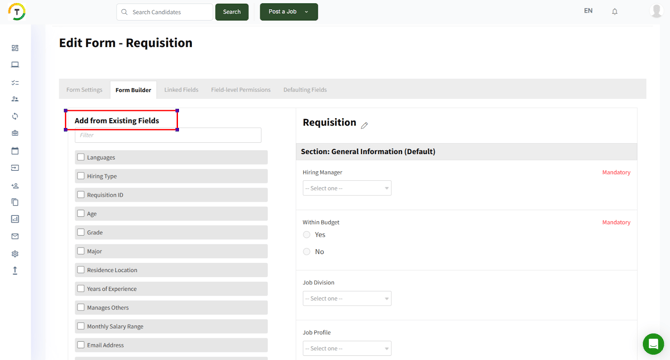
After clicking Save Settings, you will be taken to the Form Builder. In this step, you can build your form by selecting from existing fields in the system or adding custom fields to capture additional information. The Form Builder allows you to design the form structure according to your specific recruitment needs before finalizing and publishing it.
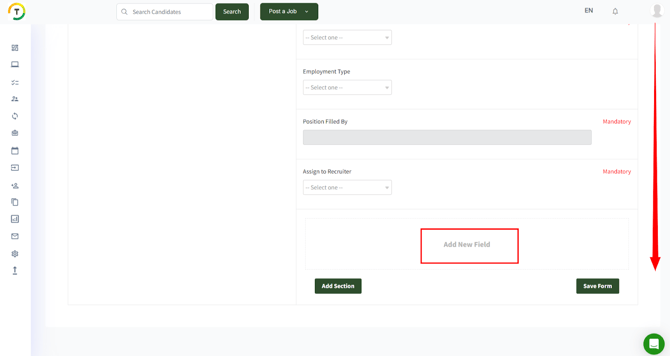
- Click on Add New Field.
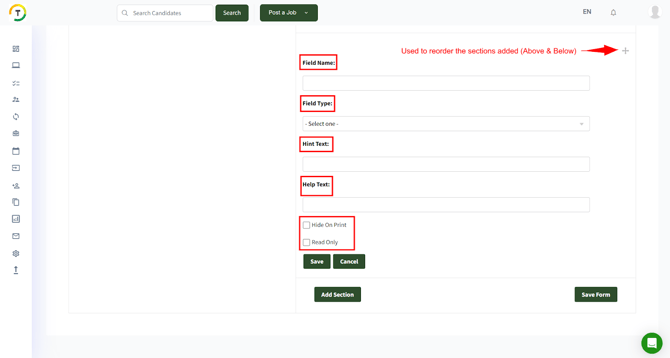
- Fill the needed fields and click on Save.
- Click on Save Form then you will be taken to the next step which is Linked Fields.
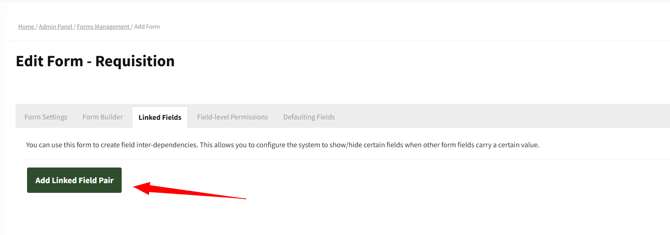
You can use the form to create field inter-dependencies, allowing the system to show or hide specific fields based on the values selected in other form fields. This ensures dynamic, context-sensitive forms that adapt to user input.
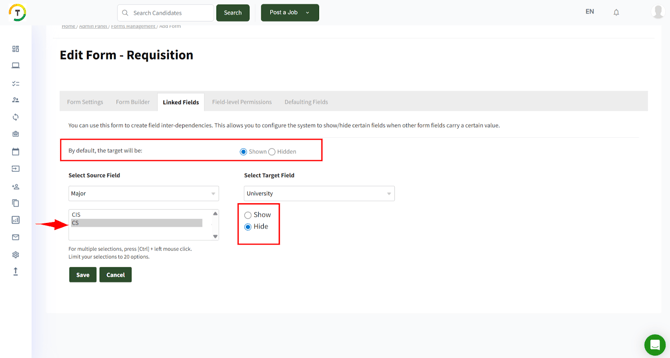
In the picture above, the default target field “University” will be Shown and if the selected source field option was CS, then the target field will be hidden.
Click on Save to proceed to the next section which is Field-Level Permissions
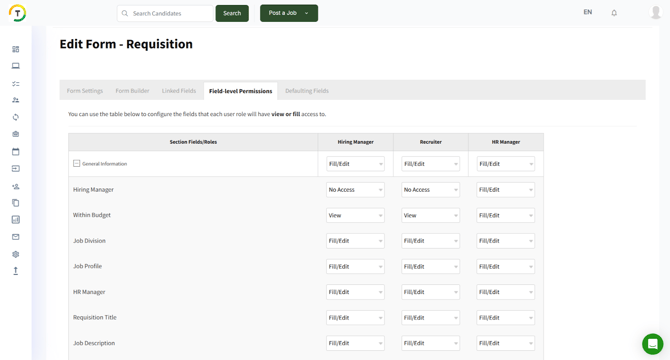
You can use the table above to configure the fields that each user role will have view or fill access to.
After setting the field level permissions, click on Save Settings and proceed to the last step which is called the Defaulting Fields:
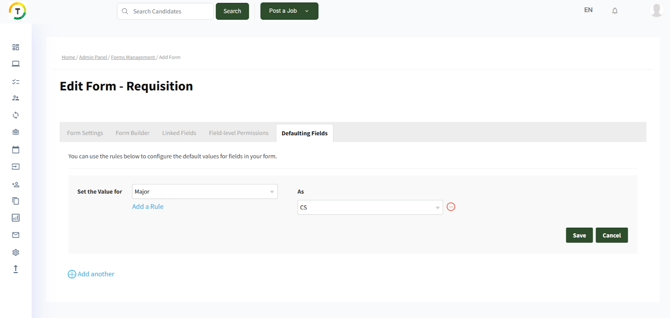
You can use multiple rules to configure the default values for fields in your form.
Click on Save and the default field will be ready.
After setting up the form settings, return to the form settings step and select the Active checkbox to make the form available for use.