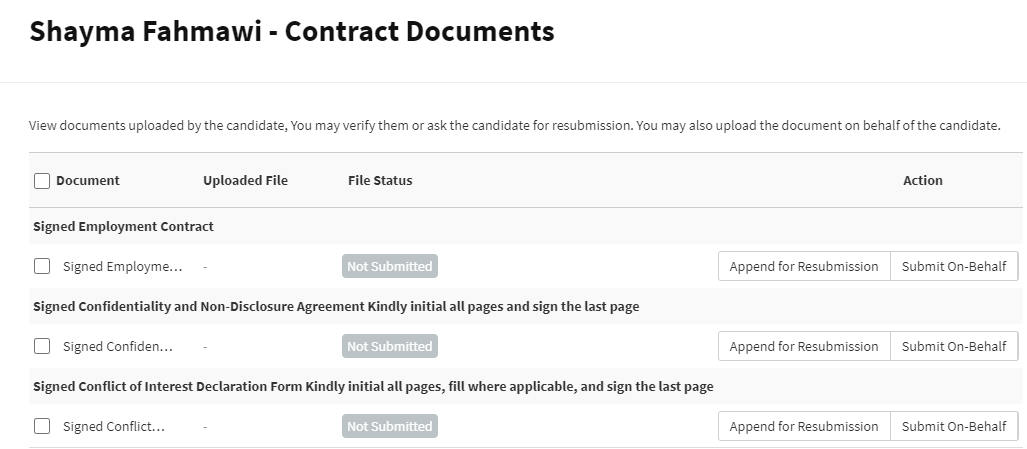
The Document Requests feature makes it easy to request documentation when finalizing the recruitment for a candidate.
Document Request sets can be created on the system. These facilitate requests for a set of documents in support of an applicant's candidature.
The candidate uploads the requested documents, which the employer can then easily access.
Further, the Documents Verification feature allows employers to confirm with candidates whether or not the received documents are valid. Thanks to our coloring classification system, employers will know the status of the requested documents at a glance.
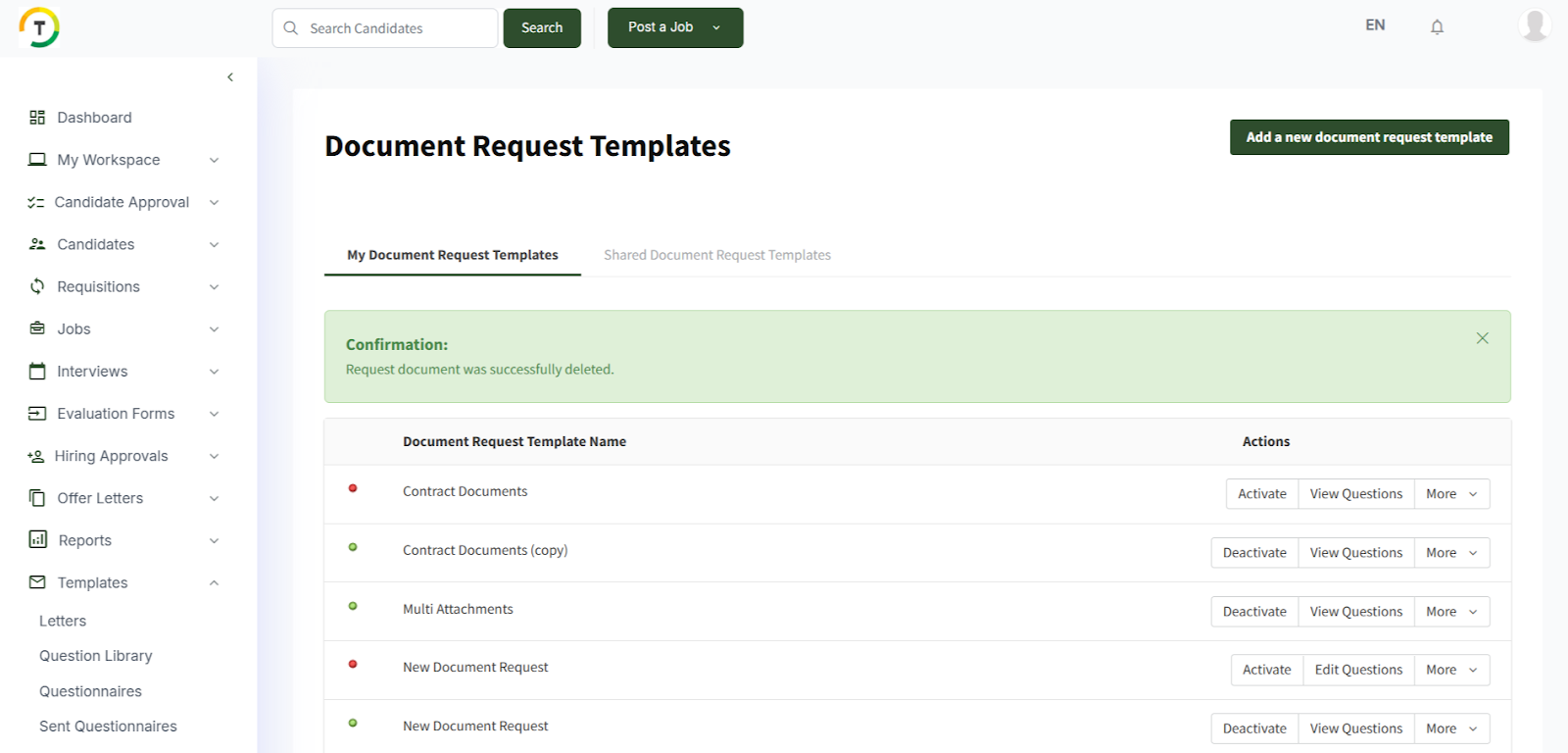
My Document Request Templates - This tab lists all pre-saved document requests.
Shared Document Request Templates- Any pre-saved document requests that have been shared with you by other team members will be listed under this tab.
You can perform the below action on the document request template:
- Activate
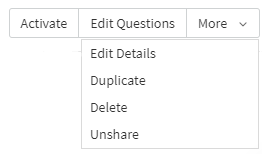
- Edit Questions
- More- Edit Details, Duplicate, Delete, and Unshare.
A new document request can be added by clicking on ‘’Add a new document request template’’ then click on ‘’Start Adding Attachments’’ after adding the title.
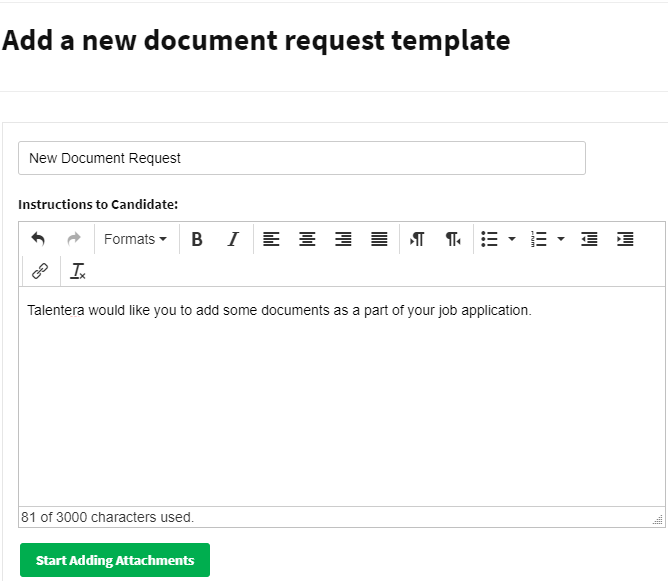
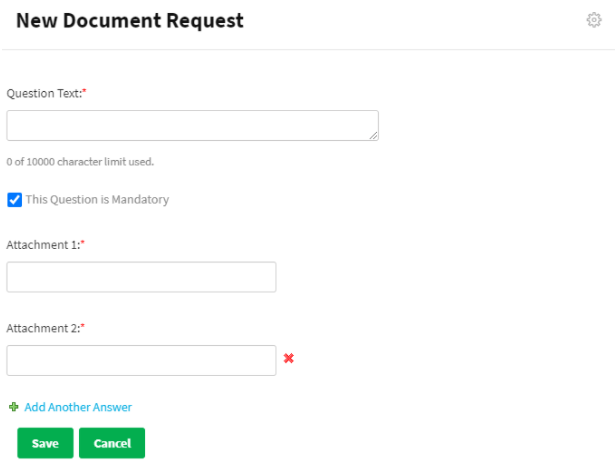
You need to start adding questions by specifying the ‘’Question Text’’, attachment fields, and click on ‘Save’.
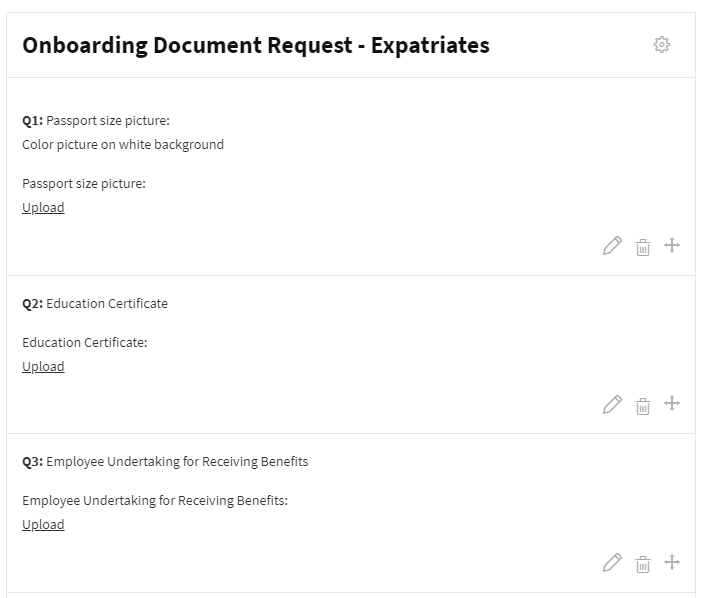
After adding the document request, it will look like the below snapshot.
All sent document requests will be added to the Activities on a CV- Document Request tab.
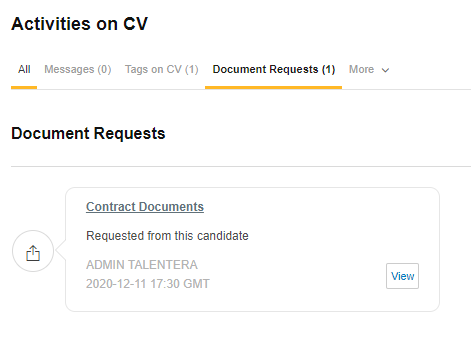
When you click on the “View” button, you will be redirected to the document verification page, where you can view the uploaded documents, append for resubmission, and submit the document on behalf of the candidate.