
What is a Hiring Approval request?
Hiring approval requests are formal organizational documents that the HR team uses to request approval for hiring potential shortlisted candidates.
The request usually outlines the candidate’s general information, salary details , grade...etc..
It has the details of the hiring manager and the HR manager and other necessary information in order to proceed with the recruitment process.
Hiring Approvals Management
The Hiring Approval Process
Here’s the workflow described from each role’s perspective:
The Hiring Manager
Create Hiring Approval Request
In order to create a new hiring approval request, the hiring manager needs to click on Create Request and fill in below general information:
- Position
- CV Reference Number
- Candidate Name
- HR Manager
- Hiring Manager
- Job Requisition Link
- CV Link
- Employment Status
- Job Role
- Attach a CV
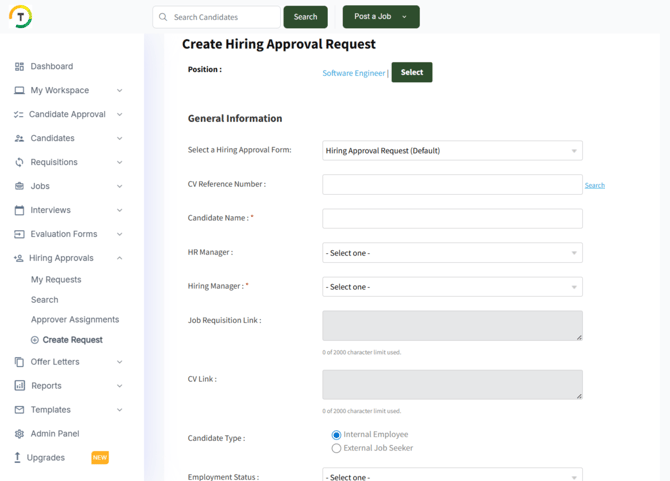
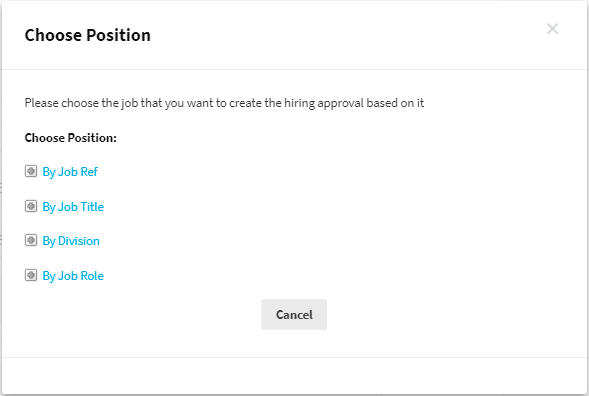
Choose the position to create the hiring approval for.
Click on the search link next to the candidate reference number to select the candidate.
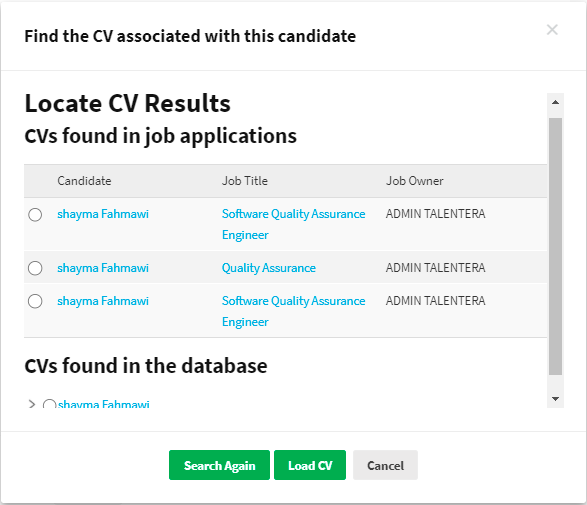
Select the CV and click on load CV, the candidate name, job requisition link, and CV link will be automatically filled.
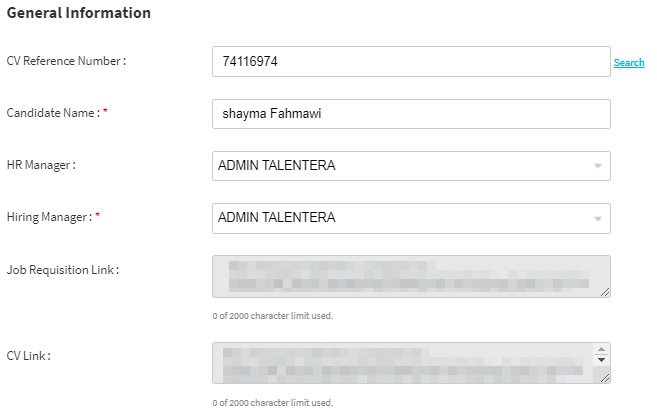
Fill in all fields and click on the Submit button to proceed with the request. Once successful, you’ll receive the below confirmation message.
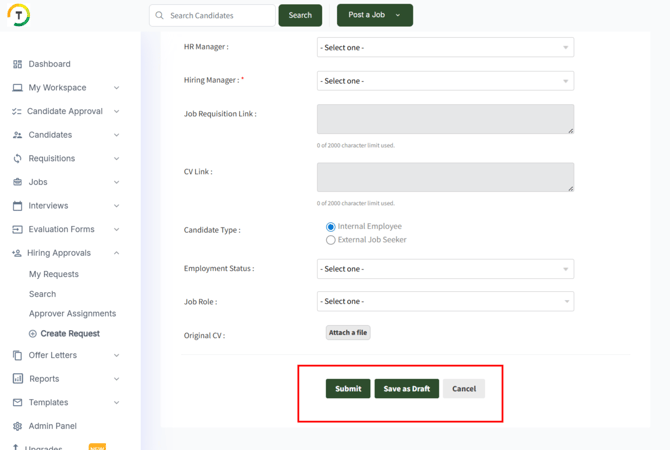

Save as Draft
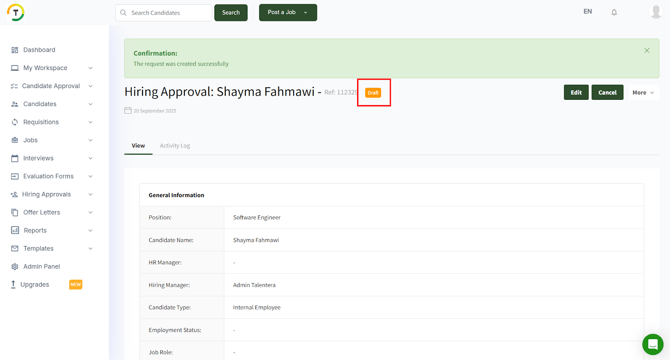
Save as Draft action will redirect the hiring manager to the view page with a confirmation message, and the status will be Draft.
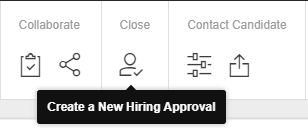
You can also create the request from the CV view where the CV is located on a specific job.
HR Manager
The request is now pending with the HR manager specified in the request whose role is to review the request and manage the approvers cycle.
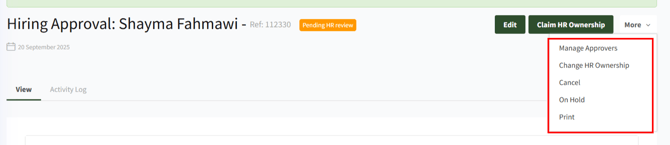
The status of the request will be Pending HR review, and the assigned HR manager’s name will show when you hover the mouse pointer over the status.

Actions on a hiring approval:
Manage Approvers
In order to proceed with the request after HR reviews it, click on the Manage Approver button.
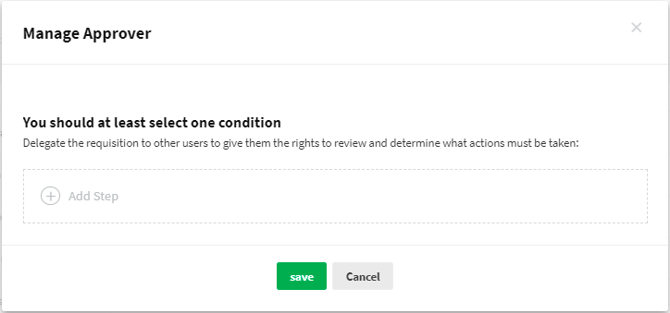
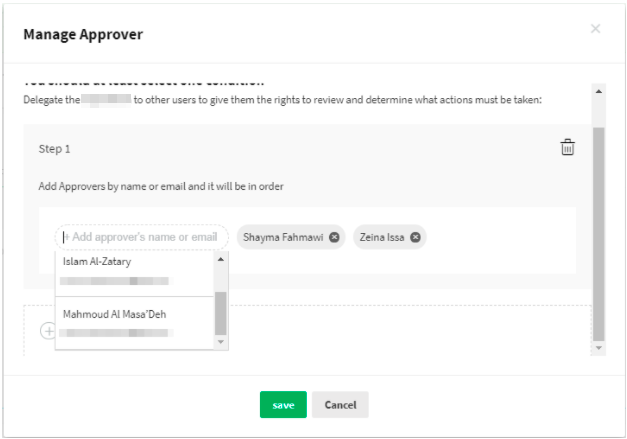
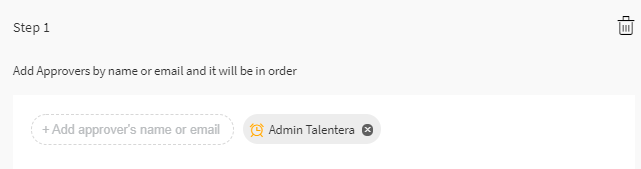
Click on Add Step to add approvers for the request. You can add approvers in sequence by selecting more than one user in the first step.
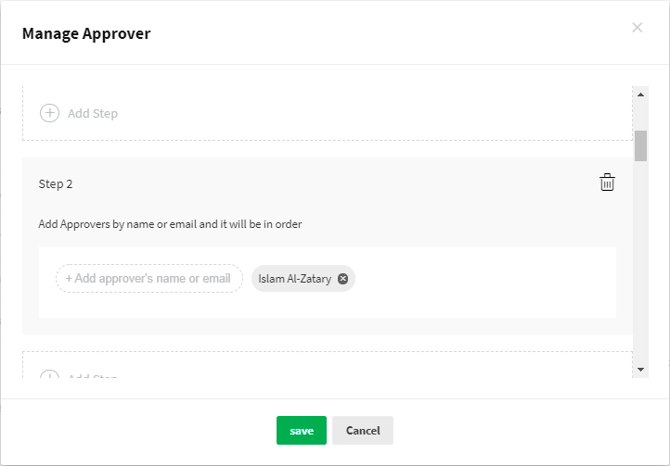
You can also add approvers in parallel by clicking on the Add Step link.
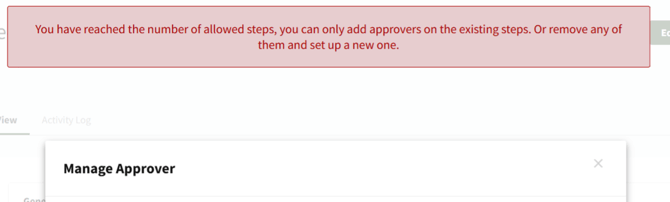
You are limited to adding only ten steps The below message will appear when you try to exceed this limit.
After saving the approvers list, the request will be assigned successfully, and the status will change to “Pending approval””. All approvers will be displayed upon mouse hover.

Claim Ownership
This action allows an HR Manager to take ownership of a hiring approval request that does not have an assigned HR Manager. It is typically used when the request creator did not specify an HR Manager during creation. Once claimed, the HR Manager who takes ownership becomes responsible for reviewing the request and managing the approvers list.
If the hiring manager didn’t specify the HR manager while creating the request, then the Claim Ownership button will be available for the HR team after submitting the request, and the status will be Pending HR review.

- Any HR Manager with the Assign Approvers function in their assigned role can claim ownership by clicking on the Claim Ownership button.
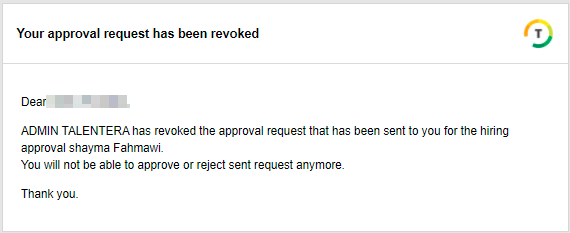
If the HR manager updated the list of approvers and removed any of them, then the approver will be notified by email that the HR manager revoked their approval request.
Sending Reminders
The HR manager can also send reminders to the approvers by clicking on the reminder icon on the Manage Approver window.
And the approver will receive a reminder email.
The Approvers
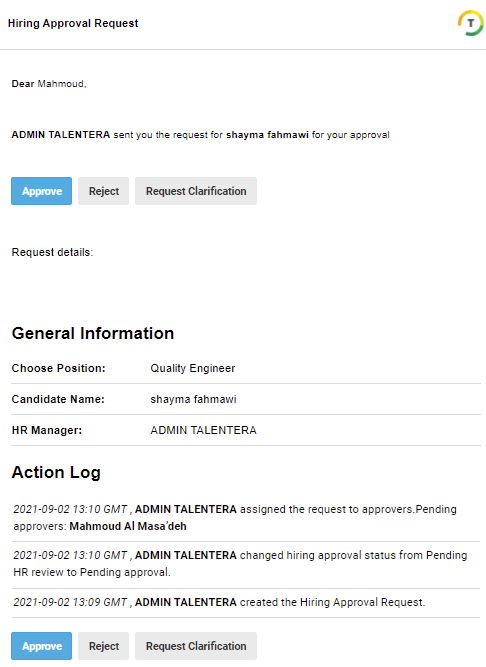
The list of approvers added in the first step will receive an email to Approve, Reject, or Request Clarification.
Request Clarification
This action allows the approver to request more information regarding the request by filling and submitting it.
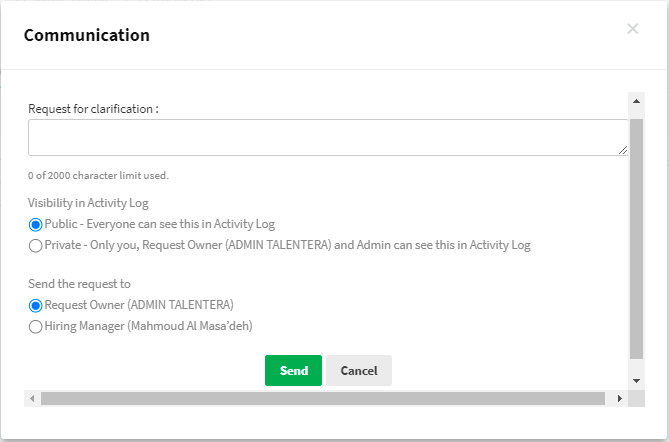
The request status will change to Pending approval- Info requested.

The user will get a notification email.
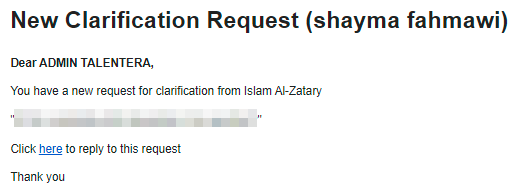
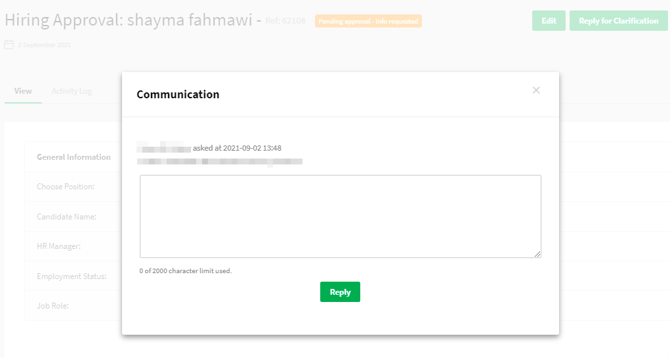
The user will be able to reply by clicking on the Reply for Clarification button.
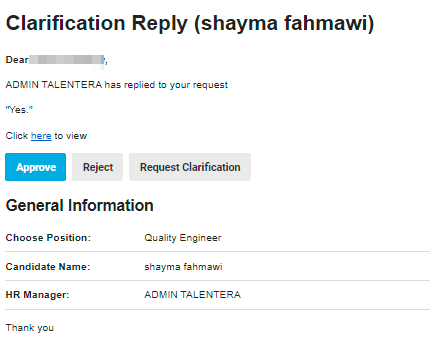
The requester will receive the reply by email.
Reject
This action allows the user to reject the request by filling in the Reason for Rejection.
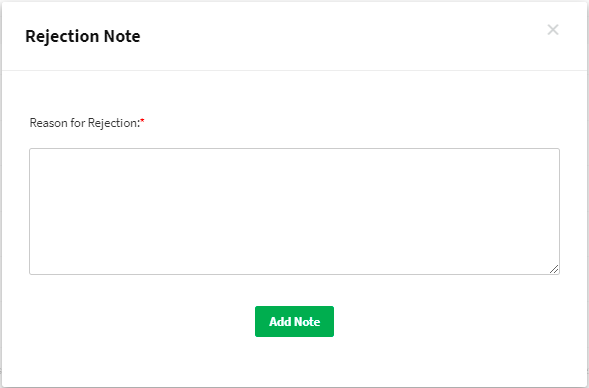
And the status on the request will be updated to Rejected.

The hiring manager and the creator will receive an email once the request is rejected.
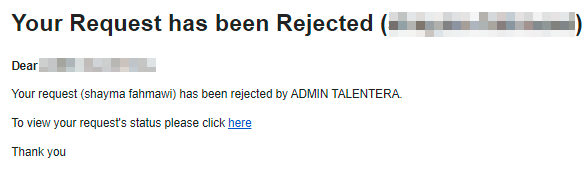
Approve
When a user approves the request, it will be pending for the next approver’s action. The status of the request will update when all users fully approve it.

The hiring manager and the creator will receive an email once the request is approved.
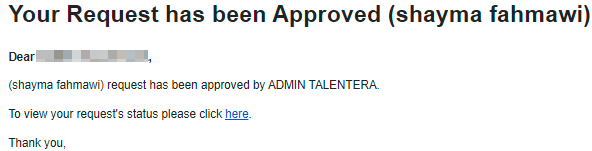
Available action after the request is approved:
- Edit After Approve - Any user with "Edit after approve" permission will be able to edit the request after approval. This will redirect the user to the Edit page and the following fields will be disabled:
- HR manager.
- Job requisition link.
- CV link.
Other Available Actions
There are several actions available on the hiring approval request based on functions, including edit, change ownership, cancel, and print.
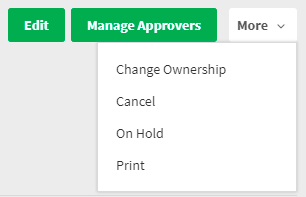
Edit Hiring Approval
This option redirects the user to the edit request page, and it’s available to any user with the Hiring Approval function.
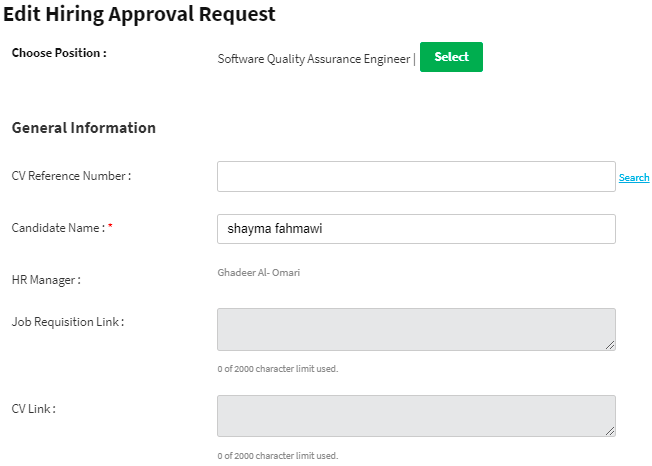
Change Ownership
The user will also be able to change the HR manager of the request by clicking on the Change Ownership button, and it’s available to any user with the Change Ownership function.
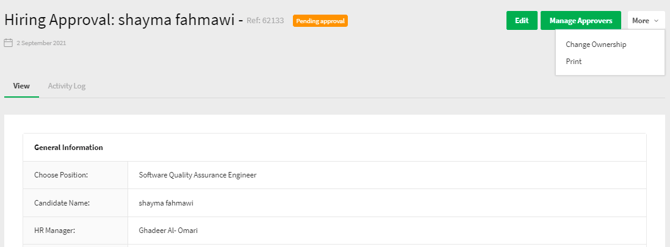
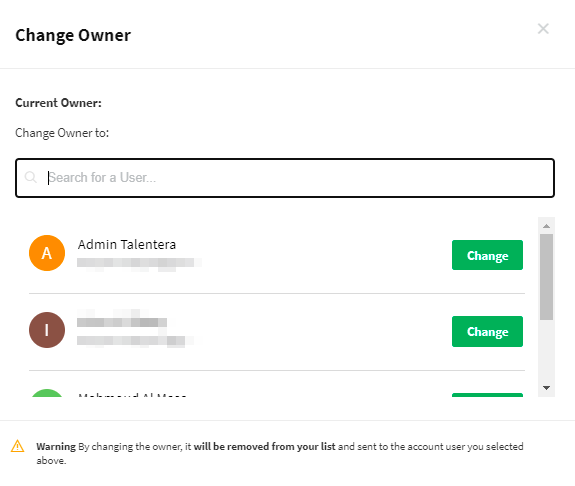
Select the new HR manager for the request and click on the Change button.
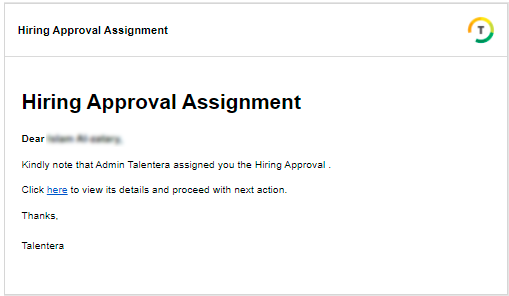
Upon changing the ownership of the request, the new HR manager will receive a notification email
Cancel
Canceling the request will require filling in a cancellation reason in order to proceed with the action.
A confirmation message will appear, and the request’s status will update to Canceled.

Delete
This option is available for canceled requests.

On Hold
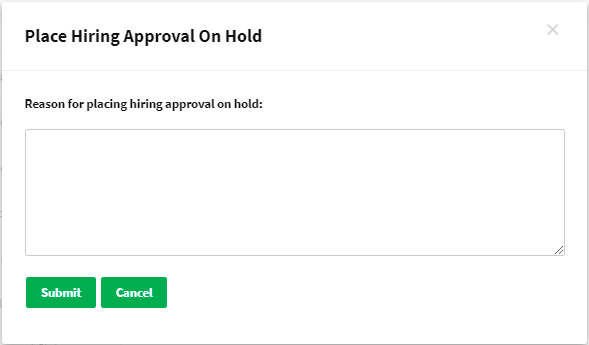
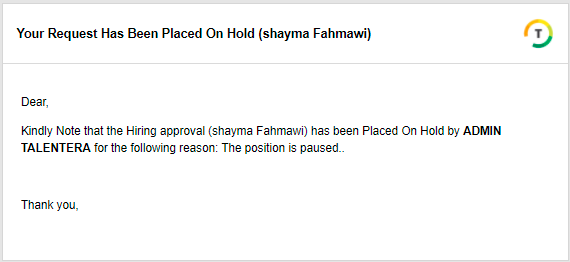
The user needs to fill in the reason then submit it.
An email will be sent to the hiring manager of the request.
Resume
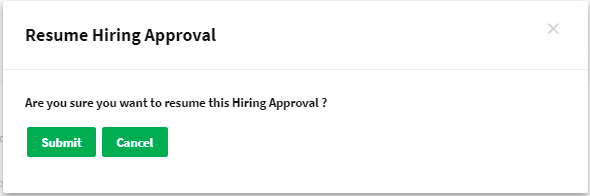
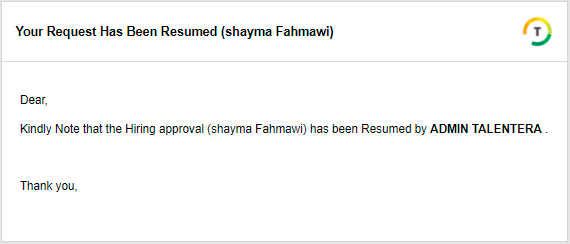
This is to proceed with the on-hold request, and once the action is taken, a notification email is sent to the hiring manager.
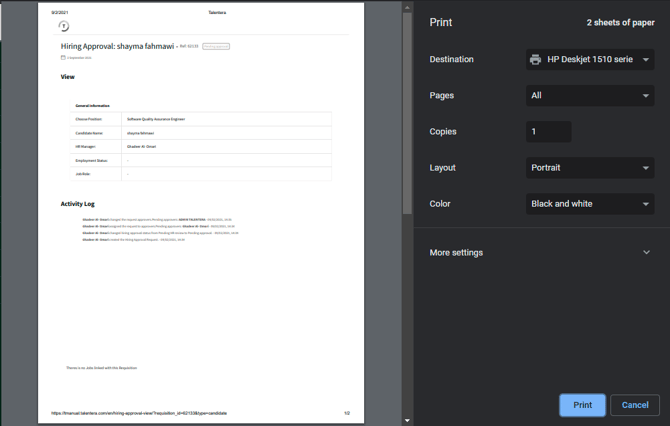
This allows the user to print the hiring approval request.
Activity Log
'History' and 'Private Messaging' tabs are listed under the activity log.
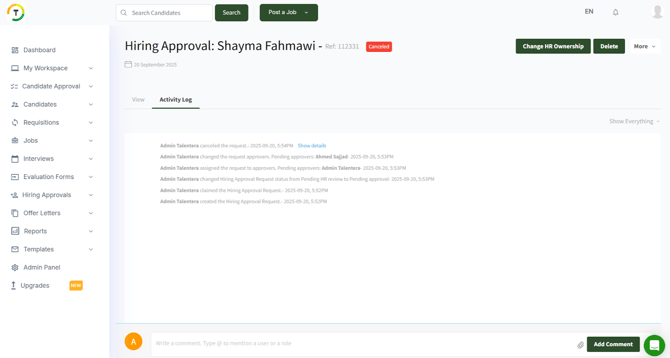
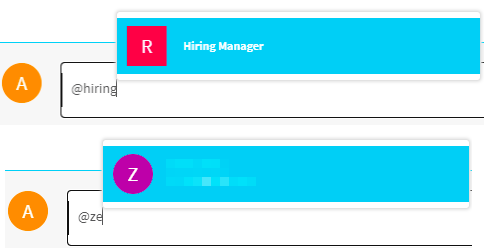
Also, You can mention a specific user or a role by entering '@' followed by the user/role name.
Auto-suggested users and roles will be displayed as you type in the name. Individuals have circle avatar icons, and roles have square ones so you can distinguish between them.
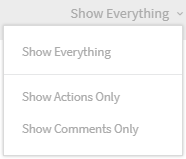
Filter the 'Actions' and 'Comments' or 'Show Everything' from the drop-down list.
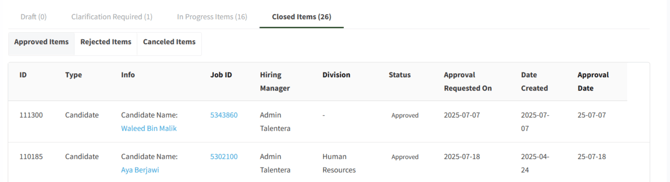
My Requests
This page displays the requests that have been created by a logged-in user.
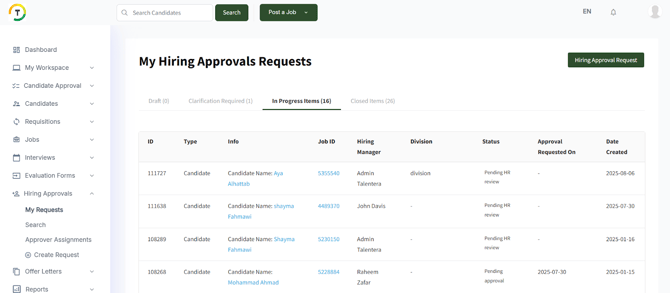
The requests are classified based on their statuses under the below tabs:
- Draft
- Clarification Required
- In Progress Items
- Closed Items
The Closed Items are further classified as per their statuses:
- Approved Items
- Rejected Items
- Canceled Items
Search
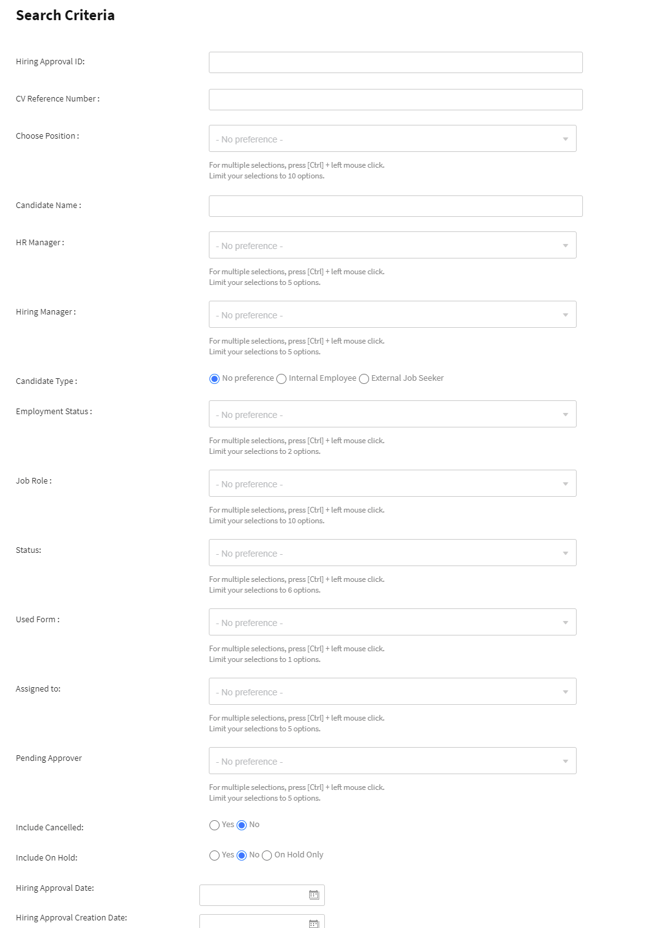
Using this page, the user can search for any hiring approval using any of the items below as a
search criteria.
- Hiring Approval ID
- CV Reference Number
- Choose Position
- Candidate Name
- HR Manager
- Hiring Manager
- Candidate Type
- Employment Status
- Job Role- Status
- Used Form
- Assigned to
- Pending Approver
- Include Cancelled
- Include On Hold
- Hiring Approval Date
- Hiring Approval Creation Date
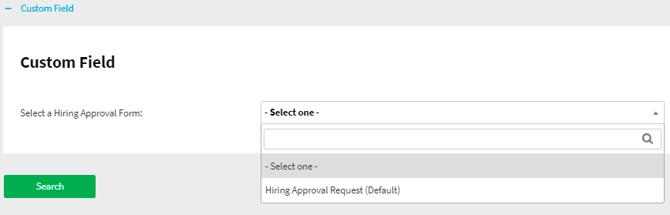
Custom Fields
You can use this to search the results based on any custom field added on any of the hiring approval forms.
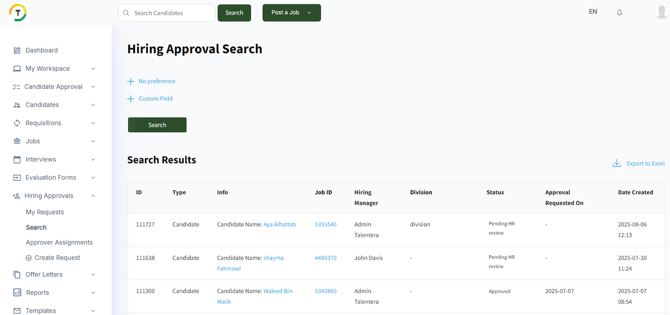
The results will appear as shown below and you can export them in an Excel format.
Approver Assignments
Pending Approval Assignment
As an HR manager, you will be able to view the requests pending for your review in this tab. As a request creator, you will be able to view the requests that have been created but not assigned to the HR manager yet.
Assigned by me
This tab displays the requests that have been assigned to the approvers by the user who performed this action.
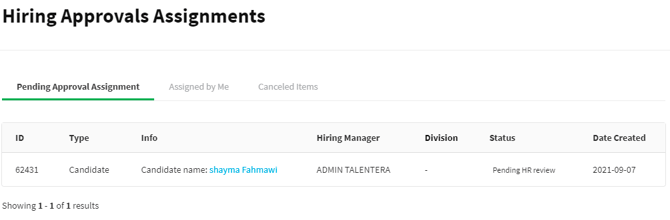
Canceled Items
This tab displays the canceled hiring approval’s requests.