You can create a questionnaire template by clicking on ‘Add a New Questionnaire’. Specify the questionnaire name and any instructions for the candidates (if any).
My Questionnaire Templates - All pre-saved questionnaires will be listed in this tab.
Shared Questionnaire Templates- Any pre-saved questionnaires shared with you by other team members will be listed under this tab.
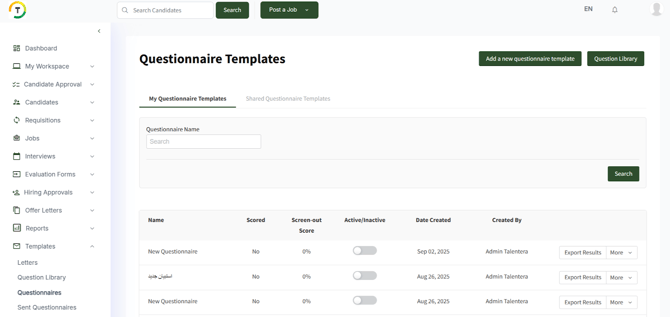
You can perform the below action on the questionnaire template:
- Activate
- Export Results
- Edit Questions
- Duplicate
- Delete
- Share/ Unshare
When adding a new questionnaire, you will have the option to add the questions you previously defined in the question library. You can do that simply by checking them to be added to the template you’re creating.
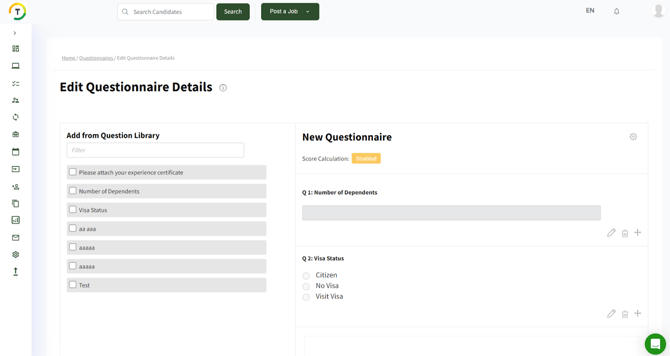
You can Add/ Edit and change the questions’ order.
Once done, click on ‘Save & Exit to Questionnaire Templates’.
If you wish to add another question, just click on “Add a new Question”. The order of the questions can be arranged by drag-and-drop to the appropriate position. Once you have added all the questions, click on Save & Exit to Questionnaire Templates. If you wish to go ahead and start using this questionnaire, just click on Activate.
You also have the option to score the questionnaire, wherein any candidate scoring less than the minimum required score will be automatically moved to the screened-out folder.

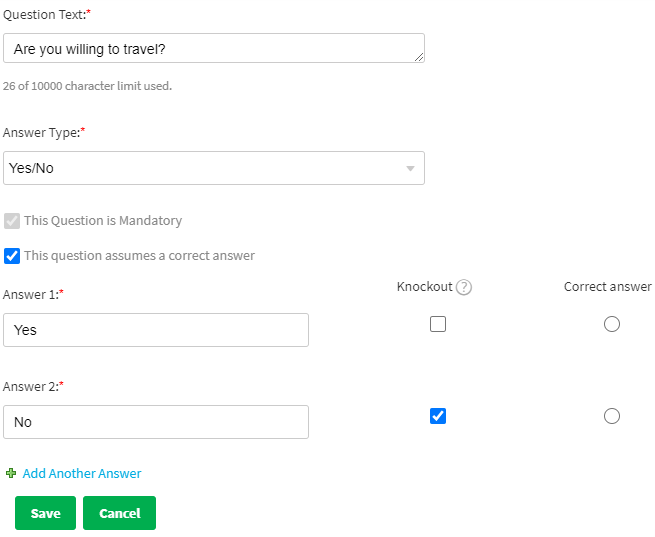
You also have the option to knock out the candidate based on a specific answer, where he/ she will be screened out regardless of the final score.