What is a Job Requisition?
A job requisition is a formal request used by managers to hire a new employee or refill a vacant position. It clearly outlines the business need, provides justification for the role, and specifies the budget required to fill it. Key details such as the job title, description, hiring manager’s name, and other essential information are included in the requisition.
This process plays a vital role in organizations, especially those with structured HR procedures. When a hiring need arises, the hiring manager completes a job requisition and submits it to the HR department. The HR team then reviews the request to ensure it aligns with company policies and workforce planning. After evaluation, the requisition is routed to the appropriate approvers. Once approved, recruiters can proceed to post the job and start the hiring process.
Requisitions Management
The Job Requisition Process
A job requisition is the very first step of the hiring process. Here’s how the process works:
- If a job vacancy needs to be filled, the hiring manager or the recruiter creates and completes a job requisition form before the hiring process starts.
- The hiring manager will need to send the job requisition to the HR department for review.
- The HR manager reviews the job requisition to ensure it aligns with the company policy, strategy and budget before it moves to the approval process.
- The HR manager sends the requisition to approvers. In this case, Talentera can be configured to automate the approval process as per the company’s policy.
- Once all parties approve the job requisition, it can then be posted on the career site for applicants to view and submit their applications.
Here’s the workflow described from each role’s perspective:
The Hiring Manager
As mentioned, the hiring manager is the one who initiates the recruitment process when they need an employee to fill an open position. They identify a hiring need, determine the job requirements, and write the job description.
Create Requisition
As a hiring manager, create a new job requisition by clicking on Create Requisition and filling in the below general information:
- Hiring Manager - Requester
- Within Budget
- Division
- HR Manager - List of users with Assign approvers function
- Requisition Title
- Job Description
- Job Role
- Job Location
- City
- Number of Vacancies - It controls closing the job after the requisition gets approved.
- Skills
- Employment Type
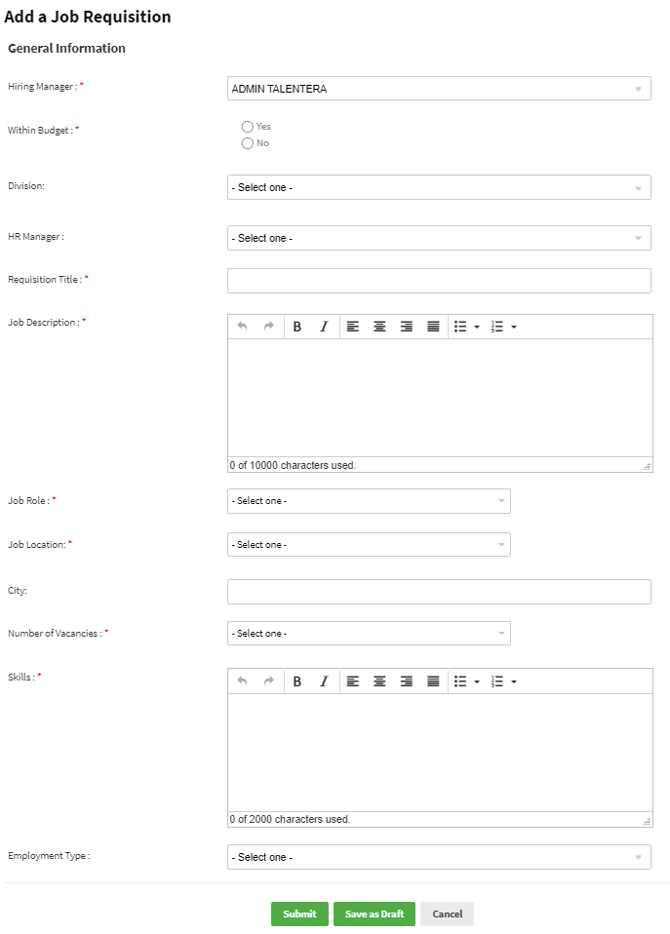
To proceed with the request, fill in all fields and click on the Submit button.

Save as Draft
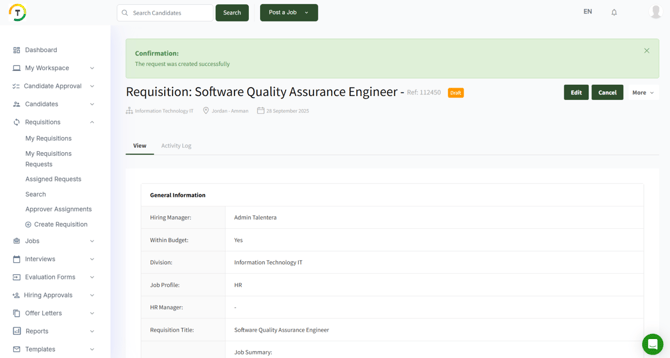
Save as draft action will redirect the hiring manager to the requisition’s view page with a confirmation message, and the status will change to Draft.
When the hiring manager is not the creator of the request, then they will receive the below message.

The HR Manager
The HR manager will review the requisition and ensure the job duties, requirements, and pay grade are consistent with the position as described. If necessary, the HR manager will recommend changes or ask for more information about the request.
As an HR manager, you will receive an email to review the job requisition details. (Requisition Pending Your Review).

The request now is pending HR’s action. The status of the request changes to Pending HR review, and the assigned HR manager’s name will be displayed upon mouse hover.

Manage Approvers
In order to proceed with the request after reviewing it, click on the Manage Approvers button.

Click on Add Step to add approvers for the request. You can add the approvers in sequence by selecting more than one user in the first step.

You can also add approvers in parallel by clicking on the Add Step link.

Adding steps is limited to ten; the below message will appear when trying to exceed this limit.

After saving the approvers list, the request will be assigned successfully, and the status will update to “Pending approval””. All approvers will be displayed upon mouse hover.

Claim Ownership
If the hiring manager didn’t specify the HR manager while creating the request, then the Claim Ownership button will be available for the HR team after submitting the request, and the status will be Pending HR review.

Any HR manager with the Assign Approvers function in their assigned role can claim ownership by clicking on the Claim Ownership button.
And a confirmation message will appear after the action is done. Also, the HR manager’s name will appear on the status upon mouse hover.

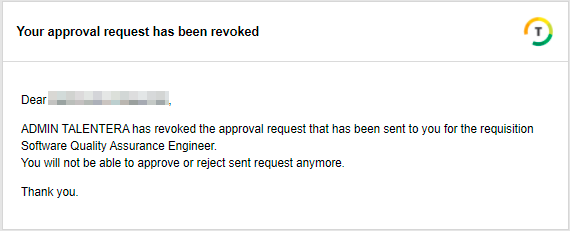
If the HR manager updated the list of approvers and removed any of them, the approver will be notified by email that the HR manager revoked their approval request.
Send Reminders
The HR manager can also send reminders to the approvers by clicking on the reminder icon on the Manage Approvers modal.

And the approver will receive a reminder email.
The Approvers
The approvers added in the first step will all receive an email to Approve, Reject or Request Clarification.
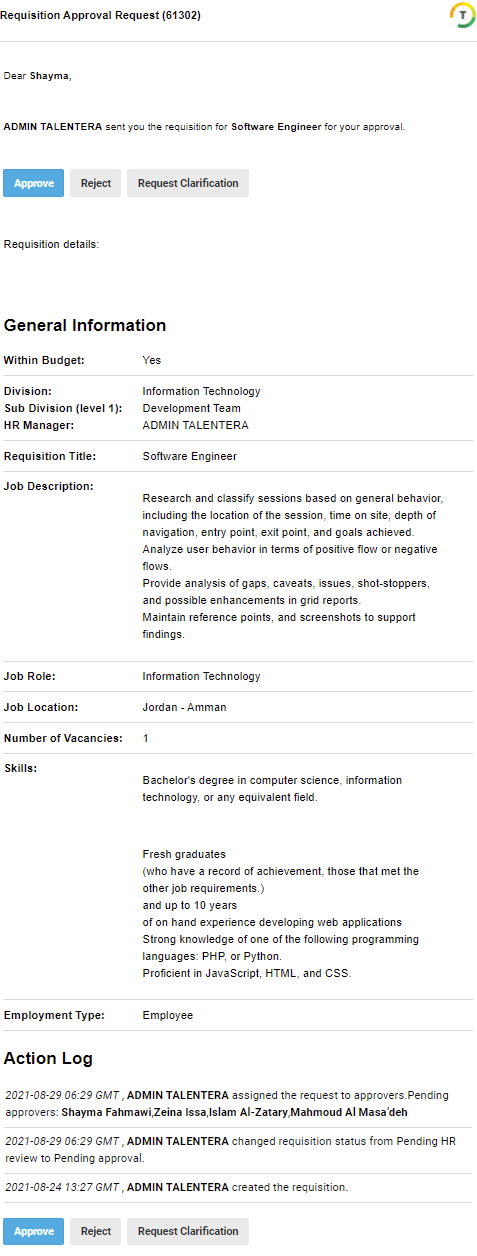

Request Clarification
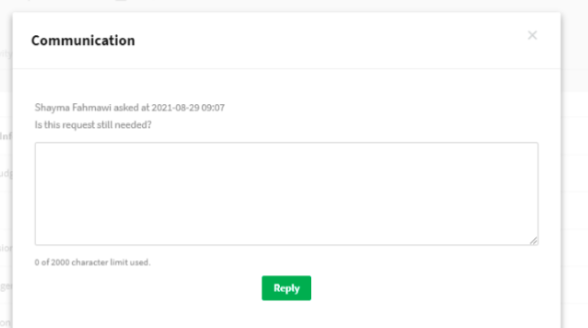
This action on the email received allows the approver to request more information regarding the request by filling and submitting it.


The request status will change to Pending approval - Info requested.

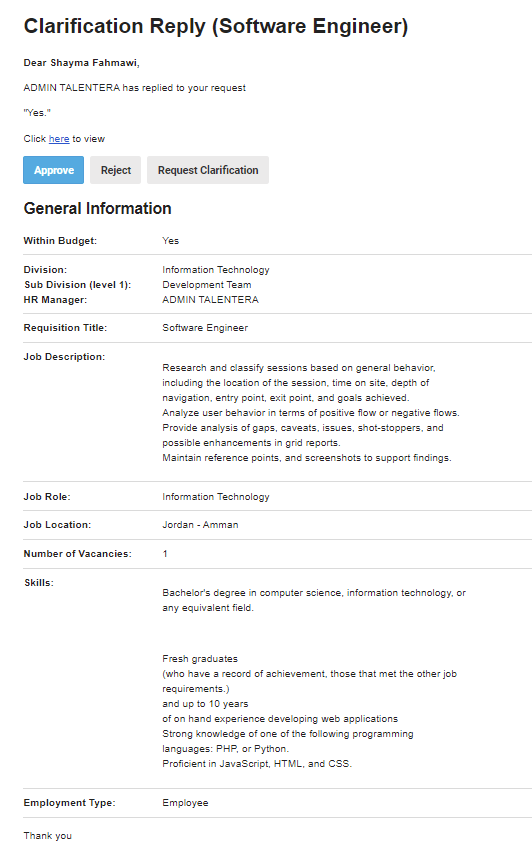
And an email will be sent to the user.

The user will be able to reply by clicking on the Reply for Clarification button, and the requester will receive the reply by email.

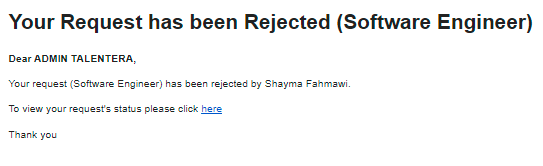
Reject
This action allows the user to reject the request by filling in the Reason for Rejection.
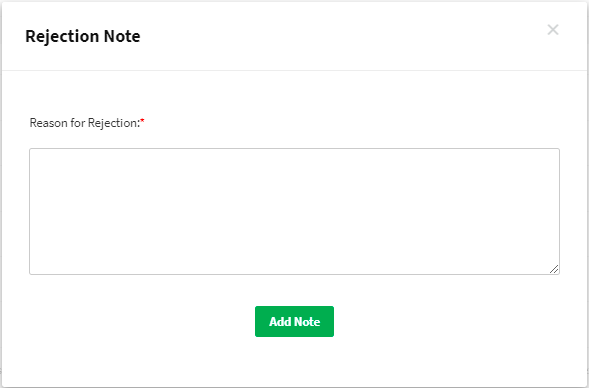
And the status on the request will be updated to Rejected.

The hiring manager and the creator will receive an email once the request is rejeced.
Approve
When a user approves the request, it will be pending for the next approver’s action. The status of the request will change when all users fully approve it.
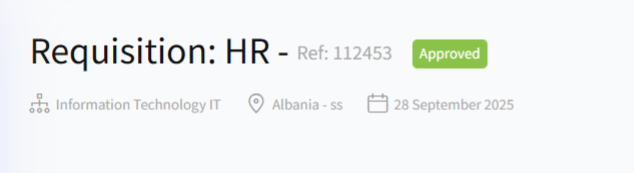
The hiring manager and the creator will receive an email once the request is approved.

Available action after the request is approved:
- Edit After Approve - Any user with Edit Approved Requisition function will be able to edit the request after approval. This will redirect the user to the Edit page, and only the HR manager field will be disabled.
- Edit Candidate Name - This is to fill in the candidate’s name who filled the position.

Other Available Actions
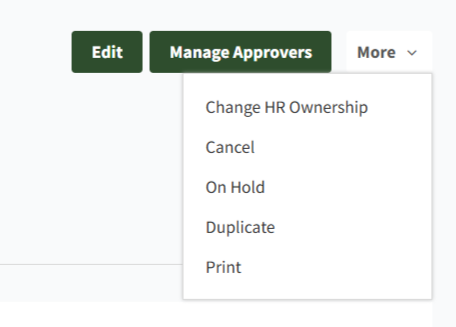
There are several actions available on the requisition request based on functions, including Edit, Change HR Ownership, Cancel, On Hold, and print.
Edit Requisition
This option redirects the user to the edit request page and it’s available to any user with the Edit Requisition function.

Change Ownership
The user will also be able to change the HR manager of the request by clicking on the Change Ownership button, and it’s available to any user with the Change Ownership function.
Select the new HR manager for the request and click on the Change button.
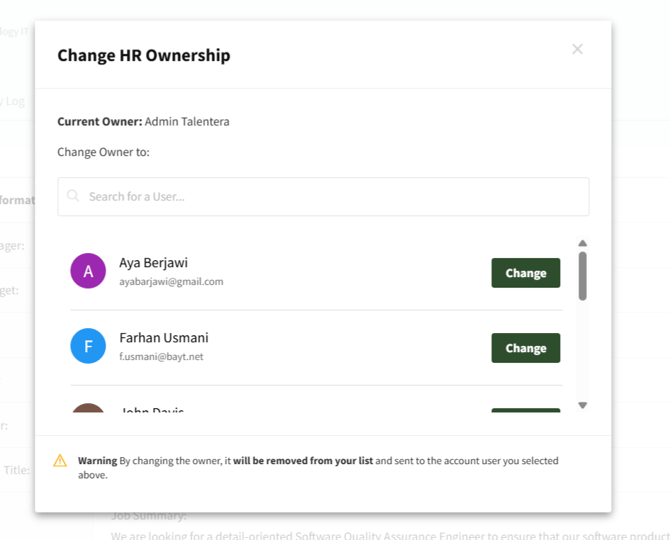
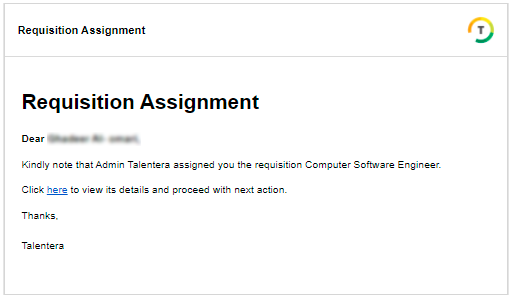
A notification email will be sent to the HR manager upon changing the ownership of the request.
Cancel
Canceling the request will require filling in a cancellation reason in order to proceed with the action, and it’s available to any user with the Cancel Requisition function.
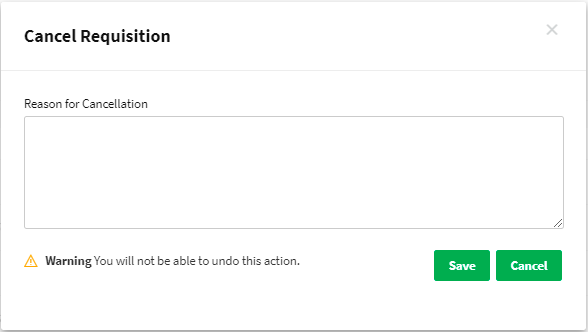
A confirmation message will appear, and the request’s status will be canceled.

Delete
This option is available for canceled requests.

On Hold
This action is available to any user with the On Hold Requisition function.
The user needs to fill in the reason then submit it.

An email will be sent to the hiring manager of the request.

Resume
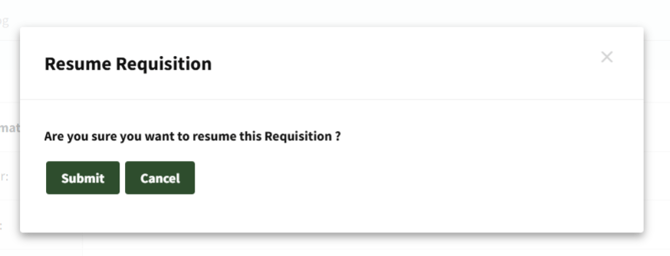
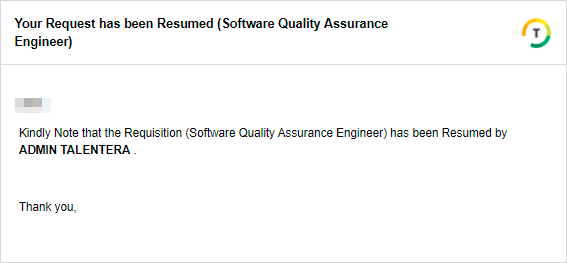
This is to proceed with the on-hold request, and once the action is taken, a notification email is sent to the hiring manager.
This allows the user to print the requisition request.

Activity Log
'History' and 'Private Messaging' tabs are listed under the activity log.
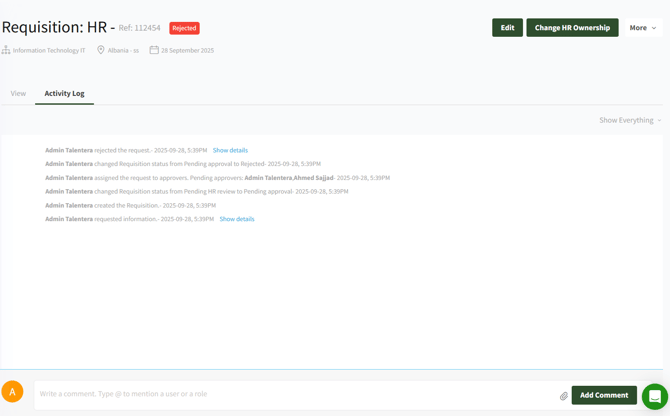
You can mention a specific user or a role by entering '@' followed by the user/role name.
Auto-suggested users and roles will be displayed as you type in the name. Individuals have circle avatar icons, and roles have square ones so you can distinguish between them.

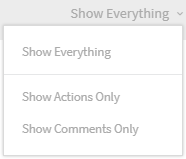
Filter the 'Actions' and 'Comments' or 'Show Everything' from the drop-down list.
My Requisitions
This page displays the requests that have been assigned to you as HR manager.
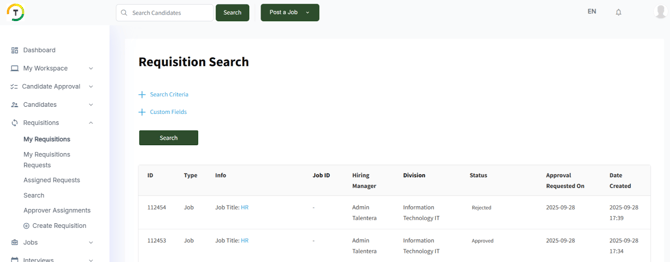
There are two main categories to filter the requisitions:
Search Criteria
The HR manager can search the results based on the below criteria:
- Requisition ID
- Hiring Manager
- Within Budget
- Requisition Division
- HR Manager
- Requisition Title
- Job Role
- Job Location
- Number of Vacancies
- Employment Type
- Requisition Status
- Used Form
- Requisitions Converted to Jobs
- Include On Hold
- Assigned to
- Include Cancelled
- Job Owner
- Pending Approver
- Requisition Approval Date
- Requisition Creation Date

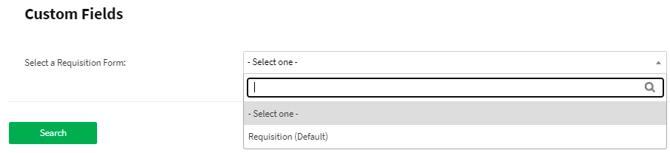
Custom Fields
This is to search the results based on any custom field added on any of the requisition forms.
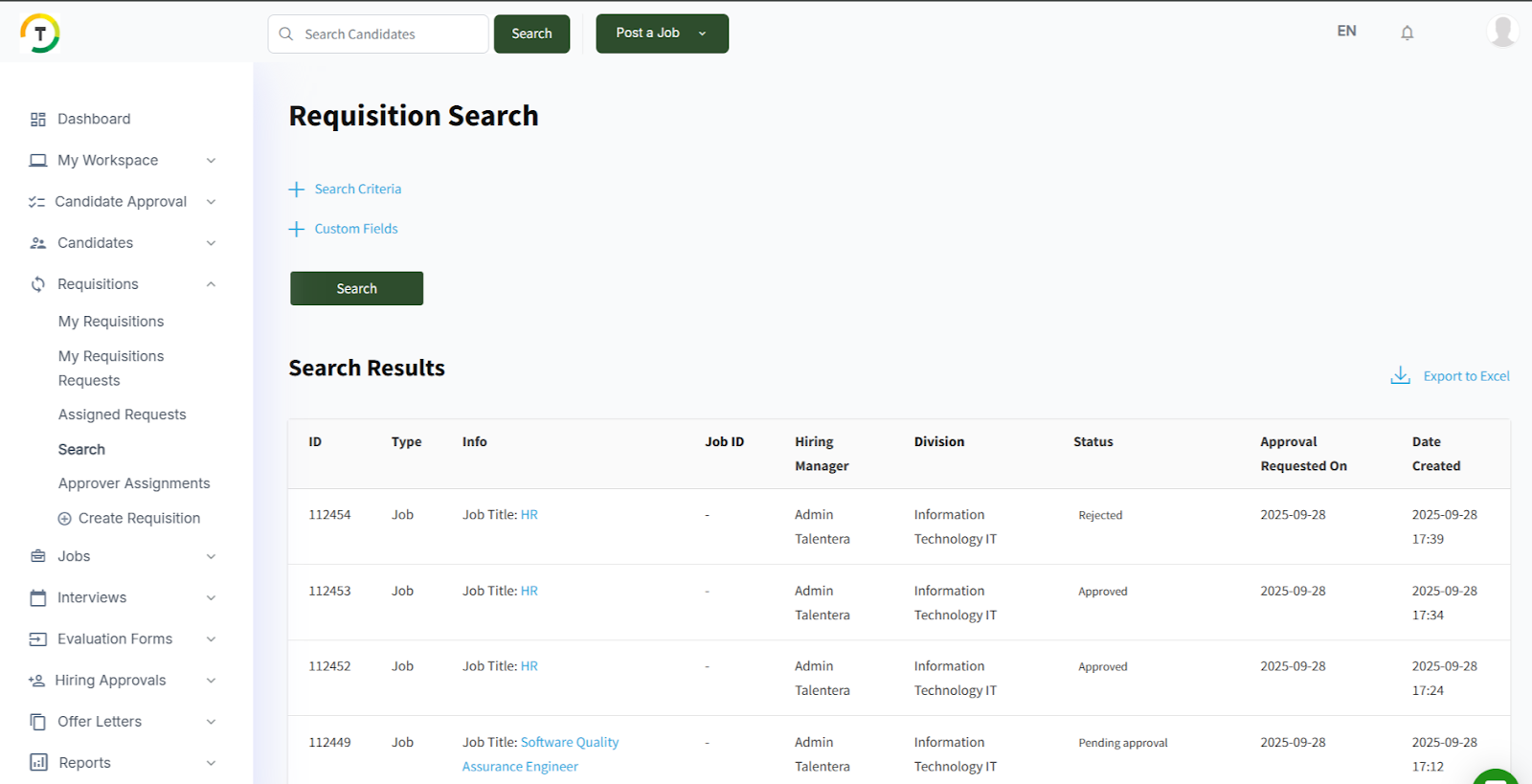
The results will appear as shown below.

My Requisitions Requests
This page displays the requests that have been created by the logged-in user.
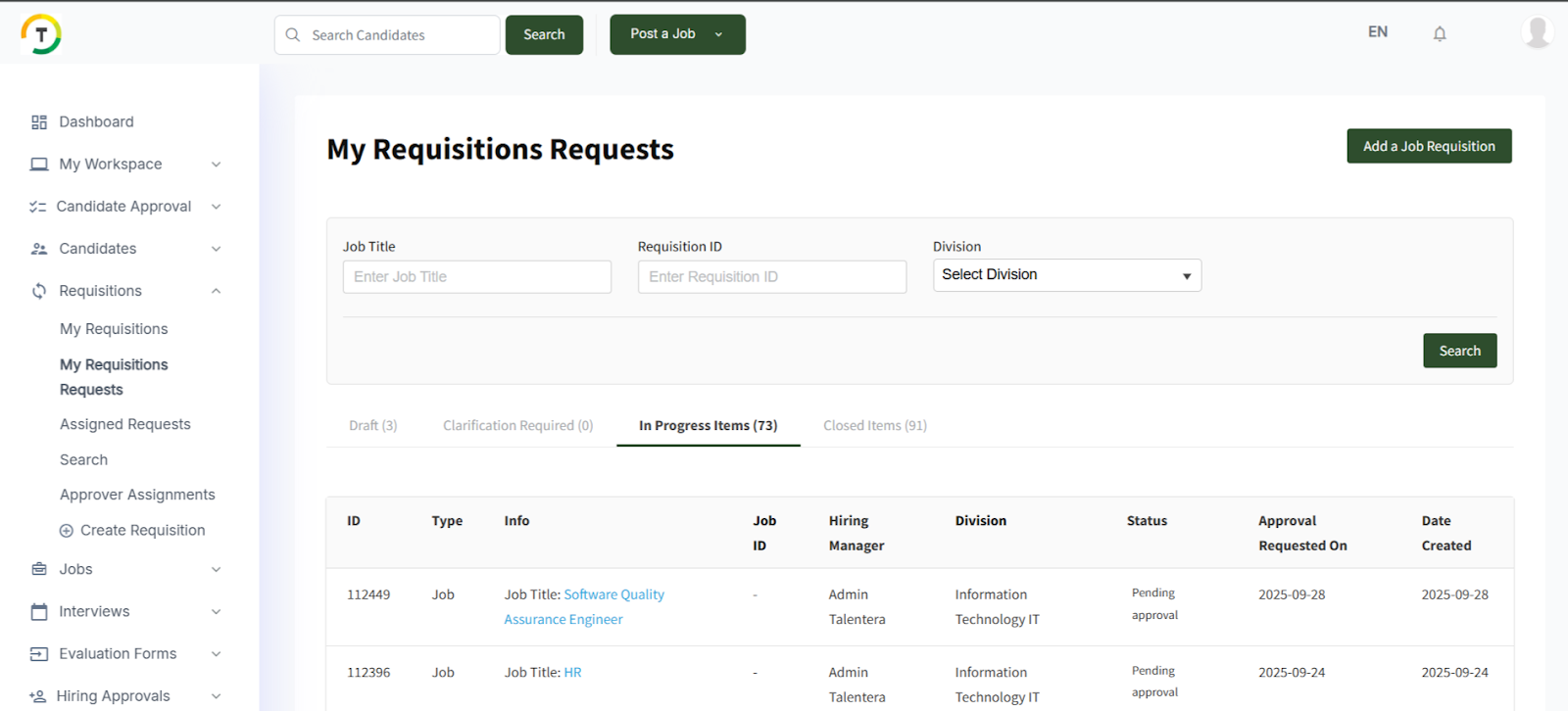
The requests are classified based on their statuses under the below tabs:
- Clarification Required
- In Progress Items
- Closed Items
- Draft
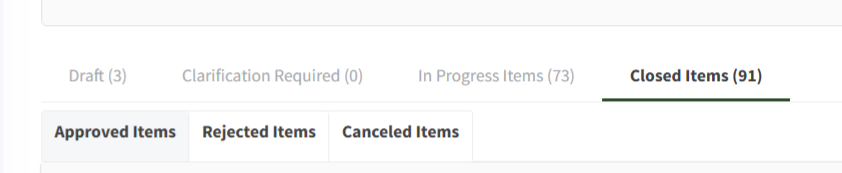
The Closed Items are further classified as per their statuses:
- Approved Items
- Rejected Items
- Canceled Items
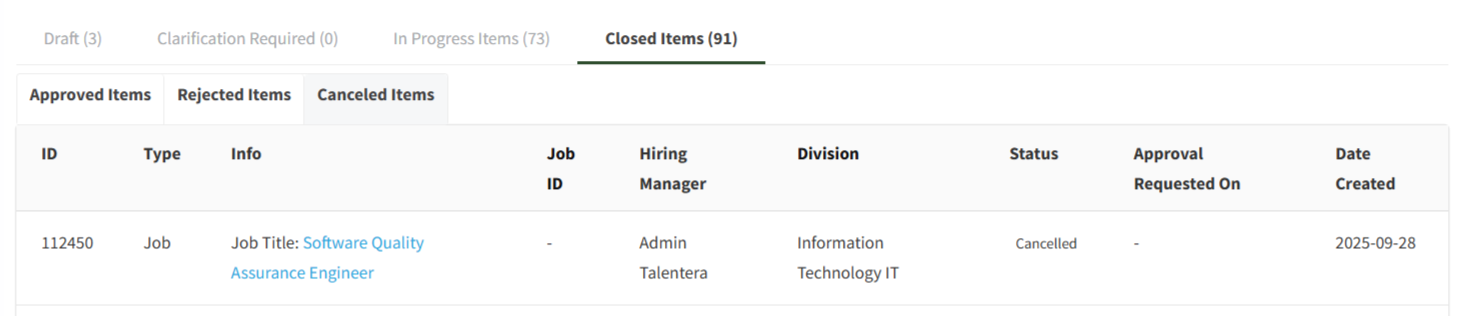
The requests can be filtered by job title, requisition ID, and division.

Custom Fields
This is to search the results based on any custom field added on any of the requisition forms.
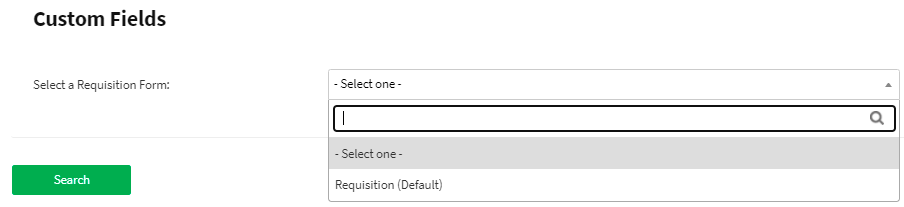
The results will appear as shown below.
Requisitions Assignments
Pending Approval Assignment
As an HR manager, you will be able to view the requests pending your review in this tab. As the requisition’s creator, you will be able to view the requests that have been created but not assigned to the HR manager yet.

Assigned by Me
This tab displays the requests that have been assigned to the approvers by the user who performed this action.
Canceled Items
This tab displays the canceled requisition requests.
Requisitions Settings
Requisition settings allow the HR team to take certain actions based on criteria that they specify.
Automation of Approvals
Set your automated rules for the approval process based on specific criteria.

Start adding new rules by clicking on the Add Automation Rule.

Add the rule name, then select the criteria based on which you want to execute the rule.

You can add more than one option by clicking on the Add Condition icon.
After that you need to set up the approval cycle. You need to set the action that will be executed when all conditions are met.

Preset Approvers List
Delegate the requisition to other users to give them the rights to review and determine what actions must be taken.
Click on Add Step to add approvers for the request. You can add the approvers in sequence by selecting more than one user in the first step.

You can also add approvers in parallel by clicking on the Add Step link.

So basically when the HR manager wants to manage the list of approvers, it will have the list defaulted as per the executed rule.

And all they have to do is save the approvers list in order to be assigned successfully to the selected users.
Assign Automatically
Delegate the requisition to other users to give them the rights to review and determine what actions must be taken.
Click on Add Step to add approvers for the request. You can add the approvers in sequence by selecting more than one user in the first step.
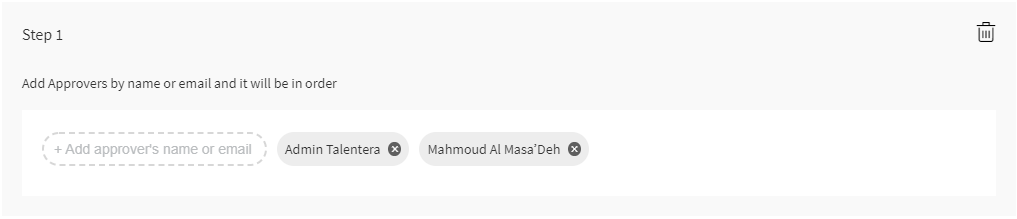
You can also add approvers in parallel by clicking on the Add Step link.

When setting up this option, the request will skip the HR review step and get assigned directly after the creation of the request to the list of approvers that have been specified.

Automatically Approved
This option will automatically approve the request right after it is created.
Preferences
HR Managers Assignment Settings
This settings area will allow you to set the HR managers to whom you would like to assign the requisition, where both of them must be set under the same division.
Note: you can assign divisions to HR managers any time from user management.

Link Requisition with Job Post
Enforce users to select a requisition to load job details while posting a job.

Cancellation Settings
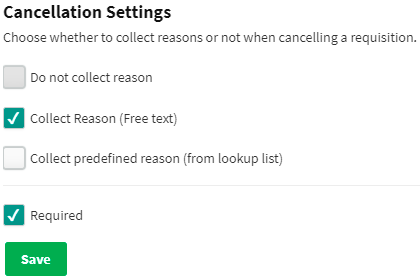
Choose whether to collect reasons or not when canceling a requisition.
- Do not collect reason
- Collect Reason (Free text)
- Collect predefined reason (from lookup list)