Dashboard capabilities
Gain an overview of your CV performance and Job Alerts. Manage your job applications, account settings, profile information, etc., through a single interface.
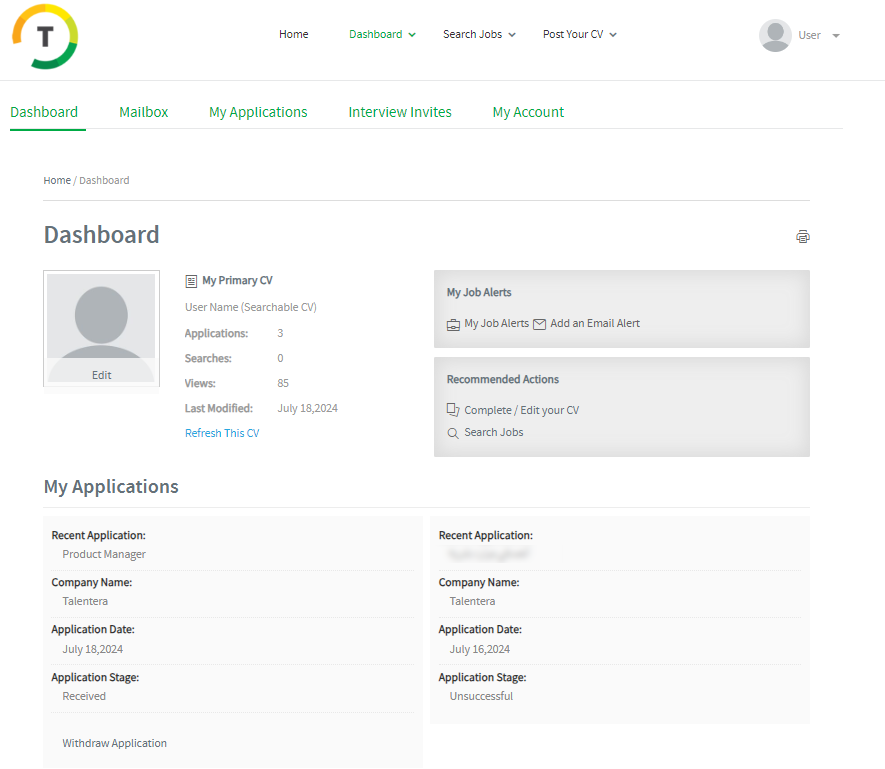
CV Information- Displaying summary statistics about your CV, such as number of times it came up in search results, number of times it was viewed, last modified on, etc.
CV Applications/Searches/Views- These fields refer to statistics that can help you gauge your CV’s performance.
- Applications- Refers to the number of jobs you have applied for since registering on the career portal.
- Searches- Displays the number of times your CV has appeared as a relevant match against a search query run by the employers.
- Views- Calculates the number of times your CV has been opened and read by the employers.
- Refresh this CV- This option keeps your CV updated to be easily found by the recruitment team, and the “Last Modified” date will be up to date.
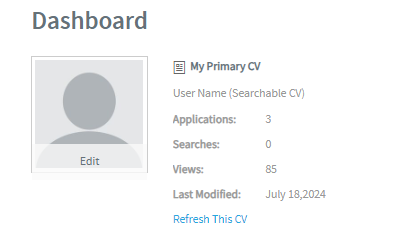
My Job Alerts- Displaying the saved job alerts and the option to add new ones.
Recommended Actions- Listing some recommendations for you to perform. For example, Complete / Edit your CV and Search Jobs.
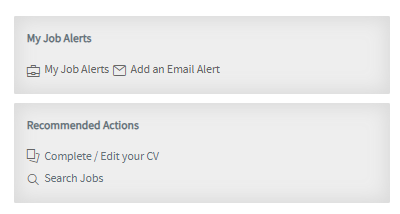
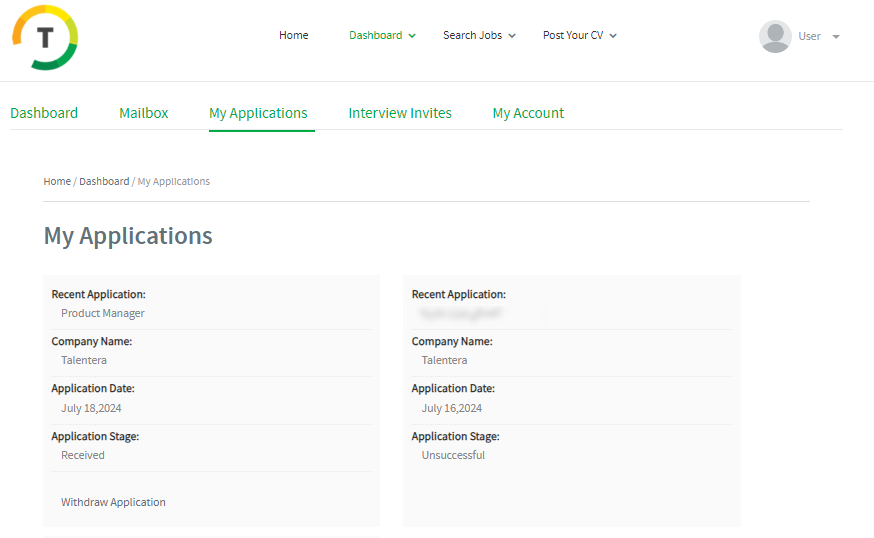
My Job Applications- Listing all your previous applications.
“Applied by the recruitment team” hint will be added next to applications performed by the employer. This means the employer added your profile to the job inbox.
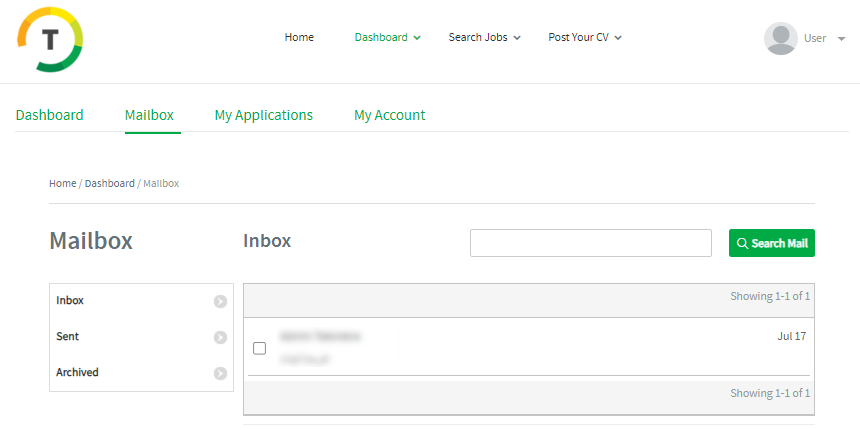
Mailbox- Displays the latest messages you received from the employer.
Pending Requests- Displays the various requests that have been sent to you by the employers. (e.g., Questionnaires, Document Requests, and Test Invitation)
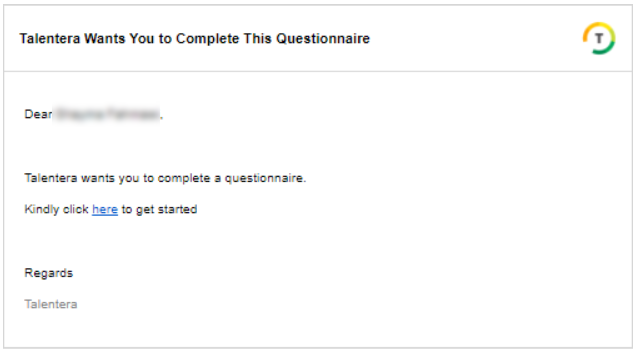
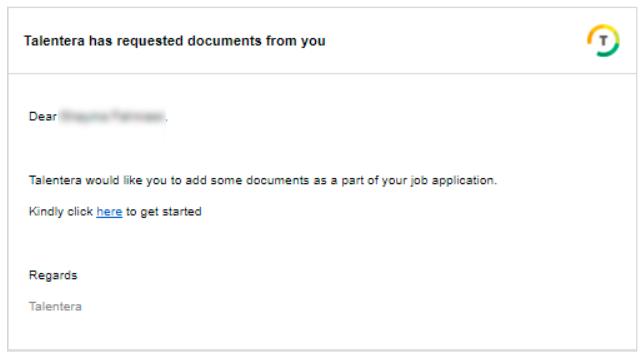
An email notification will be sent to you to fill in the document request and questionnaire.
Questionnaire’s email notification:
Document request’s email notification:
Click on Open Request on your dashboard to be able to fill and submit the pending request.
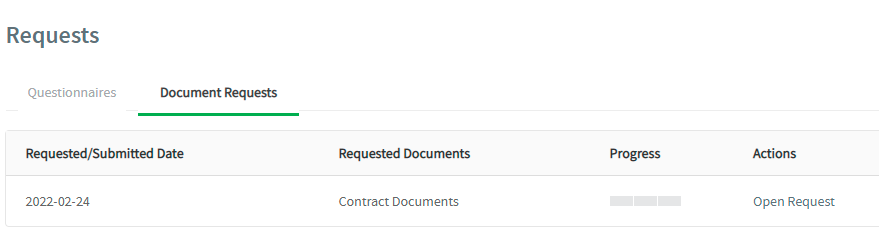
The document request will be loaded and ready to be saved or submitted.
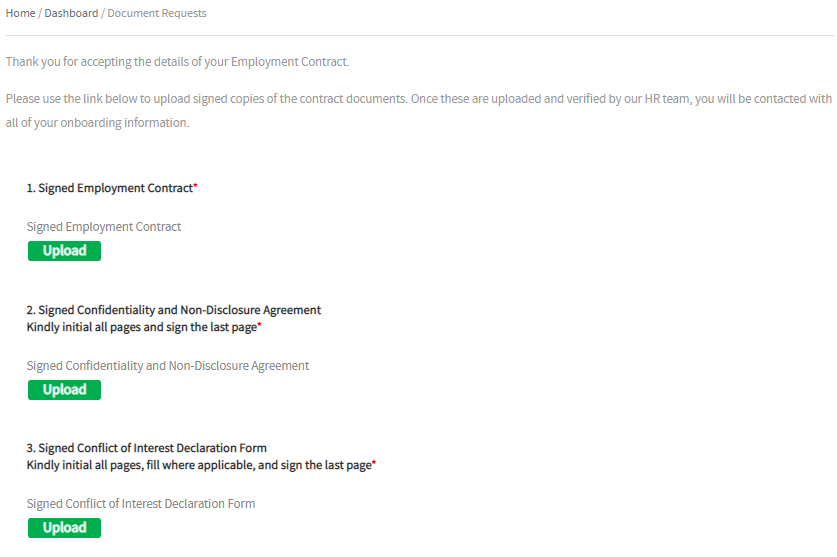
Clicking ‘Save’ will allow you to save this request as a draft for now and come back to complete it later on.
Clicking ‘Submit’ will save the form and send it to the recruiter. You will not be able to make changes afterward.
After you save, you will get the following message.

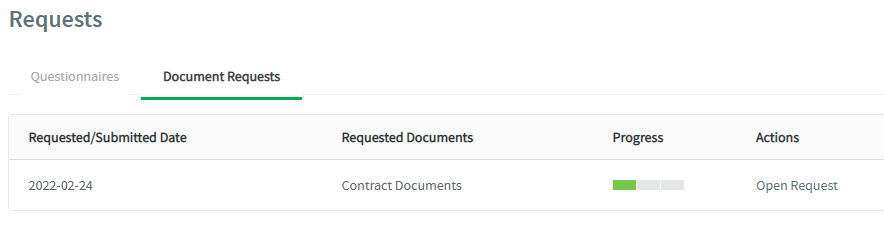
And the request’s progress will be updated on the dashboard.
Once the request is submitted, you won’t be able to open it again from the email, and the below message will appear stating the submission date:

Mailbox
Using this tab, you will be able to check all sent/received emails from employers regarding your application status and Interview invitations/Job offers.
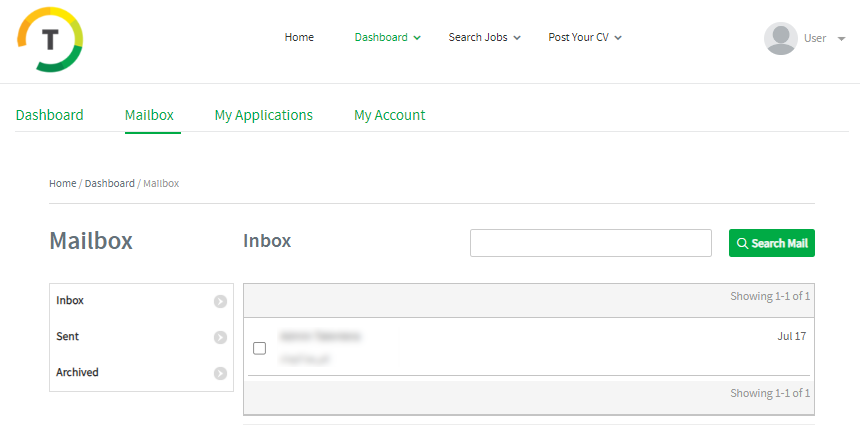
Once you open the received message, you can reply (if applicable) / archive or delete it.
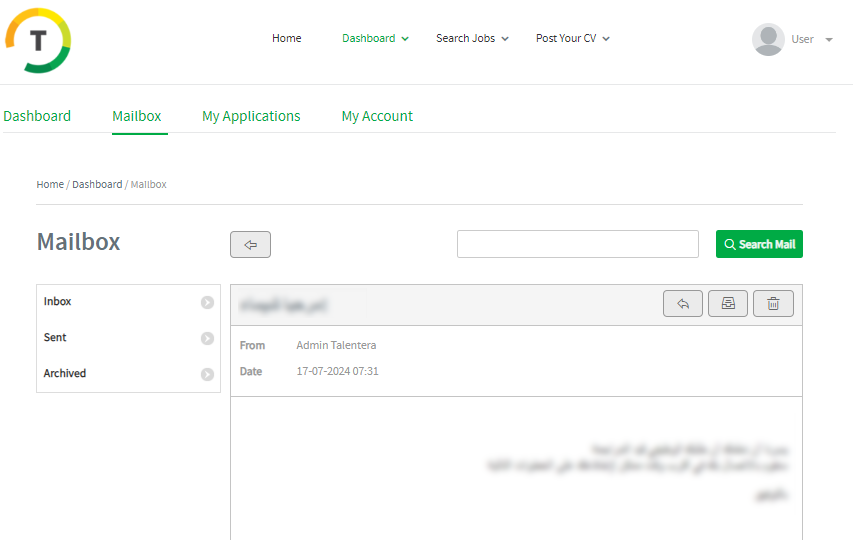
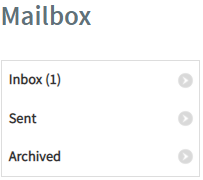
Mailbox tabs:
- Inbox
- Sent
- Archived
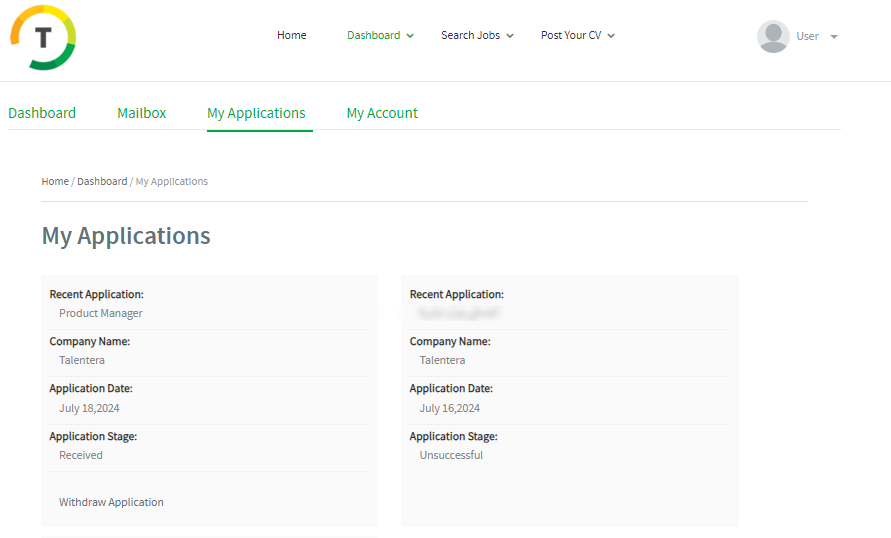
Viewing previous applications
Listing all your previous applications. Under this option, you can withdraw your application.
My Account
Under this option, you can update and change your account details.
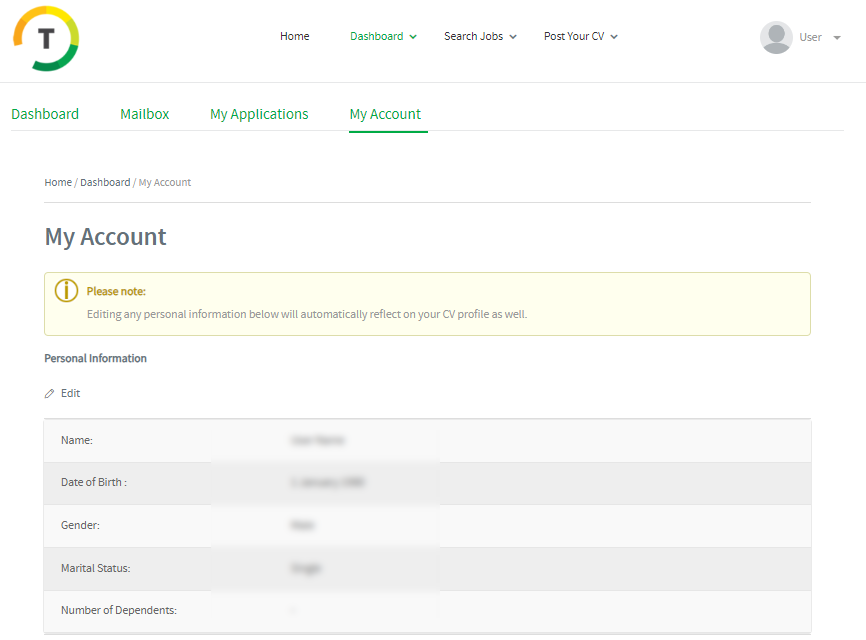
Editing any personal information below will automatically reflect on your CV profile as well.
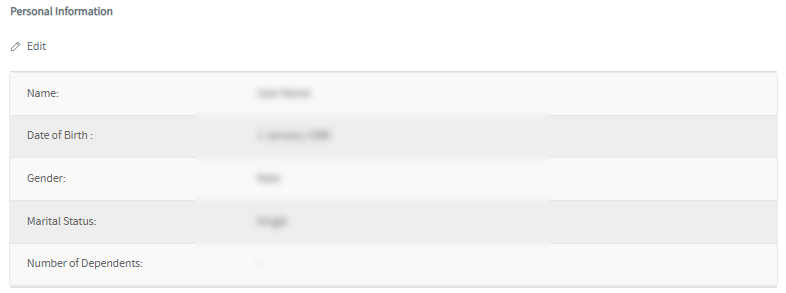
Personal Information
This section contains your personal information as below:
- First Name
- Family Name
- Nationality
- Date of Birth
- Gender
- Marital Status
- Number of Dependents
Contact Information
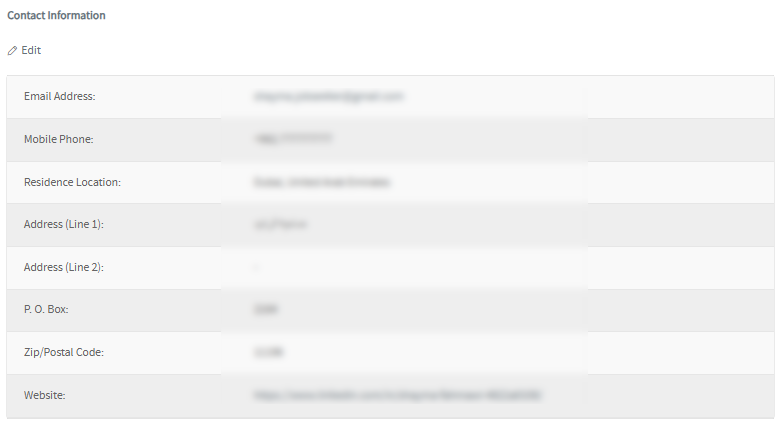
This section contains your contact information as below:
- Address (Line 1)
- Address (Line 2)
- P. O. Box
- Residence Location
- City
- Zip/Postal Code
- Email Address
- Mobile Phone
- Website
Password
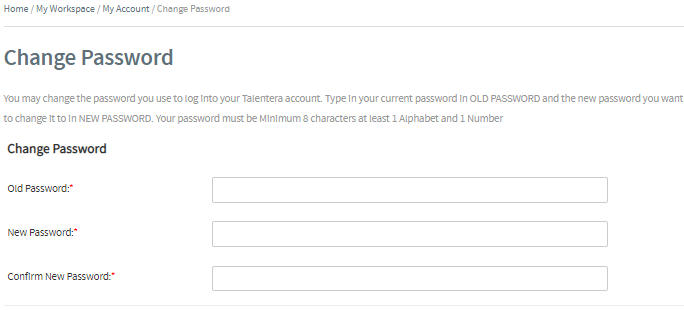
You may change the password you use to log into your Talentera account. Type in your current password in Old Password and the new password you want to change it to in New Password. Your password must be Minimum 8 characters with at least 1 Alphabet and 1 Number.
Email Notifications and Newsletter Subscriptions
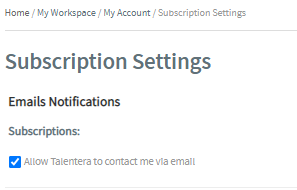
Talentera conveniently delivers free promotions and newsletters, including the Talentera Career News, right to your Inbox. You may change your email subscription settings by checking this option.
Privacy
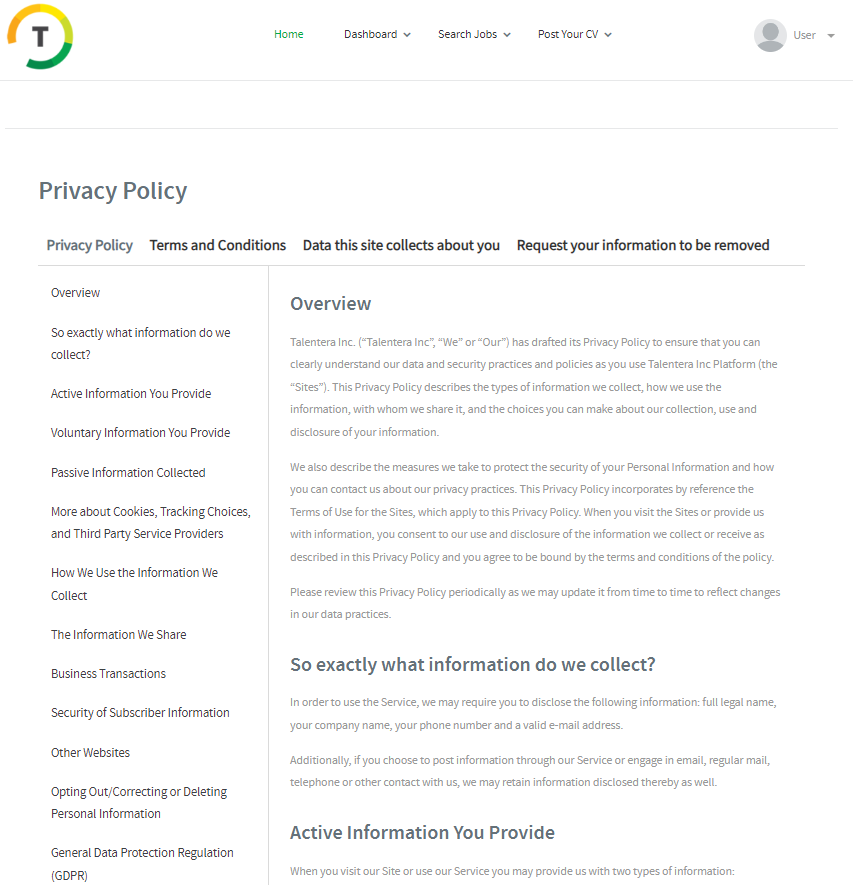
This Privacy Policy describes the types of information we collect, how we use the information, with whom we share it, and the choices you can make about our collection, use, and disclosure of your data.
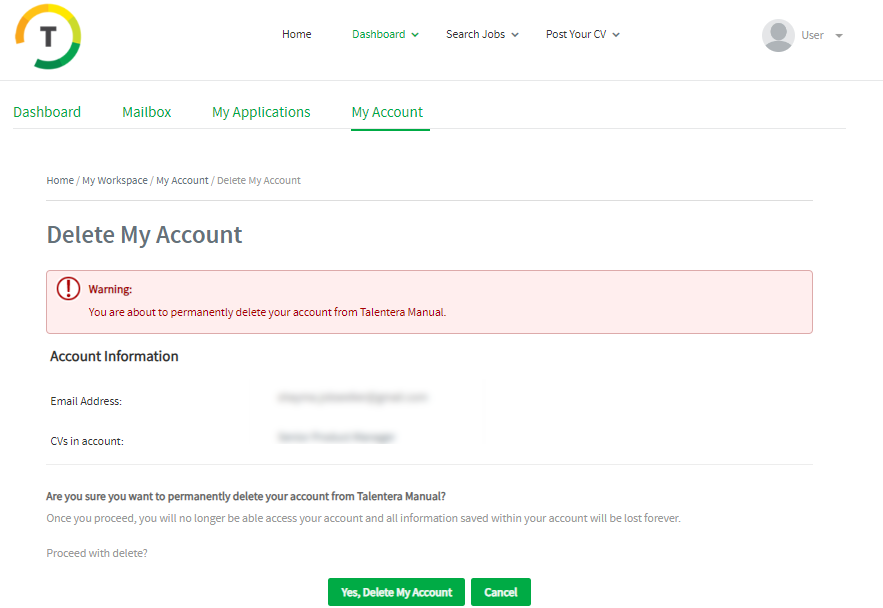
Delete My Account
Permanently remove your account from Talentera. Once you proceed, you will no longer be able to access your account and all information saved within your account will be lost forever.
The following success message will appear, and you will be able to register on the career portal using that email address again.
